Problems trying to recover MacBook Pro Mid 2018 with Touch Bar with Monterey recovery over internet or bootable USB drive

I was going to tease and reinstall my MacBook Pro Mid 2018 with Touch Bar (A1990 EMC3215) and deleted by mistake all partitions on the hard drive.


Trying over internet only:

  • When I try to recover (pressing option key while booting), internet recovery starts and displays "Starting recovery via internet, might take some time" (or something similar since it's displayed in Norwegian). It counts down minutes, sometime from 30 minutes sometimes from 7 minutes.
  • When time is up it displays: "support.apple.com/mac/startup -1008F" and then nothing more happens.
  • I have rebooted my wifi router and also tested other wifi's.


Trying using Ventura bootable USB

  • Created a bootable USB stick with Ventura OS (USB stick: Kingston DataTraveler Exodia 32GB using both a OEM USB adapter and also using the USB in a 27inch Apple display).
  • Starting the recovery process by pressing Option key.
  • The Install MacOS Ventura option is displayed alongside with Choose network option. I press the up arrow below the Ventura and are immediately prompted for the Choose network option again.
  • I select network and type in wifi pw and internet recovery starts again.
  • The the same thing happens as when only trying recovery over Wifi.


See screenshots (sorry some of the text is in Norwegian)


I have also tried to clear NVRAM and SMC and also draining the battery completely and waiting for 24 hours. I have tried recovery both with power cored in and running battery only.


Anyone have a way to solve this?


("Starting recovery over internet. This might take some time")


("Install MacOS Ventura" + "Choose network")

Posted on May 11, 2023 1:39 PM

Reply
Question marked as Top-ranking reply

Posted on May 15, 2023 2:22 PM

Looks like I've never successfully cleared the SMC. I followed the steps in this article (Reset the SMC of your Mac – Apple Support (UK)) and then tried Internet Recovery Once more: Success!!!


From the SMC support article:


  1. Shut down your Mac, if possible.
  2. Press and hold the power button for 10 seconds, then release the button.
  3. Every Mac has a power button. On laptop computers that have Touch ID, press and hold Touch ID.
  4. Wait a few seconds, then press the power button to turn on your Mac.


If the issue persists, reset the SMC:

  1. Shut down your Mac.
  2. On your built-in keyboard, press and hold all of the following keys. Your Mac may turn on.
    • Control  on the left-hand side of your keyboard
    • Option (Alt)  on the left-hand side of your keyboard
    • Shift  on the right-hand side of your keyboard
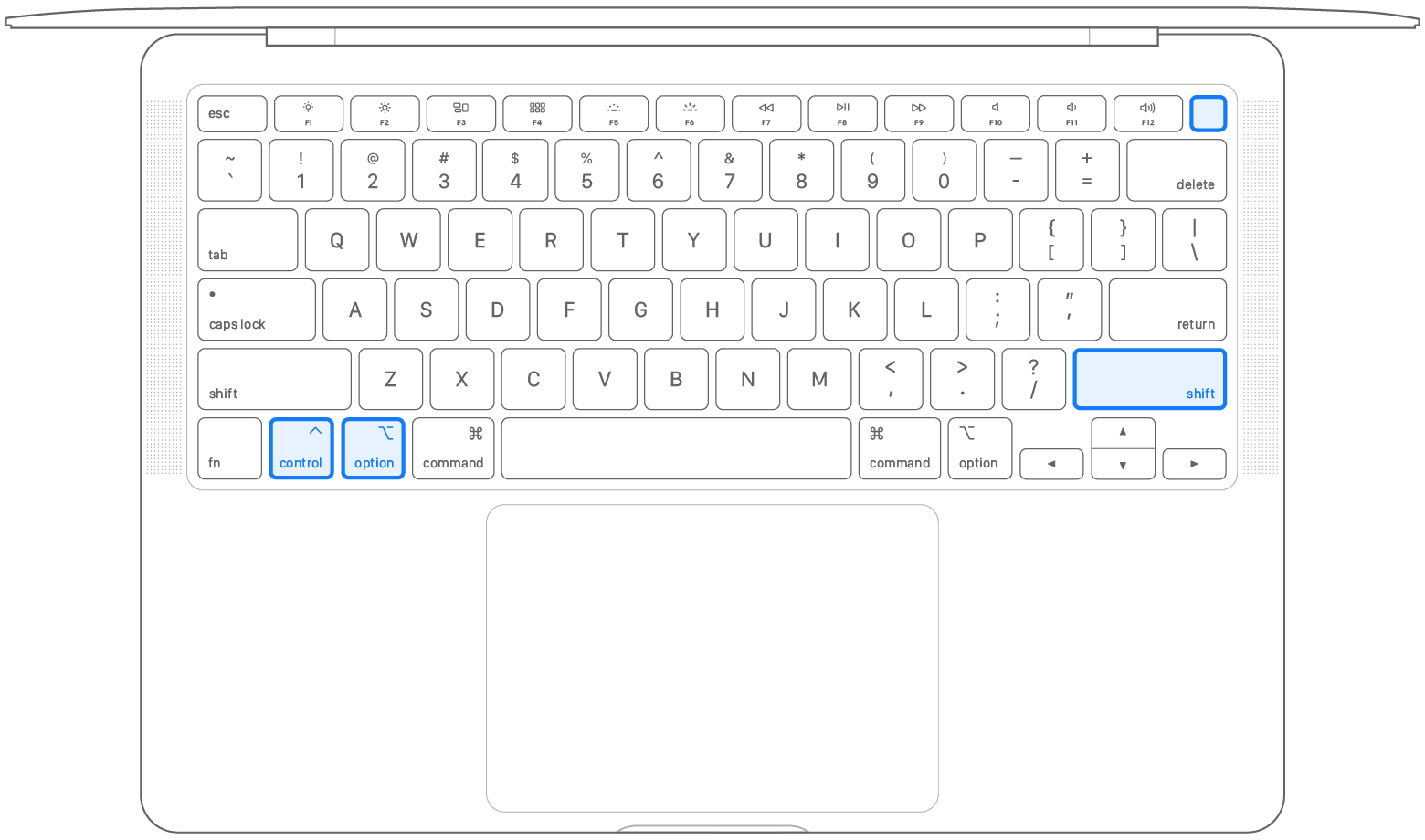

  1. Keep holding all three keys for 7 seconds, then press and hold the power button as well. If your Mac is turned on, it will turn off while you're holding these keys.


  1. Keep holding all four keys for another 7 seconds, then release them.
  2. Wait a few seconds, then press the power button to turn on your Mac.


Similar questions

4 replies
Question marked as Top-ranking reply

May 15, 2023 2:22 PM in response to Grant Bennet-Alder

Looks like I've never successfully cleared the SMC. I followed the steps in this article (Reset the SMC of your Mac – Apple Support (UK)) and then tried Internet Recovery Once more: Success!!!


From the SMC support article:


  1. Shut down your Mac, if possible.
  2. Press and hold the power button for 10 seconds, then release the button.
  3. Every Mac has a power button. On laptop computers that have Touch ID, press and hold Touch ID.
  4. Wait a few seconds, then press the power button to turn on your Mac.


If the issue persists, reset the SMC:

  1. Shut down your Mac.
  2. On your built-in keyboard, press and hold all of the following keys. Your Mac may turn on.
    • Control  on the left-hand side of your keyboard
    • Option (Alt)  on the left-hand side of your keyboard
    • Shift  on the right-hand side of your keyboard
  1. Keep holding all three keys for 7 seconds, then press and hold the power button as well. If your Mac is turned on, it will turn off while you're holding these keys.


  1. Keep holding all four keys for another 7 seconds, then release them.
  2. Wait a few seconds, then press the power button to turn on your Mac.


May 12, 2023 5:52 PM in response to jstokka

See this Apple article regarding the "-1008F" error:

If your Mac starts up to error -1008F - Apple Support


As for your bootable macOS USB installer, if you never modified the laptop's security settings to allow booting from USB, then you will first need to boot into Recovery Mode (Command + R) or Internet Recovery Mode (Command + Option + R) so you can access the Startup Security Utility to allow booting from an external drive.


Edit: Forgot the link for the Apple article with instructions for the Startup Security Utility:

About Startup Security Utility on a Mac with the Apple T2 Security Chip - Apple Support


May 15, 2023 1:50 PM in response to jstokka

The OLDEST macOS your Mac can ever run is 10.13.6 High Sierra. it has NO HOPE of booting that Mac from a 10.6 DVD, EVER.


Internet Recovery,accessible thigh command-shift-R is in the computer's ROM. it does not rely on anything one the drive.


HOWEVER, os a Mac with T2 chip like yours, certain vital information IS stored on the drive, and if you actually succeeded in erasing the drive completely, you may need to revive or restore your Mac:


Revive or restore an Intel-based Mac using Apple Configurator - Apple Support


,


May 15, 2023 1:36 PM in response to HWTech

Thanks HWTech but I am afraid this did not do the trick. Whatever key combination I try it always ends up in Internet Recovery Mode and after count down time it displayed the -1008F message.


Even tried to restore from an old Mac OS X Snow Leopard DVD but after displaying the Install OS from DVD it immediately prompts for select wifi network and password and goes on with the same old Internet Recovery.


Looks like the Recovery Mode has been totally erased with my first action since it never starts.


With the Snow Leopard DVD inserted I tried to press different keys: C, D, Option, Comand-Option-R but no change. Machine keeps going into Internet Recovery Mode.


This thread has been closed by the system or the community team. You may vote for any posts you find helpful, or search the Community for additional answers.

Problems trying to recover MacBook Pro Mid 2018 with Touch Bar with Monterey recovery over internet or bootable USB drive

Welcome to Apple Support Community
A forum where Apple customers help each other with their products. Get started with your Apple Account.