Hello joerg242,
If you need to change the login password for your Mac using your Apple ID, please check out this link, which will help guide you through that process: If you forgot your Mac login password
Option 2: Reset using your Apple ID
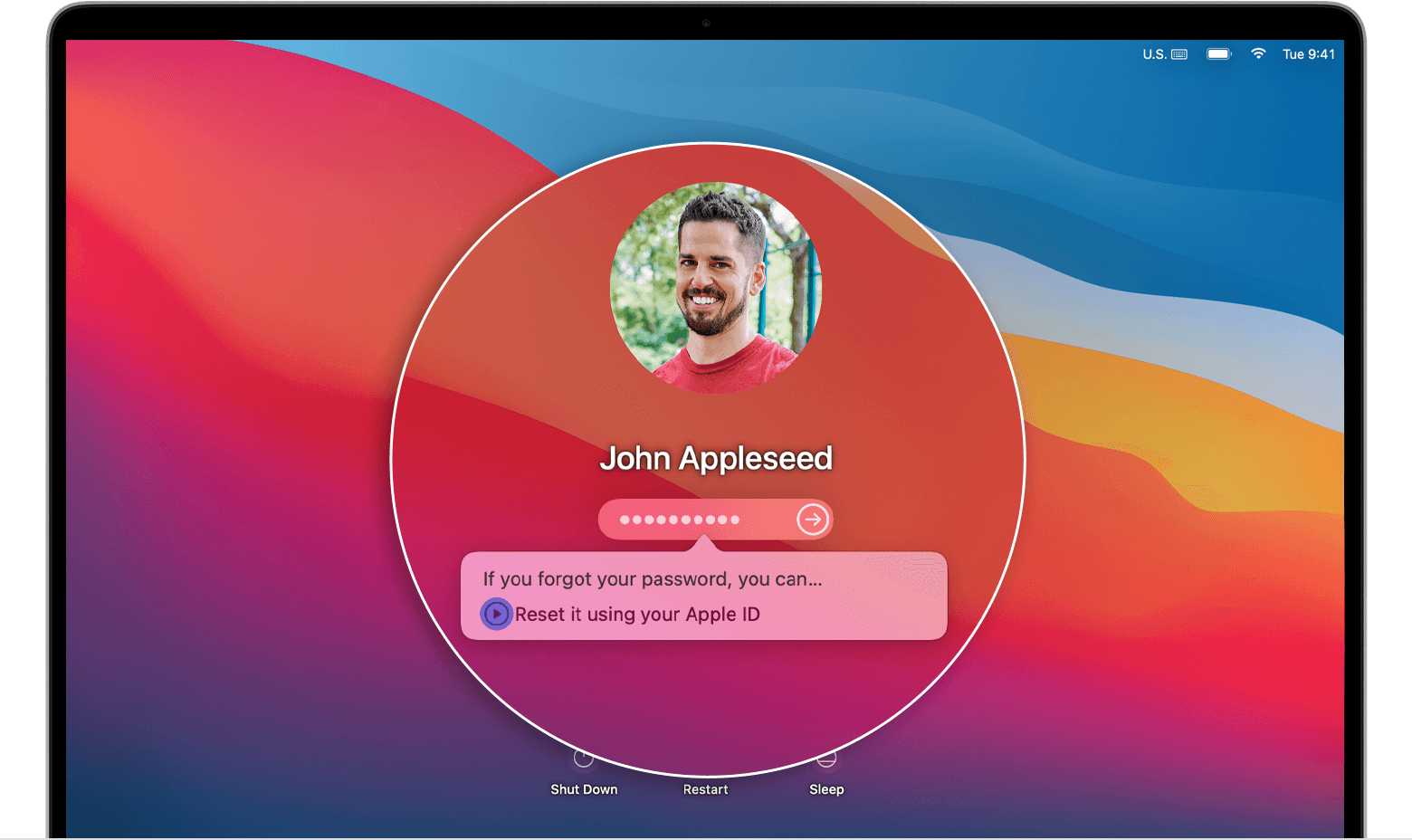
1. If you see the option to reset using your Apple ID, click it.
* If your Mac restarts, follow the steps for option 1, above.
* If your Mac doesn't restart, but immediately asks for your Apple ID, enter that information and click Reset Password.
2. If you're asked to create a new keychain to store the user's passwords, click OK to restart your Mac.
3. If you're asked to select an admin user you know the password for, click “Forgot all passwords?”.
4. If you see a Reset Password window with the option to Deactivate Mac, click Deactivate Mac, then click Deactivate to confirm. This is temporary.
5. Enter your new password information, then click Next.
If this window shows multiple user accounts, click the Set Password button next to each account name, then enter the new password information for each account.
6. When the password reset is completed, click Restart.
If you need to change the password for your Apple ID/iCloud account itself, please check out this link, which outlines that process and should help: If you forgot your Apple ID password
Thanks!


