Multiple unremovable Contact Lists named "iPhone"

I have multiple Contact Lists named "iPhone" that cannot be removed by clicking "Edit". This is the same issue discussed here: Multiple “iPhone” Contact Lists - Apple Community, but I am asking again since that thread is locked due to inactivity.


This list is not visible anywhere online and is locally stored on my iPhone. I have tried enabling and disabling contacts from iCloud and the other suggestions in the above thread.


Apart from wiping my device, is there any way to fix this?


Thank you!


iPhone SE, iOS 16

Posted on May 12, 2023 4:55 AM

Reply
Question marked as Top-ranking reply

Posted on May 15, 2023 10:48 AM

Hi __evan__,


Thank you for using the Apple Support Communities! Have you previously synced your device with a computer? If so, the synced contact list would be labeled "iPhone" by default. If unsure, you can try the steps below to sync to the computer again and deselect "Sync contacts onto [device name].":


Sync contacts and calendars onto your Mac and iPhone, iPad, or iPod touch


1. Connect your device to your Mac.
2. You can connect your device using a USB or USB-C cable or using a Wi-Fi connection. See Sync content between your Mac and iPhone, iPad, or iPod touch over Wi-Fi.
3. In the Finder  on your Mac, select the device in the Finder sidebar.

4. A device selected in the Finder sidebar.
5. If you connect your device to your Mac using a USB cable and don’t see the device in the Finder sidebar, see If your device doesn’t appear in the sidebar
6. Click Info in the button bar.
7. The button bar showing Info selected.
8. Do any of the following:
9. The Info syncing options showing the “Sync contact onto device” and “Sync calendars onto device” checkboxes selected and options for selecting groups of contacts and a selection of calendars.
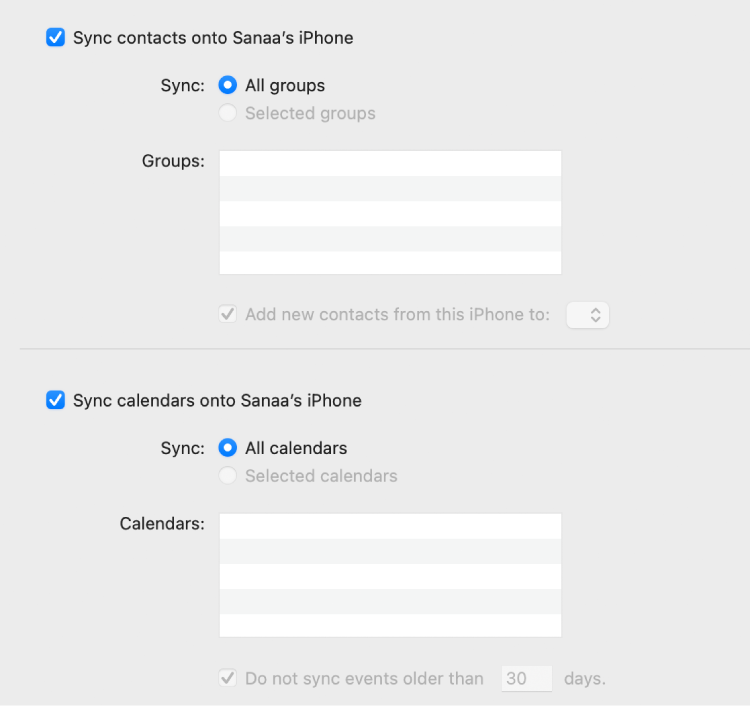
* Sync contacts to your device: Select the “Sync contacts onto [device name]” checkbox, then click “All groups” or “Selected groups.” If you clicked “Selected groups,” select the checkboxes of the groups you want to sync in the Groups list. To add new contacts to a specific group, select the “Add new contacts from this [device] to” checkbox and choose a group from the pop-up menu. 
* Sync calendars to your device: Select the “Sync calendars onto [device name]” checkbox, then click “All calendars” or “Selected calendars.” If you clicked “Selected calendars,” select the checkboxes of the calendars you want to sync in the Calendars list. To prevent calendar events older than a specific number of days from syncing, select the “Do not sync events older than [number] days” checkbox and enter a number of days. 
* Replace the contact or calendar information on your device: Select “Replace Contacts” or “Replace Calendars” to have that information on your device replaced with the information on your Mac.
13. When you’re ready to sync, click Apply.
You can choose to sync your Mac and your device automatically whenever you connect them. See Turn automatic syncing on or off on Mac.
Before disconnecting your device from your Mac, click the Eject button  in the Finder sidebar.


Hope this helps!

Have a great day.


5 replies
Question marked as Top-ranking reply

May 15, 2023 10:48 AM in response to __evan__

Hi __evan__,


Thank you for using the Apple Support Communities! Have you previously synced your device with a computer? If so, the synced contact list would be labeled "iPhone" by default. If unsure, you can try the steps below to sync to the computer again and deselect "Sync contacts onto [device name].":


Sync contacts and calendars onto your Mac and iPhone, iPad, or iPod touch


1. Connect your device to your Mac.
2. You can connect your device using a USB or USB-C cable or using a Wi-Fi connection. See Sync content between your Mac and iPhone, iPad, or iPod touch over Wi-Fi.
3. In the Finder  on your Mac, select the device in the Finder sidebar.
4. A device selected in the Finder sidebar.
5. If you connect your device to your Mac using a USB cable and don’t see the device in the Finder sidebar, see If your device doesn’t appear in the sidebar
6. Click Info in the button bar.
7. The button bar showing Info selected.
8. Do any of the following:
9. The Info syncing options showing the “Sync contact onto device” and “Sync calendars onto device” checkboxes selected and options for selecting groups of contacts and a selection of calendars.
* Sync contacts to your device: Select the “Sync contacts onto [device name]” checkbox, then click “All groups” or “Selected groups.” If you clicked “Selected groups,” select the checkboxes of the groups you want to sync in the Groups list. To add new contacts to a specific group, select the “Add new contacts from this [device] to” checkbox and choose a group from the pop-up menu. 
* Sync calendars to your device: Select the “Sync calendars onto [device name]” checkbox, then click “All calendars” or “Selected calendars.” If you clicked “Selected calendars,” select the checkboxes of the calendars you want to sync in the Calendars list. To prevent calendar events older than a specific number of days from syncing, select the “Do not sync events older than [number] days” checkbox and enter a number of days. 
* Replace the contact or calendar information on your device: Select “Replace Contacts” or “Replace Calendars” to have that information on your device replaced with the information on your Mac.
13. When you’re ready to sync, click Apply.
You can choose to sync your Mac and your device automatically whenever you connect them. See Turn automatic syncing on or off on Mac.
Before disconnecting your device from your Mac, click the Eject button  in the Finder sidebar.


Hope this helps!

Have a great day.


May 16, 2023 7:29 AM in response to __evan__

Hi __evan__,


Thanks for the followup and for trying those steps.


Next, check to see if there are any configuration profiles on your iPhone that may be adding a contact list. If there are any profiles you don't recognize, you can use the steps in the following article to remove them: How to delete an app that has a configuration profile on your iPhone, iPad, or iPod touch - Apple Support


If that doesn't help, we suggest you contact Apple Support so that they can look into this with you further. They can be reached here: Get Support


Take care!

May 16, 2023 1:22 AM in response to Lissy_12

Hello Lissy_12,


Thank you for the suggestion! I really appreciate you taking the time to answer.


I have never synced my device with a computer. However, I followed the steps you outlined.


I normally sync my contacts through iCloud. In order to sync with the computer, I had to first turn off iCloud sync for contacts. After that, I followed your steps. The contacts on my computer appeared in the last list named "iPhone". The other two lists named "iPhone" remained.


I also tried "Replace Contacts". Still, all three lists named "iPhone" remained on my phone.


Unfortunately, syncing the contacts on my Mac with my iPhone did not affect the two extra contact lists named "iPhone" that I am trying to delete.


This thread has been closed by the system or the community team. You may vote for any posts you find helpful, or search the Community for additional answers.

Multiple unremovable Contact Lists named "iPhone"

Welcome to Apple Support Community
A forum where Apple customers help each other with their products. Get started with your Apple Account.
