My iPhone is not working, the screen is black
My Apple phone is not responding the screen is black.; I can’t even turn it on.
iPhone 13, iOS 16
My Apple phone is not responding the screen is black.; I can’t even turn it on.
iPhone 13, iOS 16
Hello VaKemp,
You came from this resource: If your iOS or iPadOS device restarts or displays the Apple logo or a spinning gear unexpectedly
If you're experiencing one of these issues, then you'd need to take the steps above to resolve it.
Otherwise, if the iPhone isn't responding or turning on, then you'd want to use these steps instead to solve it: If your iPhone won't turn on or is frozen
If your iPhone won't turn on or is frozen
If your iPhone has a frozen screen, doesn't respond when you touch it, or becomes stuck when you turn it on, learn what to do.
* iPhone screen is black or frozen
* iPhone is stuck on the Apple logo
If your screen is black or frozen
Follow the steps for your device.
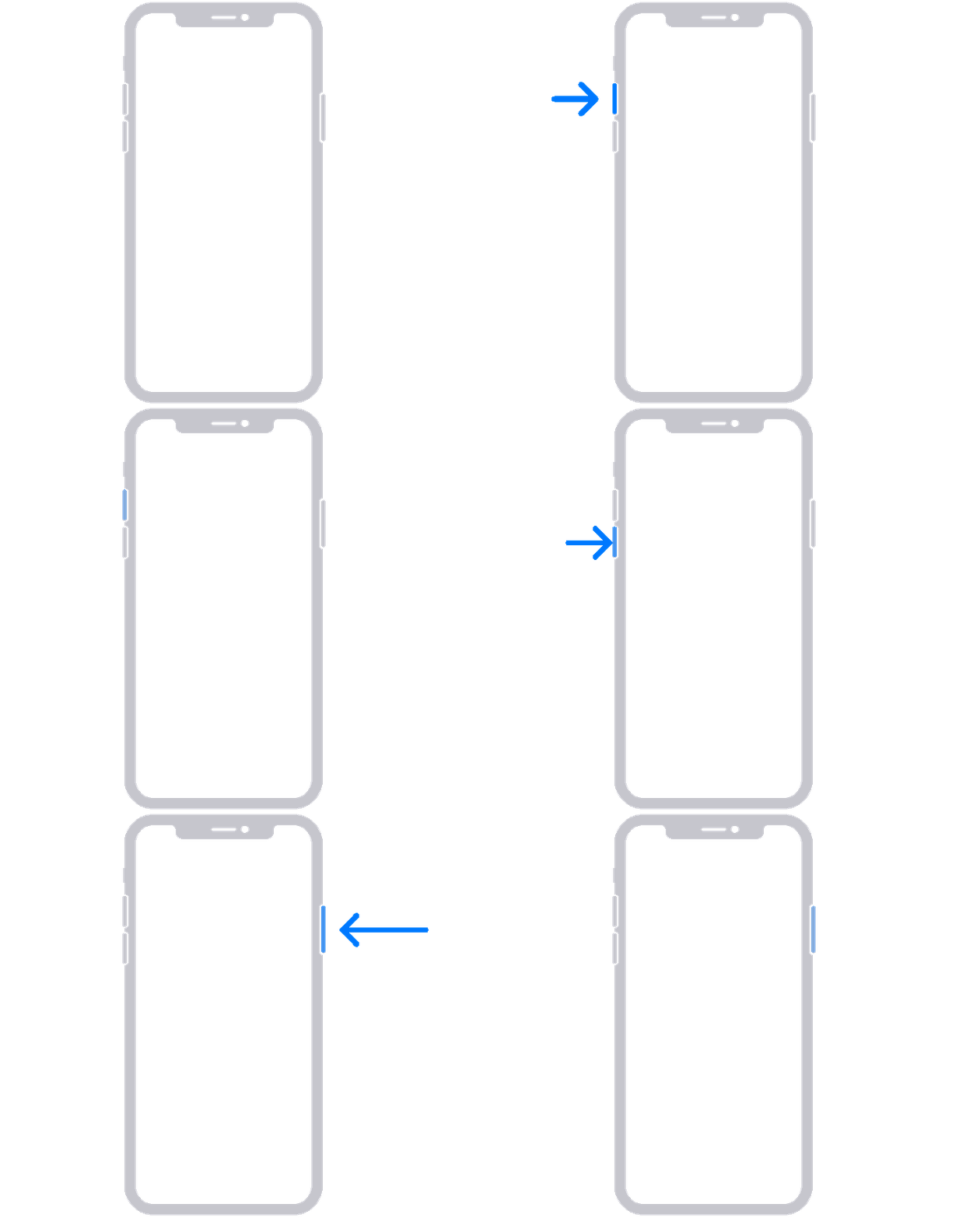
On your iPhone 8 or later, including iPhone SE (2nd and 3rd generation)
1. Press and quickly release the volume up button.
2. Press and quickly release the volume down button.
3. Press and hold the side button until you see the Apple logo.
4. If your phone doesn't turn on, follow these steps to check your hardware and charge your phone. You might need to charge for up to an hour.
5. If your phone still doesn't turn on, contact Apple Support.
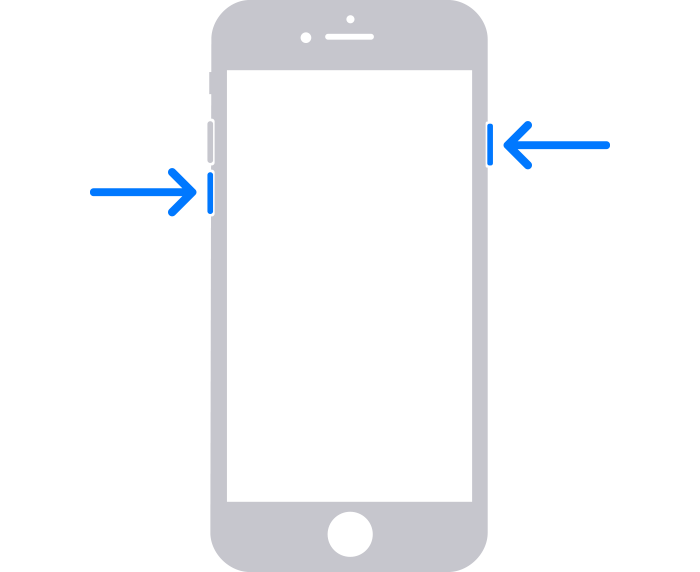
On your iPhone 7 or iPhone 7 Plus
1. Press and hold both the side button and the volume down button until you see the Apple logo.
2. If your phone doesn't turn on, follow these steps to check your hardware and charge your phone. You might need to charge for up to an hour.
3. If your phone still doesn't turn on, contact Apple Support.
On your iPhone 6s and earlier, including iPhone SE (1st generation)
1. Press and hold both the Home button and the side button or the top button until you see the Apple logo.
2. If your phone doesn't turn on, follow these steps to check your hardware and charge your phone. You might need to charge for up to an hour.
3. If your phone still doesn't turn on, contact Apple Support.
If your iPhone turns on but gets stuck during start up
If you see the Apple logo or a red or blue screen during startup, try these steps:
1. Connect your iPhone to a computer. On a Mac with macOS Catalina, open the Finder. On a Mac with macOS Mojave or earlier, or on a PC, open iTunes. Find out which macOS your Mac is using.
2. Select your iPhone on your computer.
3. While your iPhone is connected, follow these steps:
* On your iPhone 8 or later, including iPhone SE (2nd and 3rd generation): Press and quickly release the volume up button. Press and quickly release the volume down button. Then press and hold the side button.
* On your iPhone 7 or iPhone 7 Plus: Press and hold the side button and volume down button at the same time.
* On your iPhone 6s or earlier, including iPhone SE (1st generation): Press and hold both the Home button and the side button or the top button at the same time.
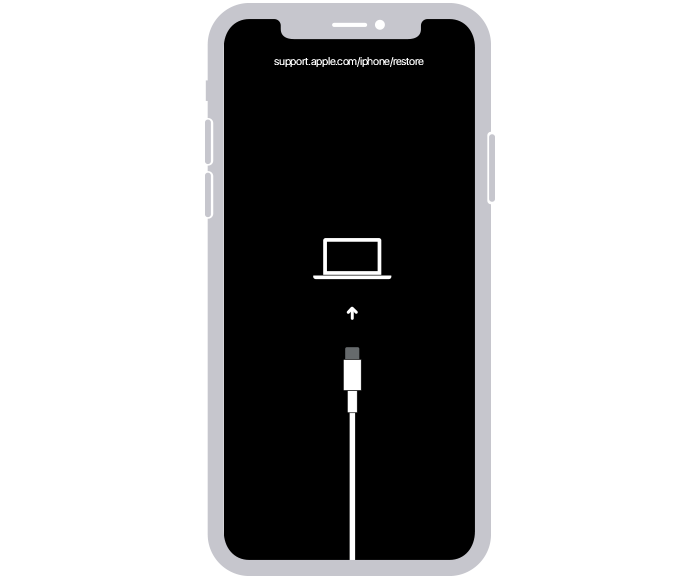
4. Keep holding the buttons until you see the recovery mode screen.
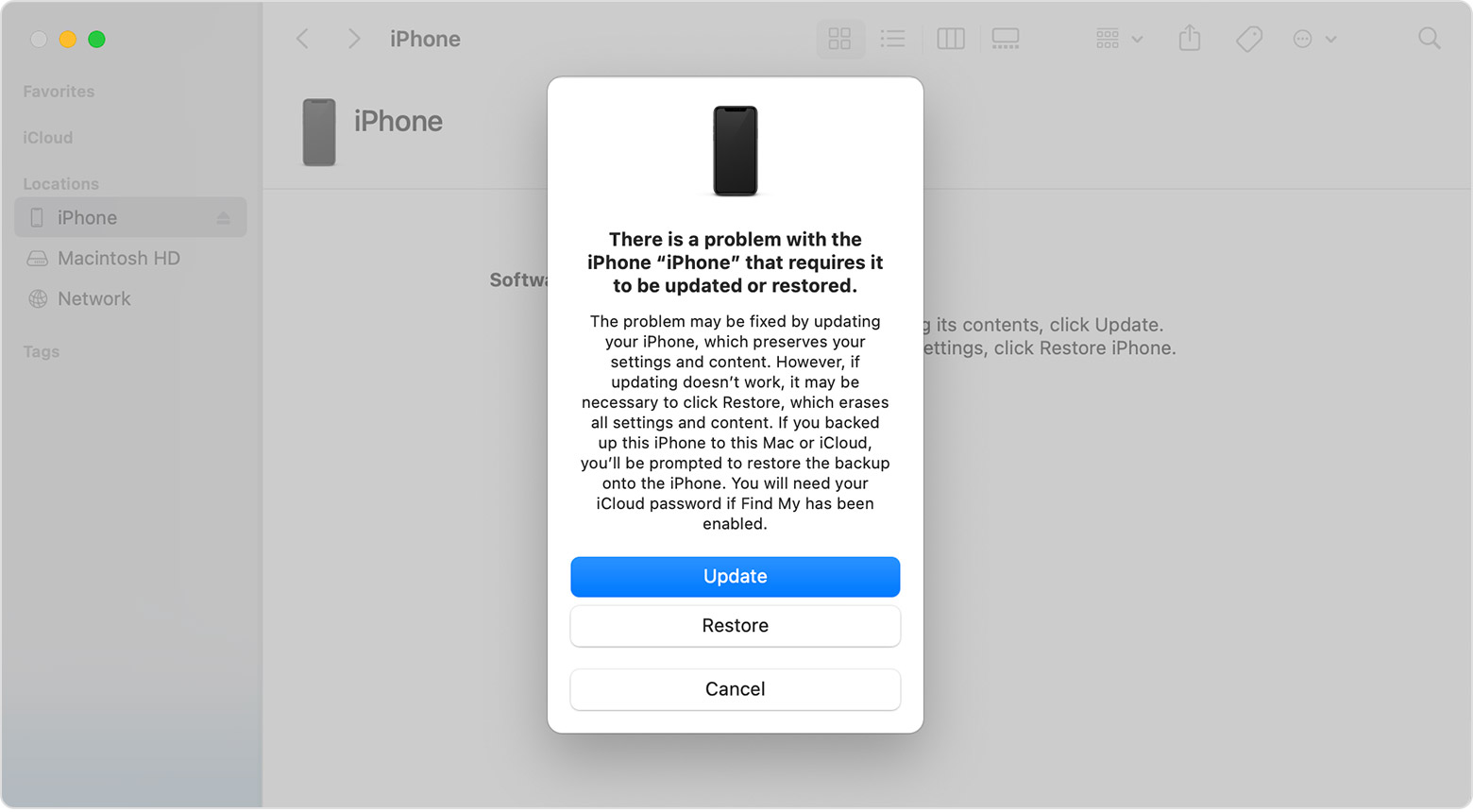
5. When you get the option to restore or update, choose Update.
6. Your computer will download the software for your device. If it takes more than 15 minutes, your device will exit recovery mode. Repeat steps 2-4.
If you need more help
Contact Apple Support to set up service.
In case you still need help, then it would be best to contact Apple Support directly for your options moving forward. Here's how to do that: Get Support
Take care.
Hello VaKemp,
You came from this resource: If your iOS or iPadOS device restarts or displays the Apple logo or a spinning gear unexpectedly
If you're experiencing one of these issues, then you'd need to take the steps above to resolve it.
Otherwise, if the iPhone isn't responding or turning on, then you'd want to use these steps instead to solve it: If your iPhone won't turn on or is frozen
If your iPhone won't turn on or is frozen
If your iPhone has a frozen screen, doesn't respond when you touch it, or becomes stuck when you turn it on, learn what to do.
* iPhone screen is black or frozen
* iPhone is stuck on the Apple logo
If your screen is black or frozen
Follow the steps for your device.
On your iPhone 8 or later, including iPhone SE (2nd and 3rd generation)
1. Press and quickly release the volume up button.
2. Press and quickly release the volume down button.
3. Press and hold the side button until you see the Apple logo.
4. If your phone doesn't turn on, follow these steps to check your hardware and charge your phone. You might need to charge for up to an hour.
5. If your phone still doesn't turn on, contact Apple Support.
On your iPhone 7 or iPhone 7 Plus
1. Press and hold both the side button and the volume down button until you see the Apple logo.
2. If your phone doesn't turn on, follow these steps to check your hardware and charge your phone. You might need to charge for up to an hour.
3. If your phone still doesn't turn on, contact Apple Support.
On your iPhone 6s and earlier, including iPhone SE (1st generation)
1. Press and hold both the Home button and the side button or the top button until you see the Apple logo.
2. If your phone doesn't turn on, follow these steps to check your hardware and charge your phone. You might need to charge for up to an hour.
3. If your phone still doesn't turn on, contact Apple Support.
If your iPhone turns on but gets stuck during start up
If you see the Apple logo or a red or blue screen during startup, try these steps:
1. Connect your iPhone to a computer. On a Mac with macOS Catalina, open the Finder. On a Mac with macOS Mojave or earlier, or on a PC, open iTunes. Find out which macOS your Mac is using.
2. Select your iPhone on your computer.
3. While your iPhone is connected, follow these steps:
* On your iPhone 8 or later, including iPhone SE (2nd and 3rd generation): Press and quickly release the volume up button. Press and quickly release the volume down button. Then press and hold the side button.
* On your iPhone 7 or iPhone 7 Plus: Press and hold the side button and volume down button at the same time.
* On your iPhone 6s or earlier, including iPhone SE (1st generation): Press and hold both the Home button and the side button or the top button at the same time.
4. Keep holding the buttons until you see the recovery mode screen.
5. When you get the option to restore or update, choose Update.
6. Your computer will download the software for your device. If it takes more than 15 minutes, your device will exit recovery mode. Repeat steps 2-4.
If you need more help
Contact Apple Support to set up service.
In case you still need help, then it would be best to contact Apple Support directly for your options moving forward. Here's how to do that: Get Support
Take care.
My iPhone is not working, the screen is black