
apple music playlist on mac
i can't see my playlist on my mac.
i am using the same apple user name but can't see iy
MacBook Air 13″, macOS 12.6
i can't see my playlist on my mac.
i am using the same apple user name but can't see iy
MacBook Air 13″, macOS 12.6
Hello ronan97,
If you cannot find your Apple Music playlists on macOS, the guidance below can help:
"First, check these things
Check the cloud status of songs on your Mac or PC
Look for the following statuses next to your songs to learn what to do.
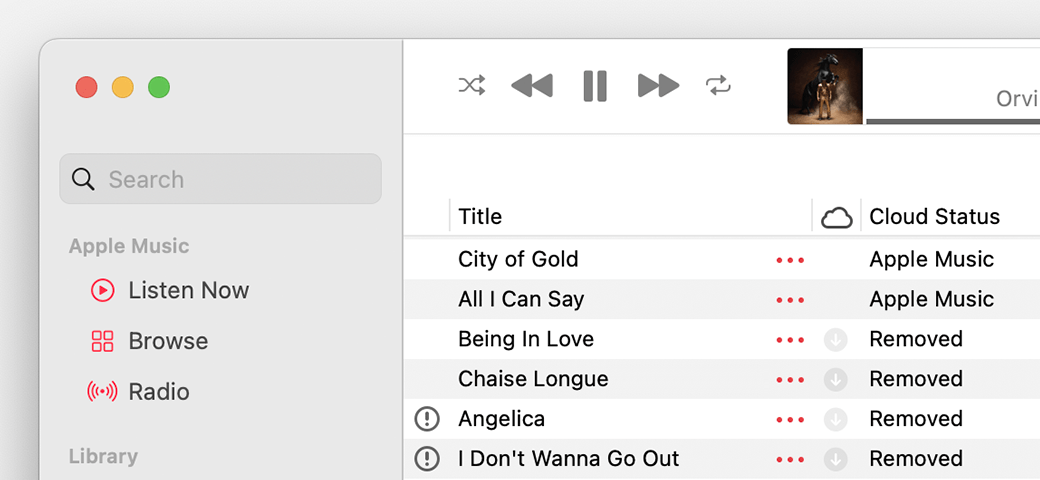
Waiting
The song won’t appear on your other devices because it’s waiting to upload. Choose File > Library > Update Cloud Library. Then check if the song appears on your other devices.
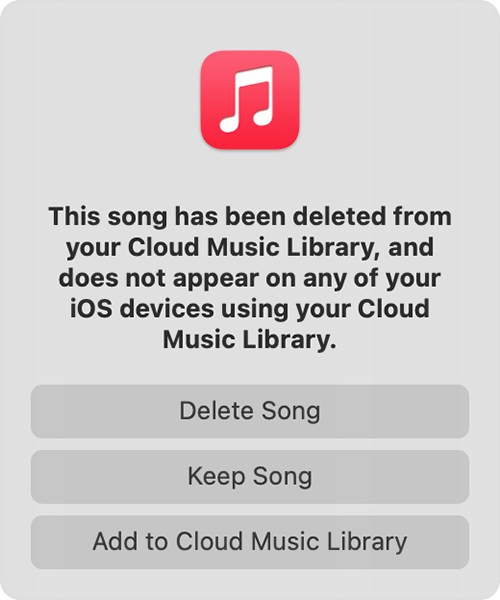
Removed
The song was deleted from another device that has Sync Library turned on. If you want the song to appear on your other devices, click the arrow  next to the song, then click Add to Cloud Music Library.
An exclamation point
The song can't be played or synced across your devices until the original file is located. Click the exclamation point  , then click Locate.
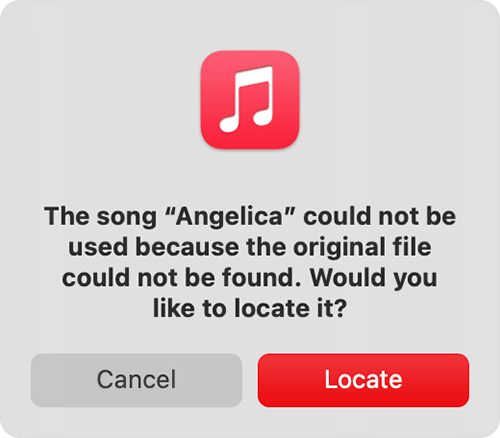
If the song is located, you'll be asked to use the location to find other missing songs in your library. If you see this message, click Find Files.
If a song is grayed out
If you see No Longer Available next to a song that's grayed out, the song was added from Apple Music and was removed from the Apple Music catalog.
Learn what the different cloud icons and symbols next to your songs mean in the Apple Music app
Learn what the different cloud icons and symbols next to your songs mean in iTunes
Search for the missing song on your computer
"
If songs are missing from your music library after you turn on Sync Library - Apple Support
Need more help, reach out to support for some additional options: Get Support Get Support
Cheers.
Hello ronan97,
If you cannot find your Apple Music playlists on macOS, the guidance below can help:
"First, check these things
Check the cloud status of songs on your Mac or PC
Look for the following statuses next to your songs to learn what to do.
Waiting
The song won’t appear on your other devices because it’s waiting to upload. Choose File > Library > Update Cloud Library. Then check if the song appears on your other devices.
Removed
The song was deleted from another device that has Sync Library turned on. If you want the song to appear on your other devices, click the arrow next to the song, then click Add to Cloud Music Library.
An exclamation point
The song can't be played or synced across your devices until the original file is located. Click the exclamation point , then click Locate.
If the song is located, you'll be asked to use the location to find other missing songs in your library. If you see this message, click Find Files.
If a song is grayed out
If you see No Longer Available next to a song that's grayed out, the song was added from Apple Music and was removed from the Apple Music catalog.
Learn what the different cloud icons and symbols next to your songs mean in the Apple Music app
Learn what the different cloud icons and symbols next to your songs mean in iTunes
Search for the missing song on your computer
"
If songs are missing from your music library after you turn on Sync Library - Apple Support
Need more help, reach out to support for some additional options: Get Support Get Support
Cheers.
apple music playlist on mac

