Ultra not tracking activity or steps correctly

I’ve been comparing my high-end Garman watch to my new ultra. The Garman auto detects my activities. The ultra does not detect activity and does not track my steps correctly. I have to start every activity to even have it take a look. I love the auto detect on the Garmin. The steps and calories and activities are just much more accurate. Before I throw the ultra away…. Or use it only as a really expensive dive watch and switch back to my Garmin, I thought I’d see if anybody had suggestions.

Apple Watch Ultra

Posted on May 29, 2023 11:47 AM

Reply
3 replies

May 30, 2023 2:10 PM in response to John Steg

Hey John Steg,


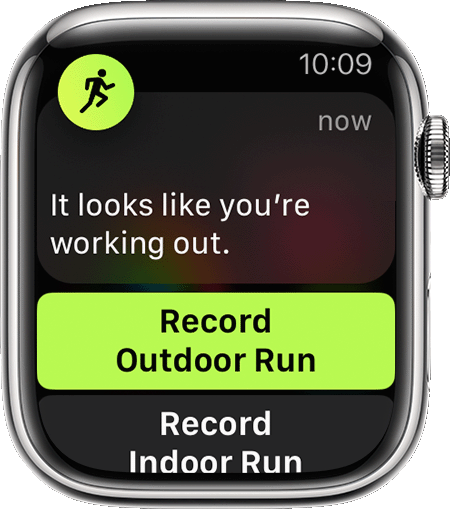
Apple Watch should automatically detect workouts. You can learn more about that here: Use the Workout app on your Apple Watch - Apple Support


"Get reminders to start a workout


In watchOS 5 or later, when your Apple Watch senses that you’re working out, it taps you on the wrist and asks. Tap an option within the notification to record the workout, change the workout type, mute notifications for the day, or dismiss the notification. No matter when you tap, you’ll get all your workout credit from the time you started exercising.


How long it takes for your watch to alert you to record a workout varies by workout type. Here are the workouts that your watch can give you reminders for: 

  • Indoor Walk
  • Outdoor Walk
  • Indoor Run
  • Outdoor Run
  • Outdoor Cycling
  • Elliptical
  • Rower
  • Pool Swim
  • Open Water Swim


To turn this setting on or off, open the Settings app on your Apple Watch, tap Workout, then go to Start Workout Reminder. "


Thanks!


May 31, 2023 7:21 AM in response to John Steg

Hey John Steg,


If you're experiencing unexpected behavior despite having things set up properly with the right settings, your best bet is to restart both devices involved. If that doesn't help out, unpair your Apple Watch from your iPhone and set it back up again using these steps:

How to unpair and erase your Apple Watch if you have your iPhone
1. Keep your Apple Watch and iPhone close together as you unpair them.
2. Open the Apple Watch app on your iPhone.
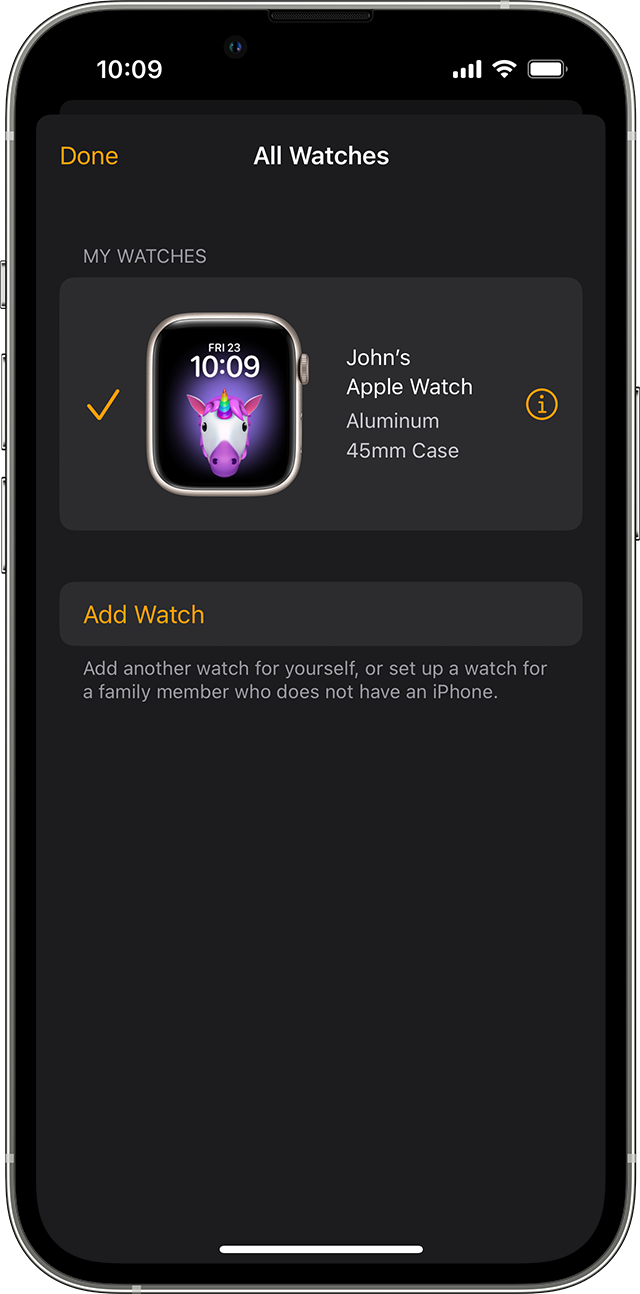
3. Go to the My Watch tab and tap All Watches.
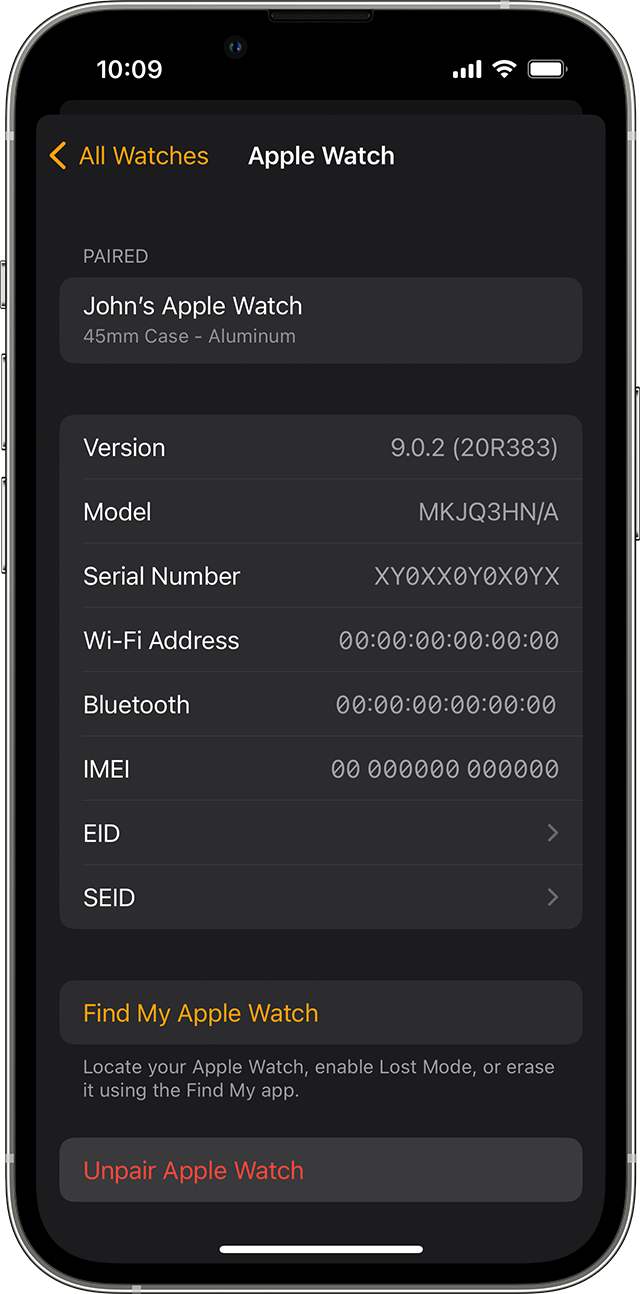
4. Tap the info button  next to the watch that you want to unpair. 
5. Tap Unpair Apple Watch.

6. Tap Unpair [your Apple Watch name].
7. For GPS + Cellular models, choose whether to keep or remove your cellular plan. 
* If you want to pair your Apple Watch and iPhone again, keep your plan. 
* If you don't want to pair your Apple Watch and iPhone again, remove your plan. If you aren't going to pair with a different watch or iPhone, you might need to contact your carrier to cancel your cellular subscription. 
8. Type your Apple ID password to disable Activation Lock, then tap Unpair. 

Before erasing all content and settings on your Apple Watch, your iPhone creates a new backup of your Apple Watch. You can use the backup to restore a new Apple Watch. After your Apple Watch unpairs, you'll see the Start Pairing message.

Now you can set up your Apple Watch again or turn it off if you're selling it or giving it away.

This is outlined further here: Unpair and erase your Apple Watch - Apple Support


We hope this helps out, but if not, please contact Apple Support using this link: Get Support


Take care!

This thread has been closed by the system or the community team. You may vote for any posts you find helpful, or search the Community for additional answers.

Ultra not tracking activity or steps correctly

Welcome to Apple Support Community
A forum where Apple customers help each other with their products. Get started with your Apple Account.