
It’s not letting me put my phone number connect to the iPad Air. What can I do?
It’s not letting me put my phone number connect to the iPad Air. What can I do?
iPad Air, iPadOS 16
It’s not letting me put my phone number connect to the iPad Air. What can I do?
iPad Air, iPadOS 16
Hello Tiff1359,
Thank you for reaching out to Apple Support Communities, and we'll be happy to help in any way we can. We understand you're having issues with entering your phone number. What are you using to try to connect to your iPad? This information will help us to better assist you.
If this is for iMessage or FaceTime, try the steps listed here to see if they resolve the issue: Add or remove your phone number in Messages or FaceTime - Apple Support
"Turn your phone number on or off for your iPad or iPod touch
After you set up your phone number, you can turn it on or off for Messages and FaceTime on your iPad or iPod touch.
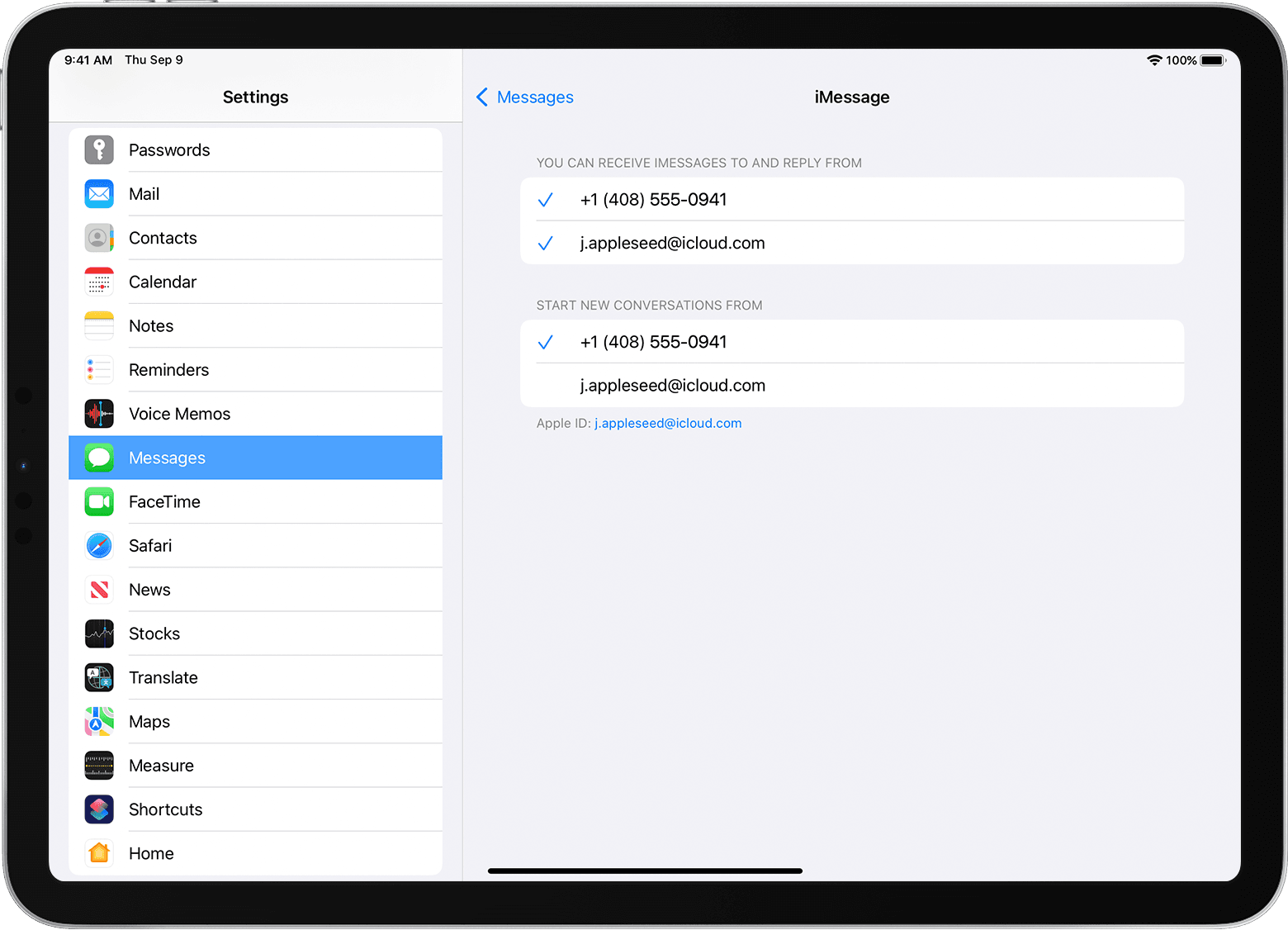
Learn how to make messages that you send and receive on your iPhone also appear on your Mac, iPad, and iPod touch.

If you can't see or select your number in Messages or FaceTime
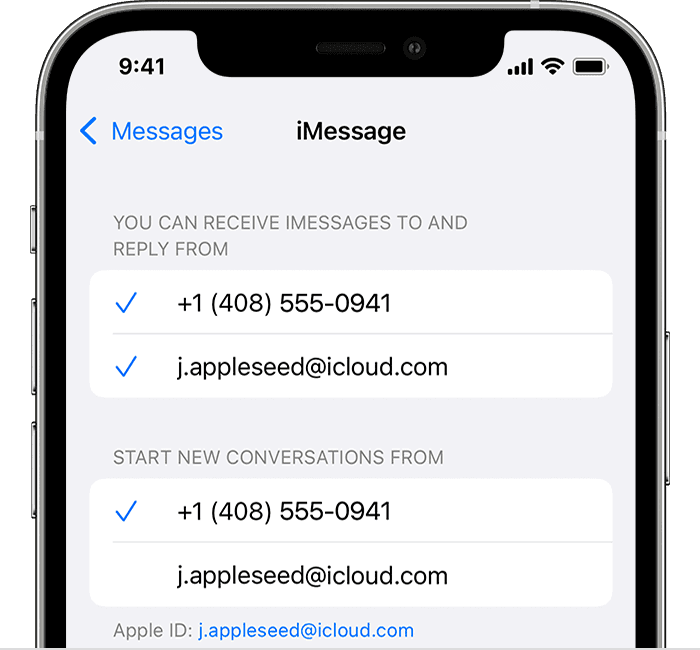
If your phone number is unchecked and you can't select it, or you have some other issue, follow these steps:
If you still need help, change your Apple ID password and repeat the setup steps. If that doesn't work, contact Apple Support."
We hope this helps.
Cheers!
Hello Tiff1359,
Thank you for reaching out to Apple Support Communities, and we'll be happy to help in any way we can. We understand you're having issues with entering your phone number. What are you using to try to connect to your iPad? This information will help us to better assist you.
If this is for iMessage or FaceTime, try the steps listed here to see if they resolve the issue: Add or remove your phone number in Messages or FaceTime - Apple Support
"Turn your phone number on or off for your iPad or iPod touch
After you set up your phone number, you can turn it on or off for Messages and FaceTime on your iPad or iPod touch.
Learn how to make messages that you send and receive on your iPhone also appear on your Mac, iPad, and iPod touch.
If you can't see or select your number in Messages or FaceTime
If your phone number is unchecked and you can't select it, or you have some other issue, follow these steps:
If you still need help, change your Apple ID password and repeat the setup steps. If that doesn't work, contact Apple Support."
We hope this helps.
Cheers!
This does not solve the problem. My phone number is not listed. I see the country code and then it's blank. When I tap on it, it tells me there's an error. Well, of course there's an error sending an activation code, because it's going to a null value.
My number was in iCloud already. I deleted and re-added. I received a text with the code, but received an error that the code was incorrect. I tried resending the code, and got another error that it's not possible to verify this number because it's already being used on my account.
However, now the number isn't showing up at all to be selected to receive iMessages.
How the (.......) do we get this fixed?
I'm trying to change my password, but I can't. The System Pref dialog on Mac says my password is incorrect. I am pasting this same password that I used to log into my account here on support and on apple.com. Just for fun, I typed it from scratch twice also to make sure the copy/paste wasn't giving an error.
This support site logged me out prob due to the incorrect login attempt elsewhere, but I was able to log in again.
My account is soooooooooo forked pls...
I've already signed out and back into iCloud before I did these steps.
It’s not letting me put my phone number connect to the iPad Air. What can I do?


