connect to homekit

can not add to homekit Bose soundbar smart 900

Posted on Jul 8, 2023 11:47 AM

Reply
1 reply

Jul 9, 2023 1:35 PM in response to flacocu

Hello flacocu,


Thank you for reaching out to Apple Support Communities, and we'll be happy to help in any way we can. We understand you're having issues with adding an accessory to HomeKit. Try the steps here to add the accessory: Add a smart home accessory to the Home app - Apple Support


"Before you begin

  • Update your iPhone or iPad to the latest version of iOS or iPadOS, and turn on Bluetooth under Settings.
  • To add a Matter accessory, you must set up a home hub first.
  • Check the accessory manual to see if the accessory needs additional hardware, software updates, or additional setup in the manufacturer's app.
  • Make sure that your accessory supports HomeKit, AirPlay, or Matter.
  • Make sure that your iPhone or iPad, previously added accessories, and home hubs are on the same Wi-Fi network.


Add accessories

When you assign your Apple TV to a room, it automatically appears in that room in the Home app. To add other accessories to the Home app, use your iPhone or iPad. You can't add accessories to the Home app on Mac.

Add your Apple TV to the Home app
  1. Open Settings on your Apple TV.
  2. Select Users and Accounts > Default User. Make sure that your name is selected and that you're signed in to iCloud with the Apple ID that you used to set up your accessories in the Home app.
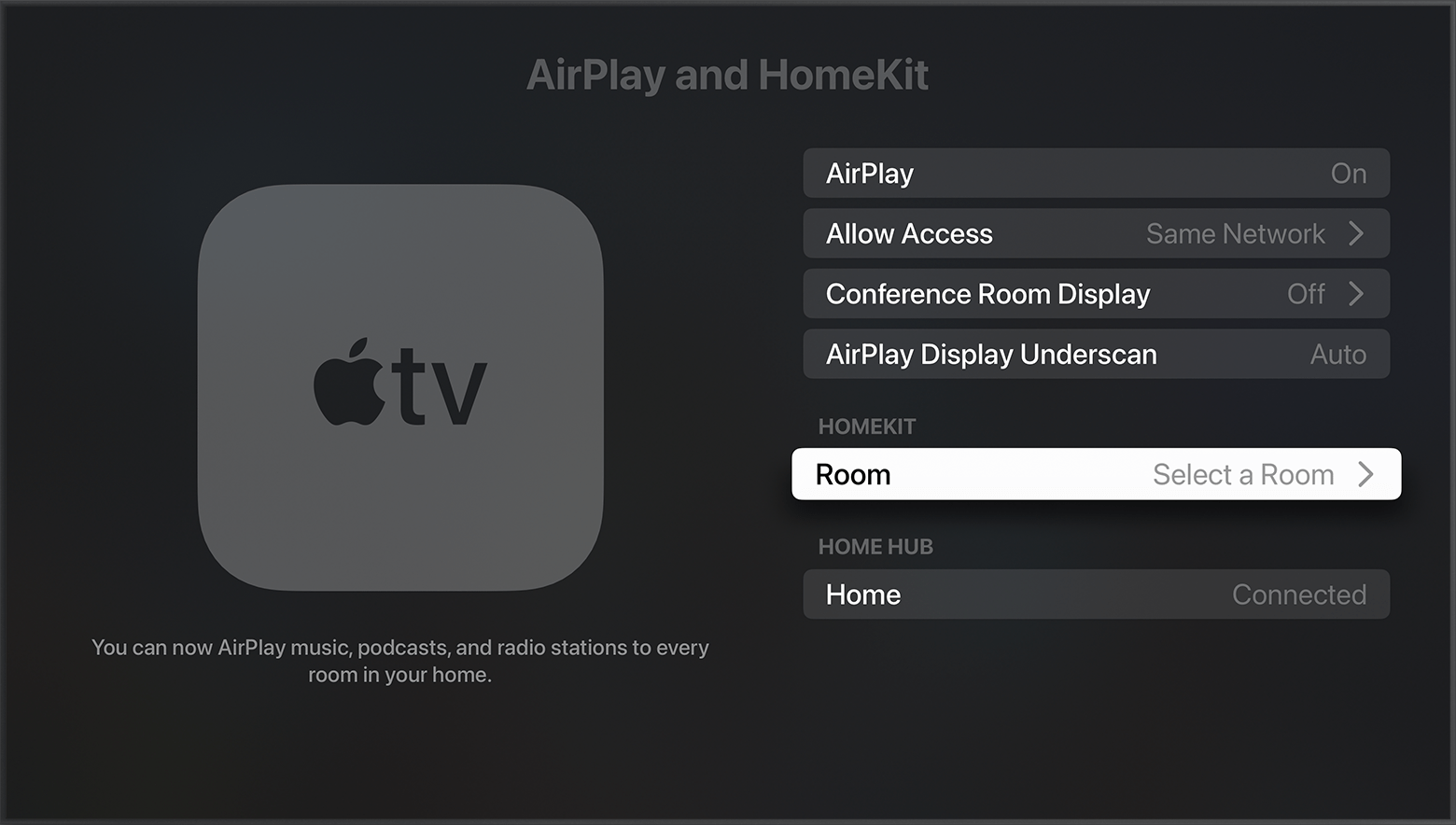
  3. Go back to Settings, then select AirPlay and HomeKit.
  4. Scroll down and select Room, then choose a room or add a new room.

Add other accessories to the Home app

  1. Power on your accessory* and make sure that it's nearby.
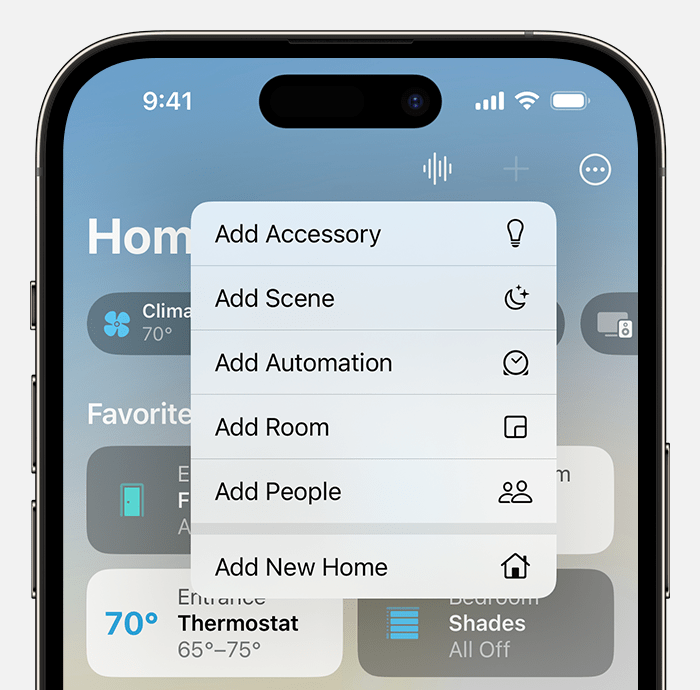
  2. Open the Home app on your iPhone or iPad and tap Add  .
  3. Tap Add Accessory.

  4. Follow the instructions to scan a code or hold your device near the accessory to add it.
  5. When your accessory appears, tap it. If asked to Add Accessory to Network, tap Allow.
  6. Assign your accessory to a room and name it to help you identify and control it.
  7. Tap Continue, then tap Done.

Control your accessories with Siri

Use and manage your accessories in the Home app on all of your devices

*Samsung AirPlay-compatible smart TVs don't support HomeKit and can't be added to the Home app.

If an alert says that the accessory was already added
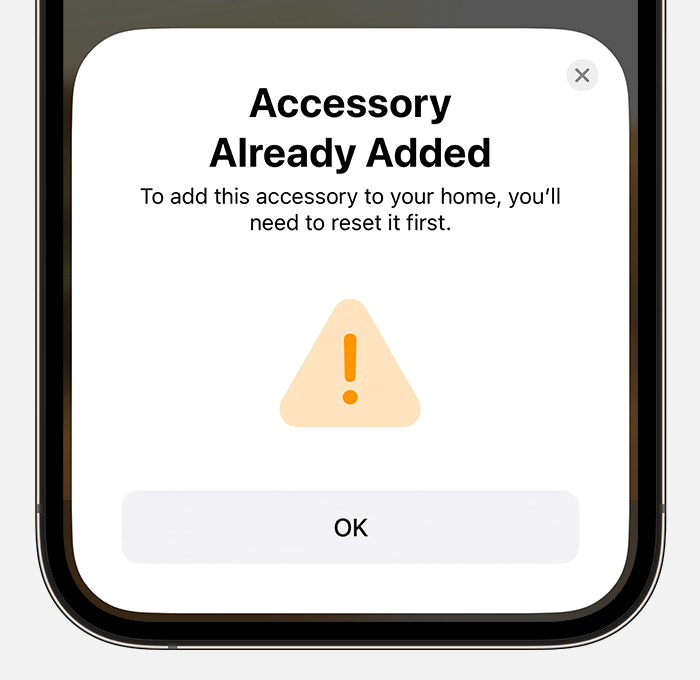
If an alert says that the accessory was already added to your home, or the accessory was previously used in another home, you may need to reset the accessory. Check the accessory manual, call the manufacturer, or visit the manufacturer's website to learn more.


Organize accessories by room and zone

Organize your accessories by room to help you keep track of where your accessories are located and to control your rooms with Siri. You can also group rooms into a zone, like upstairs or downstairs.

Add a room

  1. Open the Home app and tap or click Add .
  2. Select Add Room.

  3. Give your room a name, then tap or click Save.

Assign accessories to a room

  1. On iPhone or iPad, tap the accessory, then scroll down or tap the Settings button . On Mac, click the accessory then click the Settings button .
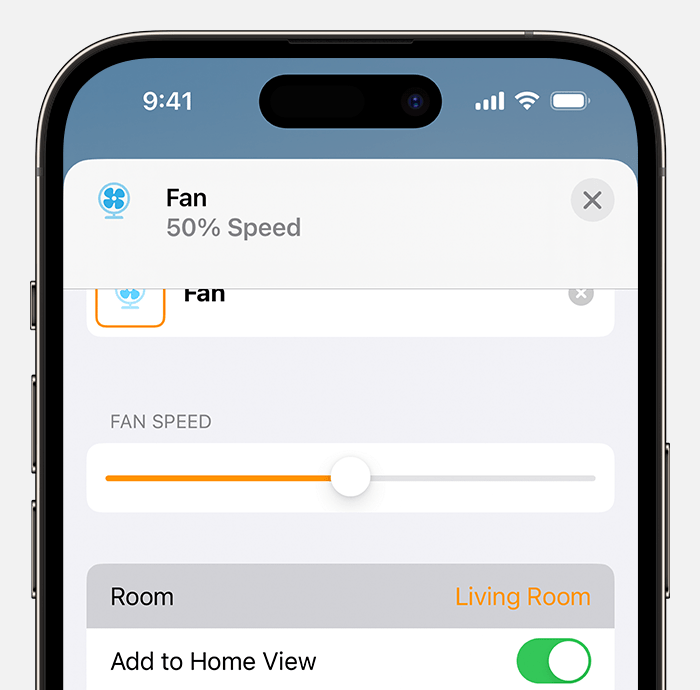
  2. Scroll down and tap or click Room.

  3. Choose a room, then tap or click Close  to save.

Play and control music throughout your home with Siri

Ask Siri to play what you want to watch

Organize rooms into a zone

Group rooms together into a zone, like upstairs or downstairs, to easily control different areas of your home with Siri.

  1. On iPhone or iPad, touch and hold the room name to open the room. On Mac, click the room name.
  2. Tap or click the More button  and select Room Settings.
  3. Tap or click Zone. 
  4. Select a suggested zone, or choose Create New and give your new zone a name. 
  5. Tap or click Done."


We hope this helps.


Cheers!


This thread has been closed by the system or the community team. You may vote for any posts you find helpful, or search the Community for additional answers.

connect to homekit

Welcome to Apple Support Community
A forum where Apple customers help each other with their products. Get started with your Apple Account.