Hello ainul_hassan,
Thank you for reaching out to Apple Support Communities, and we'll be happy to help in any way we can. We understand you're having issues with receiving a verification code.This article goes over the different ways that you can receive your verification code: Get a verification code and sign in with two-factor authentication - Apple Support
"With two-factor authentication, you’ll need a verification code to sign in with your Apple ID on a new device or browser.
Whenever you sign in with your Apple ID on a new device or browser, you'll confirm your identity with your password plus a six-digit verification code. There are a few ways you can get a verification code. You can use the code displayed on your trusted device, get a text or phone call, or generate a code from your trusted device.
If you use iOS 11.3 or later on your iPhone, you might not need to enter a verification code. In some cases, your trusted phone number can be automatically verified in the background on your iPhone. It’s one less thing to do, and your account is still protected with two-factor authentication.
Use the code displayed on your trusted device
If you have a trusted device running iOS 9 and later, OS X El Capitan and later, iPadOS 13 and later, or watchOS 6 and later, the verification code is displayed automatically on your trusted devices.
- Sign in with your Apple ID and password on a new device or browser.
- Look for a sign in notification on any of your trusted devices.
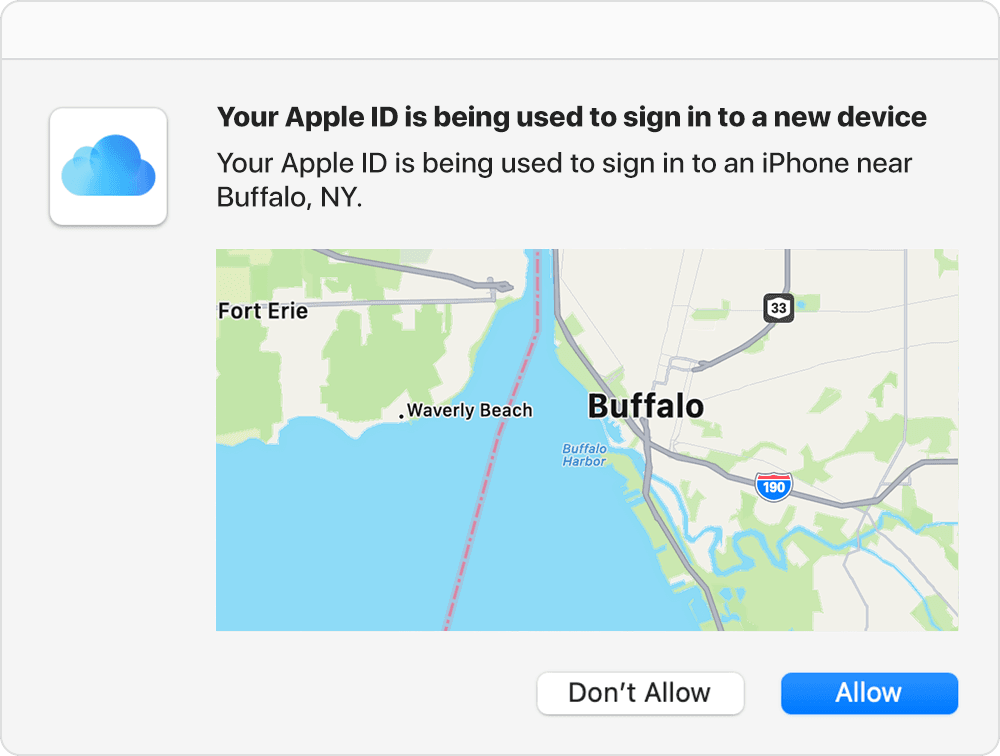
- Tap Allow to receive your verification code.
- Enter the verification code on your other device to complete sign in.
Get a text or phone call
If you don’t have a trusted device handy, you can have a verification code sent to your trusted phone number as a text message or phone call.
- Click Didn't get a verification code on the sign in screen.
- Choose to have the code sent to your trusted phone number.
- You'll get a text message or phone call from Apple with your verification code. This text message might include an additional domain validation line. This line includes the @ symbol, the website name, and your code (for example: @icloud.com #123456 %apple.com).
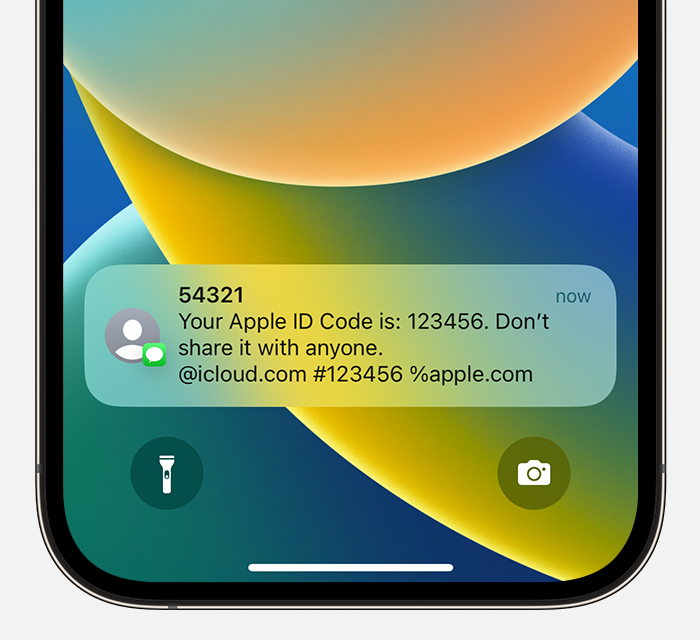
- Enter the code on your other device to complete sign in.
Get a code from Settings on your trusted device
If you can’t receive a verification code on your trusted devices automatically, you can get one from Settings, even if your device is offline.
From your iPhone, iPad, or iPod touch
If your device is online:
- Go to Settings > [your name].
- Tap Password & Security > Get Verification Code.
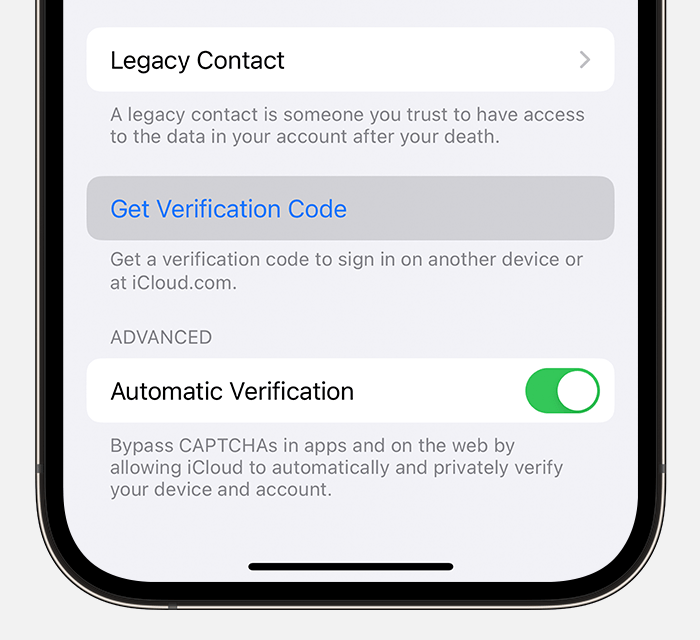
If your device is offline:
- Go to Settings > [your name].
- Tap Password & Security.
- A message says "Account Details Unavailable." Tap Get Verification Code.
From your Mac
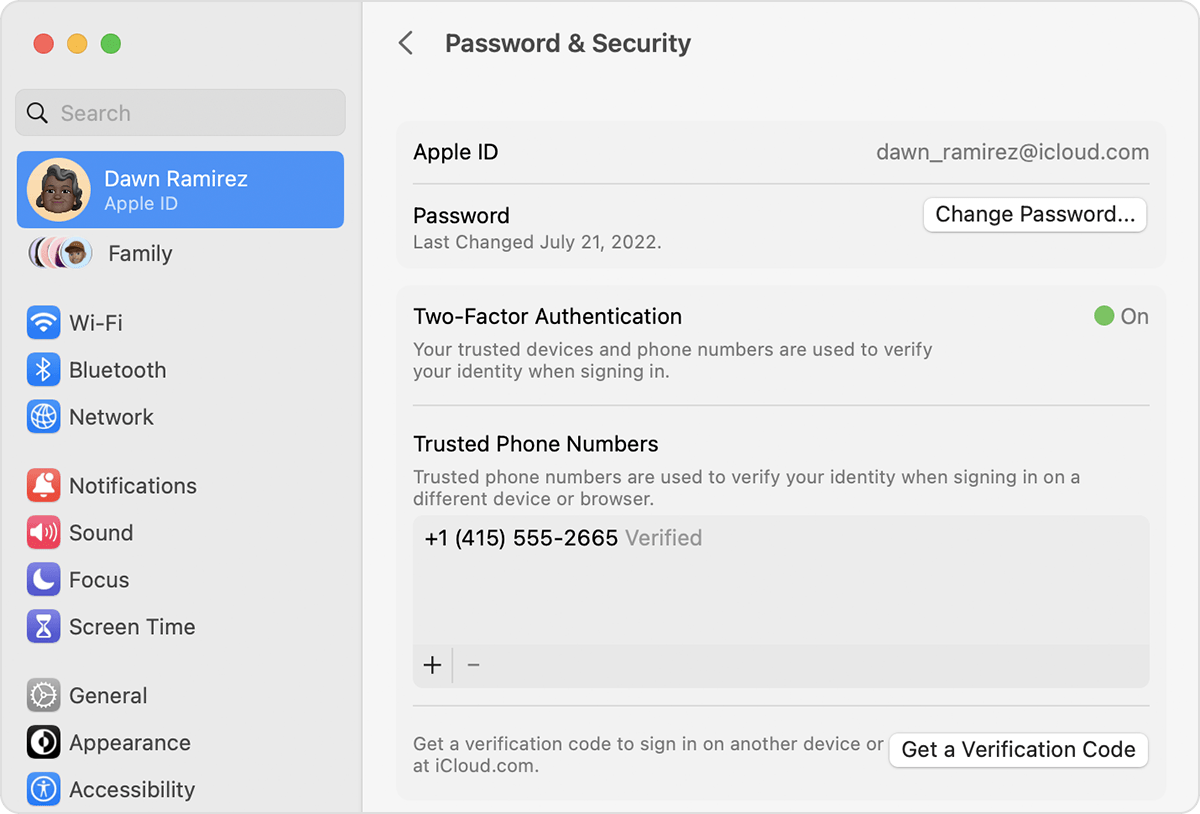
- Go to Apple menu > System Settings (or System Preferences), then click your name (or Apple ID).
- Click Password & Security > Get a Verification Code.
 "
"
If after taking these steps you're still unable to receive your verification code, you'll need to request account recovery as described here: How to use account recovery when you can’t reset your Apple ID password - Apple Support
When completing Account Recovery, please make sure to power down all devices that are signed in with this Apple ID, besides the one being used to complete the request, to assist with quicker handling as using other devices with this account during the recovery process could cause your request to become cancelled.
We hope this helps.
Cheers!


