how can i check text messages from my computer
how do i check text messages from my computer
iPhone 13 Pro Max, iOS 16
how do i check text messages from my computer
iPhone 13 Pro Max, iOS 16
Hey there BeetleJuice2,
Thanks for reaching out to Apple Support Communities. We're happy to provide some assistance.
To forward SMS messages from your iPhone to your Mac, follow the actions here:
Forward SMS/MMS text messages from your iPhone to your Mac or iPad - Apple Support
Automatically forward texts to your other devices
1. Make sure that you're signed in to iMessage with the same Apple ID on each device:
* iPhone or iPad: Check the Apple ID shown in Settings > Messages > Send & Receive.
* Mac: Open the Messages app, choose Messages > Settings (or Preferences), then click iMessage. Check the Apple ID shown.
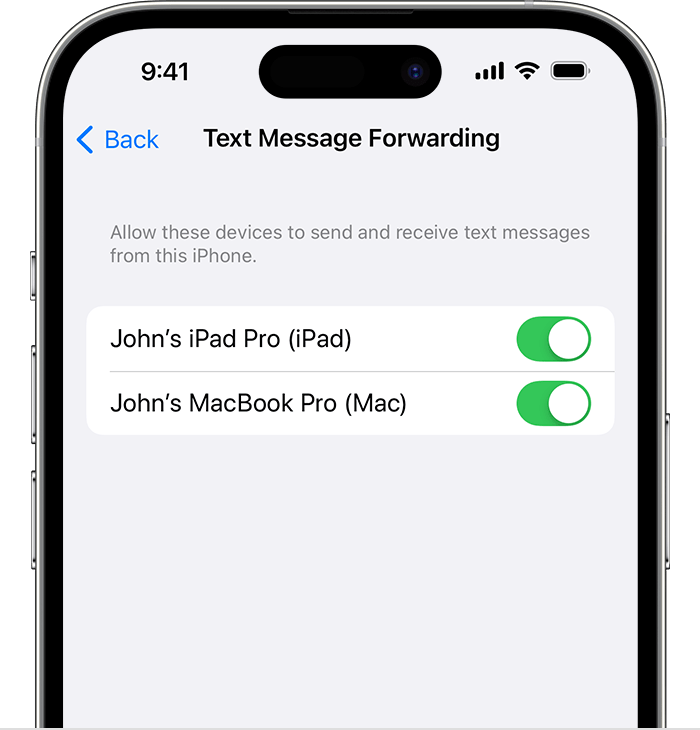
4. On your iPhone, go to Settings > Messages > Text Message Forwarding.
5. If you don't see Text Message Forwarding, go to Settings > Messages. Turn off iMessage, then turn it back on. Tap Send & Receive, tap Use Your Apple ID for iMessage, then sign in with the same Apple ID used on your other devices.
6. Choose which devices can send and receive text messages from your iPhone:
7.
8. If you choose a device that isn't using two-factor authentication for your Apple ID, a verification code appears on each of your other devices: enter that code on your iPhone.
As long as your iPhone is turned on and connected to Wi-Fi or a cellular network, new SMS/MMS texts can be sent and received on the devices that you added.
To set up iMessages, follow the actions here:
Set up Messages on Mac - Apple Support
Set up iMessage
1. In the Messages appon your Mac, enter your Apple ID and password, then click Sign In.
* Make sure to sign in using the same Apple ID on every device. See the Apple Support article Use Continuity to connect your Mac, iPhone, iPad, and Apple Watch.
* If you forgot your Apple ID or password, or if you need to create an Apple ID, go to the Apple ID account website.
4. Choose Messages > Settings, click iMessage, click Settings, then select any of the following options:
* Enable Messages in iCloud: Select this option if you want to store your messages in iCloud. See Access your messages on all your Apple devices.
* You can be reached for messages at: Select the email addresses or phone numbers that people can use to send you messages.
* See the Apple Support article Add or remove your phone number in Messages or FaceTime.
* Send read receipts: Select this option so that people who send you messages can see when you’ve read them.
* You can also send read receipts for a specific conversation.
* Start new conversations from: Choose the email address or phone number that you want to use for starting new conversations.
* This option is only available if you have more than one email address or phone number listed below “You can be reached for messages at.”
* Note: This is the information that others see when you send a message. For example, if you have your phone number selected, conversations with others show your phone number.
You can also set up name and photo sharing and notifications (su
ch as sounds and alerts).
We hope this answers your question.
Have a great day!
how can i check text messages from my computer