Hello Sashab540,
When you note that the Messages app was being backed up to iCloud, were you utilizing the iCloud for Messages feature?
This page can help with showing where to locate that to enable it on the new iPad, if it was previously on for the other iPad: Set up iCloud for Messages on all your devices - Apple Support
Set up iCloud for Messages on your iPhone, iPad, or iPod touch
1. On your iPhone, iPad, or iPod touch, go to Settings > [your name] > iCloud.
2. Do one of the following:
* iOS 16, iPadOS 16, or later: Tap Show All, tap Messages, then turn on Sync this [device].
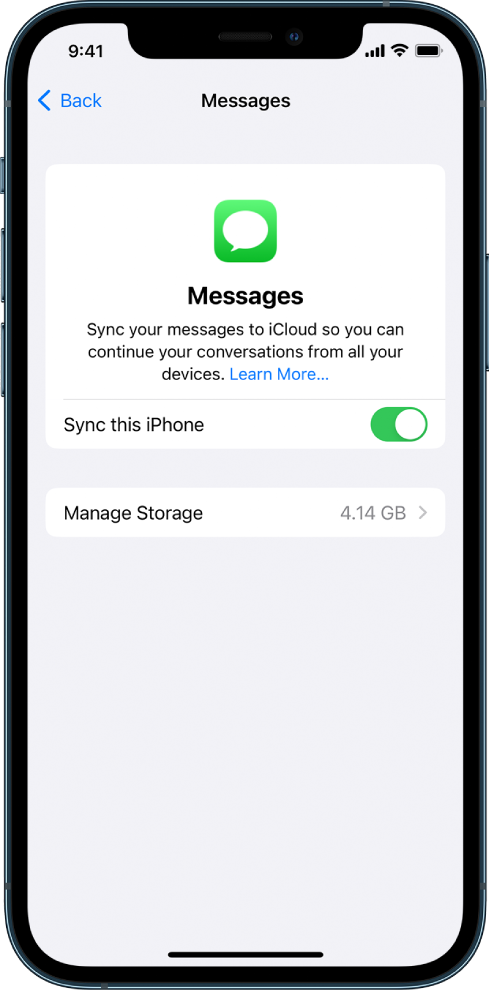
* iOS 15, iPadOS 15, or earlier: Turn on Messages.
Any messages currently stored in iCloud are now accessible on your device, and any new messages you receive on your device will be stored in iCloud.
3. To make sure you can see your messages on all your devices, also check the following:
* iMessage account: On your iPhone, iPad, or iPod touch, go to Settings > Messages > Send & Receive. Make sure that you’re signed in to iMessage with the same Apple ID. You can choose which email addresses and phone numbers you want to send and receive messages from on each device.
* Text message forwarding: If you want to receive SMS and MMS messages on all your devices, go to Settings > Messages > Text Message Forwarding on your iPhone. Turn on text message forwarding for each device. For more information, see the Apple Support article Forward SMS/MMS text messages from your iPhone to your Mac or iPad.
4. To see messages stored in iCloud, open the Messages app.
Be sure to also check for any activation errors for the activation of Messages on the new device. If applicable this will be in Settings > Messages, near the iMessage switch at the top: If you can’t turn on or sign in to iMessage or FaceTime - Apple Support
Cheers.


