
New phone
I have lost my phone. How do I log in to my apple account on my new phone if I don't have my old phone for them to send me the access code
iPhone 13, 16
I have lost my phone. How do I log in to my apple account on my new phone if I don't have my old phone for them to send me the access code
iPhone 13, 16
What if I can't access a trusted device or didn't receive a verification code?
If you're signing in and don’t have a trusted device handy that can display verification codes, you can have a code sent to your trusted phone number via text message or an automated phone call instead. Click Didn't Get a Code on the sign in screen and choose to send a code to your trusted phone number. You can also get a code directly from Settings on a trusted device. Learn how to get a verification code.
If you use iOS 11.3 or later on your iPhone, you might not need to enter a verification code. In some cases, your trusted phone number can be automatically verified in the background on your iPhone. It’s one less thing to do, and your account is still protected with two-factor authentication.

If you lost / can't reach the trusted device or phone number associated with your Apple ID
As long as you still have your Recovery Key and remember your Apple ID password, you can sign in and add a new trusted device or phone number to your account. You can also remove any devices you may have lost, sold, or given away.
Remove the device you no longer wish to use to verify your identity. If you have additional devices with Find My iPhone enabled, you can verify them as trusted devices. You can also add additional trusted phone numbers.
If you lost your Recovery Key
As long as you remember your Apple ID password and still have access to one of your trusted devices, you can sign in and create a new Recovery Key.
Keep your new Recovery Key in a safe place. Your old Recovery Key won't work anymore and you can't use it to reset your password or access your account.
If you can't sign in with two-step verification using your Apple ID ...
What if I can't access a trusted device or didn't receive a verification code?
If you're signing in and don’t have a trusted device handy that can display verification codes, you can have a code sent to your trusted phone number via text message or an automated phone call instead. Click Didn't Get a Code on the sign in screen and choose to send a code to your trusted phone number. You can also get a code directly from Settings on a trusted device. Learn how to get a verification code.
If you use iOS 11.3 or later on your iPhone, you might not need to enter a verification code. In some cases, your trusted phone number can be automatically verified in the background on your iPhone. It’s one less thing to do, and your account is still protected with two-factor authentication.
If you lost / can't reach the trusted device or phone number associated with your Apple ID
As long as you still have your Recovery Key and remember your Apple ID password, you can sign in and add a new trusted device or phone number to your account. You can also remove any devices you may have lost, sold, or given away.
Remove the device you no longer wish to use to verify your identity. If you have additional devices with Find My iPhone enabled, you can verify them as trusted devices. You can also add additional trusted phone numbers.
If you lost your Recovery Key
As long as you remember your Apple ID password and still have access to one of your trusted devices, you can sign in and create a new Recovery Key.
Keep your new Recovery Key in a safe place. Your old Recovery Key won't work anymore and you can't use it to reset your password or access your account.
If you can't sign in with two-step verification using your Apple ID ...
Find IMEI & Serial No. of the Lost Device
You may use a web browser to get the Serial Number and the IMEI Number. You cannot track using the IMEI number. but you may need it so keep it handy
Log in to https://appleid.apple.com with your Apple ID credentials. All your devices will be listed there. Click on any to get the details.
Do's, If you had enabled "Find My" before it was lost
Beware of Phishing!
Be careful and be smart to --> Recognize and avoid phishing messages, phoney support calls ...
Note: Apple will never send you any info on Lost/Found iPhones. It (Phishing) may appear as the image given below.
Switched Off? Still traceable
Even if the iPhone is switched off it is findable, see the pic below.
Device Offline?
I see my device in Find My, but it's offline
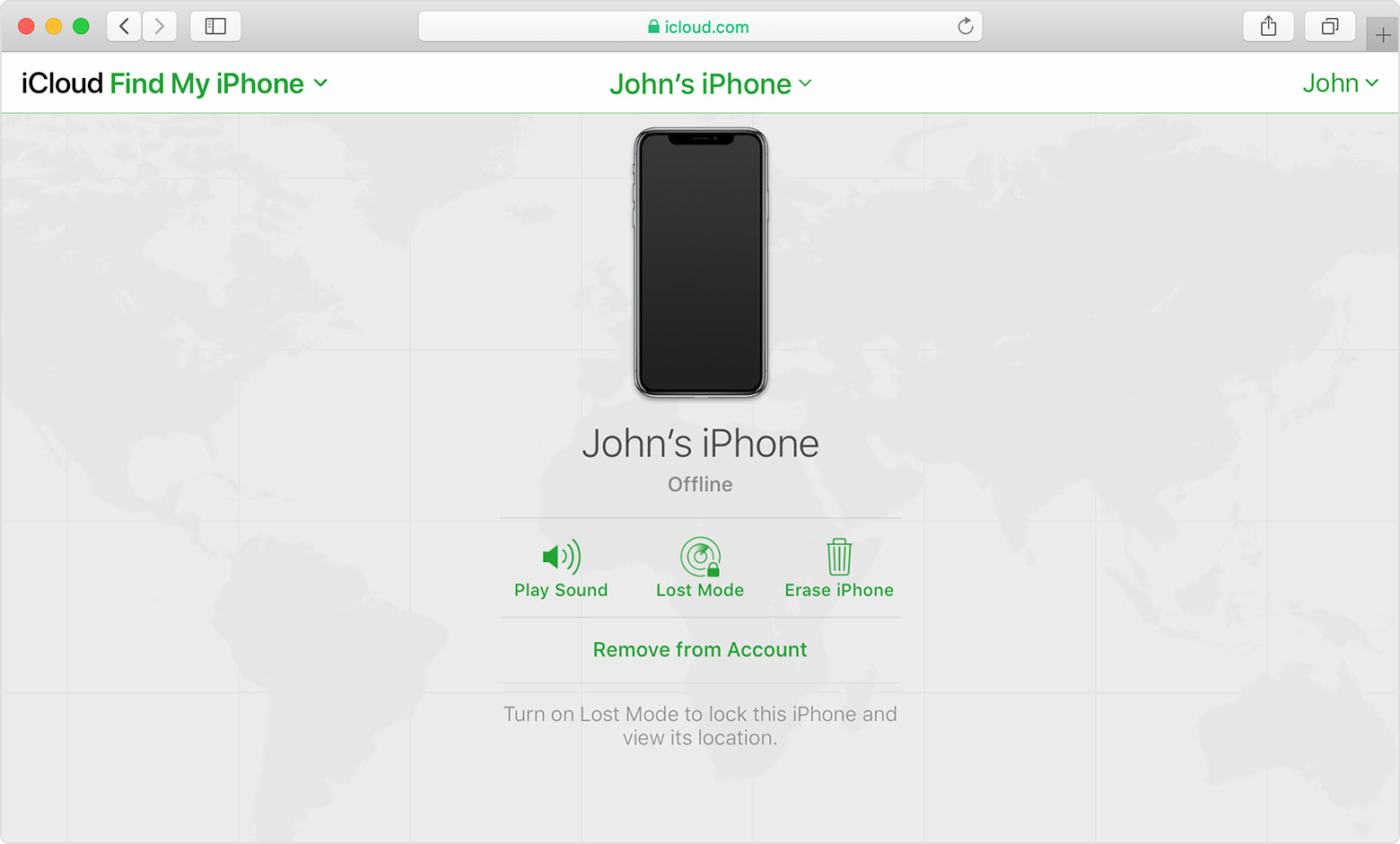
If you see "Offline," "No location available," or "Location Services Off," your device might be offline for one of these reasons:
Don't see your device?
Don'ts
If the device is removed from an account after it is erased, Activation Lock will be turned off. This allows another person to turn on and use the device.
An example of my iPhone 5 is given in the GIF below. There is no "Undo" after you remove it from your account.
iPhones are designed with strong security measures to protect the privacy and data of their owners. One of the key features that ensure this is the requirement of an Apple ID and password or a passcode to access the device's contents. This means that without the owner's authorization, it is nearly impossible for anyone else to open an iPhone and gain access to its data.
With these security measures in place, iPhones offer a high level of protection against unauthorized access. Even if someone physically possesses the device, they will find it extremely challenging to access its contents without the owner's Apple ID and password or the passcode. This helps safeguard sensitive information, personal data, and ensures the privacy of the iPhone's owner.
It is worth noting that while these security measures provide strong protection against unauthorized access, it is essential for iPhone owners to choose strong and unique passcodes or passwords. This minimizes the risk of brute-force attacks or password-guessing attempts.
New phone
