bluetooth devices not appearing!!!

I just got a new MacBook Pro M2, after couple hours of setting it up. I realized that my MacBook just keeps on searching for nearby devices and doesn’t show the BLUETOOTH devices that are in range and those devices used to connect easily on my previous M1 Air. The devices that I have tried searching and connecting are AirPods 3 and a generic wireless Bluetooth mouse. I have tried resetting the Bluetooth module on MacBook but still the issue isn’t resolved. This issue started on macOS 12, even though now I have updated to macOS 13. NEED HELP!

MacBook Pro (M2 Pro, 2023)

Posted on Jul 22, 2023 11:59 AM

Reply
Question marked as Top-ranking reply

Posted on Jul 22, 2023 12:39 PM

iahmadzafar wrote:

The articles refers specifically to pairing AirPods but the issue I’m facing here is that no bluetooth device is even showing up as in range meanwhile those devices appear on other Macs and iPhone. I'm starting to think that this is some manufacturing defect in the hardware component as it should have fixed automatically when I updated the OS. What do you think?

A hardware defect is typically not "fixed" by a MacOS update. Since your Mac is new, it is still covered under warranty. I would take it to an Apple Store or to any Authorized Apple Service Provider to have the bluetooth hardware checked and diagnosed. Make sure you back everything up first because if the hardware is defective they will likely replace your Mac with a new one.

18 replies
Question marked as Top-ranking reply

Jul 22, 2023 12:39 PM in response to iahmadzafar

iahmadzafar wrote:

The articles refers specifically to pairing AirPods but the issue I’m facing here is that no bluetooth device is even showing up as in range meanwhile those devices appear on other Macs and iPhone. I'm starting to think that this is some manufacturing defect in the hardware component as it should have fixed automatically when I updated the OS. What do you think?

A hardware defect is typically not "fixed" by a MacOS update. Since your Mac is new, it is still covered under warranty. I would take it to an Apple Store or to any Authorized Apple Service Provider to have the bluetooth hardware checked and diagnosed. Make sure you back everything up first because if the hardware is defective they will likely replace your Mac with a new one.

Jul 25, 2024 8:23 AM in response to luar181

luar181 wrote:

Yes, of course they were on discovery mode. It STILL doesn't detect, or pair!!!!

You can try a Bluetooth Reset


NOTE: All Bluetooth devices will need to be paired again!


https://macreports.com/how-to-reset-bluetooth-in-macos-monterey


Via Applications -> Utilities -> Terminal, copy & paste the following commands.


NOTE: The below 'sudo' command will prompt for your macOS login password. When you type your password nothing will echo back, but macOS will see every character you type, ending with the 'return' key.


rm /Library/Preferences/com.apple.Bluetooth.plist
sudo pkill bluetoothd 

Jul 27, 2023 4:51 PM in response to iahmadzafar

UPDATE

The issue is kinda resolved on it’s own for AirPods and for generic Bluetooth mouse you just have to switch it into the pairing mode. To switch it into pairing mode some devices have dedicated buttons on the bottom or you press left click + scroll button + right click buttons all at once for 5-10s and then your device will pop up immediately in the nearby devices.

Jul 22, 2023 12:17 PM in response to iahmadzafar

Hmmmm... That is weird. For some reason, you don't have an Advanced button!


See if the article Apple wrote below helps...


Set up AirPods with your Mac and other Bluetooth devices

Learn how to set up your AirPods with your Mac, Android device, or another Bluetooth device to listen to music, take phone calls, and more.
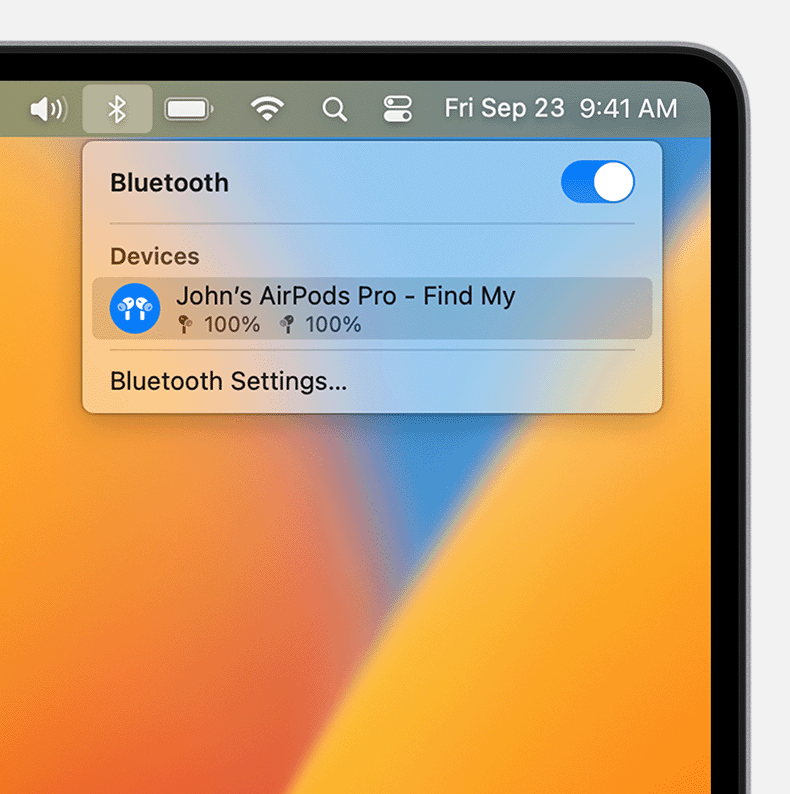


Use AirPods with your Mac

If you're using AirPods (2nd generation), make sure that your Mac has macOS Mojave 10.14.4 or later. AirPods Pro (1st generation) require macOS Catalina 10.15.1 or later. AirPods (3rd generation) require macOS Monterey or later. AirPods Pro (2nd generation) require the latest version of macOS.

If you set up your AirPods with your iPhone and your Mac is signed in to iCloud with the same Apple ID, your AirPods might be ready to use with your Mac. Place your AirPods in your ears and click either the Bluetooth menu  or the volume control   in the menu bar on your Mac.1 Then choose your AirPods from the list.



If your AirPods don't appear in the Bluetooth  or volume control  menu,2 pair your AirPods with your Mac:

  1. On your Mac, choose System Settings from the Apple menu , then click Bluetooth.
  2. Make sure that Bluetooth is on.
  3. Put both AirPods in the charging case and open the lid.
  4. Press and hold the setup button on the back of the case until the status light flashes white.
  5. Select your AirPods in the Devices list, then click Connect.
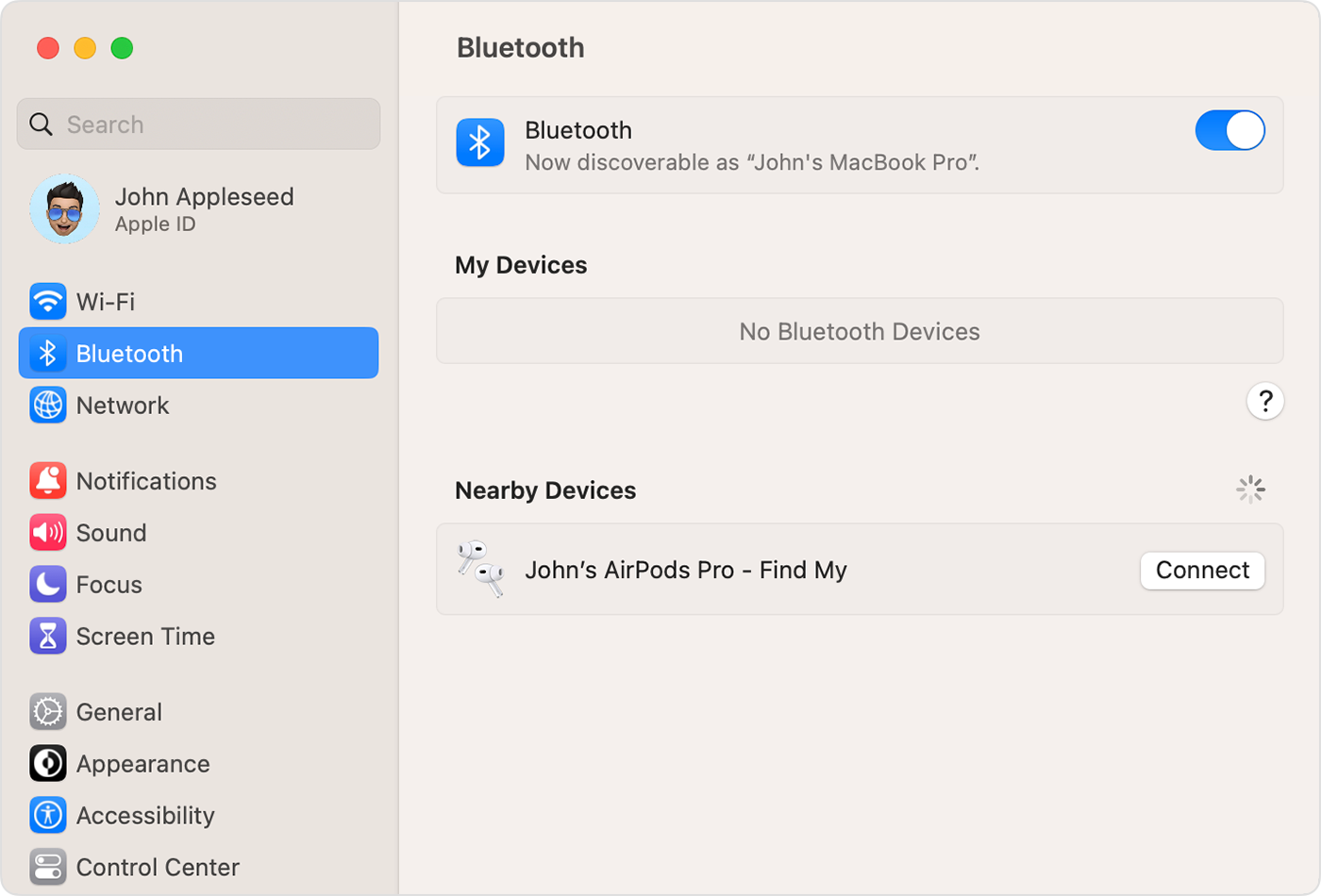
If sound still plays from your Mac speakers, click either the Bluetooth menu  or the volume control  in the menu bar and make sure that your AirPods are selected as the output device.1


Use AirPods with a non-Apple device

You can use AirPods as a Bluetooth headset with a non-Apple device. You can't use Siri, but you can listen and talk. To set up your AirPods with an Android phone or other non-Apple device,3 follow these steps:

  1. On your non-Apple device, go to the settings for Bluetooth and make sure that Bluetooth is on.4 If you have an Android device, go to Settings > Connections > Bluetooth.
  2. With your AirPods in the charging case, open the lid.
  3. Press and hold the setup button on the back of the case until the status light flashes white.
  4. When your AirPods appear in the list of Bluetooth devices, select them.


Switch devices automatically

Your AirPods (2nd and 3rd generation) and your AirPods Pro (1st and 2nd generation) can switch automatically between your Mac with macOS Big Sur, iPhone with iOS 14, and iPad with iPadOS 14 or later. Your devices need to be signed in with the same Apple ID using two-factor authentication. For example, while listening to music on your Mac, you answer a call on your iPhone. Your AirPods automatically switch from the music on your Mac to the phone call on your iPhone.

In some situations, a notification about your AirPods appears on the screen of your Mac. When you hold the pointer over the notification, a Connect button appears. Click Connect to confirm that you want your AirPods to switch to your Mac or stay with your Mac.

If you want to turn off automatic switching for your Mac, open Bluetooth preferences on your Mac while your AirPods are in your ears. Click the Options button next to your AirPods in the list of devices. Click Connect to This Mac, and then choose When Last Connected to This Mac. To turn this feature on again, choose Automatically.

Sound should not automatically switch from one device to another if you're in a conversation, like a phone call, a FaceTime call, or a video conference.


Learn more

Learn what to do if you can't set up or connect your AirPods.


  1. If you don't see the volume control in the menu bar, learn how to add it.
  2. Your AirPods Pro (2nd generation) can connect automatically with your Mac that uses macOS Ventura. Your AirPods (3rd generation) can connect automatically with your Mac that uses macOS Monterey or later. Your AirPods Pro can connect automatically with your Mac that uses macOS Catalina 10.15.1 or later. Your AirPods (2nd generation) can connect automatically with your Mac that uses macOS Mojave 10.14.4 or later. Your AirPods (1st generation) can connect automatically with your Mac that uses macOS Sierra or later.
  3. The features of your AirPods might be limited, depending on the Bluetooth device that they're connected to.
  4. If you can't find the Bluetooth settings for your device, check the user guide.

Information about products not manufactured by Apple, or independent websites not controlled or tested by Apple, is provided without recommendation or endorsement. Apple assumes no responsibility with regard to the selection, performance, or use of third-party websites or products. Apple makes no representations regarding third-party website accuracy or reliability. Contact the vendor for additional information.


Published Date: October 24, 2022

Jul 18, 2024 4:28 PM in response to luar181

luar181 wrote:

It's beyond me that Apple has the cheeks of manufacturing a computer with no Bluetooth. And I'm the idiot who buys it. I bought my computer one day prior to travelling - it's a brand new M2 MacBook Air. I've tried to connect the Bluetooth and it doesn't work. It doesn't detect my JBL headphones. I'm in the middle of nowhere, so I cannot take it back to the shop where I purchased it. Any ideas???? GRRRRR!!!!

Did you put your JBL Headphones inyo “Discovery” mode?


The Bluetooth device has to be in Discovery mode before it will connect to anything.

Jul 22, 2023 12:08 PM in response to iahmadzafar

Hey there, iahmadzafar.


I see that you have been experiencing some trouble with connecting to Bluetooth using your MacBook Pro M2. I have a list of solutions that might work with your problem:


  1. Restart your device and try again with Bluetooth
  2. Check if your AirPods are charged and the green dot is on
  3. Make sure these two settings are on:

4. See if your System Setting are blocking you from connecting to Bluetooth


If it is still not work, you should contact Apple Support.

Jul 22, 2023 12:23 PM in response to AhsokaTano22

The articles refers specifically to pairing AirPods but the issue I’m facing here is that no bluetooth device is even showing up as in range meanwhile those devices appear on other Macs and iPhone. I'm starting to think that this is some manufacturing defect in the hardware component as it should have fixed automatically when I updated the OS. What do you think?

Jul 18, 2024 3:23 PM in response to iahmadzafar

It's beyond me that Apple has the cheeks of manufacturing a computer with no Bluetooth. And I'm the idiot who buys it. I bought my computer one day prior to travelling - it's a brand new M2 MacBook Air. I've tried to connect the Bluetooth and it doesn't work. It doesn't detect my JBL headphones. I'm in the middle of nowhere, so I cannot take it back to the shop where I purchased it. Any ideas???? GRRRRR!!!!

This thread has been closed by the system or the community team. You may vote for any posts you find helpful, or search the Community for additional answers.

bluetooth devices not appearing!!!

Welcome to Apple Support Community
A forum where Apple customers help each other with their products. Get started with your Apple Account.



