I am having old version of ipad model A1474, i am unable to sign in to my ipad having error like could not connect to ther server. Pleas ehelp me out

I logged out my previous apple ID and now I can't remember previous ID and password. So I made a new apple ID on laptop. And trying to start it on my laptop for 2 weeks but am unable to do so. I also reset my iPad and also network settings but issue have not resolved

iPad Air, iOS 12

Posted on Aug 2, 2023 1:13 AM

Reply
Question marked as Top-ranking reply

Posted on Aug 2, 2023 2:36 AM

You appear to have two connected problems.

  • Forgotten AppleID credentials
  • Difficulties with (re)activation of the iPad


It is pointless attempting to address the second issue until the first has been successfully resolved.


Forgotten AppleID


Having reset your iPad, you are presumably being prompted for your AppleID credentials - so as to satisfy the Activation Lock. Creating and attempting to use a different AppleID will not help - as you’ll not be able to use the new AppleID with the iPad until the existing Activation Lock has been satisfied. Until you recover the AppleID credentials that were last used to successfully activate your iPad, you’ll not be able to use it.


If you have forgotten your AppleID or associated password, these can be recovered here:

https://iforgot.apple.com/


To recover your credentials, you’ll need access to any one of the following:

Your primary email address mailbox that corresponds with your AppleID

Any of the secondary/recovery email addresses that should be configured for your AppleID account

Any of the trusted telephone numbers (fixed line or Cellular/Mobile) that are associated with your AppleID


More information about recovery of your AppleID and associated Password:

If you forgot your Apple ID - Apple Support

If you forgot your Apple ID password - Apple Support


iPad (re)activation


iPad If you are experiencing difficulties with (re)activation of your iPad, you may have more success if you connect your iPad to a Windows PC (with iTunes for Windows installed) or a Mac (with iTunes or Finder - as appropriate for the installed version of macOS). Once connected to your computer, your iPad will be detected - and you should be able to activate using iTunes.


NB: You will require the AppleID credentials that you have already recovered.


  1. Make sure that you have the latest version of macOS or the latest version of iTunes.
  2. Check that your computer has an Internet connection.
  3. With the cable that came with your iPad, connect your iPad to your computer. Locate your device on your computer.
  4. Wait while your computer detects and activates your iPad:
  • If you see an alert that shows "Set up as New" or "Restore from Backup", it means your iPad is activated.
  • If you get an error message that says the "activation information was invalid" or "activation information could not be obtained from the device", use recovery mode to restore your iPhone.


If difficulties persist, a restart of your WiFi Router and/or a change of DNS settings may also be helpful.


To restart you home router, disconnect power - then wait at least 30 seconds before restarting. When you router has rebooted (which may take several minutes), force-restart your iPad:


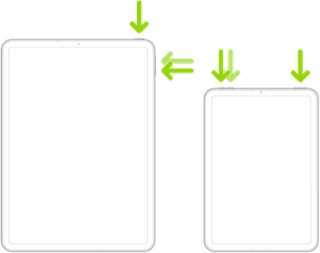
Force restart iPad (models with Face ID or with Touch ID in the top button)

If your iPad doesn’t have the Home button, do the following:

  1. Press and quickly release the volume button nearest to the top button.
  2. Press and quickly release the volume button farthest from the top button.
  3. Press and hold the top button.
  4. When the Apple logo appears, release the top button.


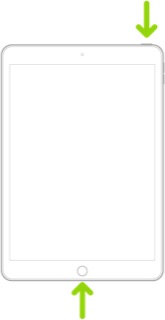
Force restart iPad (models with the Home button)

Press and hold the top button and the Home button at the same time. When the Apple logo appears, release both buttons.


For recommended DNS servers (configured at your home router and/or your iPad), you might choose one of the following Recursive DNS Providers (IPv4 and IPv6 addresses included below):


Quad9

9.9.9.9

149.112.112.112

2620:fe::fe

2620:fe::9


OpenDNS

208.67.222.222

208.67.220.220

2620:119:35::35

2620:119:53::53


Cloudflare

1.1.1.1

1.0.0.1

2606:4700:4700::1111

2606:4700:4700::1001


Should it be necessary to escalate your issue to Apple Support for assistance, the quickest route to engaging with the Apple Support Team will be via the Support link at top-right or bottom-left of this page.


Activation Lock


You will require the AppleID an associated password that was last used to successfully activate the device - which, for the bona-fide owner, should be straightforward to recover.


Here are the Apple support pages that outline the Activation Lock - and the only mechanisms by which it can be satisfied:

Activation Lock for iPhone, iPad, and iPod touch - Apple Support

Turn off Activation Lock – Apple Support


As you will discover, unless you are the owner of the AppleID that was last used to activate the device, you’ll not be able to defeat or bypass the Activation Lock. With documentary evidence that you are the original owner (such as sales receipt showing the serial number), Apple may be prepared to assist - otherwise they and nobody here will be able to help you.


If you have the necessary documentation, Apple have introduced a portal though which you may be able to request release of an Activation Lock:

How to remove Activation Lock - Apple Support & start an Activation Lock support request.


However, recovery of the AppleID credentials should be possible… as previously described.


Similar questions

5 replies
Question marked as Top-ranking reply

Aug 2, 2023 2:36 AM in response to zartasha192

You appear to have two connected problems.

  • Forgotten AppleID credentials
  • Difficulties with (re)activation of the iPad


It is pointless attempting to address the second issue until the first has been successfully resolved.


Forgotten AppleID


Having reset your iPad, you are presumably being prompted for your AppleID credentials - so as to satisfy the Activation Lock. Creating and attempting to use a different AppleID will not help - as you’ll not be able to use the new AppleID with the iPad until the existing Activation Lock has been satisfied. Until you recover the AppleID credentials that were last used to successfully activate your iPad, you’ll not be able to use it.


If you have forgotten your AppleID or associated password, these can be recovered here:

https://iforgot.apple.com/


To recover your credentials, you’ll need access to any one of the following:

Your primary email address mailbox that corresponds with your AppleID

Any of the secondary/recovery email addresses that should be configured for your AppleID account

Any of the trusted telephone numbers (fixed line or Cellular/Mobile) that are associated with your AppleID


More information about recovery of your AppleID and associated Password:

If you forgot your Apple ID - Apple Support

If you forgot your Apple ID password - Apple Support


iPad (re)activation


iPad If you are experiencing difficulties with (re)activation of your iPad, you may have more success if you connect your iPad to a Windows PC (with iTunes for Windows installed) or a Mac (with iTunes or Finder - as appropriate for the installed version of macOS). Once connected to your computer, your iPad will be detected - and you should be able to activate using iTunes.


NB: You will require the AppleID credentials that you have already recovered.


  1. Make sure that you have the latest version of macOS or the latest version of iTunes.
  2. Check that your computer has an Internet connection.
  3. With the cable that came with your iPad, connect your iPad to your computer. Locate your device on your computer.
  4. Wait while your computer detects and activates your iPad:
  • If you see an alert that shows "Set up as New" or "Restore from Backup", it means your iPad is activated.
  • If you get an error message that says the "activation information was invalid" or "activation information could not be obtained from the device", use recovery mode to restore your iPhone.


If difficulties persist, a restart of your WiFi Router and/or a change of DNS settings may also be helpful.


To restart you home router, disconnect power - then wait at least 30 seconds before restarting. When you router has rebooted (which may take several minutes), force-restart your iPad:


Force restart iPad (models with Face ID or with Touch ID in the top button)

If your iPad doesn’t have the Home button, do the following:

  1. Press and quickly release the volume button nearest to the top button.
  2. Press and quickly release the volume button farthest from the top button.
  3. Press and hold the top button.
  4. When the Apple logo appears, release the top button.


Force restart iPad (models with the Home button)

Press and hold the top button and the Home button at the same time. When the Apple logo appears, release both buttons.


For recommended DNS servers (configured at your home router and/or your iPad), you might choose one of the following Recursive DNS Providers (IPv4 and IPv6 addresses included below):


Quad9

9.9.9.9

149.112.112.112

2620:fe::fe

2620:fe::9


OpenDNS

208.67.222.222

208.67.220.220

2620:119:35::35

2620:119:53::53


Cloudflare

1.1.1.1

1.0.0.1

2606:4700:4700::1111

2606:4700:4700::1001


Should it be necessary to escalate your issue to Apple Support for assistance, the quickest route to engaging with the Apple Support Team will be via the Support link at top-right or bottom-left of this page.


Activation Lock


You will require the AppleID an associated password that was last used to successfully activate the device - which, for the bona-fide owner, should be straightforward to recover.


Here are the Apple support pages that outline the Activation Lock - and the only mechanisms by which it can be satisfied:

Activation Lock for iPhone, iPad, and iPod touch - Apple Support

Turn off Activation Lock – Apple Support


As you will discover, unless you are the owner of the AppleID that was last used to activate the device, you’ll not be able to defeat or bypass the Activation Lock. With documentary evidence that you are the original owner (such as sales receipt showing the serial number), Apple may be prepared to assist - otherwise they and nobody here will be able to help you.


If you have the necessary documentation, Apple have introduced a portal though which you may be able to request release of an Activation Lock:

How to remove Activation Lock - Apple Support & start an Activation Lock support request.


However, recovery of the AppleID credentials should be possible… as previously described.


This thread has been closed by the system or the community team. You may vote for any posts you find helpful, or search the Community for additional answers.

I am having old version of ipad model A1474, i am unable to sign in to my ipad having error like could not connect to ther server. Pleas ehelp me out

Welcome to Apple Support Community
A forum where Apple customers help each other with their products. Get started with your Apple Account.
