connecting to a hidden network

I can't connect to my own network on my iPad. The advice on earlier forums: go to settings, make sure WiFi is turned on, tap Other, enter the network name, the security setting and the password does NOT solve the problem. I have just returned from being in a hospital where I used their network for patients. Now having returned home I'm being told my network is hidden. I've never encountered this problem before.

iPad, iOS 9

Posted on Aug 8, 2023 11:06 PM

Reply
Question marked as Top-ranking reply

Posted on Aug 9, 2023 2:55 AM

A hidden WiFi network is configured from the WiFi Router that provides the WiFi network. To change the visibility of your WiFi network, you’ll need to access your WiFi Routers administration page - and make changes to the configuration.


You will need to consult your Router’s User Guide - or if provided by your Internet Service Provider (ISP), you should be able to find the necessary information from the ISPs support resources.


A hidden network attempts to hide the network name that is broadcast by the WiFi Router - making casual network discovery more difficult. Ironically, for technical reasons beyond the scope of this post, this feature actually weakens security - and engenders a false sense of security. The network name can be easily discovered using readily available network tools.


If you are unable to connect to your WiFi network (whether hidden or not) using the correct SSID and associated network Password, try a restart of the your WiFi Router - as this will often clear the problem.


To restart your router, disconnect power from the router for at least 30 seconds - then reconnect power to restart. After your router reboots (which may take several minutes), force restart your iPad:


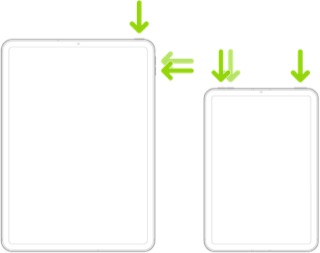
Force restart iPad (models with Face ID or with Touch ID in the top button)

If your iPad doesn’t have the Home button, do the following:

  1. Press and quickly release the volume button nearest to the top button.
  2. Press and quickly release the volume button farthest from the top button.
  3. Press and hold the top button.
  4. When the Apple logo appears, release the top button.


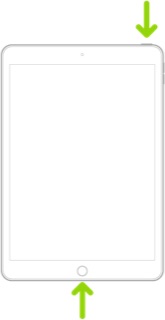
Force restart iPad (models with the Home button)

Press and hold the top button and the Home button at the same time. When the Apple logo appears, release both buttons.


If difficulties persist, you’ll need to follow basic WiFi troubleshooting - as detailed here:

If your iPhone, iPad, or iPod touch won’t connect to a Wi-Fi network - Apple Support

Recommended settings for Wi-Fi routers and access points - Apple Support


1 reply
Question marked as Top-ranking reply

Aug 9, 2023 2:55 AM in response to Prufrock1

A hidden WiFi network is configured from the WiFi Router that provides the WiFi network. To change the visibility of your WiFi network, you’ll need to access your WiFi Routers administration page - and make changes to the configuration.


You will need to consult your Router’s User Guide - or if provided by your Internet Service Provider (ISP), you should be able to find the necessary information from the ISPs support resources.


A hidden network attempts to hide the network name that is broadcast by the WiFi Router - making casual network discovery more difficult. Ironically, for technical reasons beyond the scope of this post, this feature actually weakens security - and engenders a false sense of security. The network name can be easily discovered using readily available network tools.


If you are unable to connect to your WiFi network (whether hidden or not) using the correct SSID and associated network Password, try a restart of the your WiFi Router - as this will often clear the problem.


To restart your router, disconnect power from the router for at least 30 seconds - then reconnect power to restart. After your router reboots (which may take several minutes), force restart your iPad:


Force restart iPad (models with Face ID or with Touch ID in the top button)

If your iPad doesn’t have the Home button, do the following:

  1. Press and quickly release the volume button nearest to the top button.
  2. Press and quickly release the volume button farthest from the top button.
  3. Press and hold the top button.
  4. When the Apple logo appears, release the top button.


Force restart iPad (models with the Home button)

Press and hold the top button and the Home button at the same time. When the Apple logo appears, release both buttons.


If difficulties persist, you’ll need to follow basic WiFi troubleshooting - as detailed here:

If your iPhone, iPad, or iPod touch won’t connect to a Wi-Fi network - Apple Support

Recommended settings for Wi-Fi routers and access points - Apple Support



This thread has been closed by the system or the community team. You may vote for any posts you find helpful, or search the Community for additional answers.

connecting to a hidden network

Welcome to Apple Support Community
A forum where Apple customers help each other with their products. Get started with your Apple Account.