
Macbook Pro screen flashes once and goes dark after sleep
After I close the lid on my Macbook Pro, I cannot use it without restarting it. The screen flashes one time briefly, and then it goes dark.
After I close the lid on my Macbook Pro, I cannot use it without restarting it. The screen flashes one time briefly, and then it goes dark.
Hello Lauri_D,
This appears to be unexpected behavior when waking your Mac from sleep. With that being the case, we suggest using Apple Diagnostics to help determine if a hardware component might be at fault. Here's how:
"Prepare your Mac
Start Apple Diagnostics
Determine whether you're using a Mac with Apple silicon, then follow the appropriate steps:
Apple silicon
Intel processor
If using the D key doesn't work, press and hold Option (⌥)-D at startup instead. If neither method works, review the guidelines for using key combinations at startup.
You may be asked to choose a language and make sure that you have an active network connection. You can use the Wi-Fi menu  in the upper-right corner of your screen to choose a Wi-Fi network.
View the test results
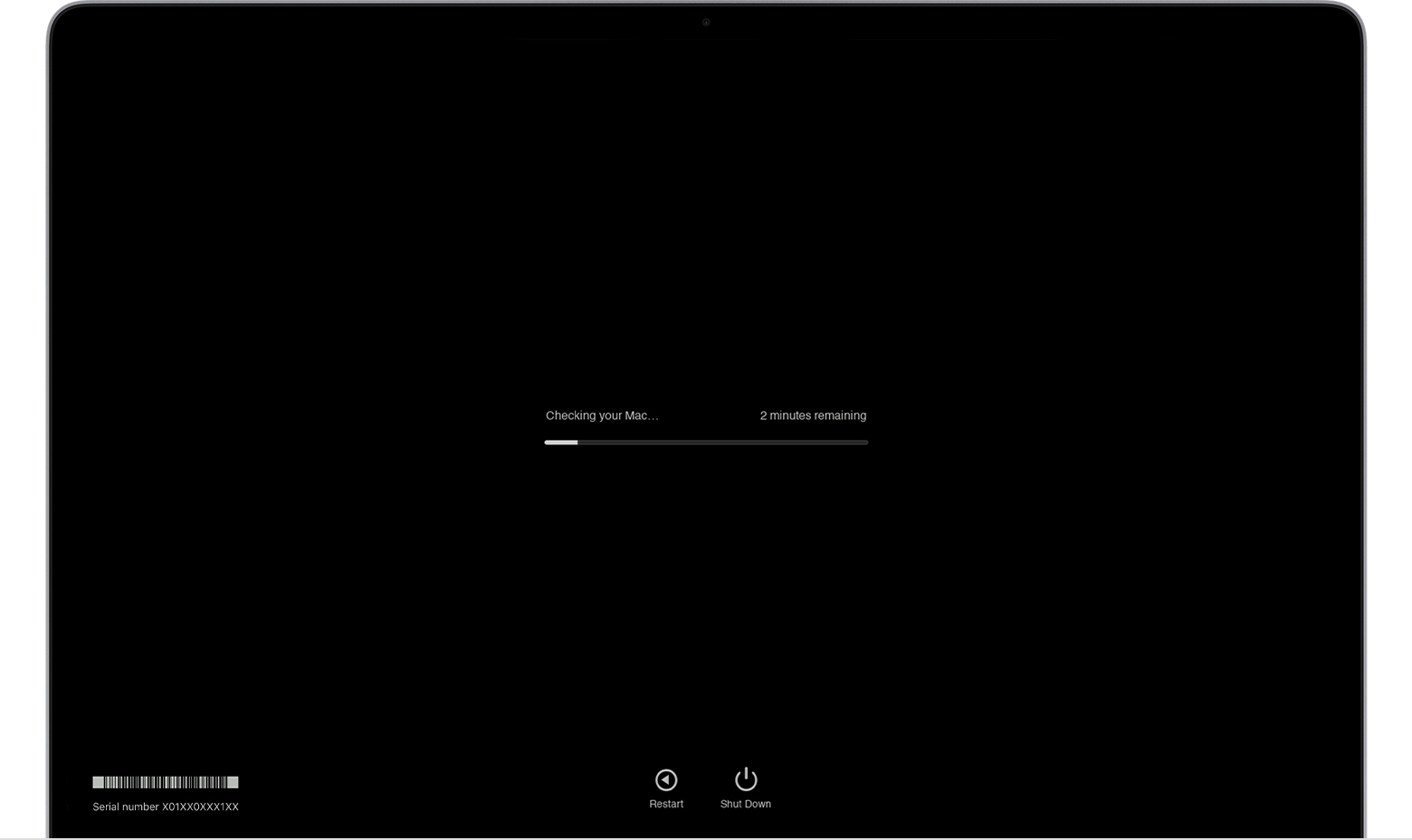
Apple Diagnostics shows a progress bar while it's checking your Mac:
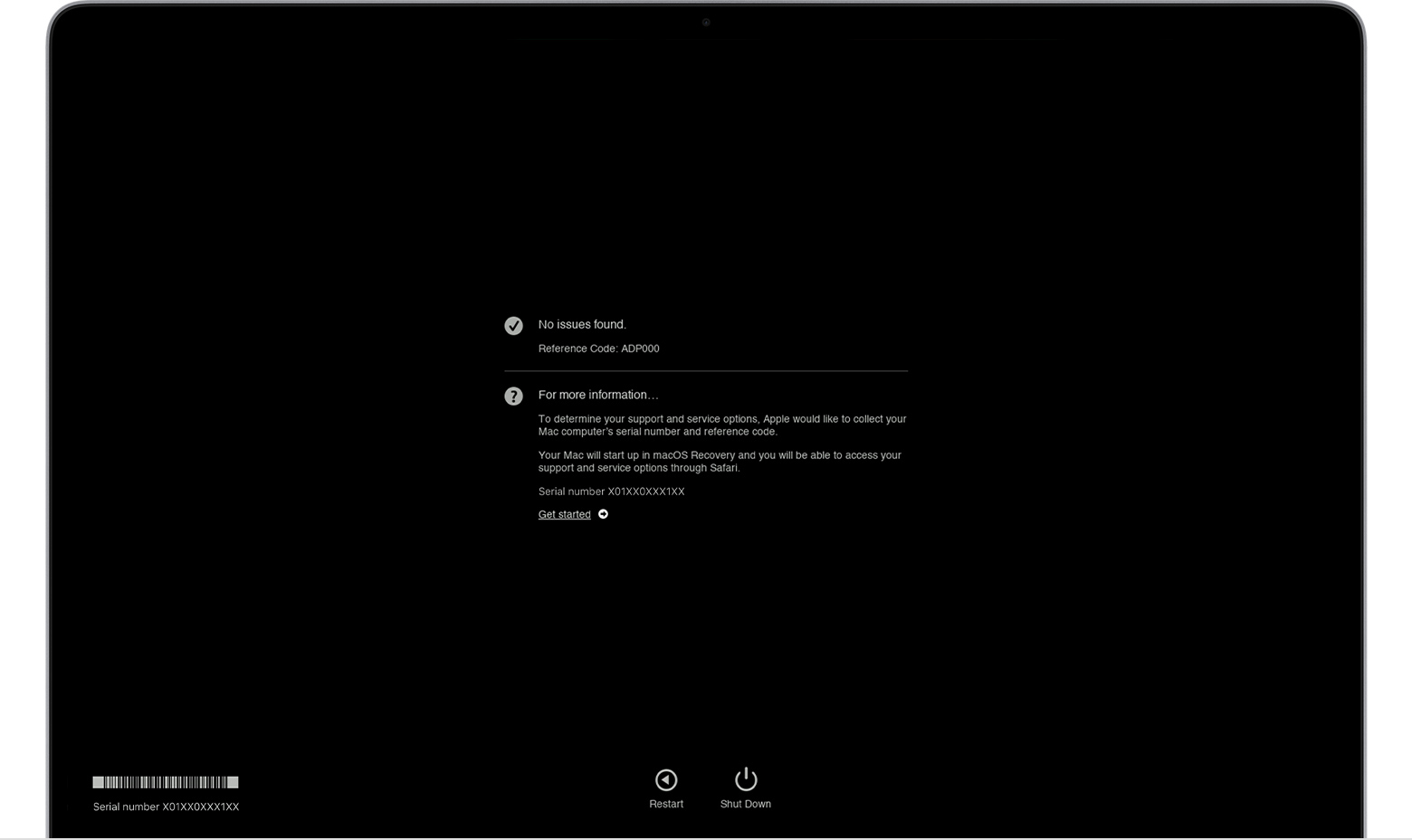
When testing is complete, Apple Diagnostics shows the results, including one or more reference codes:
To repeat the test, click “Run the test again” or press Command-R.
To restart your Mac, click Restart or press R.
To shut down, click Shut Down or press S.
To get information about your service and support options, make sure that your Mac is connected to the internet, then click ”Get started” or press Command-G. Your Mac will restart to a webpage with more information. When you're done, choose Restart or Shut Down from the Apple menu.
Apple Diagnostics reference codes
When you use Apple Diagnostics to test your Mac, the test results include one or more reference codes.
List of Apple Diagnostics reference codes"
More details here: Use Apple Diagnostics to test your Mac
If you need further assistance, reach out to Apple directly using this link: Get Support
Best wishes!
Hello Lauri_D,
This appears to be unexpected behavior when waking your Mac from sleep. With that being the case, we suggest using Apple Diagnostics to help determine if a hardware component might be at fault. Here's how:
"Prepare your Mac
Start Apple Diagnostics
Determine whether you're using a Mac with Apple silicon, then follow the appropriate steps:
Apple silicon
Intel processor
If using the D key doesn't work, press and hold Option (⌥)-D at startup instead. If neither method works, review the guidelines for using key combinations at startup.
You may be asked to choose a language and make sure that you have an active network connection. You can use the Wi-Fi menu in the upper-right corner of your screen to choose a Wi-Fi network.
View the test results
Apple Diagnostics shows a progress bar while it's checking your Mac:
When testing is complete, Apple Diagnostics shows the results, including one or more reference codes:
To repeat the test, click “Run the test again” or press Command-R.
To restart your Mac, click Restart or press R.
To shut down, click Shut Down or press S.
To get information about your service and support options, make sure that your Mac is connected to the internet, then click ”Get started” or press Command-G. Your Mac will restart to a webpage with more information. When you're done, choose Restart or Shut Down from the Apple menu.
Apple Diagnostics reference codes
When you use Apple Diagnostics to test your Mac, the test results include one or more reference codes.
List of Apple Diagnostics reference codes"
More details here: Use Apple Diagnostics to test your Mac
If you need further assistance, reach out to Apple directly using this link: Get Support
Best wishes!
Macbook Pro screen flashes once and goes dark after sleep

