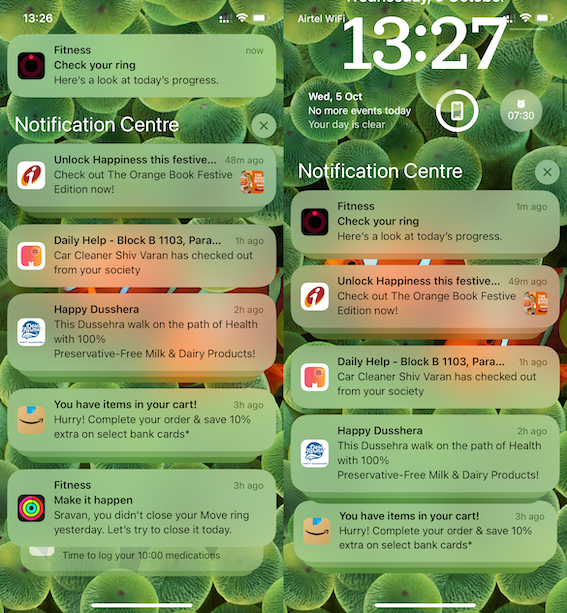
The pic below is normal notifications
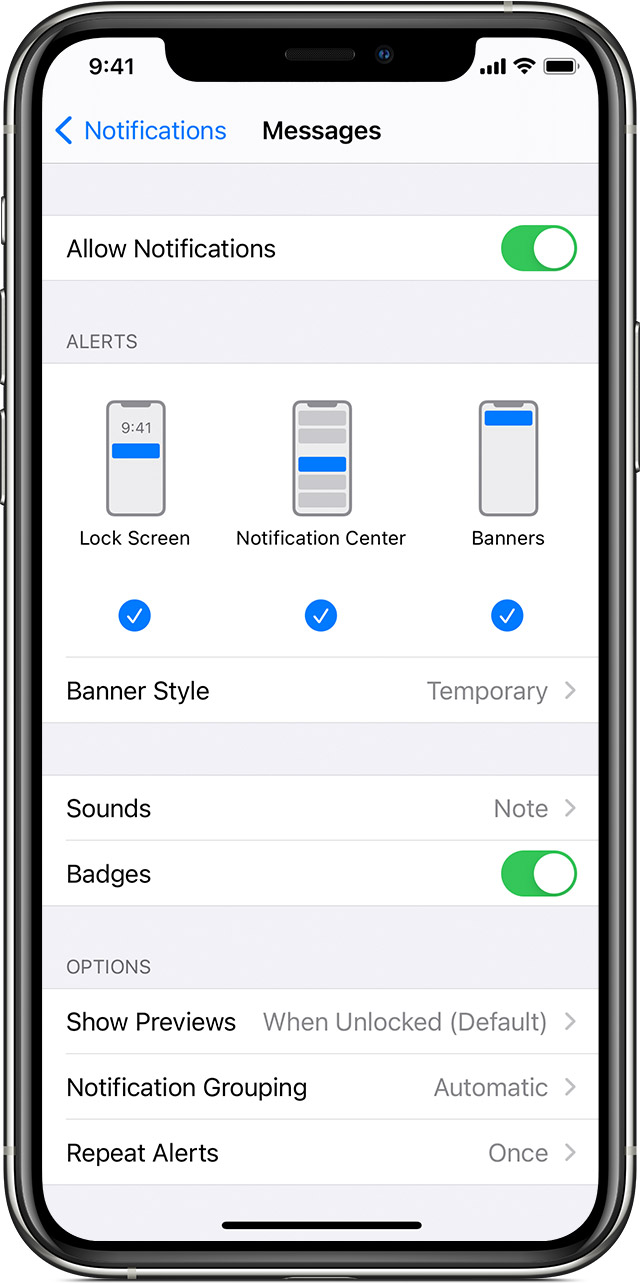
Change alert styles
To add or change an alert style for a notification:
- Go to Settings > Notifications.
- Select an app under Notification Style.
- Choose a type of alert and banner style.
You can also turn sounds and badges on or off.
Change group notification settings
You can use group notifications or keep them separate.
- Go to Settings > Notifications.
- Select an app and tap Notification Grouping.
- Select one of these options:
- Automatic: Notifications from each app will appear in groups based on app alerts.
- By App: All notifications from each app will be grouped into single expandable alerts.
- Off: Notifications appear in the order they’re received, without grouping.
From here you can also choose how to show notification previews for specific apps. For example, you can have notification previews show up all the time or never, even when your device is locked.