SOS keeps going off
SOS goes off for no reason texting my emergency contacts
iPhone SE, iOS 14
SOS goes off for no reason texting my emergency contacts
iPhone SE, iOS 14
Thanks for posting in the Apple Support Communities LuvMyAppleWatch,
The following information should help both with ending calls that start accidentally, as well as preventing occurrences in the future:
End a call that you started accidentally
If you start the countdown by accident, you can cancel. On iPhone 8 or later, release the side button and volume button before the countdown ends. On iPhone 7 or earlier, press the Stop button, then tap Stop Calling.
If the call has been made but you don’t need emergency services, don’t hang up. Wait until a responder answers, then explain that you don’t need help.
Change how you call
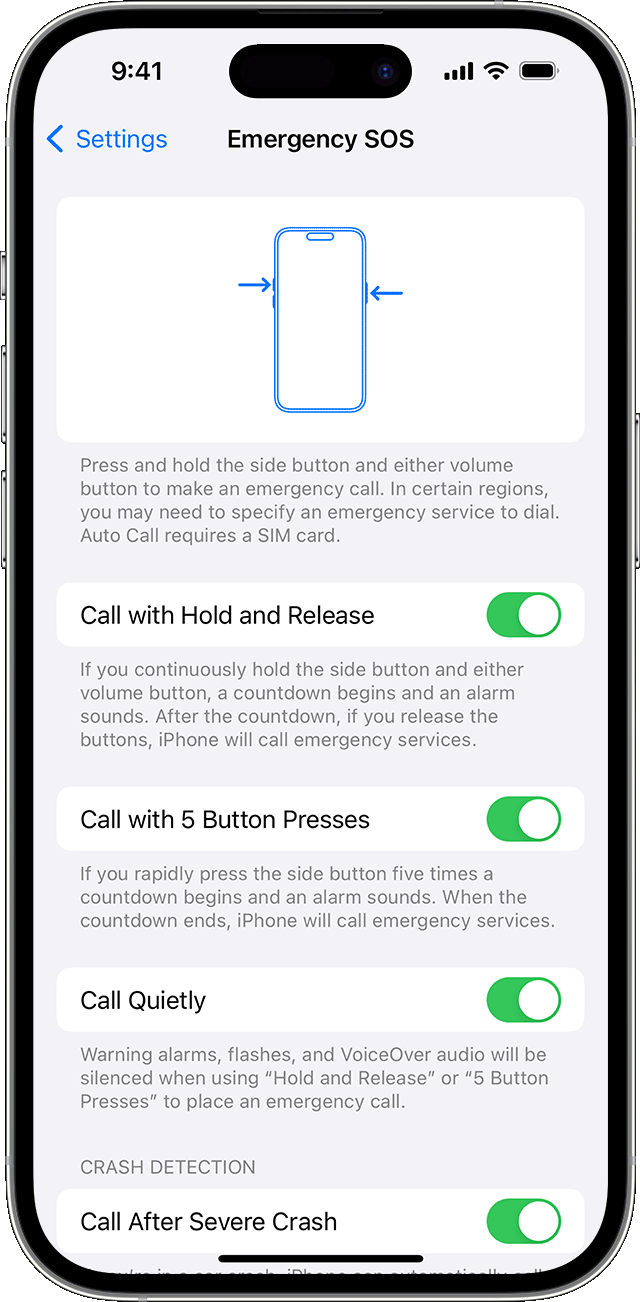
On iPhone 8 or later, your iPhone can automatically call emergency services. When Call with Hold and Release is turned on and you hold the side button and one of the volume buttons to make an emergency call, your iPhone begins a countdown and sounds an alert. If you release the buttons after the countdown ends, your iPhone automatically calls emergency services.
When Call with 5 Button Presses is turned on and you try to make an emergency call, your iPhone begins a countdown and sounds an alert. After the countdown ends, your iPhone automatically calls emergency services.
Call Quietly is available in iOS 16.3 and later. When Call Quietly is turned on and you try to make an emergency call with one of these options, any warning alarms and flashes will be silenced.
To turn these settings on:
1. Open the Settings app on your iPhone.
2. Tap Emergency SOS.
3. Turn Call with Hold and Release, Call with 5 Button Presses, or Call Quietly on.
If you turn off Call with Hold and Release or Call with 5 Button Presses, you can still use the Emergency SOS slider to make a call.
Use Emergency SOS on your iPhone
We hope this helps!
Thanks for posting in the Apple Support Communities LuvMyAppleWatch,
The following information should help both with ending calls that start accidentally, as well as preventing occurrences in the future:
End a call that you started accidentally
If you start the countdown by accident, you can cancel. On iPhone 8 or later, release the side button and volume button before the countdown ends. On iPhone 7 or earlier, press the Stop button, then tap Stop Calling.
If the call has been made but you don’t need emergency services, don’t hang up. Wait until a responder answers, then explain that you don’t need help.
Change how you call
On iPhone 8 or later, your iPhone can automatically call emergency services. When Call with Hold and Release is turned on and you hold the side button and one of the volume buttons to make an emergency call, your iPhone begins a countdown and sounds an alert. If you release the buttons after the countdown ends, your iPhone automatically calls emergency services.
When Call with 5 Button Presses is turned on and you try to make an emergency call, your iPhone begins a countdown and sounds an alert. After the countdown ends, your iPhone automatically calls emergency services.
Call Quietly is available in iOS 16.3 and later. When Call Quietly is turned on and you try to make an emergency call with one of these options, any warning alarms and flashes will be silenced.
To turn these settings on:
1. Open the Settings app on your iPhone.
2. Tap Emergency SOS.
3. Turn Call with Hold and Release, Call with 5 Button Presses, or Call Quietly on.
If you turn off Call with Hold and Release or Call with 5 Button Presses, you can still use the Emergency SOS slider to make a call.
Use Emergency SOS on your iPhone
We hope this helps!
SOS keeps going off