Difference between iPhone storage in settings

I can't backup my Whatsapp and it's saying i don't have storage.

I went to Settings>General>iPhone Storage it says free space is 18.67GB (which is enough to backup)


While on Settings>General>About it says 7.45GB


How can both numbers are different?

iPhone 11, iOS 17

Posted on Oct 10, 2023 2:37 AM

Reply
Question marked as Top-ranking reply

Posted on Oct 11, 2023 6:50 AM

Hello OBahi,


Thanks for posting in Apple Support Communities. We see exactly what you mean and we'd like to verify the exact amount of storage that you have available. To do so, please connect your iPhone to a computer using these steps:


"Use the Finder or iTunes to check the storage on your iOS device

  1. On a Mac with macOS Catalina 10.15 or later, open the Finder. On a Mac with macOS Mojave 10.14 or earlier, or on a PC, open iTunes.
  2. Connect your device to your computer.
  3. Select your device in the Finder or in iTunes. You'll see a bar that shows how much storage your content uses, divided by content type.
  4. Move your mouse over the bar to see how much storage each content type is using.
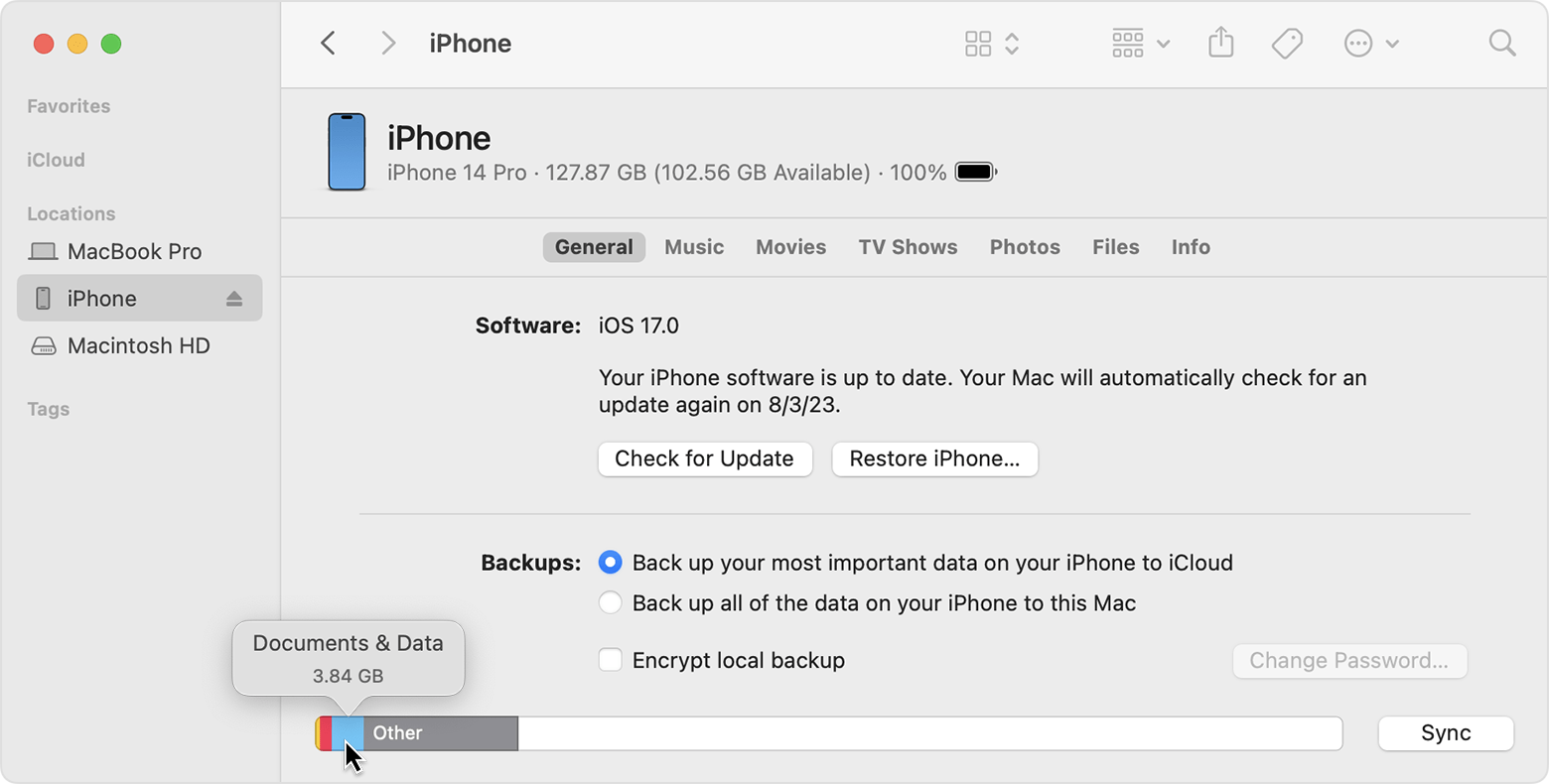

A Mac screen showing how to use the Finder to check the storage on your iOS device


Content categories

Here's a list of the types of content on your device, and what each type includes:

  • Audio: Songs, audio podcasts, audiobooks, voice memos, and ringtones.
  • Video: Movies, music videos, and TV shows.
  • Photos: Content in your Photo Library, Camera Roll, and Photo Stream.
  • Apps: Installed apps. The content of the apps is listed under Documents & Data.
  • Books: iBooks books, audio books, and PDF files.
  • Documents & Data: Safari Offline Reading List, files stored within installed apps, and app content like contacts, calendars, messages, and emails (and their attachments).
  • Other: Settings, Siri voices, system data, and cached files.
  • Synced content: Media content that is synchronized from your computer when you click Sync in the Finder window.


About cached files in Other

The Finder and iTunes categorize cached music, videos, and photos as Other instead of actual songs, videos, or photos. Cached files are created when you stream or view content like music, videos, and photos. When you stream music or video, that content is stored as cached files on your device so you can quickly access it again.

Your device automatically removes cached files and temporary files when your device needs more space.

If storage on your device differs from what you see in the Finder or iTunes

Since the Finder and iTunes categorize cached files as Other, reported usage for Music or Videos might differ. To view usage on your device, go to Settings > General > [Device] Storage.

If you want to delete the cached files from your device

Your device automatically deletes cached files and temporary files when it needs more space. You don't need to delete them yourself."


More details here: How to check the storage on your iPhone and iPad


We look forward to your reply.

Take care.

1 reply
Question marked as Top-ranking reply

Oct 11, 2023 6:50 AM in response to OBahi

Hello OBahi,


Thanks for posting in Apple Support Communities. We see exactly what you mean and we'd like to verify the exact amount of storage that you have available. To do so, please connect your iPhone to a computer using these steps:


"Use the Finder or iTunes to check the storage on your iOS device

  1. On a Mac with macOS Catalina 10.15 or later, open the Finder. On a Mac with macOS Mojave 10.14 or earlier, or on a PC, open iTunes.
  2. Connect your device to your computer.
  3. Select your device in the Finder or in iTunes. You'll see a bar that shows how much storage your content uses, divided by content type.
  4. Move your mouse over the bar to see how much storage each content type is using.


A Mac screen showing how to use the Finder to check the storage on your iOS device


Content categories

Here's a list of the types of content on your device, and what each type includes:

  • Audio: Songs, audio podcasts, audiobooks, voice memos, and ringtones.
  • Video: Movies, music videos, and TV shows.
  • Photos: Content in your Photo Library, Camera Roll, and Photo Stream.
  • Apps: Installed apps. The content of the apps is listed under Documents & Data.
  • Books: iBooks books, audio books, and PDF files.
  • Documents & Data: Safari Offline Reading List, files stored within installed apps, and app content like contacts, calendars, messages, and emails (and their attachments).
  • Other: Settings, Siri voices, system data, and cached files.
  • Synced content: Media content that is synchronized from your computer when you click Sync in the Finder window.


About cached files in Other

The Finder and iTunes categorize cached music, videos, and photos as Other instead of actual songs, videos, or photos. Cached files are created when you stream or view content like music, videos, and photos. When you stream music or video, that content is stored as cached files on your device so you can quickly access it again.

Your device automatically removes cached files and temporary files when your device needs more space.

If storage on your device differs from what you see in the Finder or iTunes

Since the Finder and iTunes categorize cached files as Other, reported usage for Music or Videos might differ. To view usage on your device, go to Settings > General > [Device] Storage.

If you want to delete the cached files from your device

Your device automatically deletes cached files and temporary files when it needs more space. You don't need to delete them yourself."


More details here: How to check the storage on your iPhone and iPad


We look forward to your reply.

Take care.

This thread has been closed by the system or the community team. You may vote for any posts you find helpful, or search the Community for additional answers.

Difference between iPhone storage in settings

Welcome to Apple Support Community
A forum where Apple customers help each other with their products. Get started with your Apple Account.