Greetings Gtrdad,
We understand that you are not able answer your calls on your AirPods. First, we suggest that you review your settings to ensure everything is enabled properly:
Route and automatically answer calls on iPhone
"You can automatically direct the audio of phone or FaceTime calls to the iPhone speaker, a Bluetooth® headset, or your hearing device. iPhone can also automatically answer calls after a length of time you set.
- Go to Settings
 > Accessibility > Touch > Call Audio Routing, then choose an audio destination.
 - Tap Auto-Answer Calls, turn on Auto-Answer Calls, then set the duration of time before the call is answered by tapping
 or
or  ."
."
If the issue persists, you might need to reset your AirPods, using these steps:
- "Put your AirPods in their charging case, and close the lid.
- Wait 30 seconds.
- Open the lid of your charging case, and put your AirPods in your ears.
- Go to Settings > Bluetooth. Or go to Settings > [your AirPods].
- If your AirPods appear there as connected, tap the More Info button
 next to your AirPods, tap Forget This Device, then tap again to confirm.
 - If your AirPods don't appear there, continue to the next step.
5. Put your AirPods in their charging case, and keep the lid open.
6. Press and hold the setup button on the back of the case for about 15 seconds, until the status light on the front of the case flashes amber, then white.*
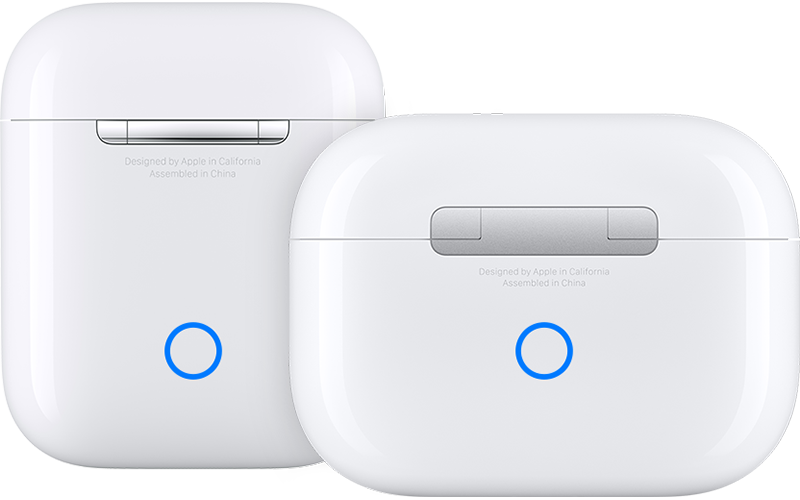
7. Reconnect your AirPods: With your AirPods in their charging case and the lid open, place your AirPods close to your iPhone or iPad. Follow the steps on your device's screen.
AirPods can be associated with one Apple ID. If you want to use AirPods (3rd generation) or AirPods Pro (1st or 2nd generation) that someone else has used, they first need to remove the AirPods from their Apple ID."
More details here: How to reset your AirPods and AirPods Pro
Thanks for connecting with Apple Support Communities. We hope this helps.
Take care.


