AirPlay full screen issue


I have a question. When I airplay from my iPhone and turn my phone sideways for full screen the airplay fits full screen on my tv. When I do it from the iPad from the same website it’s not full screen it’s like windowed. I’d say it’s about 3/4 full screen.

iPad, iPadOS 16

Posted on Oct 12, 2023 8:24 PM

Reply
Question marked as Top-ranking reply

Posted on Oct 13, 2023 3:43 PM

Hi Alexbarnhart,


Your iPad screen is a different aspect ratio than your iPhone and TV.


With that in mind, this is normal behavior when screen mirroring from iPad.


If the app itself support AirPlay, use that instead and it should share the screen ratio to suit your TV better.


It's going to be more like the steps shown in the first section of the AirPlay article:

Stream video manually from iPhone or iPad
1. Connect your device to the same Wi-Fi network as your Apple TV, AirPlay-compatible smart TV, or Mac.
2. Find the video that you want to stream.
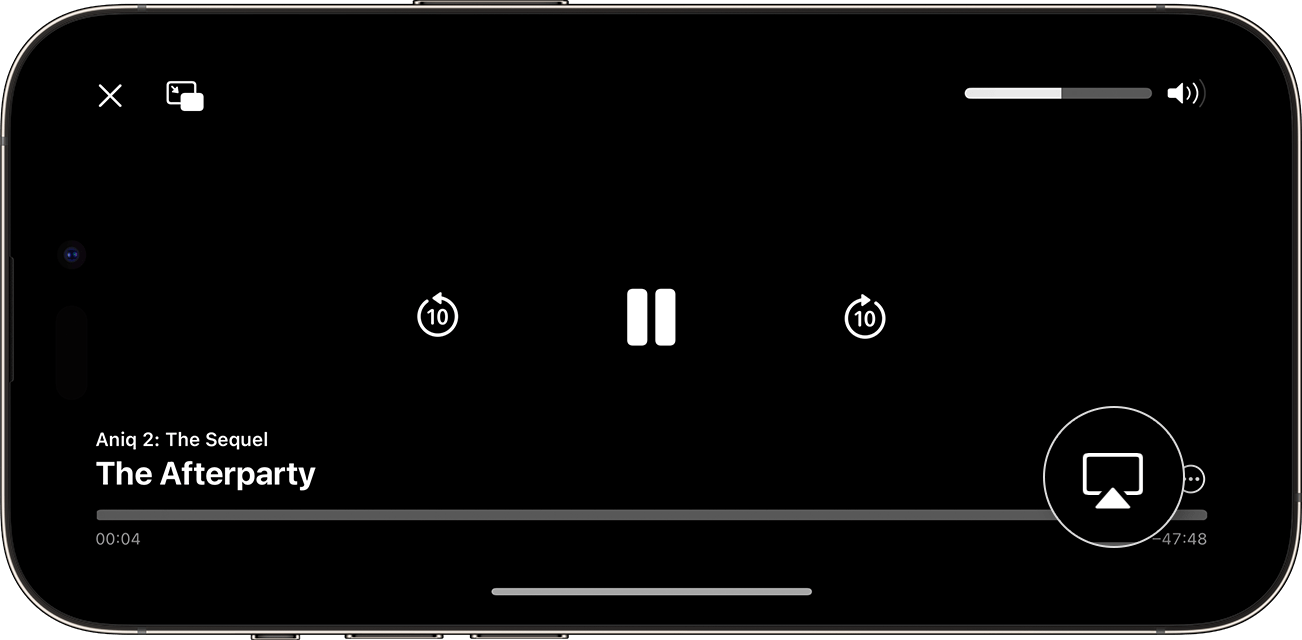
3. Tap the AirPlay button . In some apps, you might need to tap a different button first.1 For example, in the Photos app, tap the Share button , then tap the AirPlay button .
The AirPlay button appears emphasized in the lower-right corner of the screen on iPhone during video playback
4. Choose your TV or Mac from the list.
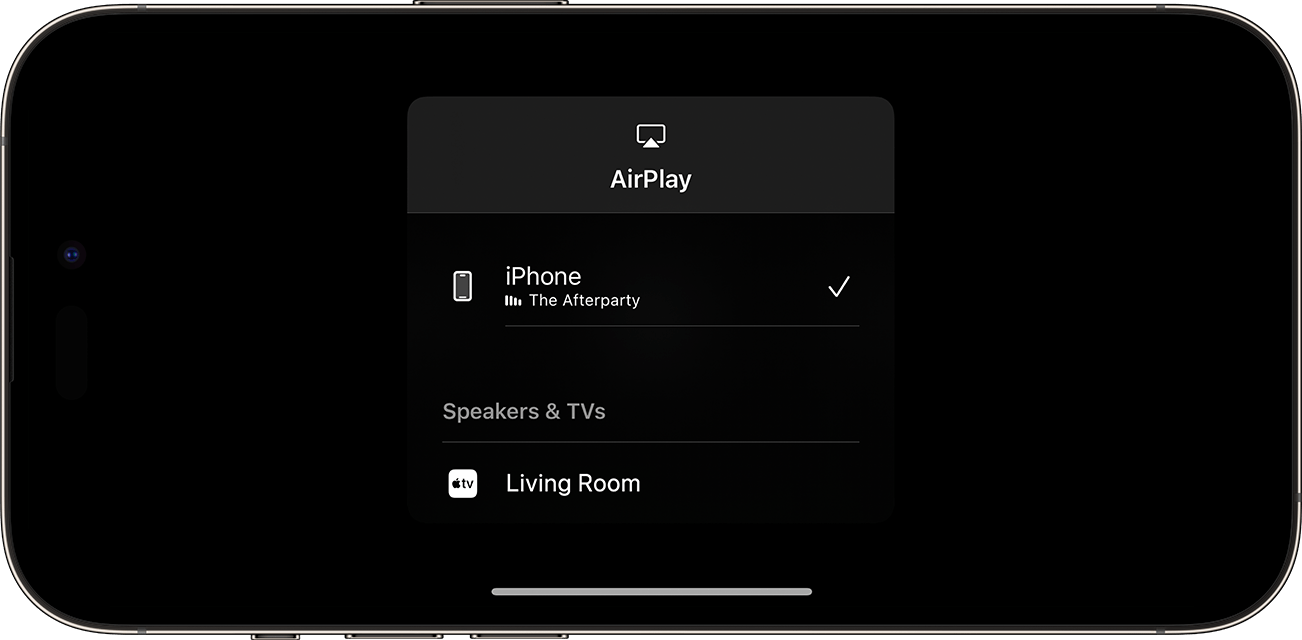
Available devices appear for selection under Speakers & TVs
To stop streaming, tap the AirPlay button  in the app that you're streaming from, then tap your iPhone or iPad from the list.

Use AirPlay to stream video or mirror the screen of your iPhone or iPad


Thanks for using the Apple Support Communities.

1 reply
Question marked as Top-ranking reply

Oct 13, 2023 3:43 PM in response to Alexbarnhart

Hi Alexbarnhart,


Your iPad screen is a different aspect ratio than your iPhone and TV.


With that in mind, this is normal behavior when screen mirroring from iPad.


If the app itself support AirPlay, use that instead and it should share the screen ratio to suit your TV better.


It's going to be more like the steps shown in the first section of the AirPlay article:

Stream video manually from iPhone or iPad
1. Connect your device to the same Wi-Fi network as your Apple TV, AirPlay-compatible smart TV, or Mac.
2. Find the video that you want to stream.
3. Tap the AirPlay button . In some apps, you might need to tap a different button first.1 For example, in the Photos app, tap the Share button , then tap the AirPlay button .
The AirPlay button appears emphasized in the lower-right corner of the screen on iPhone during video playback
4. Choose your TV or Mac from the list.
Available devices appear for selection under Speakers & TVs
To stop streaming, tap the AirPlay button  in the app that you're streaming from, then tap your iPhone or iPad from the list.

Use AirPlay to stream video or mirror the screen of your iPhone or iPad


Thanks for using the Apple Support Communities.

This thread has been closed by the system or the community team. You may vote for any posts you find helpful, or search the Community for additional answers.

AirPlay full screen issue

Welcome to Apple Support Community
A forum where Apple customers help each other with their products. Get started with your Apple Account.