New AirPodspro 2 say already connected to an Apple ID

My boss has gifted me new and sealed AirPod pros 2, when trying to connect them for the first time to my phone, it said these were already connected to an Apple ID, when I went to check with my boss he said that was not his Apple ID, I spent 2 hours with apple support and they told me to update my iPhone XR to the newest IOS, but I still got a notification later that day that the AirPods are connected to another mystery Apple ID, what do I do?

AirPods Pro (2nd generation)

Posted on Oct 20, 2023 4:32 AM

Reply
Question marked as Top-ranking reply

Posted on Oct 21, 2023 8:15 AM

Hello Jujubebou27,


The following steps will be able to assist you with your AirPods Pro (2nd generation):


"If you try to set up an Apple device such as AirPods, an item such as AirTag, or another Find My network accessory and see a message that it's paired to another Apple ID, the device or item needs to be removed from that Apple ID before you can pair it with a new Apple ID. The previous owner might have to follow the steps to unpair.


Remove a Find My network accessory or device from an Apple ID

Use these steps to remove devices such as AirPods (3rd generation), AirPods Pro, AirPods Max, and iPhone Leather Wallet, Apple items such as AirTag, or Find My network accessories from an Apple ID.

These steps also unpair the device or item from an Apple ID. When you unpair the device or item from the Apple ID, you also remove Find My Lock, which is the association of the device or item with an Apple ID. Find My Lock needs to be removed before you can pair the device or item with a different Apple ID.

  • If the device or item is paired with the Apple ID of the previous owner, the previous owner needs to follow these steps to remove the device or item from their Apple ID.
  • The device or item doesn't have to be connected via Bluetooth to the iPhone or other Apple device that is used to remove it from an Apple ID — but the process might happen more quickly if it's Bluetooth-connected and within Bluetooth range.

These steps are the only way to remove and unpair a device or item from an Apple ID, and remove Find My Lock. They can be performed from any iPhone, iPad, or iPod touch, or Mac that's signed in with the same Apple ID. Apple can't remove Find My Lock for you.


How to remove AirPods, AirTag, or another Find My network accessory or device from an Apple ID on iPhone, iPad, or iPod touch

  1. Open the Find My app, then tap the Items tab or Devices tab.
  2. Tap the item or device you want to remove, then swipe up on the handle.
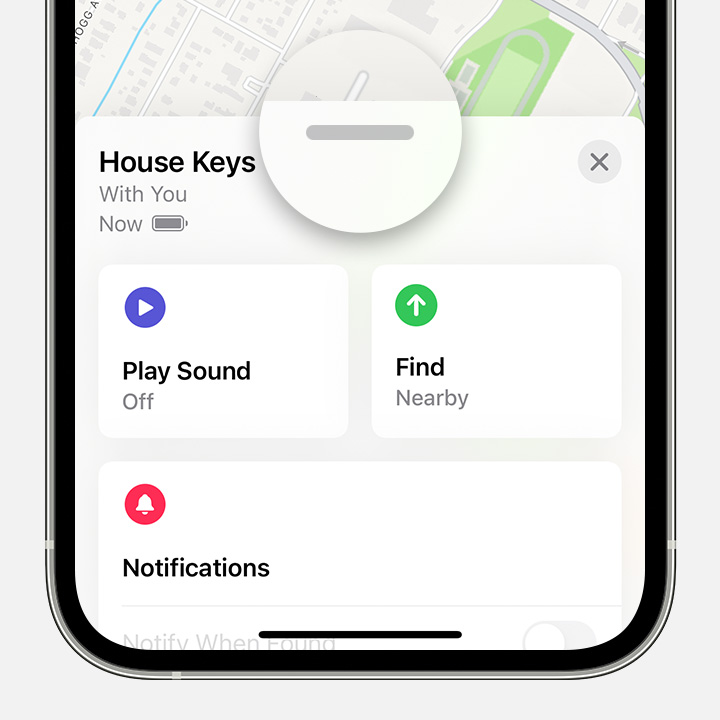

After you tap an item or device in the Find My app, swipe up to see more options.


3. Tap Remove Item or Remove This Device, then tap Remove to confirm.
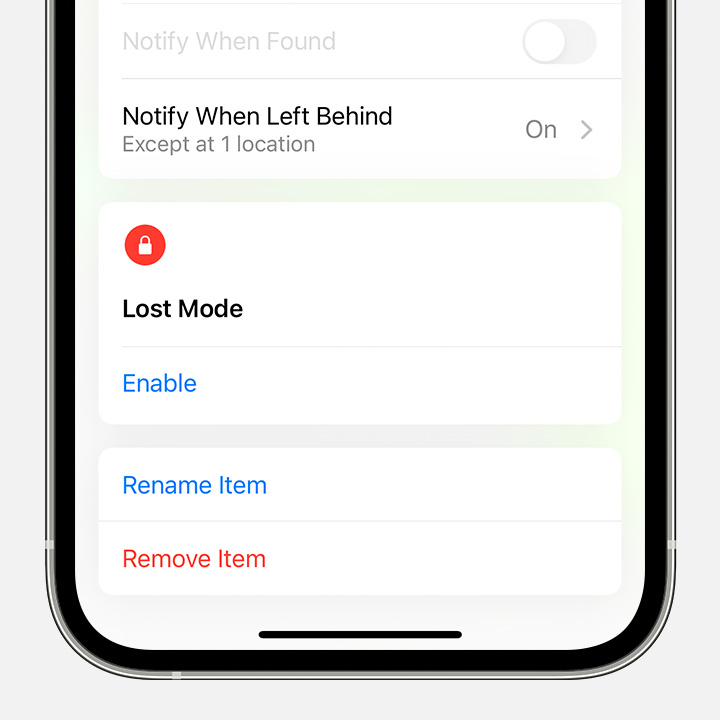

Tap Remove Item to remove an time from Find My and remove Find My Lock.


How to remove AirPods or another Find My network device from an Apple ID on Mac

  1. Open the Find My app.
  2. Select the Devices tab.
  3. Select the device that you want to remove.
  4. On the map, click the More Info button.
  5. Click Remove This Device.


AirTag and Find My network accessories can be removed from an Apple ID only on iPhone, iPad, or iPod touch.


Set up your Find My network accessory or device with a different Apple ID

To begin the setup process, the new owner should hold the AirPods, AirTag, or Find My network accessory near their iPhone, iPad, or iPod touch.


If you can't remove the device or item from an Apple ID

If you can't remove the device or item and unpair it from an Apple ID you should reset it.


When you reset your device or item, it won't provide its location information to the previous owner. However, you still won't be able to pair the device or item with a different Apple ID."


More details here: If an item or device is connected to another Apple ID


Thanks for posting in Apple Support Communities.

Best regards.


3 replies
Question marked as Top-ranking reply

Oct 21, 2023 8:15 AM in response to jujubebou27

Hello Jujubebou27,


The following steps will be able to assist you with your AirPods Pro (2nd generation):


"If you try to set up an Apple device such as AirPods, an item such as AirTag, or another Find My network accessory and see a message that it's paired to another Apple ID, the device or item needs to be removed from that Apple ID before you can pair it with a new Apple ID. The previous owner might have to follow the steps to unpair.


Remove a Find My network accessory or device from an Apple ID

Use these steps to remove devices such as AirPods (3rd generation), AirPods Pro, AirPods Max, and iPhone Leather Wallet, Apple items such as AirTag, or Find My network accessories from an Apple ID.

These steps also unpair the device or item from an Apple ID. When you unpair the device or item from the Apple ID, you also remove Find My Lock, which is the association of the device or item with an Apple ID. Find My Lock needs to be removed before you can pair the device or item with a different Apple ID.

  • If the device or item is paired with the Apple ID of the previous owner, the previous owner needs to follow these steps to remove the device or item from their Apple ID.
  • The device or item doesn't have to be connected via Bluetooth to the iPhone or other Apple device that is used to remove it from an Apple ID — but the process might happen more quickly if it's Bluetooth-connected and within Bluetooth range.

These steps are the only way to remove and unpair a device or item from an Apple ID, and remove Find My Lock. They can be performed from any iPhone, iPad, or iPod touch, or Mac that's signed in with the same Apple ID. Apple can't remove Find My Lock for you.


How to remove AirPods, AirTag, or another Find My network accessory or device from an Apple ID on iPhone, iPad, or iPod touch

  1. Open the Find My app, then tap the Items tab or Devices tab.
  2. Tap the item or device you want to remove, then swipe up on the handle.


After you tap an item or device in the Find My app, swipe up to see more options.


3. Tap Remove Item or Remove This Device, then tap Remove to confirm.


Tap Remove Item to remove an time from Find My and remove Find My Lock.


How to remove AirPods or another Find My network device from an Apple ID on Mac

  1. Open the Find My app.
  2. Select the Devices tab.
  3. Select the device that you want to remove.
  4. On the map, click the More Info button.
  5. Click Remove This Device.


AirTag and Find My network accessories can be removed from an Apple ID only on iPhone, iPad, or iPod touch.


Set up your Find My network accessory or device with a different Apple ID

To begin the setup process, the new owner should hold the AirPods, AirTag, or Find My network accessory near their iPhone, iPad, or iPod touch.


If you can't remove the device or item from an Apple ID

If you can't remove the device or item and unpair it from an Apple ID you should reset it.


When you reset your device or item, it won't provide its location information to the previous owner. However, you still won't be able to pair the device or item with a different Apple ID."


More details here: If an item or device is connected to another Apple ID


Thanks for posting in Apple Support Communities.

Best regards.


This thread has been closed by the system or the community team. You may vote for any posts you find helpful, or search the Community for additional answers.

New AirPodspro 2 say already connected to an Apple ID

Welcome to Apple Support Community
A forum where Apple customers help each other with their products. Get started with your Apple Account.
