See the article Create additional photo libraries in Photos on Mac - Apple Support
You can create additional photo libraries to organize your photos, albums, and projects, and then switch between the libraries. For example, you could keep separate libraries for personal photos and work photos.
Important: If you use iCloud Photos, remember that only the photos and video in your System Photo Libraryare uploaded to iCloud. Be sure to back up all of your photo libraries.
Important: If you switch to another library, Photos automatically turns off iCloud Photos and Shared Albums. You can turn them on again in the iCloud pane of Photos preferences. When you turn on iCloud Photos after designating a new System Photo Library, the photos stored in iCloud are merged with those in the new System Photo Library. After the content from the new System Photo Library is uploaded to iCloud, the libraries cannot be unmerged, so consider carefully before changing your System Photo Library.
See Change preferences in Photos on Mac - Apple Support
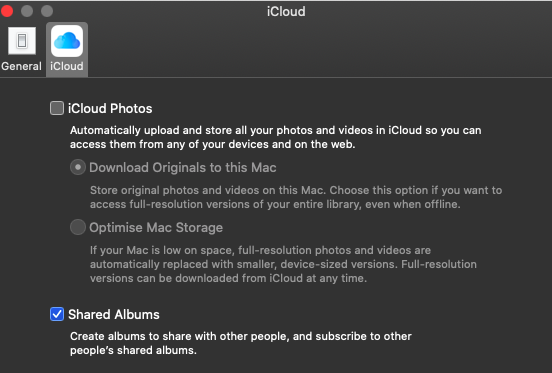
You have to back up photo library to an external hard drive .
Photos can’t be transferred directly from iCloud to an external hard drive for that you need to set up iCloud photo library see the article Set up and use iCloud Photos - Apple
And its preferences Change preferences in Photos on Mac - Apple open finder > Go > home > your user name > pictures either drag and drop Photos Library.photoslibrary to an external hard drive , the second method is right click on Photos Library.photoslibrary and click on show package contents in the upcoming column , you can also drag and drop complete masters folder to an external hard drive that is connected .
Also as per the article Back up the library in Photos on Mac - Apple
Manually copy your library to an external storage device: Drag the Photos library (by default in the Pictures folder on your Mac) to your storage device to create a copy.See this article also
Photos library - Move your Library to an external storage device
Note : in the last split up photo libraries .


 in the