Converting an image from HEIC format to JPG is no longer working in "Quick Actions"

I tried using the suggestion listed in an earlier thread Settings-Privacy & Security-Full disc access and siriactionsid and that option was not listed. This just started happening within the last month. Using the new Sonoma 14.0

MacBook Air 13″, 14.0

Posted on Nov 8, 2023 2:10 AM

Reply
Question marked as Top-ranking reply

Posted on Nov 8, 2023 9:03 AM

When in doubt, improvise…


Here is a Shortcuts solution that is enabled as a Quick Action. Note the name of it in contrast to that provided by Apple.


You drag the Convert Image action onto the empty workspace. You click the i⃝ on the toolbar and that is where you select the Use as Quick Action, Finder, Service menu, and Provide Output. These selections will insert the Receive Images and 18 more action and the Provide Out inserts the last action to write the converted image in the same location as the .heic you selected in the Finder.


You may need to visit System Settings : Privacy & Security panel : Extensions : Finder to enable the new Shortcut Quick Action.


Launch Shortcuts. From its File menu, choose new Shortcut, Click where you see the User Convert Image name and enter that string for the Shortcut title. Shortcuts autosave. In the sidebar's Spotlight search field, just enter convert, and Convert Image will be the first action shown. Drag and drop that onto the larger workflow window.
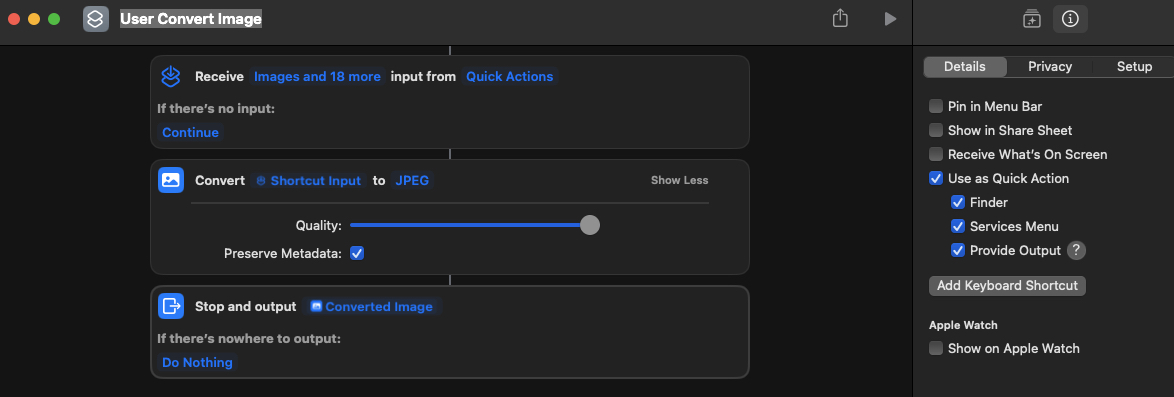


I just converted a .heic to .jpg using this very shortcut on macOS 14.1.1.


10 replies
Question marked as Top-ranking reply

Nov 8, 2023 9:03 AM in response to denamy1

When in doubt, improvise…


Here is a Shortcuts solution that is enabled as a Quick Action. Note the name of it in contrast to that provided by Apple.


You drag the Convert Image action onto the empty workspace. You click the i⃝ on the toolbar and that is where you select the Use as Quick Action, Finder, Service menu, and Provide Output. These selections will insert the Receive Images and 18 more action and the Provide Out inserts the last action to write the converted image in the same location as the .heic you selected in the Finder.


You may need to visit System Settings : Privacy & Security panel : Extensions : Finder to enable the new Shortcut Quick Action.


Launch Shortcuts. From its File menu, choose new Shortcut, Click where you see the User Convert Image name and enter that string for the Shortcut title. Shortcuts autosave. In the sidebar's Spotlight search field, just enter convert, and Convert Image will be the first action shown. Drag and drop that onto the larger workflow window.


I just converted a .heic to .jpg using this very shortcut on macOS 14.1.1.


May 29, 2024 8:05 AM in response to delennis

Finder. So sorry, can not seem to find an app "Finder" on my Mac Air nor on the Apple Store. There appear many similar, but none named "Finder".

Finder is the home base for your Mac. Finder is not an app to be found in your Applications folder, nor the App Store. It is the name for the interface when no other app is active. It contains the Desktop, folders with files, etc. Every Mac has it, and is normally always active. (If you were to force-quit Finder, then it would relaunch.)

Organize your files in the Finder on Mac - Apple Support

Finder (software) - Wikipedia

This thread has been closed by the system or the community team. You may vote for any posts you find helpful, or search the Community for additional answers.

Converting an image from HEIC format to JPG is no longer working in "Quick Actions"

Welcome to Apple Support Community
A forum where Apple customers help each other with their products. Get started with your Apple Account.