Ping my iPhone with the updated Apple Watch OS

Just installed Apple Watch new OS 10.1.1 on my series 4 Apple Watch. I cannot find the control to ping my iPhone to locate it. Does anyone know how to get to that easy command that used to be available by swiping down.? I use this more than any other feature


[Re-Titled by Moderator]

Posted on Nov 21, 2023 11:32 AM

Reply
Question marked as Top-ranking reply

Posted on Nov 21, 2023 11:49 AM

Access to the Control Center, which contains "Ping" Mode can be accessed by using the Watch "Side Button." According to Use the buttons and screen on your Apple Watch:

Press the side button

  • Press to show or hide Control Center.
  • Press and hold to use Emergency SOS.
  • Double-click to use Apple Pay.
  • Press and hold to turn your watch on or off. 

If you have Apple Watch Ultra or later, you can customize the Action button to access your favorite features quickly.

If you haven't updated watchOS, learn how to use the side button. 

86 replies
Question marked as Top-ranking reply

Nov 21, 2023 11:49 AM in response to Jan92016

Access to the Control Center, which contains "Ping" Mode can be accessed by using the Watch "Side Button." According to Use the buttons and screen on your Apple Watch:

Press the side button

  • Press to show or hide Control Center.
  • Press and hold to use Emergency SOS.
  • Double-click to use Apple Pay.
  • Press and hold to turn your watch on or off. 

If you have Apple Watch Ultra or later, you can customize the Action button to access your favorite features quickly.

If you haven't updated watchOS, learn how to use the side button. 

Dec 2, 2023 2:35 PM in response to Mimi_realtor

Mimi_realtor wrote:

Does anyone know? I called Apple waited 26 mins and lady didn't have an answer. She didn't respond to my issue didn't hang up she basically went silent. I hung up after few more minutes . Apple called back rang twice and hung up. WTH?

Control Center moved to the flat oval side button (see picture)

https://support.apple.com/guide/watch/control-center-apd06bc15da1/watchos


DO NOT hold the button, as that will bring up the Emergency services display.


Just a Quick press and release will bring up the Control Center, and the iPhone ping icon should be in the list of services. If you do not find the iPhone ping icon, you can scroll to the end and tap "Edit", which should allow you to add the iPhone ping icon to the Control Center.

Dec 5, 2023 5:38 AM in response to donnajean18

donnajean18 wrote:

I cannot locate my “ping” button after the newest update. I pushed the side button, push the “edit” button and it is no where to be found! Help

This webpage will show you what the iPhone ping icon looks like

Use Control Center on Apple Watch - Apple Support


And just to be sure you are pushing the correct button (see picture)


It is a quick press and release


DO NOT hold the button, as that brings up the Emergency services display.

Jan 10, 2024 8:22 AM in response to RappleMJ

RappleMJ wrote:

Most inconvenient update ever, agreed! Please change it back! I use this 100 times a day, don't have time to find an app and scroll through options.

You don't have to. Just press the side button (the flat oval button next to the Digital Crown) and it will bring up the Control Center as explained by BobHarris earlier in this thread:


You can still ping your Apple Watch, in order to find it. You just start by a quick press and release of the flat oval side button (see picture)

Use Control Center on Apple Watch - Apple Support


DO NOT hold the button, as that brings up the Emergency services display.


The Control Center you used to get via swipe up, with the iPhone ping icon, is still there, via the flat oval side button.


Settings -> Accessibility -> Side Button Click Speed


will allow you to adjust the press and release timing. Which is very useful getting the Apple Pay double press and release timing just right. I like the Slow setting, while my Wife likes Slowest.


You may also find this page useful:

What’s new in Apple Watch and watchOS 10 - Apple Support

Dec 25, 2023 9:33 AM in response to Mamacs

Mamacs wrote:

How do we let Apple know we don’t like this update? This was the main reason I have an Apple Watch!!

You can send Apple you suggestions for future watchOS versions via:

Feedback - Watch - Apple


You can still ping your Apple Watch, in order to find it. You just start by a quick press and release of the flat oval side button (see picture)

Use Control Center on Apple Watch - Apple Support


DO NOT hold the button, as that brings up the Emergency services display.


The Control Center you used to get via swipe up, with the iPhone ping icon, is still there, via the flat oval side button.


Settings -> Accessibility -> Side Button Click Speed


will allow you to adjust the press and release timing. Which is very useful getting the Apple Pay double press and release timing just right. I like the Slow setting, while my Wife likes Slowest.


You may also find this page useful:

What’s new in Apple Watch and watchOS 10 - Apple Support


Dec 25, 2023 5:17 PM in response to BobC1234apple

BobC1234apple wrote:

I agree that when I push the oval button I see a menu but it is nonsensically arranged and does not include the ping icon. I, after a lot of searching have found an icon for the “find my” app on the graphical interface and I see that it is possible through that to ping the phone, but the process is very cumbersome and time consuming to use what used to take a few seconds now takes about a minute. Apple better restore the swipe function in a new update asap. They have thousands of frustrated customers.

Scroll to the end snd tap “Edit”. You will be able to rearrange the icons, and add missing icons, such as the iPhone ping.

Use Control Center on Apple Watch - Apple Support


Dec 27, 2023 10:31 AM in response to francinefrombristol

francinefrombristol wrote:

When I hold the side button down the emergency sos page comes up?

DO NOT hold the button, as that DOES bring up Emergency services, and the power off button. So at least you know how to gain access to that 😁


It is a quick press and release of the flat oval side button
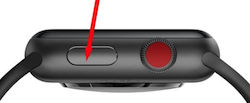
(picture is for others reading this tread)


Use Control Center on Apple Watch - Apple Support


You should change:


Settings -> Accessibility -> Side Button Click Speed


Side Button Click Speed” can adjust the press and release timing, so you get the Control Center display every time. Adjusting The "Side Button Click Speed" is also useful for Apple Pay’s double press and release. There is “Default” (sub second timing of needed), “Slow” (up to a second between press and release), and “Slowest” (up to 2 seconds between press and release). I like the “Slow” setting.


NOTE: Slow and Slowest settings do not mean you have to wait a full second or 2 seconds between press and release. It just means you do not need to be super fast.


You can send Apple feedback via:

Feedback - Watch - Apple


If enough users send feedback, it is more likely a decision maker will see it, and maybe take action.



Dec 31, 2023 8:22 PM in response to GratefulforAnswer

GratefulforAnswer wrote:

cannot believe such a useful easily accessible function is now buried! Does anyone know how to stop Tips coming up instead when you swipe?

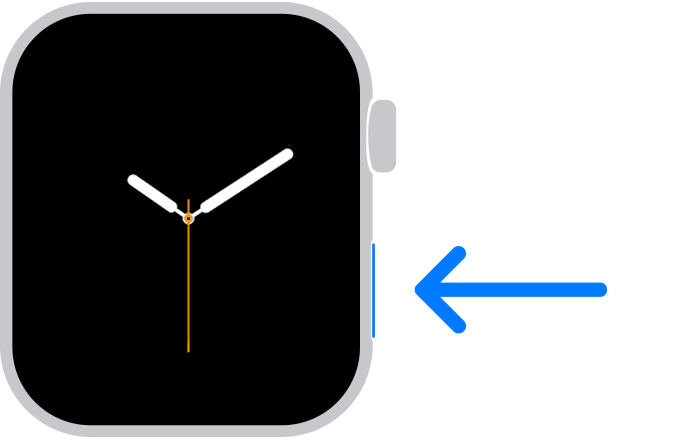
A quick press and release of the flat oval side button, instead of a swipe up, is the same number of actions (1), but just a different action.

Use Control Center on Apple Watch - Apple Support


DO NOT hold the button,as that brings up Emergency services and the power off icon.


Some users have timing issues getting the press and release just right, myself included. You can adjust the following to make it easier:


Settings -> Accessibility -> Side Button Click Speed


“Side Button Click Speed” can adjust the press and release timing, so you get the Control Center display every time. Adjusting The “Side Button Click Speed” is also useful for Apple Pay’s double press and release. There is “Default” (sub second timing of needed), “Slow” (up to a second between press and release), and “Slowest” (up to 2 seconds between press and release). I like the “Slow” setting.


NOTE: Slow and Slowest settings do not mean you have to wait a full second or 2 seconds between press and release. It just means you do not need to be super fast.

Dec 5, 2023 7:43 AM in response to SSchoonover

SSchoonover wrote:

I can’t ping my phone with my watch. I finally did locate the find my devices but it says no devices found. Why would they make something that was so useful so difficult to use?

From the post immediately above yours:


This webpage will show you what the iPhone ping icon looks like

Use Control Center on Apple Watch - Apple Support


And just to be sure you are pushing the correct button (see picture)


It is a quick press and release


DO NOT hold the button, as that brings up the Emergency services display.

This thread has been closed by the system or the community team. You may vote for any posts you find helpful, or search the Community for additional answers.

Ping my iPhone with the updated Apple Watch OS

Welcome to Apple Support Community
A forum where Apple customers help each other with their products. Get started with your Apple Account.

