How do I count the total number of cells that contain a date in a column in Numbers on macOS?

I have a column with dates of entry of items. I need to count how many items have dates of entry aand total at the bottom. I have tried countif but I can't seem to get it to accept a "date" or even a partial using a wildcard.

Thanks in advance.


[Re-Titled by Moderator]

Earlier Mac models

Posted on Jan 13, 2024 5:27 PM

Reply
Question marked as Top-ranking reply

Posted on Jan 13, 2024 5:50 PM

What else is in the column other than dates? Are the cells without dates empty/blank? If so you can use COUNT to count cells that have numbers or dates in them


=COUNT(A) will count all cells in column A that contain numbers or dates, ignoring cells with text.


If this doesn't apply to your problem, post a screenshot of the column. Using COUNTIF and REGEX together might be another option but it depends on how your dates are formatted and what else is in the column other than dates

12 replies
Question marked as Top-ranking reply

Jan 13, 2024 5:50 PM in response to sharp357

What else is in the column other than dates? Are the cells without dates empty/blank? If so you can use COUNT to count cells that have numbers or dates in them


=COUNT(A) will count all cells in column A that contain numbers or dates, ignoring cells with text.


If this doesn't apply to your problem, post a screenshot of the column. Using COUNTIF and REGEX together might be another option but it depends on how your dates are formatted and what else is in the column other than dates

Jan 16, 2024 2:55 AM in response to sharp357

Hi sharp,


Try this with a copy of your Numbers document.

Select all the Body cells in column B and Format Panel > Cell Data Format > Date & Time.

Choose Time None.


Numbers will convert anything that resembles a Date to Date & Time format.

Numbers will leave anything that does not resemble a Date in its original format.
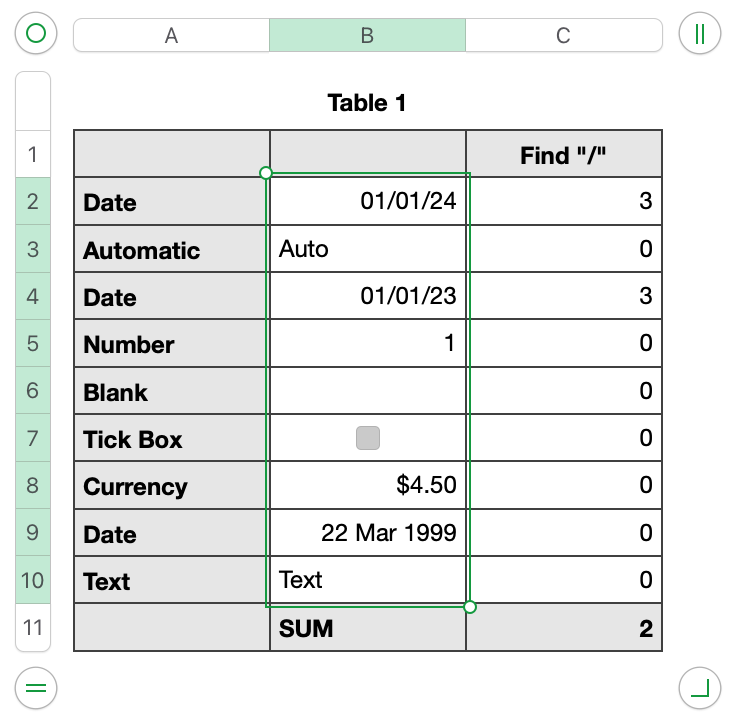

Now use the FIND function to find something that is unique in a Date. I used slash.

Formula in C2 and fill down is IFERROR(FIND("/",B2),0)

Formula in Footer cell C11 is COUNTIF(C,">0")

Note that B9 does not contain a slash, so it is not counted.

No problem. Select all the Body cells in column B and Format Panel > Cell Data Format > Date & Time > choose a Date format that displays a slash. Numbers will not mess with the cells that are not a Date.
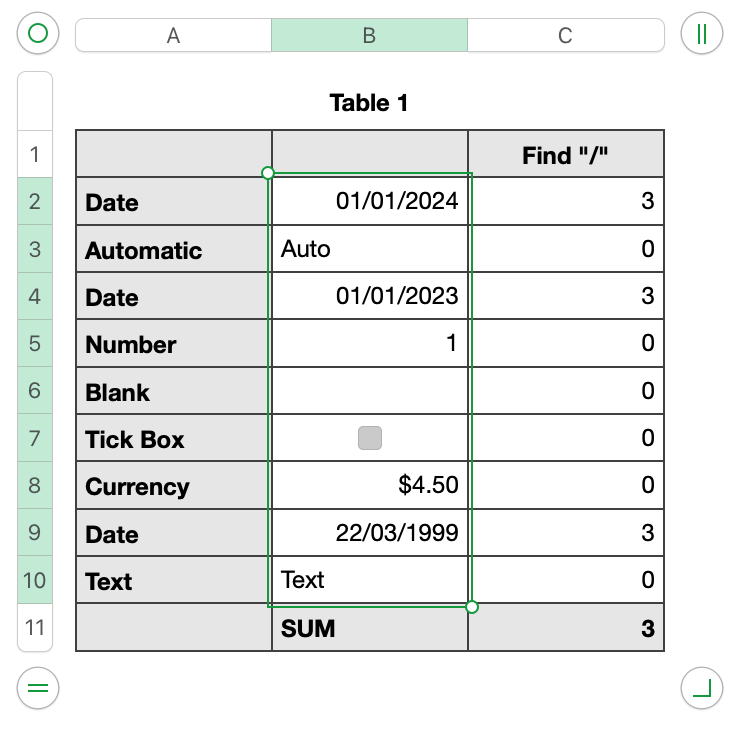


B9 is now counted. There are 3 dates in B.

The charm of Numbers!


Regards,

Ian.


Edit: sorry the footer cell does not SUM (my screen shots). It uses COUNTIF

Ian.


Jan 15, 2024 12:01 PM in response to sharp357

You are probably tired of trying to figure this out but...

  1. Create a new column G next to F
  2. In G2 put the formula =COUNT(F2) (I am assuming this is your first data row)
  3. Copy/paste or fill down to the rest of the rows
  4. The rows that are getting counted will be 1's and those not counted will be 0's.


Are any incorrect? Put =SUM(G) in a cell somewhere to get the count/sum. It should be the same result as you got counting the entire column F using COUNT(F)

Jan 13, 2024 6:19 PM in response to Badunit

I did some experimenting and found that COUNTA(B2:B331,"*"), worked, except in column C it counted one too many. Also in column G and H, one too many. I copied the cell to all columns to test and found it was exact in column A,B, D,E,and F but off one in the others. A=letters/#, B=#, C= date (x/xx/xxx) D=letters, E=letters and F,G and H are all currency. I double check the data range making sure no header was involved and pydically counted all the columns. C,G and H all count one too many.

Jan 13, 2024 6:36 PM in response to sharp357

COUNTA will count all non-blank cells. If a cell has a non-visible character in it such as a space (whether typed in yourself or the result of a formula) or even a null string "", COUNTA will count it. But you wanted to count dates so why use COUNTA, which will include text and null strings, rather than COUNT which will not include those things?

Jan 13, 2024 10:04 PM in response to Badunit

While I was waiting I tried COUNT. It fixed column C but it caused column H to still be one too many. It also caused column G to lose one and it caused column F to go to zero. I only needed the count in column C so that’s great but I am still very confused as to why it fixed one and messed up others. After seeing your post I cleared all blank cells in columns H and C and went back to COUNTA to try it and I got the original result again. So I am happy with fixing "C" and I may never know why the others are the way they are.

Jan 14, 2024 5:41 AM in response to sharp357

If COUNT of column F goes to zero, one likely cause is that column F is not actually currency. A number (or currency) can be formatted as text and will be treated as text. If a cell is formatted as automatic, text justifies naturally to the left of the cell while numeric data and dates justify to the right, assuming no adjustment have been made to the justification. If the column is formatted as "automatic", format it as currency. If the format does not stick for all cells then those cells are not currency.


Often people use unnecessary/improper quotes around numbers in formulas. =IF(A1=5,"$1.00",1.00) will result in a text representation of $1.00 if A1=5. Otherwise it will result in the number 1.00, which you can turn into $1.00 by formatting the cell as currency.

Jan 14, 2024 9:26 PM in response to Badunit

While I did most of that before I decided to make a copy of the table and do some testing. I added a new column G next to F and then formatted the column as currency. So the entire column is now clean and fresh. I then hand-entered each cell from F into the new G. The result was still one number different from what the total should have been by my visual count. ( I printed the file crossing out each item with a red pen and counted). It was a tiring experiment as I am a weak typer. I am going to try it with the original column G and see if I get similar results. But as I say, C is working fine and that is the only column I seriously need. Column G should match column C and does not but is less important.

This thread has been closed by the system or the community team. You may vote for any posts you find helpful, or search the Community for additional answers.

How do I count the total number of cells that contain a date in a column in Numbers on macOS?

Welcome to Apple Support Community
A forum where Apple customers help each other with their products. Get started with your Apple Account.


