Do not understand how Search works (or rather doesn't) in Apple Mail

I use Apple Mail 12.4 and an iMac. Search is exasperating, I can rarely find what I need, I cannot count on it. I have a recent print-out of an email that I would like to find online. I am entering the Search term, which is the part of the subject of the email and the subject is found (Search displays the whole subject under Subjects) but no email is displayed. I am offered the choice of searching all emails. When I select it, the result is "0 found". I know that the email is somewhere in one of the folders or sub-folders. What should I do differently to find the email ? Your help would be much appreciated.

iMac 21.5″, macOS 10.14

Posted on Feb 6, 2024 4:44 PM

Reply
Question marked as Top-ranking reply

Posted on Feb 6, 2024 9:12 PM

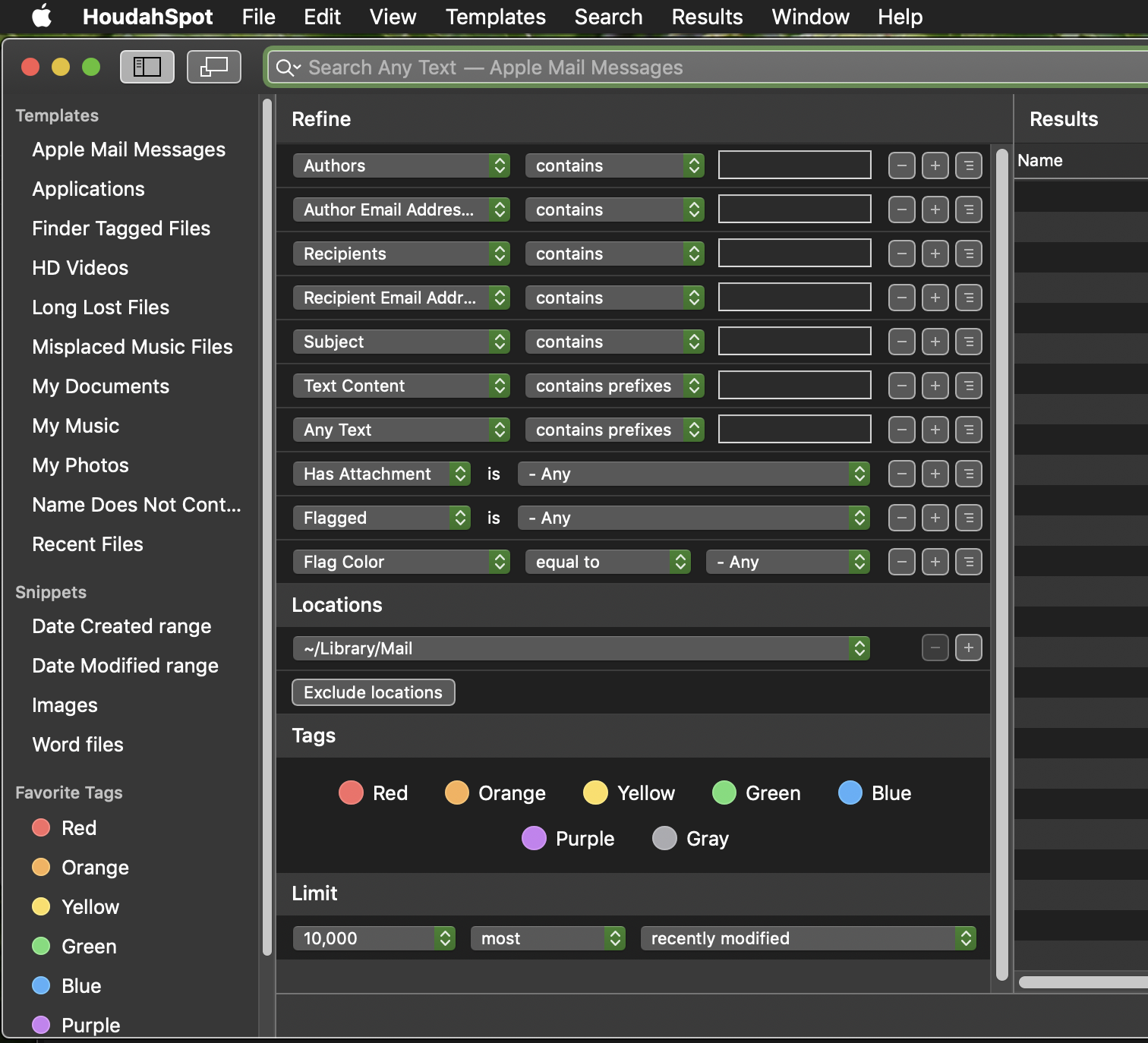
One possible solution...


https://www.houdah.com/houdahSpot/?lang=en


Or maybe the Spotlight Index needs rebuilding?


How to rebuild the Spotlight index on your Mac

If searching your Mac doesn’t return expected results, rebuilding the Spotlight index might help.


Choose Apple menu () > System Preferences, then click Spotlight.

Click the Privacy tab.

Drag the folder or disk that you want to index again to the list of locations that Spotlight is prevented from searching. Or click the Add (+) button and select the folder or disk to add.

To add an item to the Privacy tab, you must have ownership permissions for that item. To learn about permissions, choose Help from the Finder menu bar, then search for “permissions.”

From the same list of locations, select the folder or disk that you just added. Then click the Remove (–) button to remove it from the list.

Quit System Preferences. Spotlight will reindex the contents of the folder or disk.


If still not working...


Manually Rebuilding Spotlight via Terminal

If the aforementioned Spotlight control panel approach doesn’t spur a reindexation of the drive, you may need to initiate it manually through the command line. Open Terminal and use the following command string to do so:


sudo mdutil -E /

This basically asks for temporary super user status, which is why Terminal may ask you for your password (it may not if you’ve used a sudo command recently or are already logged in as a super user or root. The command asks the unix tool mdutil to reindex the spotlight database for everything on the computer, including external drives, mounted disk images, etc. To re-index only for a specific drive, use the /Volumes path. For example, for an external drive named “MiniMe,” the command would look like this:


sudo mdutil -i on /


Rebuilding a drive index can take a long time, so be prepared to wait whether you do it through the System Preference panel or the command line.


If still need be…


Open Terminal and run each of these one at a time


/System/Library/Frameworks/CoreServices.framework/Versions/A/Frameworks/LaunchServices.framework/Versions/A/Support/lsregister -kill -r -domain local -domain system -domain user


sudo /System/Library/Frameworks/CoreServices.framework/Frameworks/LaunchServices.framework/Support/lsregister -kill -seed -lint -r -f -v -dump -domain local -domain system -domain user -domain network


killall Dock


sudo mdutil -E /


sudo mdutil -i on /


Rebuilding a drive index can take a long time, so be prepared to wait whether you do it through the System Preference panel or the command line.

Similar questions

17 replies
Question marked as Top-ranking reply

Feb 6, 2024 9:12 PM in response to Suzy2014

One possible solution...


https://www.houdah.com/houdahSpot/?lang=en


Or maybe the Spotlight Index needs rebuilding?


How to rebuild the Spotlight index on your Mac

If searching your Mac doesn’t return expected results, rebuilding the Spotlight index might help.


Choose Apple menu () > System Preferences, then click Spotlight.

Click the Privacy tab.

Drag the folder or disk that you want to index again to the list of locations that Spotlight is prevented from searching. Or click the Add (+) button and select the folder or disk to add.

To add an item to the Privacy tab, you must have ownership permissions for that item. To learn about permissions, choose Help from the Finder menu bar, then search for “permissions.”

From the same list of locations, select the folder or disk that you just added. Then click the Remove (–) button to remove it from the list.

Quit System Preferences. Spotlight will reindex the contents of the folder or disk.


If still not working...


Manually Rebuilding Spotlight via Terminal

If the aforementioned Spotlight control panel approach doesn’t spur a reindexation of the drive, you may need to initiate it manually through the command line. Open Terminal and use the following command string to do so:


sudo mdutil -E /

This basically asks for temporary super user status, which is why Terminal may ask you for your password (it may not if you’ve used a sudo command recently or are already logged in as a super user or root. The command asks the unix tool mdutil to reindex the spotlight database for everything on the computer, including external drives, mounted disk images, etc. To re-index only for a specific drive, use the /Volumes path. For example, for an external drive named “MiniMe,” the command would look like this:


sudo mdutil -i on /


Rebuilding a drive index can take a long time, so be prepared to wait whether you do it through the System Preference panel or the command line.


If still need be…


Open Terminal and run each of these one at a time


/System/Library/Frameworks/CoreServices.framework/Versions/A/Frameworks/LaunchServices.framework/Versions/A/Support/lsregister -kill -r -domain local -domain system -domain user


sudo /System/Library/Frameworks/CoreServices.framework/Frameworks/LaunchServices.framework/Support/lsregister -kill -seed -lint -r -f -v -dump -domain local -domain system -domain user -domain network


killall Dock


sudo mdutil -E /


sudo mdutil -i on /


Rebuilding a drive index can take a long time, so be prepared to wait whether you do it through the System Preference panel or the command line.

Feb 6, 2024 10:52 PM in response to Suzy2014

What is Tempo2?


Pretty easy to rebuild the index, try this..


Choose Apple menu () > System Preferences, then click Spotlight.


Click the Privacy tab.


Drag the folder or disk that you want to index again to the list of locations that Spotlight is prevented from searching.


Or click the Add (+) button and select the folder or disk to add.


To add an item to the Privacy tab, you must have ownership permissions for that item.


To learn about permissions, choose Help from the Finder menu bar, then search for “permissions.”


From the same list of locations, select the folder or disk that you just added.


Then click the Remove (–) button to remove it from the list.


Quit System Preferences.


Spotlight will reindex the contents of the folder or disk.

Feb 8, 2024 1:50 PM in response to Suzy2014

Rebuilding the Spotlight DB, just looks trough all the files on the hard drive to determine what attributes what file types have, for instance Mail files, <.emlx>, T:, From, Subject, & what is uuque in the body of the text.


Rebuilding the Mail accounts DB compares the files in Mail on your computer & files on your Mail server, corrects what is on your computer to reflect what is on the Server, deleting any mails on your computer that are not on the Sever, then renumbering the eMails internally to match the Server for faster comparison when getting new eMails.


This is the one to avoid if you have any POP accounts...


Feb 7, 2024 5:07 PM in response to BDAqua

Sorry, it is Tembo2 (not Tempo2). The developer's website shows different search products.


It also states that "Catalina does not allow third-party applications to search the Spotlight

index for Apple Mail messages. We know of no way you, the user, can override this Apple decision. Not even granting "Full Disk Access" will allow for access to the search index.". It also states that unfortunately "* Apple Mail search is not available on macOS Sonoma".


In addition https://www.houdah.com/support/?product=HoudahSpot states that "HoudahSpot 6.0 can again search Apple mail messages. Instead of relying on the Spotlight index, it adds a plug-in to the Mail application.

HoudahSpot connects to that plug-in to get access to Mail searches.


In order to search Apple mail messages, you need to list "Apple Mail Messages" in the "Locations" for your search. In case of a problem with the Apple Mail plug-in, a yellow warning sign will show next to "Apple

Mail Messages". Click the warning sign for details on the problem.".


I do not quite understand what works, what not, etc. I sent an email to the developer.

Feb 8, 2024 3:16 PM in response to BDAqua

REPLY FROM HOUDAH


HoudahSpot is not available on the Mac App Store. Neither is the latest version of Tembo.


HoudahSpot can search multiple locations (folders) at once. In order to search using the Mail plug-in, you need to select the "Apple Mail Messages" location. The Mail plug-in is not available on macOS Sonoma. Mail search using HoudahSpot will not be possible on macOS Sonoma. Mail no longer supports plug-ins. There is no replacement.


Pierre Bernard

Houdah Software s.à r.l.

Feb 7, 2024 8:08 AM in response to BDAqua

Tempo2 is the search product listed in the Apple store for the vendor (Houdah) you suggested. I do not know what's the difference between this version and the one at the site you listed. Do you know if this product relies on indexing done the way you described it?


Can something go wrong by following the instructions for indexing? Thanks.

Feb 7, 2024 6:57 PM in response to BDAqua

I am reading from Apple support about Rebuild the Spotlight index on your Mac - Apple Support

When it comes to Mail, it advises rebuilding mail as described here: Rebuild mailboxes in Mail on Mac - Apple Support

This section ends stating the following: "When you rebuild mailboxes for IMAP or Exchange accounts, messages and attachments stored on your Mac are discarded, and then downloaded again from the mail server to your Mac. Your mailbox appears empty until the download is complete.".


My incoming mail is POP3, not IMAP, so all my emails are on my computer, not on the server. Obviously I do not want them discarded. The outlined method would result in losing what's most important for me on my computer.


I could not find anywhere similar information about potentially rebuilding mailboxes when POP3 is used. Does anyone with a similar configuration for mail know how to rebuild and/or re-index mailboxes without deleting them or how to "fix" Spotlight indexing without email being discarded? Thanks.

This thread has been closed by the system or the community team. You may vote for any posts you find helpful, or search the Community for additional answers.

Do not understand how Search works (or rather doesn't) in Apple Mail

Welcome to Apple Support Community
A forum where Apple customers help each other with their products. Get started with your Apple Account.