Follow this process below to keep your personal data.
If you see the Restore screen on your iPhone, iPad, or iPod touch
If you see the Restore screen on your iPhone, iPad, or iPod touch, learn what to do.
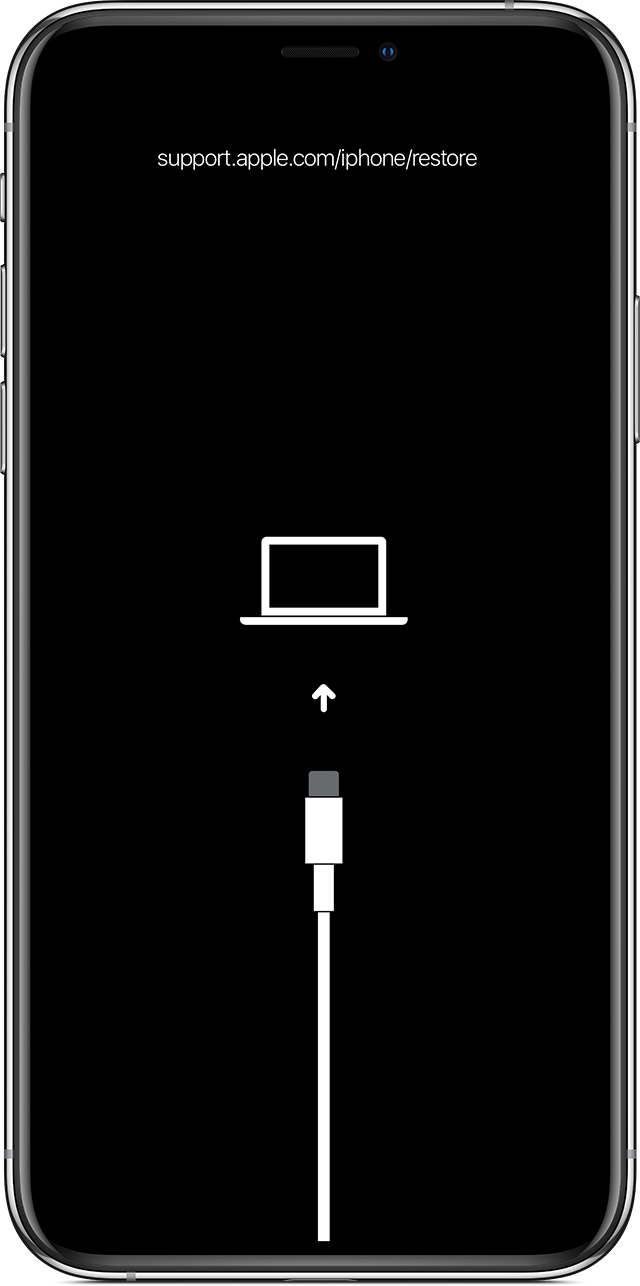
Restart your device
If you see the Restore screen, restart your device:
- iPad models with Face ID: Press and quickly release the Volume Up button. Press and quickly release the Volume Down button. Press and hold the Top button until the device restarts.
- iPhone 8 or later: Press and quickly release the Volume Up button. Press and quickly release the Volume Down button. Press and hold the Side button until you see the Apple logo.
- iPhone 7, iPhone 7 Plus, and iPod touch (7th generation): Press and hold both the Side (or Top) button and the Volume Down button until you see the Apple logo.
- iPad with Home button, iPhone 6s or earlier, and iPod touch (6th generation) or earlier: Press and hold both the Side (or Top) button and the Home button until you see the Apple logo.
Reinstall iOS or iPadOS
If you still see the Restore screen after you restart, you need to reinstall iOS or iPadOS:
- On your Mac, make sure that you’ve installed the latest software updates (including iTunes if you have MacOS Mojave or earlier). Or on your Windows PC, make sure that you’ve installed the latest version of iTunes.
- Connect your device to your computer using the cable that came with your device. You should see this message: "There's a problem with the [your device name] that requires it to be updated or restored."
- Click Update (not Restore) to reinstall iOS or iPadOS and keep your personal data.
If the above fails
If your device turns on but gets stuck during start-up
If you see the Apple logo or a red or blue screen during startup, try these steps:
- Connect your device to a computer. On a Mac with macOS Catalina 10.15, open Finder. On a Mac with macOS Mojave 10.14 or earlier, or on a PC, open iTunes.
- Locate your device on your computer.
- While your device is connected, follow these steps:
- iPad models with Face ID: Press and quickly release the Volume Up button. Press and quickly release the Volume Down button. Press and hold the Top button until your device begins to restart. Continue holding the Top button until your device goes into recovery mode.
- iPhone 8 or later: Press and quickly release the Volume Up button. Press and quickly release the Volume Down button. Then, press and hold the Side button until you see the recovery mode screen.
- iPhone 7, iPhone 7 Plus, and iPod touch (7th generation): Press and hold the Top (or Side) and Volume Down buttons at the same time. Keep holding them until you see the recovery mode screen.
- iPad with Home button, iPhone 6s or earlier, and iPod touch (6th generation) or earlier: Press and hold both the Home and the Top (or Side) buttons at the same time. Keep holding them until you see the recovery mode screen.
- When you get the option to restore or update, choose Update. Your computer will try to reinstall iOS or iPadOS without erasing your data.
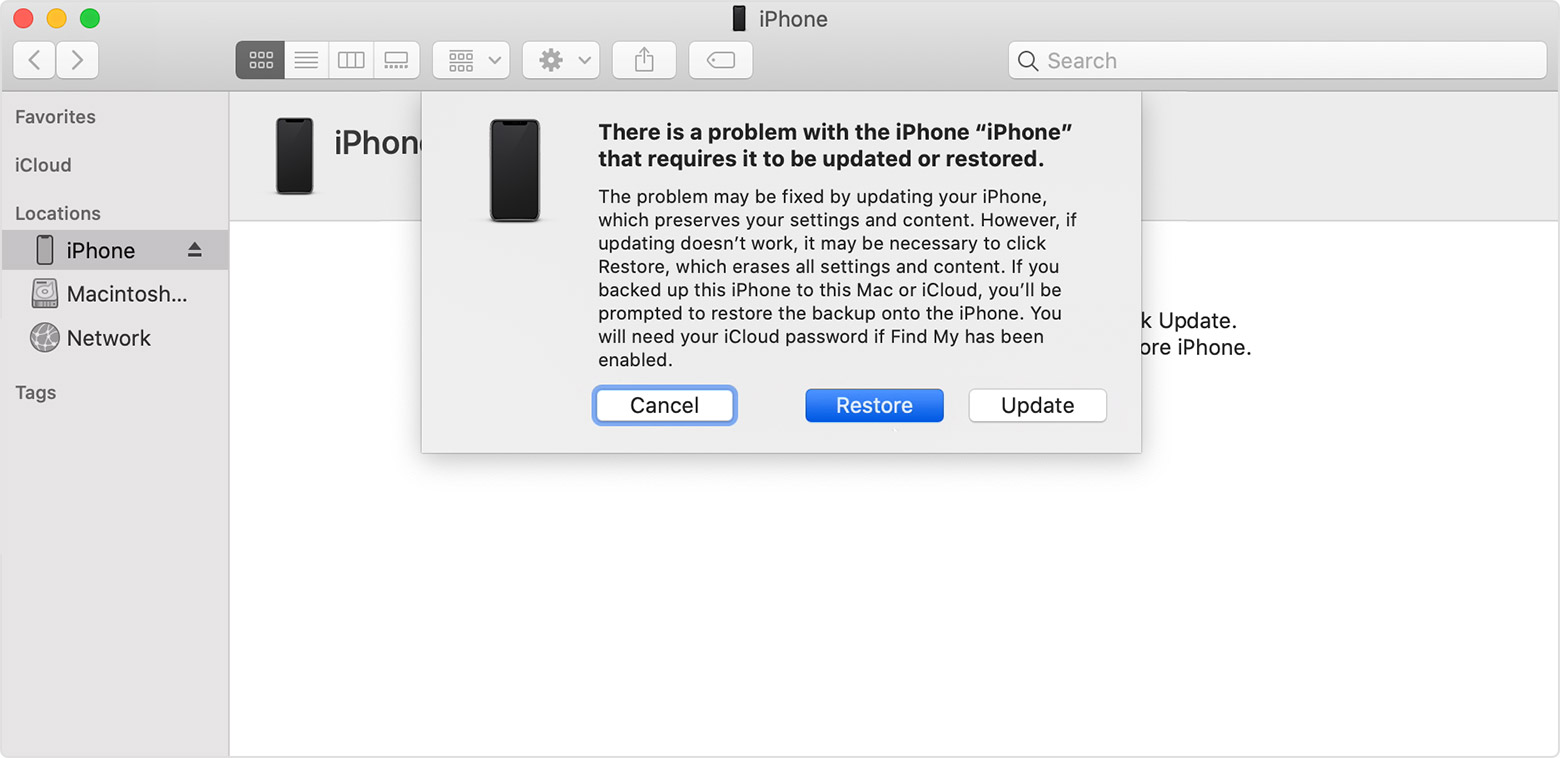
Your computer will download the software for your device. If it takes more than 15 minutes, your device will exit recovery mode and you'll need to repeat steps 2 and 3.

If you need more help
Contact Apple Support to set up service if you have any of these issues:
- You still see a black screen after charging, force restarting, or following the steps in this article.
- You see a black screen, but you can hear alerts, sounds, and vibrations.
- The screen remains black, but the device chirps when you unmute it and connect it to power.
- Your screen is on, but it doesn't respond when you tap, slide, or try other gestures.
- You can't force your device to restart because a button is broken or stuck.
- Your device is stuck on the Apple logo, displays a solid color, or isn't recognized in iTunes.

