Protect & Prolong the Life of your iPhone's Battery:
- About the battery usage on your iPhone, iPad, and iPod touch ...
- Batteries - Maximising Performance - Apple (IN)
- iPhone Battery and Performance

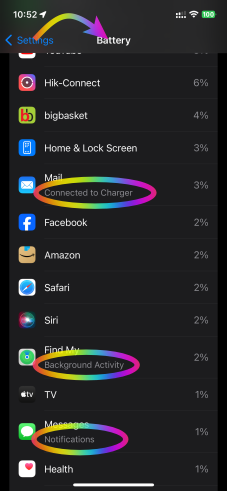
Try to monitor Battery usage by iPhone Activity as shown below
What is shown under battery usage? Checking that would give you an indication of the usage behavior.
- Background Activity
- Notifications
- Connected to Charger
- Or any Other
See the pic below (iPhone 12 Pro iOS 17.3.1)
"Show Activity" feature will show you more info see the pic below
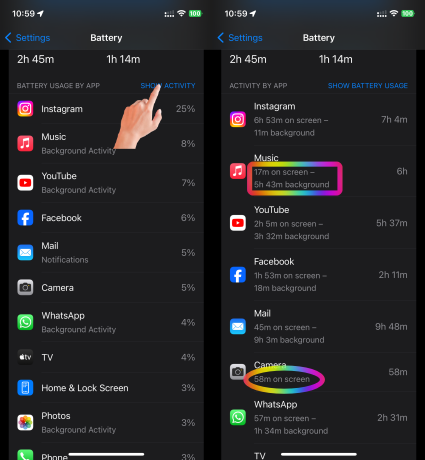
Try some of these options too.
To prolong the life of your iPhone battery, you can follow these tips and best practices:
To prolong the life of your iPhone battery, you can follow these tips and best practices:
- Optimize Battery Charging: Enable the "Optimized Battery Charging" feature on your iPhone. It helps reduce the wear on the battery by slowing down the battery aging process. You can find this option in Settings > Battery > Battery Health. About Optimized Battery Charging on your iPhone - Apple Support (IN)
- Avoid Extreme Temperatures: Extreme temperatures, both hot and cold, can negatively impact your battery life. Avoid exposing your iPhone to excessive heat or cold, such as leaving it in direct sunlight or in a freezing car.If your iPhone or iPad gets too hot or too cold – Apple Support (UK)
- Use Original Chargers and Cables: Always use Apple's original chargers and cables or certified third-party accessories. Low-quality chargers or cables can damage the battery and reduce its lifespan. Identify counterfeit or uncertified Lightning connector accessories - Apple Support (IN)
- Avoid Draining the Battery to Zero: Charge it whenever the charge becomes lower than 20%. The rest is up to you when to charge. how long to charge, how often to charge, which adapter to use starting from 5W to 140W USB-C Power Adapter etc.
- Optimize Display Settings: Adjust your display settings to optimize battery life. Lower the screen brightness, enable auto-brightness, and use shorter screen timeout durations. Adjust the display and text size on iPhone - Apple Support (IN)
- Minimize Background App Refresh: Limit the number of apps allowed to refresh in the background. Go to Settings > General > Background App Refresh and disable it for apps that don't require real-time updates. Switch apps on your iPhone, iPad, or iPod touch - Apple Support (IN)
- Disable Push Email: Push email notifications can drain your battery quickly. Instead, set your email accounts to fetch data manually or at longer intervals. You can change this setting in Settings > Mail > Accounts > Fetch New Data.


