Part #1
Be aware that sender addresses are trivial to spoof - may therefore be an unreliable method of establishing the true Sender's email address. While checking the Sender's address is one element of checks that you might sensibly perform, reliance upon this alone to identify legitimate email is unsafe. Of itself, this check provides no assurance of safely or legitimacy.
The native iOS/iPadOS Mail App does not expose the full Mail Header of received mail messages. Many third-party Mail Apps are more flexible in this regard - and may provide access to the full mail header for inspection and analysis. You should understand, however, that Mail Headers are not necessarily trivial to decode, but do contain lots of information that is significantly more difficult to obscure.
Scam email sent by fraudsters will often have a spoofed Sender's address that appears to be [or is] entirely legitimate - however, embedded links within the mail body or attachments will not direct you to the legitimate website and associated resources - but instead will link elsewhere. While some scam email is relatively easy to identify, many professional scammers are very adept at constructing email and spoof websites that closely resemble the material that they are attempting to imitate in their objective of committing fraud.
Be very wary of allowing your iPad or other Apple devices to automatically download embedded images and content - as you will have no opportunity to verify legitimacy of the mail or its embedded content prior to download. Automatically downloading embedded image and content comes with many risks - not least that retrieving embedded content from the scammers server confirms that the target email address is likely active and monitored by the potential victim.
Should you choose to do so, there are some settings and practices that (a) can usefully reduce your exposure to risk - and (b) provide opportunity to check legitimacy of an email and embedded links/content before they are downloaded to your devices...
Assuming that you are using the native iPadOS Mail App and Safari as your browser, ensure that your Mail App does not automatically download remote content:
Settings > Mail > [Messages] Privacy Protection > Block All Remote Content - set to ON
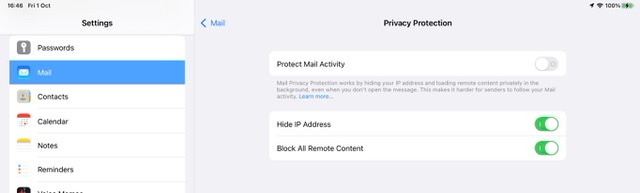
This security measure is intended to inhibit loading of potentially unsafe content - until such time as the recipient has had opportunity to review the email and determine whether or not the received email is from a trusted or expected source. Where images and other content have not been automatically dowloaded (as advised), you may see a message at the top of the received email. For example…:

Only when you are satisfied that the email itself is considered safe would you tap the link to download the embedded content.
By delaying loading of images until the body text is verified by the recipient, potentially malicious content and trackers are not loaded before the recipient has had opportunity to verify that the email is from an expected source or sender - or, for unsolicited email, taken the positive decision to download all content. Most legitimate email has adequate “body” to establish whether of not the email is (a) legitimate and (b) of interest to the sender.
If instead all content is loaded by default, malicious content is given opportunity to run malicious code or attempt a malware exploit. Similarly, images that contain (or are themselves) trackers will notify the actor that the email has been opened. At the very least, the sender of a broadcast phishing email is notified of a “live” mail account and recipient.
Delaying download of embedded content has a secondary benefit. When accessing your email over a slow internet connection, the majority of your email messages can be quickly downloaded - without having to wait for bandwidth-hogging download of images and large attachments. This material can be selectively downloaded, if required, after reviewing the body text of the associated email message.
// continued.


