Airport Time Capsule as Streaming Storage on Existing Network

I have a separate network for my Airport Time Capsule and I use it to stream media on different devices, but this way, I have to connect on a separate network just to stream a movie, and then I don't have internet. Is there a way to be connected on my main internet network and still have an access to Time Capsule HDD? Time Capsule is connected to my router via ethernet cable.

Apple TV 4K, tvOS 17

Posted on Jul 17, 2024 3:25 PM

Reply
Question marked as Top-ranking reply

Posted on Jul 17, 2024 3:43 PM

Perform a Hard Reset on the Time Capsule by holding in the reset button on the back of the device for 8-10 seconds, then release an allow a full minute for the Time Capsule to restart to a slow blinking amber light status.


Insure that the Ethernet cable connects from one of the LAN <--> ports on the main router to the WAN "O" port on the Time Capsule.


Open AirPort Utility on your Mac (Finder > Applications > Utilities > AirPort Utility)

Click on the Other Wi-Fi Devices button

Click on Time Capsule xxxxxxx


That will start up the AirPort Utility set "wizard". The application will take a few seconds to analyze the network and then display a screen that looks like the example below, except that you will see the Time Capsule pictured.
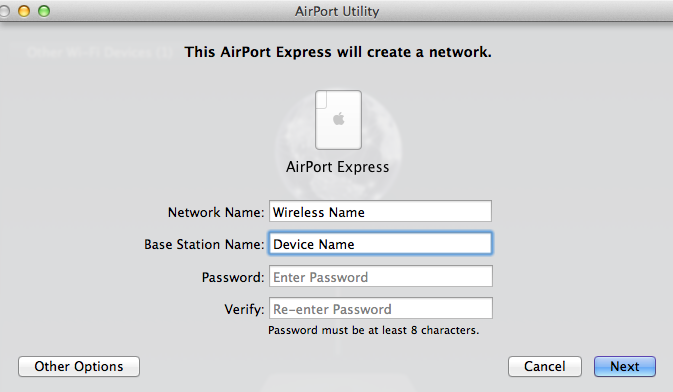


Network Name......Type in a name for the network. You can use the same name that you used before if you wish

Base Station Name......Type in a name for the Time Capsule device, which can be the same name you used before

Password.....Type in a password for the Time Capsule device and network, which can the same as before

Verify.....Type in the same password to confirm

Click Next and the setup wizard will configure the Time Capsule with the correct settings


When you see the message of Setup Complete, click Done. At this point, your Time Capsule has been set up to operate in what is known as "Bridge Mode", which Apple calls "Off (Bridge Mode)" just to be different.


You should now be able to connect to either the Time Capsule Wi-Fi network or your router's Wi-Fi network while maintaining the Internet connection.


3 replies
Question marked as Top-ranking reply

Jul 17, 2024 3:43 PM in response to Krarcmed

Perform a Hard Reset on the Time Capsule by holding in the reset button on the back of the device for 8-10 seconds, then release an allow a full minute for the Time Capsule to restart to a slow blinking amber light status.


Insure that the Ethernet cable connects from one of the LAN <--> ports on the main router to the WAN "O" port on the Time Capsule.


Open AirPort Utility on your Mac (Finder > Applications > Utilities > AirPort Utility)

Click on the Other Wi-Fi Devices button

Click on Time Capsule xxxxxxx


That will start up the AirPort Utility set "wizard". The application will take a few seconds to analyze the network and then display a screen that looks like the example below, except that you will see the Time Capsule pictured.


Network Name......Type in a name for the network. You can use the same name that you used before if you wish

Base Station Name......Type in a name for the Time Capsule device, which can be the same name you used before

Password.....Type in a password for the Time Capsule device and network, which can the same as before

Verify.....Type in the same password to confirm

Click Next and the setup wizard will configure the Time Capsule with the correct settings


When you see the message of Setup Complete, click Done. At this point, your Time Capsule has been set up to operate in what is known as "Bridge Mode", which Apple calls "Off (Bridge Mode)" just to be different.


You should now be able to connect to either the Time Capsule Wi-Fi network or your router's Wi-Fi network while maintaining the Internet connection.

This thread has been closed by the system or the community team. You may vote for any posts you find helpful, or search the Community for additional answers.

Airport Time Capsule as Streaming Storage on Existing Network

Welcome to Apple Support Community
A forum where Apple customers help each other with their products. Get started with your Apple Account.