WiFi not working for some iPad apps after iPadOS 17.6.1

After installing IOS 17.6.1 I’ve encountered many issues! As a long time Apple user I’ve never had any problems after updates before. Now my Wi-FI doesn’t work on certain apps, iMessage and FaceTime don’t work and I don’t get most notifications. I’ve tried reinstalling apps, restarting my modem, restarting network, restarting my iPad. Nothing works! This is a new iPad and now it’s broken because of this update! If I ever get this fixed I’m never installing an update again!!!


[Re-Titled by Moderator]

Posted on Aug 21, 2024 1:40 PM

Reply
Question marked as Top-ranking reply

Posted on Aug 21, 2024 4:24 PM

WiFi/Internet connection difficulties are usually an indication that your device does not have a routable IP Address - your IP Address usually being assigned by DHCP. When problems occur, your iPad may only have a self-assigned link-local IP address that begins 169.254.x.x.


You can verify your DHCP-assigned IP Address from settings:

Settings > WiFi > [Your WiFi Network / SSID] - tap the blue “i” icon - [IPv4 Address] IP Address


If you have a VPN App or profiles installed, or a security/AV/firewall App such as Norton, these may be interfering with DHCP and preventing your device from obtaining a valid IP Address for the WiFi network to which you are attempting to connect. The resolution is usually simple; if installed, you may only need to temporarily disable or remove the Security App and/or VPN.


DHCP is frequently used to automatically obtain an IP Address. Until your iPad has a valid IP Address to connect to your network, you will not have an internet connection. Disabling or removing VPN and/or the offending security App should allow DHCP to operate normally - allowing connection to your network and the internet.


If this resolves your issue, the VPN and/or security App can be reinstated after the connectivity problem has been resolved.


If some Apps are working as expected, while others are not - or other devices can connect to your WiFi network - you may find that a restart of your WiFi Router, followed by a restart of your iPad will clear the problem….


To restart your router, disconnect power from the router for at least 30 seconds - then reconnect power to restart. After your router reboots (which may take several minutes), force restart your iPad:


Force restart iPad (models with Face ID or with Touch ID in the top button)

If your iPad doesn’t have the Home button, do the following:

  1. Press and quickly release the volume button nearest to the top button.
  2. Press and quickly release the volume button farthest from the top button.
  3. Press and hold the top button.
  4. When the Apple logo appears, release the top button.


Force restart iPad (models with the Home button)

Press and hold the top button and the Home button at the same time. When the Apple logo appears, release both buttons.
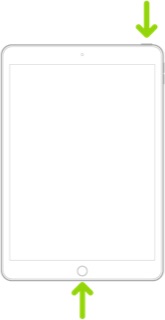


If you continue to have difficulties, check to see if your iPad is using the WiFi Private Address feature. This feature is intended to provide additional privacy and security when using “public” (untrusted) WiFi networks.

Settings > WiFi > [Your WiFi Network / SSID] - tap the “i” icon - Private Address


The Private Address feature is largely unnecessary for your home WiFi network; if enabled, Private Addressing can cause issues if specific MAC addresses are expected by your WiFi Router. You may need to disable this feature - and can be enabled or disabled for each individual network.

Use private Wi-Fi addresses in iOS 14, iPadOS 14, and watchOS 7 - Apple Support


If the problem persists, it may be necessary to reset your iPad Network settings:

Settings > General > Transfer or Reset iPad > Reset > Reset Network Settings


37 replies
Question marked as Top-ranking reply

Aug 21, 2024 4:24 PM in response to MissFancySchmancy

WiFi/Internet connection difficulties are usually an indication that your device does not have a routable IP Address - your IP Address usually being assigned by DHCP. When problems occur, your iPad may only have a self-assigned link-local IP address that begins 169.254.x.x.


You can verify your DHCP-assigned IP Address from settings:

Settings > WiFi > [Your WiFi Network / SSID] - tap the blue “i” icon - [IPv4 Address] IP Address


If you have a VPN App or profiles installed, or a security/AV/firewall App such as Norton, these may be interfering with DHCP and preventing your device from obtaining a valid IP Address for the WiFi network to which you are attempting to connect. The resolution is usually simple; if installed, you may only need to temporarily disable or remove the Security App and/or VPN.


DHCP is frequently used to automatically obtain an IP Address. Until your iPad has a valid IP Address to connect to your network, you will not have an internet connection. Disabling or removing VPN and/or the offending security App should allow DHCP to operate normally - allowing connection to your network and the internet.


If this resolves your issue, the VPN and/or security App can be reinstated after the connectivity problem has been resolved.


If some Apps are working as expected, while others are not - or other devices can connect to your WiFi network - you may find that a restart of your WiFi Router, followed by a restart of your iPad will clear the problem….


To restart your router, disconnect power from the router for at least 30 seconds - then reconnect power to restart. After your router reboots (which may take several minutes), force restart your iPad:


Force restart iPad (models with Face ID or with Touch ID in the top button)

If your iPad doesn’t have the Home button, do the following:

  1. Press and quickly release the volume button nearest to the top button.
  2. Press and quickly release the volume button farthest from the top button.
  3. Press and hold the top button.
  4. When the Apple logo appears, release the top button.


Force restart iPad (models with the Home button)

Press and hold the top button and the Home button at the same time. When the Apple logo appears, release both buttons.


If you continue to have difficulties, check to see if your iPad is using the WiFi Private Address feature. This feature is intended to provide additional privacy and security when using “public” (untrusted) WiFi networks.

Settings > WiFi > [Your WiFi Network / SSID] - tap the “i” icon - Private Address


The Private Address feature is largely unnecessary for your home WiFi network; if enabled, Private Addressing can cause issues if specific MAC addresses are expected by your WiFi Router. You may need to disable this feature - and can be enabled or disabled for each individual network.

Use private Wi-Fi addresses in iOS 14, iPadOS 14, and watchOS 7 - Apple Support


If the problem persists, it may be necessary to reset your iPad Network settings:

Settings > General > Transfer or Reset iPad > Reset > Reset Network Settings



Aug 30, 2024 5:15 AM in response to LotusPilot

I just double checked my apps. Even though I no longer use it, an old security app was still OFFLOADED on my iPad! 🙈 For anyone having this WiFi issue, check your offloaded apps! I can’t believe it! I wasn’t even using it!


Thank you so much! A thousand thank you’s! I’m naming my first born after you lol. Thank you, thank you, thank you!!! 🩷🩷🩷

Sep 3, 2024 7:57 PM in response to Edit_diva


Edit_diva wrote:

I’m having the issue, my mom is having the issue (iPhone 15s), my sister is having similar issues (iPhone 14) - I’m reading about similar situations online. Hence, why I am here.

I didn’t ask why you were here. I asked did you read the three pages of posts that had several troubleshooting tips, and did you follow any of them?


here’s one that high on the list: Do you use VPN? If so, delete the VPN profile in Settings/General/VPN & Device Management/VPN. Don't just turn it off; delete the profile.

Aug 23, 2024 9:32 AM in response to MissFancySchmancy

I updated my 15 Pro to 17.6.1 about a week ago.  I started to notice some things.  It started with videos on Facebook, X, and Instagram being glitchy and buffering.  I originally thought it was my connection. Turns out it was not my Wi-Fi or connections at all.  I could replicate the issues at various locations.


My issues are:

•              any video (downloaded, photos, or social media) do not play.

•              music does not play

•              videos online also do not play.  We tried the YouTube and Apple webpages; nothing worked.

•              I can make and connect a phone call.  That call does not have any audio.  Facetime calls also do not have audio or video.

•              My battery was hot while charging in my car on Saturday.


After several hours on Saturday with Apple support (first text chat, then phone support), I was left with a phone that didn't work well.  Apple phone support tried to reset to factory settings from a computer on Saturday (connected via cable).  That reset failed.  I then scheduled in-person support though the Apple Support app at a local Best Buy.  Best Buy ran all the same diagnostics that the Phone Support did the day before; found nothing.  Best Buy hard reset my phone to factory new; same issues (no video or calls).  Later on Sunday afternoon, I reopened my case and spoke to a Apple Support Manager for 2.5 hours.  She ran diagnostics, attempted to reset the phone again, and tried everything possible.  The phone was still quirky with the same issues.  She did say that "maybe it's Verizon" and I should speak to the also.  The Apple Support Manager ended the call with sending report logs to Apple Engineering to review.  The Engineering review could take 3-5 days.  Grrr.


I did call Verizon and review all the settings.  My Verizon settings were all perfectly fine.


Now I still waiting for 5 days until Apple Support gets the Engineering review of my phone's issues. 


This thread has been closed by the system or the community team. You may vote for any posts you find helpful, or search the Community for additional answers.

WiFi not working for some iPad apps after iPadOS 17.6.1

Welcome to Apple Support Community
A forum where Apple customers help each other with their products. Get started with your Apple Account.

