How to fix iPhone 16 Pro Max Stuck on Setup?

Setting up new iPhone and transferred number from old phone. New phone appears stuck on "Cellular Setup Complete" with only the greyed out bar at the bottom of the screen and a spinning "thinking" icon. Next step??


[Re-Titled By Moderator]

Posted on Sep 20, 2024 7:11 AM

Reply
Question marked as Top-ranking reply

Posted on Oct 15, 2024 8:44 PM

you just described my day today. I got it resolved by Apple support by calling them. I’ve copied and pasted how they fixed it for me.


Apple support fixed it for me! They first had me tap the volume up then down then hold power button for 15 seconds to force the iPhone to power down. It did but automatically restarted and the problem was the same.


The solution:

  1. hook up the iPhone 16 pro to the computer (I used my MacBook)
  2. tap the volume up then volume down then hold the power button for around 25 seconds until you get a plug in screen on the iPhone
  3. follow the prompts on MacBook to restore the phone. It’ll have you download the update. Process took about 15 minutes but now I have a working phone!


now I’m trying to transfer my old data to my new phone which is another mountain to climb.


the problem was Apple is sending out these phones without the new update and it’s causing all these problems


good luck everyone! Calling Apple support was such a pleasant experience, hope you get the same.

Similar questions

179 replies
Question marked as Top-ranking reply

Oct 15, 2024 8:44 PM in response to ProMax16Issues

you just described my day today. I got it resolved by Apple support by calling them. I’ve copied and pasted how they fixed it for me.


Apple support fixed it for me! They first had me tap the volume up then down then hold power button for 15 seconds to force the iPhone to power down. It did but automatically restarted and the problem was the same.


The solution:

  1. hook up the iPhone 16 pro to the computer (I used my MacBook)
  2. tap the volume up then volume down then hold the power button for around 25 seconds until you get a plug in screen on the iPhone
  3. follow the prompts on MacBook to restore the phone. It’ll have you download the update. Process took about 15 minutes but now I have a working phone!


now I’m trying to transfer my old data to my new phone which is another mountain to climb.


the problem was Apple is sending out these phones without the new update and it’s causing all these problems


good luck everyone! Calling Apple support was such a pleasant experience, hope you get the same.

Sep 20, 2024 1:53 PM in response to Bob-W2GG

Same thing happened on my iPhone 16 (not Pro); it was stuck on "Cellular Setup Complete". I rebooted it and it resumed the setup past that point.


The old iPhone then didn't prompt me to begin the setup process. I rebooted it, and that solved it. From other posts here, looks like I could have just turned Bluetooth off/on and locked/unlocked the old iPhone instead.


When the swirly dot pattern appeared on the screen, holding it within view of my old iPhone's camera didn't proceed with the setup; it kept waiting for the old iPhone to see the pattern. I tapped the manual button, it displayed a number on the new iPhone and asked me to type it in on the old iPhone. That worked (and was much easier than the pattern thing!).


Transferring data now!


Sep 21, 2024 12:51 AM in response to Bob-W2GG

Just experienced the issue with iPhone 13 to iPhone 16. Chatted with Apple online.


Need to update old iPhone's iOS to latest version. So press X to stop the process on old iPhone. Go to Settings - General - Software Update.


On iPhone 16... I had to let it go to sleep, wake it, then hold power & volume up to force it off.


After old iPhone iOS is updated then...

Check the old iPhone still has some battery charge left. If not then I would charge it some.

Turn on new iPhone 16.

Follow instructions at support.apple.com/en-us/117383


Using a wired connection is better than wireless (and maybe faster), so go into your old iPhone box and find that USB-C to lightning cable to connect old iPhone to iPhone 16.


The whole process was done within 5 minutes or so.

The new iPhone 16 even connected to my home Wi-Fi automatically. All my apps stared downloading afterwards. Pretty cool when it does work.


Very frustrating to have waited over an hour when it was stuck. I still think Apple has a USER EXPERIENCE ERROR.

Oct 12, 2024 4:49 AM in response to mahadev164

This is what saved me, i just wanted to return here and thank you for your comment i was stressing pretty hard thinking i was going to be driving over an hour to my closest apple store to fix this thing.


One thing I will add to your instructions for what I had to do is once the phone is in recovery mode and connected to the macbook, I used the Apple Configurator app which showed my iphone, I selected it then clicked update at the top which then said that the iphone is not booted so it gave me the option to erase and reinstall IOS which I proceeded with. It took a while to download IOS but when it was finished it said my macbook needed to be updated to latest IOS first which I did. After that i had to reconnect phone in recovery mode since macbook rebooted for update, luckily i got back into the phone and was able to proceed with the erase and reinstall of IOS.


After doing some reading from other peoples posts it seems the issue is when you setup the new iphone if you select direct transfer if your old iphone and new iphone are on different IOS's it seems to hose up the new one.


So my second time around doing the setup i selected icloud backup which worked flawlessly, i hope this can help some others out there, i was extremely disappointed never had this much trouble setting up a new iphone and was so worried i received a dud.

Oct 15, 2024 7:59 PM in response to highwelder

I had this same problem today and I got it fixed by calling Apple support. I posted this elsewhere


Apple support fixed it for me! They first had me tap the volume up then down then hold power button for 15 seconds to force the iPhone to power down. It did but automatically restarted and the problem was the same.


The solution:

  1. hook up the iPhone 16 pro to the computer (I used my MacBook)
  2. tap the volume up then volume down then hold the power button for around 25 seconds until you get a plug in screen on the iPhone
  3. follow the prompts on MacBook to restore the phone. It’ll have you download the update. Process took about 15 minutes but now I have a working phone!


now I’m trying to transfer my old data to my new phone which is another mountain to climb.


the problem was Apple is sending out these phones without the new update and it’s causing all these problems


good luck everyone! Calling Apple support was such a pleasant experience, hope you get the same.


Nov 2, 2024 3:52 AM in response to SirLemon20

I came back here after managing a fix for it and hoping this would help those who have been through the frustration with this issue like me. Here's what you need to do:

Having a MacBook and a cable to connect your iPhone to it, plug your iphone into Macbook.

Please be patient when trying to put your iPhone in DFU mode (it could take more than 10 times like I did, see the image attached about DFU mode screen).

2. a) Press the Volume Up button (quickly no need to hold), then release it.

2. b) Press the Volume Down (quickly no need to hold), then release it.

2. c) Press and hold the Power button until you see the Apple logo on a black screen (if at this step your phone only restarts and then you see the f Hello screen again, please go back to step 2a and re-tried, and you need to be patient).

2.d) Right when you see the Apple logo on step 2. c) press the Volume Down Button (while still pressing the power button) and DO NOT RELEASE THESE 2 BUTTONS UNTIL YOU SEE THE CAPLE CONNECT TO COMPUTER ICON on a black screen (this is the sign that you've successfully entered the DFU mode)

3. Now open Finder on Mac, select your iPhone (left menu Locations) and choose to "Restore iPhone" (if there is a pop-up that appears on your Mac asking to connect your iPhone -> select Allow -> select Restore option) - do not choose "Update"

4. Stay connected after the phone has been restored. Make sure you pass the Hello screen before you can unplug it.

* DFU mode:
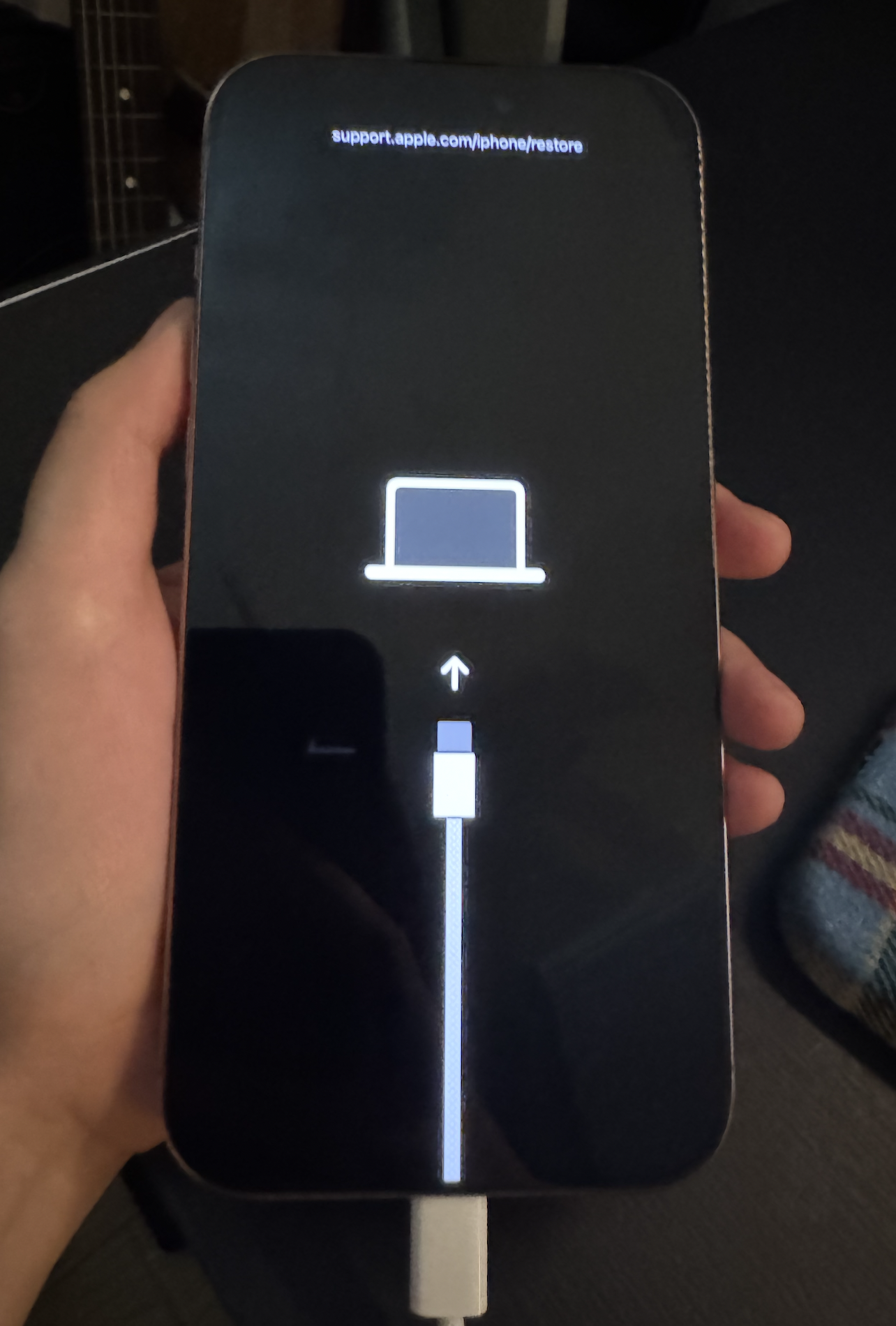


* Restore iPhone from Finder on Mac:
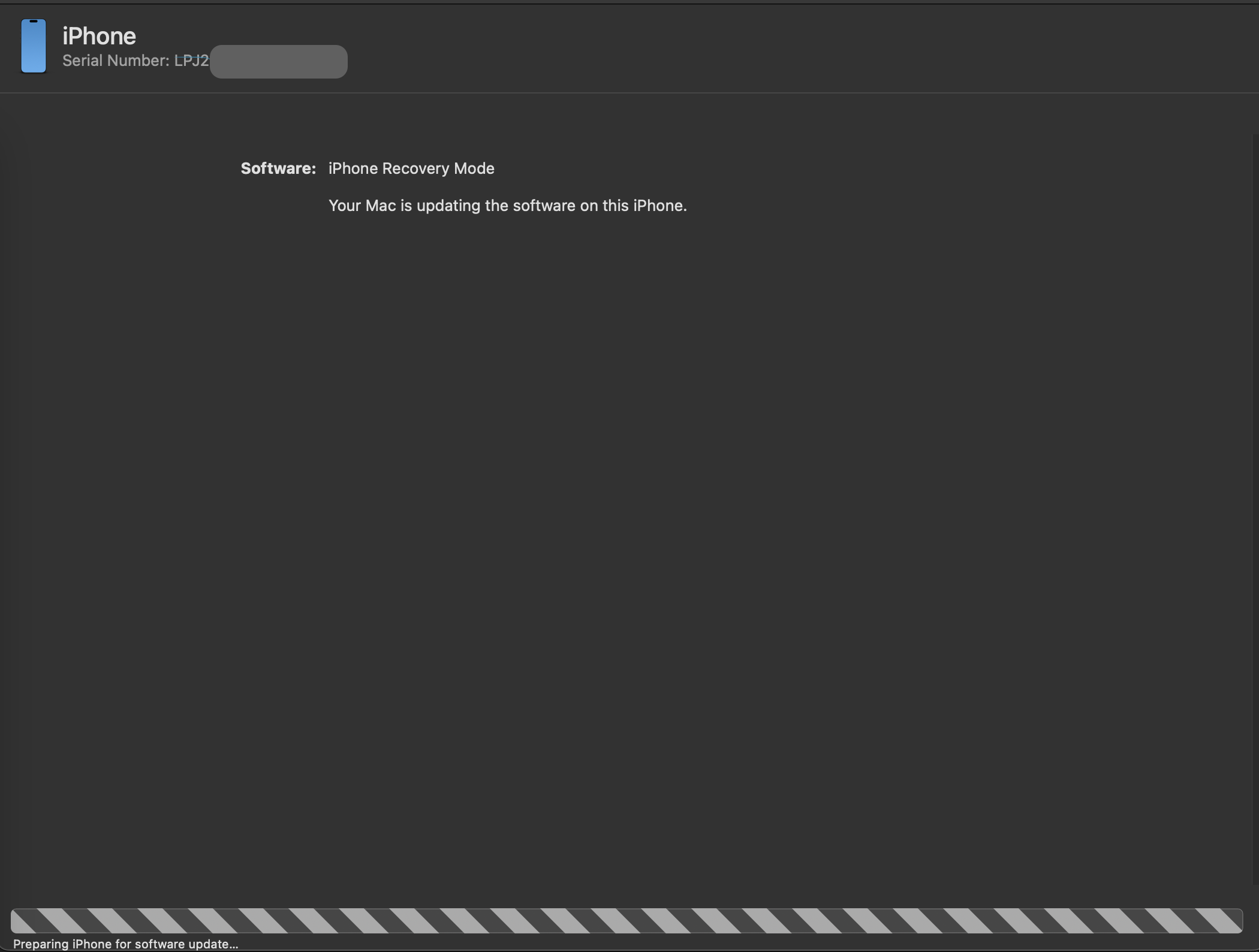

* Successfully restored:
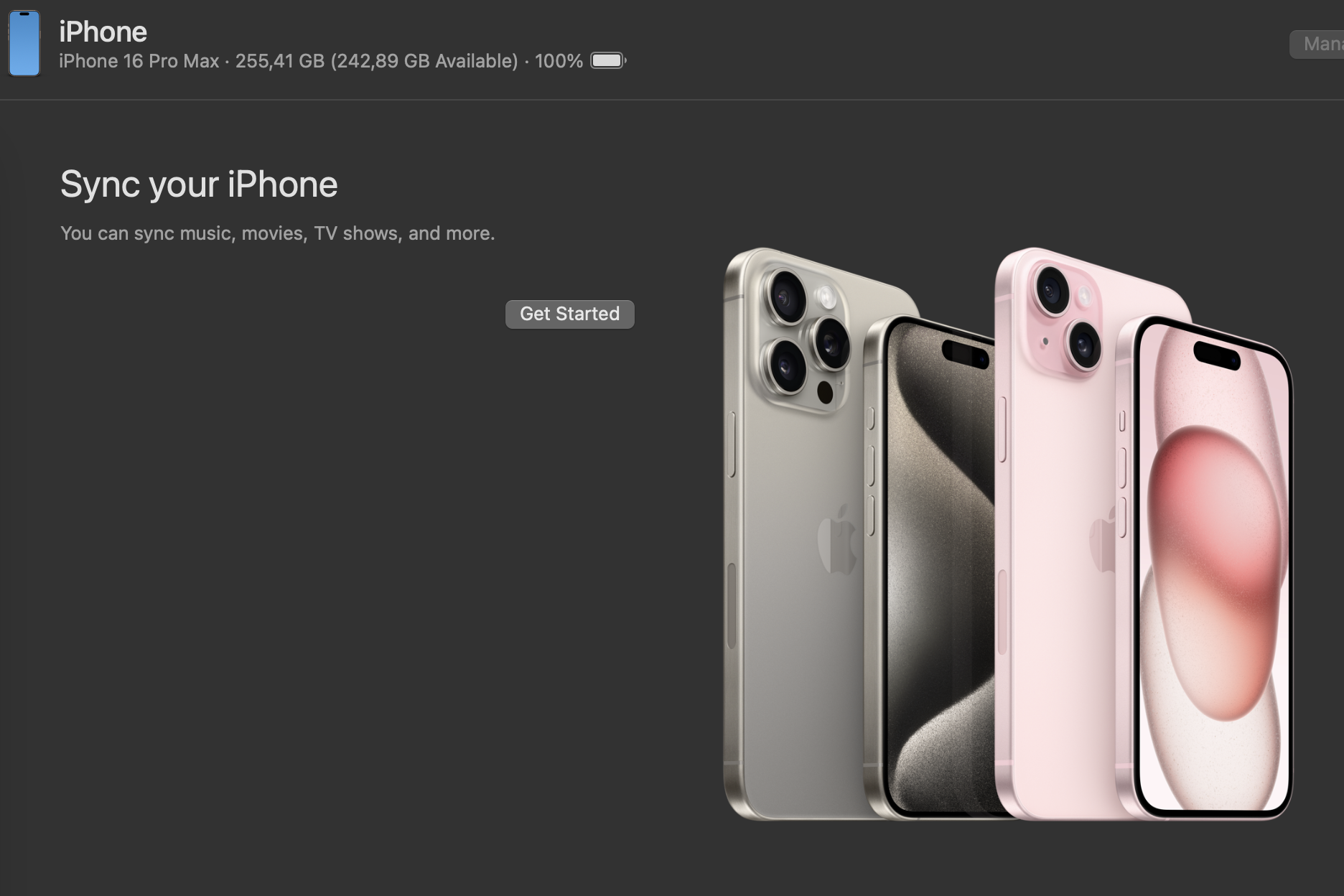
Nov 2, 2024 4:02 AM in response to Bob-W2GG

I came back here after managing a fix for it and hoping this would help those who have been through the frustration with this issue like me. Here's what you need to do:

  1. Having a MacBook and a cable to connect your iPhone to it, plug your iPhone into Macbook.
  2. Please be patient when trying to put your iPhone in DFU mode (it could take more than 10 times like I did, see the image attached about DFU mode screen).

2. a) Press the Volume Up button (quickly no need to hold), then release it.

2. b) Press the Volume Down (quickly no need to hold), then release it.

2. c) Press and hold the Power button until you see the Apple logo on a black screen (if at this step your phone only restarts and then you see the f Hello screen again, please go back to step 2a and re-tried, and you need to be patient).

2.d) Right when you see the Apple logo on step 2. c) press the Volume Down Button (while still pressing the power button) and DO NOT RELEASE THESE 2 BUTTONS UNTIL YOU SEE THE CAPLE CONNECT TO COMPUTER ICON on a black screen (this is the sign that you've successfully entered the DFU mode)

3. Now open Finder on Mac, select your iPhone (left menu Locations) and choose to "Restore iPhone" (if there is a pop-up that appears on your Mac asking to connect your iPhone -> select Allow -> select Restore option) - do not choose "Update".

4. Stay connected after the phone has been restored. Make sure you pass the Hello screen before you can unplug it.

* DFU mode:


* Restore iPhone from Finder on Mac:


* Successfully restored:

Nov 3, 2024 3:13 PM in response to Bob-W2GG

Mine was bricked out in the same way, and I thought all was lost. But I'm happy to report I was able to get it up and running. You will need an apple computer - I used a Mac Studio, but I'm sure the process is the same for any laptop or desktop:


I plugged into my Mac Studio via USB-C, and then tried the hard reset ( up volume, down volume, hold the lock button), and just keep holding the lock button until even after the apple re-appears, then the screen should display the outline of a MacBook, and indicate a line/connection to the MacBook - and then my Mac automatically prompted me that it would be entering restore/recovery mode. The Mac then downloaded the necessary files, and conducted the reset itself on the phone.


Now, I had to do this a couple of times, but was able to get it working after two or three attempts. Hope this helps!

Sep 21, 2024 5:51 PM in response to Bob-W2GG

In case someone can’t get their new iPhone 16 pro to restart (this same issue happened with my dad’s but holding the power and up volume wouldn’t restart it) Apple support informed us that the new phone requires pressing the volume up quickly, then volume down quickly (no holding on those two) then holding down the power/wake button. That worked!!


So if you can’t get yours to restart try that. We then updated his previous phone’s software (not to iOS 18, just newest 17 version) and it worked and is transferring now.

Sep 21, 2024 11:03 AM in response to Bob-W2GG

Looks like this is a pervasive and persistent issue! For me it manifest when trying to transfer my data directly from my iphone14pro to a new iphone16pro. The process got hung up in the 'transferring data' screen. After waiting 90min with no resolution I did the following:

  1. I stopped the process on both phones and turned them off
  2. I turned on and backed up my iphone14pro
  3. I turned on the new iphone16pro and chose icloud back up
  4. After about 30min the iphone16pro awoke and was ready to be used on cellular & wifi
  5. It took quite some time for all the apps to update and still some required reauthentication
  6. DO NOT ERASE your old phone until you have fully set up your new phone as you may need it for certain actions
  7. Best to use the new phone for a few days before ditching and trading in your old one

Oct 15, 2024 1:08 PM in response to moss9112

I have solved it in the following way: After passing the information from the 15 pro max to the 16 pro max, the phone stayed on the "Hello" screen and did not let you enter the password or advance from that screen. The phone got hot and ran out of battery.

I put the phone in DFU mode (quickly pressing volume up, volume down and the power button. When the screen remains with the apple, continue pressing power and volume down until the apple and the cable appear).

once a DFU, I connected it to my laptop (windows) to the iTunes application until it recognized the phone (VERY IMPORTANT, the cable has to be of quality, otherwise the laptop does not recognize it or the process goes wrong (I I had to use 3 cables until one worked for me)) When it recognizes it, it gives the option to restore it. Restore it with the IOS default version that iTunes provides.

When you see that it turns on and works normally, configure it as a new phone, download the most current version of IOS that you want (betas included) and now click restore the new iPhone. When you reboot, you can copy the old one to the new one and it won't stay dead again. Luck.


Sep 29, 2024 2:23 AM in response to Bob-W2GG

It sounds like your new iPhone is stuck on the "Cellular Setup Complete" screen with no way to move forward.

Could you check these two things first?

  1. Is your SIM card properly installed?
  2. If using a physical SIM, make sure it's inserted correctly. If you're using eSIM, confirm it's fully activated under Settings > Cellular.
  3. Is your iPhone connected to a strong Wi-Fi network?
  4. Wi-Fi can help with the activation process, so ensure you're on a stable connection.


If everything looks fine, try restarting the phone by holding Volume Up + Side Button and sliding to power off. If it’s still stuck, a force restart might help:

  • Press Volume Up, then Volume Down, then hold the Side Button until the Apple logo appears.


For detailed setup instructions, refer to

Apple Guide - Stuck on Restore from iCloud

Apple Support – Set Up Your iPhone

Oct 7, 2024 10:33 PM in response to Bob-W2GG

Here are the steps that fixed the above issue for my iPhone 16 Pro.


  1. Press volume up button quickly and leave
  2. Immediately Press volume down button quickly and leave
  3. Keep holding side button (10 secs) till iPhone reboots and Apple logo appears. Keep holding side button and connect the iPhone to MacBook using USB cable. When you see a computer and cable image on phone let the side button go. The phone is in recovery mode now.
  4. Update iPhone with latest software
  5. Restore phone form iCloud backup

Oct 10, 2024 1:15 PM in response to ygorhun

I had same problem on my 16 Pro and finally let it drain to zero. Upon charging a little and trying everything, including Apple telephone support, I brought it to Apple store to return. BUT, they needed to charge it a little to read serial number ( about the only thing the phone would do) and asked if they could plug it into their laptop. Soon after it was plugged into computer, they were able to start the normal wifi install. I asked what they did, special program or what?, and it seems that he did nothing special, as if my phone just didn’t accept plugging

into my iMac at home for help. Best of luck.


[Edited by Moderator]

This thread has been closed by the system or the community team. You may vote for any posts you find helpful, or search the Community for additional answers.

How to fix iPhone 16 Pro Max Stuck on Setup?

Welcome to Apple Support Community
A forum where Apple customers help each other with their products. Get started with your Apple Account.

