How to print row numbers and column letters in a Numbers v.14.2 spreadsheet on a MacBook Air M3?

I asked this question some time ago and the only reply I received was that you cannot print the row numbers and column letters in a Numbers document. I still find that hard to believe. For example, if you wanted to reference the data in the box shown as Row 66, Column E on your computer, how would you locate the same box on the printed sheets? Would you have to count down 66 rows and over 5 columns to find it? Surely there must be a better way.

MacBook Air 13″, macOS 14.6

Posted on Dec 6, 2024 9:29 AM

Reply
Question marked as Top-ranking reply

Posted on Dec 6, 2024 10:04 AM

It may be hard to believe, but it's true.


It's also the default in Excel, although Excel does have an override function to allow this.

In either case, I think it stems from the fact that in most printed formats, you have no idea of the underlying function behind any cell, so you can't easily tell what it's referencing anyway. How would you know that a cell on the printed spreadsheet references E66? You can't click on it to see.


That said, there are two approaches (hacks?) that I can think of that may get you what you want.


The first is to add an additional Header Row and Column to your table, and set this to the same as the Row and Column labels:


This will have the side-effect of shifting all your data, but that may not be a problem for you.


The second approach takes advantage of Numbers' table-centric approach:
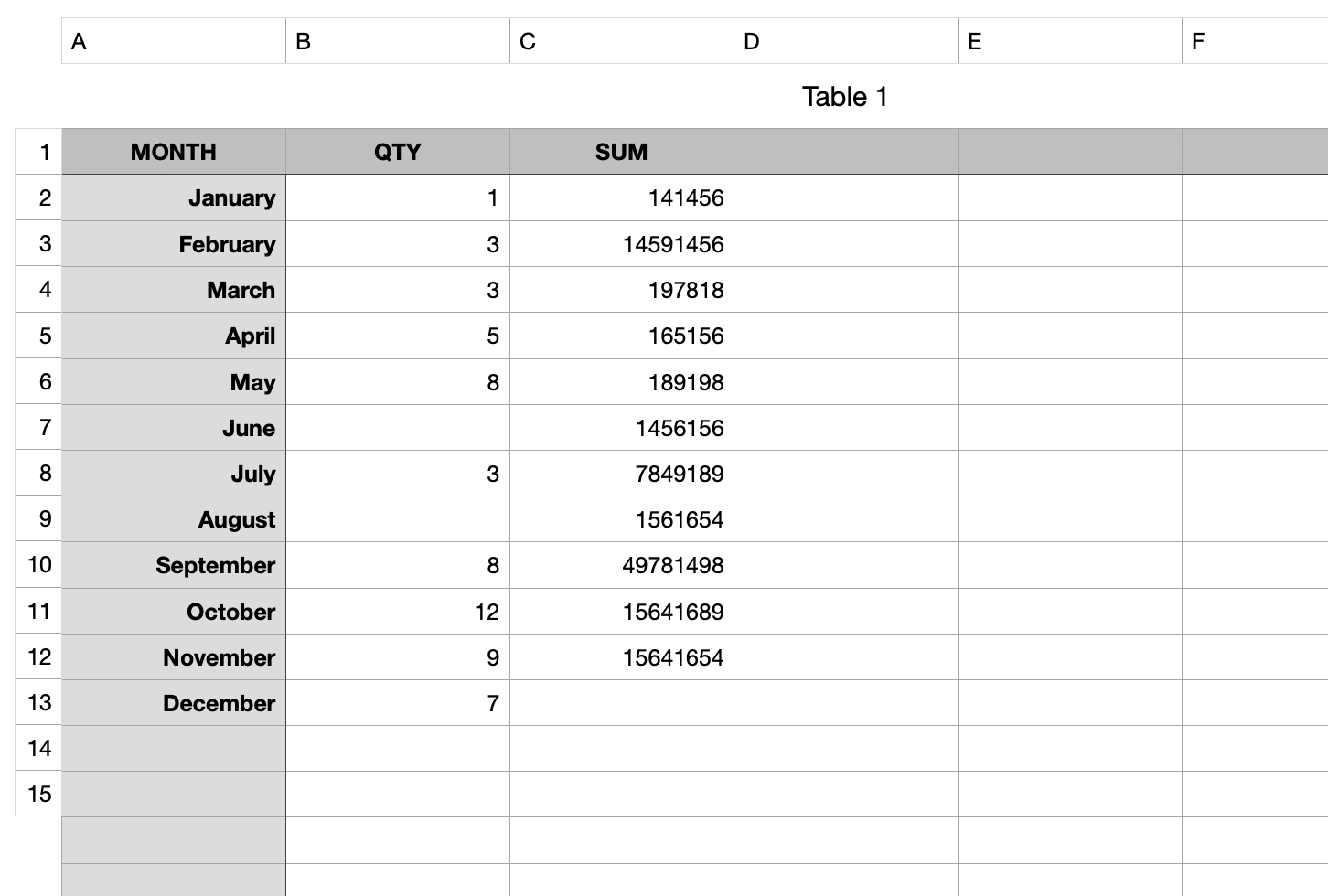


This is actually three separate tables. The main data table is one, but positioned above that is a separate 1-row table with the labels A, B, C, D, etc. aligned with the main table.

To the left side is another table with one column with the values ROW() to simply fill out the row numbers. This is aligned with the side of the main table.


The advantage of this approach is that it doesn't impact the main table references.


3 replies
Question marked as Top-ranking reply

Dec 6, 2024 10:04 AM in response to gimmiegolf

It may be hard to believe, but it's true.


It's also the default in Excel, although Excel does have an override function to allow this.

In either case, I think it stems from the fact that in most printed formats, you have no idea of the underlying function behind any cell, so you can't easily tell what it's referencing anyway. How would you know that a cell on the printed spreadsheet references E66? You can't click on it to see.


That said, there are two approaches (hacks?) that I can think of that may get you what you want.


The first is to add an additional Header Row and Column to your table, and set this to the same as the Row and Column labels:


This will have the side-effect of shifting all your data, but that may not be a problem for you.


The second approach takes advantage of Numbers' table-centric approach:


This is actually three separate tables. The main data table is one, but positioned above that is a separate 1-row table with the labels A, B, C, D, etc. aligned with the main table.

To the left side is another table with one column with the values ROW() to simply fill out the row numbers. This is aligned with the side of the main table.


The advantage of this approach is that it doesn't impact the main table references.


Dec 9, 2024 8:57 AM in response to gimmiegolf

> However, my document is 7 columns and 270 rows so it would be helpful to have an automatic formula for numbering rows that starts at 1 and adds "1" to each successive row.  Does Numbers have that ability?


Sure. That's trivial.


Set the first cell to the formula:


=ROW()


and fill down.


This will automatically fill in the current row number.


The columns are a little harder since the equivalent function would be =COLUMN() but that returns a numerical result of the column index, which you'd have to coerce to a corresponding letter, although with 7 static columns it may not be a burden to set these manually.


Dec 8, 2024 1:40 PM in response to Camelot

Camelot:  I appreciate your comments and the 2 work-arounds.  I had also thought of the 1st one – add another column and row and enter the numbers and letters myself – and it would be best for the spreadsheet/table I’m working on.  However, my document is 7 columns and 270 rows so it would be helpful to have an automatic formula for numbering rows that starts at 1 and adds "1" to each successive row.  Does Numbers have that ability?


The 2nd approach will be better for other documents.  I wasn’t aware that Numbers offered layering so I’ll have to read up on that functionality.  I assume when finished you can merge the layers and flatten the document before printing?


There is a 3rd option too.  I could download the LibreOffice suite of free apps and use their spreadsheet which has all these functions mentioned.  I’ll find out what works best and report back.


Thanks again for your time and sharing your expertise.


TF

This thread has been closed by the system or the community team. You may vote for any posts you find helpful, or search the Community for additional answers.

How to print row numbers and column letters in a Numbers v.14.2 spreadsheet on a MacBook Air M3?

Welcome to Apple Support Community
A forum where Apple customers help each other with their products. Get started with your Apple Account.