iOS 26 Split Screen: Can't open two documents in same app

Read lots of info on the Split Screen issue with IOS 26. Need to open two different documents using the same app, not two different ones. Cannot find a way to do this. Reviewed Stage Manager settings, and noted that there is no "Split Screen..." option as several online help instructions referred to.


A major feature for writing using iPad has been ability to open two docs. side-by-side to work from one to the other. Please bring back the single-app Split Screen, and make it easy (the "three dots at top of page" option as before.


Also, hovering menus have a fade-out look that makes it hard to read the overlay. Cute, but not helpful for hardcore users who want to get jobs done, without eye-strain. Thanks.

iPad Air 3, iPadOS 26

Posted on Feb 20, 2026 10:24 AM

Reply
Question marked as Top-ranking reply

Posted on Feb 20, 2026 12:10 PM

Whether using the Windowed Apps or Stage Manager multitasking modes, Split Screen and Slide Over views remain available in iPadOS 26. As with iPadOS 18, many (but not all) Apps support opening multiple instances of the same App.


iPadOS 26 has introduced new multitasking capabilities and controls - with, optionally, Apps appearing within their own windows instead of being full-screen or appearing in side-by-side split screen. To better understand the changes, I recommend that you start with the video introduction here - and then read the remaining explanations:

Multitask on iPad with iPadOS 26 - Apple Support


iPadOS multitasking has received a significant makeover from that to which you may be accustomed in iPadOS 18.x and earlier - and may take a little time to learn and adjust your workflows. You would be well advised to review the official iPadOS User Guide and the many available online tutorials (such as YouTube) to become better acquainted with the new multitasking interface and associated gestures and controls.

Work with multiple windows at once on iPad - Apple Support

OS - iPadOS 26 - Apple


The three-dot multitasking button with which you are no doubt familiar from earlier versions of iPadOS has been replaced with the traffic-light button to access and control the revised window-based User Interface.
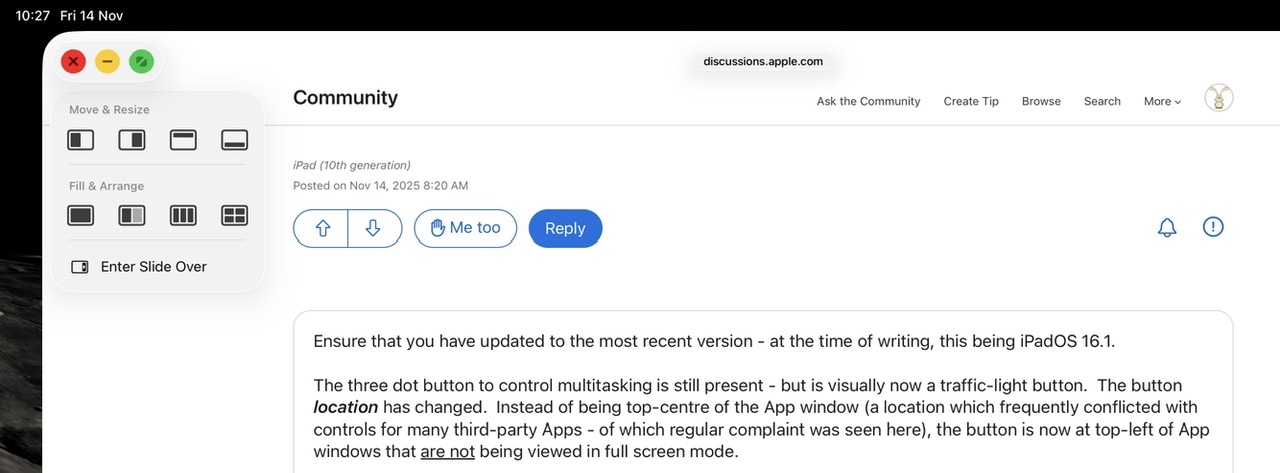


Touch-and-hold (not tap) the traffic light button to expand the full set of windowing controls - which includes a full set of windowing options and side-over:


Tapping the traffic-light multitasking button expands the control - whereas touch-and-hold of the button offers the option of arranging open windows side-by-side, as a triple, or arranged into a quad.


If an App window is being displayed full screen, swiping down from the top-edge of the screen exposes the new top menu-bar - at the left of which you will find the traffic-light button. Again, touch-and-hold to expose the full set of windowing controls:


When operating in Stage Manager mode, you'll note an additional option to quickly open an additional App window for the same App.


Similar questions

2 replies
Question marked as Top-ranking reply

Feb 20, 2026 12:10 PM in response to Logistics_Anyone

Whether using the Windowed Apps or Stage Manager multitasking modes, Split Screen and Slide Over views remain available in iPadOS 26. As with iPadOS 18, many (but not all) Apps support opening multiple instances of the same App.


iPadOS 26 has introduced new multitasking capabilities and controls - with, optionally, Apps appearing within their own windows instead of being full-screen or appearing in side-by-side split screen. To better understand the changes, I recommend that you start with the video introduction here - and then read the remaining explanations:

Multitask on iPad with iPadOS 26 - Apple Support


iPadOS multitasking has received a significant makeover from that to which you may be accustomed in iPadOS 18.x and earlier - and may take a little time to learn and adjust your workflows. You would be well advised to review the official iPadOS User Guide and the many available online tutorials (such as YouTube) to become better acquainted with the new multitasking interface and associated gestures and controls.

Work with multiple windows at once on iPad - Apple Support

OS - iPadOS 26 - Apple


The three-dot multitasking button with which you are no doubt familiar from earlier versions of iPadOS has been replaced with the traffic-light button to access and control the revised window-based User Interface.


Touch-and-hold (not tap) the traffic light button to expand the full set of windowing controls - which includes a full set of windowing options and side-over:


Tapping the traffic-light multitasking button expands the control - whereas touch-and-hold of the button offers the option of arranging open windows side-by-side, as a triple, or arranged into a quad.


If an App window is being displayed full screen, swiping down from the top-edge of the screen exposes the new top menu-bar - at the left of which you will find the traffic-light button. Again, touch-and-hold to expose the full set of windowing controls:


When operating in Stage Manager mode, you'll note an additional option to quickly open an additional App window for the same App.

Feb 20, 2026 10:42 AM in response to Logistics_Anyone

Follow-on to my comment above. Finally got two docs. in same app, open and arranged. Very cumbersome process and tiny buttons not great. But, as others have noted, the two screens (regardless of app) are smaller and lose precious real estate for viewing. Also, the "inactive" window is grayed and has smudgy edges. Hard to read. Again, bring back the older version. This is a tool and needs to maximize screen sizes, and be as bright and clear, and easy to use as before.


One other thing. This is in regard to my iPad Air 11-inch (M2). It also applies to the above-referenced device. I use both simultaneously for a many-volume document.

iOS 26 Split Screen: Can't open two documents in same app

Welcome to Apple Support Community
A forum where Apple customers help each other with their products. Get started with your Apple Account.