Unable to reinstall some apps after update to 26 on my iPad mini Gen 5 yesterday. Help please!

Hi Everyone,

I had to offload several apps so I had enough room to install Update 26. When the update was completed there were several important apps that I use many times per day that won’t allow me to reinstall them, (e.g. YouTube, several games, part of my security package, etc.). The annoying circle just spins continuously & the icons for them is grayed out. Please tell me what to do…great details please! Oh, I have closed my iPad mini 5 several times thinking that a restart & rests in between would fix it, but no luck.

Thanks in advance for your help!


iPad mini 5, iPadOS 26

Posted on Feb 24, 2026 8:57 PM

Reply
Question marked as Top-ranking reply

Posted on Feb 25, 2026 2:14 AM

Be aware that some older Apps, that have been withdrawn or are no longer supported, may no longer be available for download. While YouTube will not be amongst those that have been withdrawn, other unspecified Apps may be amongst them.


Another consideration is the "security package" to which you refer. Due to the sandboxed security architecture, these generally offer little if any benefit for iOS/iPadOS - and in fact can cause more issues than they solve. Many such Apps tamper with the device network stack - and can cause connection issues that are atypical of the problem that you describe. To resolve associated problem, it is sometimes necessary to disable and/or completely remote VPN and "security Apps" from the device and then perform a restart of the iPad. When normal operation has been restored, you might then consider re-installing the faulting App or VPN profile.


Otherwise, if your iPad is not operating as expected, try a forced-restart - as this will often clear an isolated or post-update software issue:


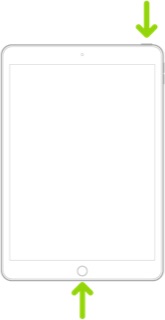
Force restart iPad (models with the Home button)

Press and hold the top button and the Home button at the same time. When the Apple logo appears, release both buttons.


Force restart iPad (models with Face ID or with Touch ID in the top button)

If your iPad doesn’t have the Home button, do the following:

  1. Press and quickly release the volume button nearest to the top button.
  2. Press and quickly release the volume button farthest from the top button.
  3. Press and hold the top button.
  4. When the Apple logo appears, release the top button.



If the problem persists after performing the restart, it may be necessary to reset your iPad settings. While this reset will not cause any loss of data, as a precaution, it is always wise to ensure that you have a current iCloud or iTunes backup before performing the reset:

How to back up your iPhone, iPad, and iPod touch - Apple Support


When you are happy to proceed, you can perform the reset from iPad settings:

Settings > General > Transfer or Reset iPad > Reset > Reset All Settings


If the problem still doesn’t clear, the next step is to reset the iPad to factory settings:

Restore your iPhone, iPad, or iPod to factory settings - Apple Support


If you are unable to clear the problem, you would be best advised to seek assistance directly from Apple Support. You can contact the Support Team using the Support link at top-right or bottom-left of this page. Alternatively you can initiate and manage your support cases from Apple devices using the excellent Apple Support App. If not already installed, the App can be downloaded from the App Store:

https://apps.apple.com/app/apple-support/id1130498044


You might also visit the Genius Bar at your local Apple Store or Apple Authorised Service Provider (AASP) - where the technicians will be able to test and assess your iPad - and you can explore your available options:

Genius Bar Reservation and Apple Support Options - Apple

Similar questions

4 replies
Question marked as Top-ranking reply

Feb 25, 2026 2:14 AM in response to K-9Pal

Be aware that some older Apps, that have been withdrawn or are no longer supported, may no longer be available for download. While YouTube will not be amongst those that have been withdrawn, other unspecified Apps may be amongst them.


Another consideration is the "security package" to which you refer. Due to the sandboxed security architecture, these generally offer little if any benefit for iOS/iPadOS - and in fact can cause more issues than they solve. Many such Apps tamper with the device network stack - and can cause connection issues that are atypical of the problem that you describe. To resolve associated problem, it is sometimes necessary to disable and/or completely remote VPN and "security Apps" from the device and then perform a restart of the iPad. When normal operation has been restored, you might then consider re-installing the faulting App or VPN profile.


Otherwise, if your iPad is not operating as expected, try a forced-restart - as this will often clear an isolated or post-update software issue:


Force restart iPad (models with the Home button)

Press and hold the top button and the Home button at the same time. When the Apple logo appears, release both buttons.


Force restart iPad (models with Face ID or with Touch ID in the top button)

If your iPad doesn’t have the Home button, do the following:

  1. Press and quickly release the volume button nearest to the top button.
  2. Press and quickly release the volume button farthest from the top button.
  3. Press and hold the top button.
  4. When the Apple logo appears, release the top button.


If the problem persists after performing the restart, it may be necessary to reset your iPad settings. While this reset will not cause any loss of data, as a precaution, it is always wise to ensure that you have a current iCloud or iTunes backup before performing the reset:

How to back up your iPhone, iPad, and iPod touch - Apple Support


When you are happy to proceed, you can perform the reset from iPad settings:

Settings > General > Transfer or Reset iPad > Reset > Reset All Settings


If the problem still doesn’t clear, the next step is to reset the iPad to factory settings:

Restore your iPhone, iPad, or iPod to factory settings - Apple Support


If you are unable to clear the problem, you would be best advised to seek assistance directly from Apple Support. You can contact the Support Team using the Support link at top-right or bottom-left of this page. Alternatively you can initiate and manage your support cases from Apple devices using the excellent Apple Support App. If not already installed, the App can be downloaded from the App Store:

https://apps.apple.com/app/apple-support/id1130498044


You might also visit the Genius Bar at your local Apple Store or Apple Authorised Service Provider (AASP) - where the technicians will be able to test and assess your iPad - and you can explore your available options:

Genius Bar Reservation and Apple Support Options - Apple

Feb 25, 2026 6:44 AM in response to K-9Pal

Perhaps a long shot:


Do you have a 3rd party VPN installed, even if you are not using it? If so, delete the VPN profile in Settings/General/VPN & Device Management/VPN, then restart your device. Don't just turn it off; delete the profile. Updates sometimes "break" VPN, and it needs to be removed. If that fixes it, you can try reinstalling VPN, but probably shouldn't.

Feb 25, 2026 12:42 AM in response to Ingo2711

Hi ingo,

that’s why I had offloaded the apps…the problem I’m trying to fix is that after the update was completed I had to go back to the apps I had offloaded to make room for the update, (as that’s what Apple Support suggests), but some of those Apps wouldn’t let me reinstall them. Most I was able to reinstall, but several of them won’t. I’m getting a new iPad when I get my tax return comes, but I have to do updates this way till then.

Thanks for trying.

Unable to reinstall some apps after update to 26 on my iPad mini Gen 5 yesterday. Help please!

Welcome to Apple Support Community
A forum where Apple customers help each other with their products. Get started with your Apple Account.
