Time Machine backups greyed out

Hi,


All of my Time Machine backups older than a week are now greyed out. No matter where I decide to start TM from on the desktop nothing appears in TM older than a week and I have been using TM for over a year now. So this isn;t a problem with TM not being able to find backups of newly-created documents etc.


I did have internal disk problems about the same time a week ago and had to restore from another cloned disk. My guess is that the old TM backups are now no longer accessible from my iMac as it thinks that I am now using a new machine (from the cloned recovery).


My questions are:


  1. Is there any way that I can access the old backups, and
  2. if not, is there a way to recover the disk space on the TC?


My TC is 2Gb and currently I'm down to 760Gb free space so if I can't recover the old files I would rather get the space back as long as it doesn't mean that I need to reformat the disk.


Thanks


Rob

iMac, Mac OS X (10.5.6)

Posted on Jul 28, 2011 11:36 AM

Reply
135 replies

May 15, 2012 7:46 AM in response to Cedricgw

Cedricgw wrote:

. . .

When i first started my new mac mini (the old one was 4 year old i think), the computer asked (before i finished the set-up, so before i was able to use it) if it should load a previous save done using time machine

i said yes, and it loaded some 70GO of datas more or less

That was the Setup Assistant transferring your stuff, just as it should. That's the best way to set up a new Mac, by far.

the issue i have is that when i open time machine (with finder coming on top and the stars in the background) the right of the screen where i used to see the past dates when time machine had done a previous save are no longer here. therefore, i can not come back a month or a year in the past to find a file i'm looking for, that is my problem

That's correct, at least until you start doing new backups (see below). Those backups are for a different Mac (your old one), and Time Machine normally only shows the backups for the Mac it's running on. You can see and restore from them via the Browse... option, per #E2 in Time Machine - Troubleshooting.


(It's done that way because you can back up more than one Mac to the same place -- many folks back up 2 or 3 to the same Time Capsule.)


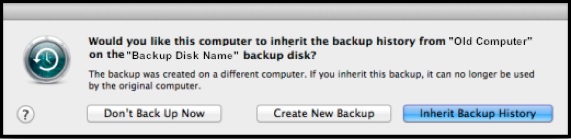
When you did the first backup after using Setup Assistant, you should have seen this prompt:

User uploaded file

See #B5 in the Troubleshooting article for details.


If you chose Inherit Backup History, new backups would be added to the old Mac's backups, and all appear in the timeline.


If something went wrong and you didn't get the prompt, or if you chose Create New Backup, a whole new set of backups would have been made, separate from the old ones (and you won't see the old ones via Enter Time Machine, only via the Browse option). From your description, that seems to be what happened.


when i go in the external disk dedicated to time machine and i open the folder, there are now 2 different sub folders, which means that time machine knows it is 2 different computers

. . .

i don't know how to make time machine think that i haven't changed computer in the end, that would be more or less the solution i guess

It's not clear why this happened, but you may be able to fix it this way:


The sub-folder for the new Mac should have very little in it; delete it via the Finder and empty the trash.


Then use the procedures in #B6 of the Troubleshooting article to get the new Mac to "inherit" the backups of the old one, and "associate" the new Mac's internal HD with the old backups. It's rather techie, unfortunately, but if you follow the steps and examples carefully, it should work.


One other question: how large is your Time Machine drive? It sounds like it's a bit small. It varies greatly, of course, depending on how you use your Mac, but Time Machine usually needs 2-3 times the space of the data it's backing-up, to be able to keep a reasonable "depth" of old backups for you. You might consider getting a larger drive.s

Jul 16, 2012 7:55 AM in response to tolgao

tolgao wrote:


I downloaded and installed Airport Utility 5.6. I archived my TimeCapsule backup to my external USB Disk.

The problem is now: when I clicked Airport Utility 6.1 icon, Airport Utility 5.6 activates. Somehow I can't access

to Airport Utility 6.1 . What do you recommend me to do in order to activate Airport Utility 6.1 ?

You should be able to have both versions in your Applications/Utilities folder at the same time:


User uploaded file


and, if you want, icons for both of them in your dock:


User uploaded file

Dec 6, 2012 2:17 PM in response to sruben

sruben wrote:


I am having the same issues as others in the post and have read the replies with great interest. After I migrated to a new iMac from a 2008 iMac, I wanted to continue my TM backups on the same external drive. After turning TM on and off a couple of times and dismounting the disk I got the "would you like this computer to inherit" option and chose it. After completing the backup ( it seems to have done a complete backup of the new computer) my old backups were grayed out. I fixed that with shift command C and can view all my backup history. The only problem (and it is a big one) is that my user folder denies me access because of permission issues.

Does it show the red "no entry" badges on the folders, something like this?


User uploaded file


If so, the problem is, your user account isn't recognized as being the same as the one on the backups. It's not clear from your description what caused it, but see the pink box in Problems after using Migration Assistant for an explanation.


My take on what I have read is that this is quite common and from AppleCare, there is no real solution.

It is common if you don't use Setup Assistant when your new Mac first starts up. Unfortunately, that window doesn't make it clear that it's far better to do it then, not later with Migration Assistant.


There are some workarounds, if you haven't run new backups, in the green box of the link above.


All files that you thinkyou may need should be restored from your backup before migration to the new computer

I'm not sure what you mean by that. If you mean you've been deleting things from your system, expecting Time Machine to keep the backups indefinitely, no, that's very dangerous. See Time Machine - Frequently Asked Question #20.


Changing permissions on the TM is a non starter.

Correct.


I now question what the utility of inheriting the old backup is if it is not functional for the most important files in my user folder.

If you use Setup Assistant when the new Mac first starts up, or Migration Assistant after one of the workarounds in the green box, that doesn't happen.


If you can't use one of those workarounds, you should be able to access the backups from a different user account. You may have to create a few to get the UID you need.

Jul 28, 2011 4:42 PM in response to Rob Lisanti

Rob Lisanti wrote:

. . .

I did have internal disk problems about the same time a week ago and had to restore from another cloned disk. My guess is that the old TM backups are now no longer accessible from my iMac as it thinks that I am now using a new machine (from the cloned recovery).

No, it just keeps the backups for the old disk separate from the new one (even with the same name, TM knows it's a different disk).


See #E3 in Time Machine - Troubleshooting.

Jul 18, 2012 12:12 PM in response to tolgao

tolgao wrote:

. . .

* "Application Support" can't be modified or deleted because it's required by Mac OS X.

That's saying the Application Support folder can't be modified. Can you copy just the contents of it?


(Sorry, I'm not sure why you're having so much trouble with this -- several others have done it without much difficulty. Some of it may be the result of additional restrictions in Lion vs. earlier versions.)


Do you know how to solve this problem by loging in as root user ?

It's best to avoid that if you can, but if it's your only option, read this very carefully: OS X Lion: Enable and disable the root user. When done, disable it.

Jul 18, 2012 12:17 PM in response to Pondini

Pondini wrote:


tolgao wrote:

. . .

* "Application Support" can't be modified or deleted because it's required by Mac OS X.

That's saying the Application Support folder can't be modified. Can you copy just the contents of it?


(Sorry, I'm not sure why you're having so much trouble with this -- several others have done it without much difficulty. Some of it may be the result of additional restrictions in Lion vs. earlier versions.)


Do you know how to solve this problem by loging in as root user ?


It's best to avoid that if you can, but if it's your only option, read this very carefully: OS X Lion: Enable and disable the root user. When done, disable it.


Yes you are right. It may be the restrictions of Lion.

Jul 19, 2012 8:09 AM in response to tolgao

tolgao wrote:


It looks like I am going to format hardisk and install lion on clean disk. After that how can I restore my iTunes and iPhoto libraries ? Can I copy those libraries to an external disk and move them back to its place after installing Lion ?

Yup. 🙂


See: Moving your iTunes Music folder


and: Moving your iPhoto '11 Library


After copying, be sure you can see and use the copied versions before you erase the disk.


(You could probably restore them from Time Machine, but you might have permissions problems that way, depending on how the new user account(s) are set up vs. the old ones.)

Jul 26, 2012 11:47 AM in response to tolgao

tolgao wrote:


Unfortunately the same problem occured again today. When I go to old backups in TimeLine, my Home Folder Admin is greyed-out(grid) again. This time, Desktop, Documents, Downloads, Library folders are normal(no grid) on Finder window in TimeLine.

You've apparently got some sort of problem (likely software) that's damaging those folders. 😟 This will probably keep happening until you find and fix it.


And it's a tough one -- you need an Apple "guru." You haven't said where you are, so make an appointment with the nearest AppleStore (http://www.apple.com/retail/geniusbar/) or Apple Authorized Service Provider (http://support.apple.com/kb/HT1434?viewlocale=en_US).

May 15, 2012 8:44 AM in response to Pondini

That's correct, at least until you start doing new backups (see below). Those backups are for a different Mac (your old one), and Time Machine normally only shows the backups for the Mac it's running on. You can see and restore from them via the Browse... option, per #E2 in Time Machine - Troubleshooting.


(It's done that way because you can back up more than one Mac to the same place -- many folks back up 2 or 3 to the same Time Capsule.)

With this browse option, can i see my previous time machine saves along my future new ones?


When you did the first backup after using Setup Assistant, you should have seen this prompt:


User uploaded file

See #B5 in the Troubleshooting article for details.


If you chose Inherit Backup History, new backups would be added to the old Mac's backups, and all appear in the timeline.


If something went wrong and you didn't get the prompt, or if you chose Create New Backup, a whole new set of backups would have been made, separate from the old ones (and you won't see the old ones via Enter Time Machine, only via the Browse option). From your description, that seems to be what happened.


Yes that it what happened, nothing came up


when i go in the external disk dedicated to time machine and i open the folder, there are now 2 different sub folders, which means that time machine knows it is 2 different computers

. . .

i don't know how to make time machine think that i haven't changed computer in the end, that would be more or less the solution i guess

It's not clear why this happened, but you may be able to fix it this way:


The sub-folder for the new Mac should have very little in it; delete it via the Finder and empty the trash.


Then use the procedures in #B6 of the Troubleshooting article to get the new Mac to "inherit" the backups of the old one, and "associate" the new Mac's internal HD with the old backups. It's rather techie, unfortunately, but if you follow the steps and examples carefully, it should work.

if the first "browse" solution works, i may not need to do this techie thing should i?


One other question: how large is your Time Machine drive? It sounds like it's a bit small. It varies greatly, of course, depending on how you use your Mac, but Time Machine usually needs 2-3 times the space of the data it's backing-up, to be able to keep a reasonable "depth" of old backups for you. You might consider getting a larger drive.s

the mac mini is 500go, and my save drive is 260go, that means that when the mac mini will be filled in by more than 260go i'll loose files i guess...


thanks again

May 14, 2012 9:57 AM in response to Pondini

Interesting! I just upgraded my Time Machine drive by getting a larger drive and using Carbon Copy Cloner to duplicate the old, smaller Time Machine drive, then set the new, larger drive as the only Time Machine drive.


Everything worked except all of my backups from before May 7th--while still present on the new drive--were greyed out in the timeline inside Time Machine and not accessible.


The Shift+Cmd+C trick worked for being able to access those backups, but is there a way to make them so that they'll just normally appear in Time Machine again without having to do the trick?


Thanks!

May 14, 2012 11:03 AM in response to David Rogers2

Did you also do a full restore, or change your internal HD?


What you describe sounds like TM thinks the backups from before May 7 were on a different (or erased) disk. Just copying them shouldn't cause that.


If you're on Lion, and the TM disk is connected directly to your Mac via USB or FireWire, you may be able to force TM to "associate" the "new" disk with the existing backups, per #B6 in Time Machine - Troubleshooting.

May 14, 2012 11:47 AM in response to Pondini

Good evening

I just changed my Mac mini and was able to get back my dates thanks to time machine when switching on the new computer

My problem is that the previous saves are not available through time machine

They are on the external drive but not accessible through time machine, so very not user friendly

If anyone has an idea that would be great


Thanks a lot

This thread has been closed by the system or the community team. You may vote for any posts you find helpful, or search the Community for additional answers.

Time Machine backups greyed out

Welcome to Apple Support Community
A forum where Apple customers help each other with their products. Get started with your Apple Account.