I realize some (probably all) of what you're going to read in this post has already been said, but it's spread out on this rather long topic and most people won't take the time to read all of the posts to see them. I skimmed it a bit myself after the first 8 pages or so.
First, this is my opinion. Apple has apparently been making some concessions to Windows switchers by adding OS behaviors they're used to. Until Lion, 10.7, Apple's OS never had a Cut command for files and folders. It's considered dangerous since you can make the mistake of doing another cut and losing everything from the previous cut if you hadn't pasted it somewhere yet. Lot's of users demanded it though, and it became available as Command+C as always to mark what you want to cut, and then Command+Option+V to move the files/folders to their new location rather than paste a copy.
The folder behavior discussed here has been this way since at least Snow Leopard. If the sidebar is showing, the folder you double click on opens in the same window. This is also the default behavior for Windows. Adobe gave a bit of a nod to Windows switchers by having the Mac version of Photoshop (starting with CS5, I think) default to being confined to a window frame per the way all Windows apps run which have multiple elements, rather than the Mac's normal behavior of floating palettes directly on the desktop. But again, this is my opinion, and mainly because it fits. Whether or not any of this had anything to do with Apple's decision making, I have no idea.
Anyway, to answer the OP (Original Poster), you appear to be looking for a way to make Mavericks' folders behave the same way as OS 9 and earlier. It's actually rather easy.
1) As noted, first turn off the checkbox in the Finder preferences for "Open folders in tabs instead of new windows"
2) With all folders, you first need to right click on the top gray bar of the window and choose "Hide Toolbar".
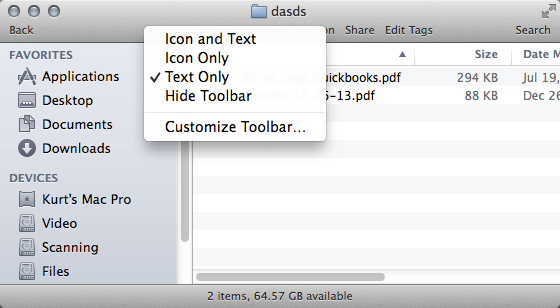
This will give you a very standard looking OS 9 type folder window.
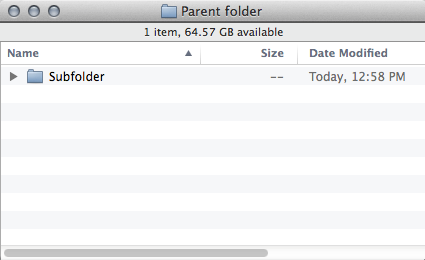
By default, OS X no longer shows the number of items in a folder and available disk space as in the above image. To change that, click on the desktop so the Finder is active and choose View > Show Status Bar. You only need to do this once, not for every folder.
You do have to hide the the toolbar for every folder you open or create which has not had it hidden yet, so it gets old repeating this move, but at least the system remembers it. And believe me, this is a gift compared to any version of OS X before Mavericks. Before, if you changed just one folder to icon view, every folder on every drive changed with it. The view option until now was always global. It took until Mavericks for OS X to finally remember each folder's size and position individually.
Once you have your subfolders set with the the toolbar hidden, double clicking them will behave as you expect. They will open in their own folder, and in the last position, size and view you set it to.
At least a couple people noted you can't click a back button without the sidebar. That's right, you can't. But this is normal behavior for the Mac OS if you look way back. To backup from a folder you're currently in, you Command+click on the folder icon at the top center of the folder window and choose the folder you want to back up to:
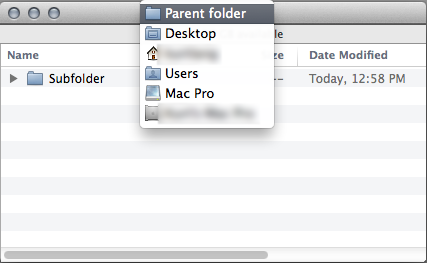
Actually, a better way in my humble opinion since you can back up as many folders as you want in one click instead of backing up one at a time.