I had started this thread several months ago when I found Boot Camp Assistant was unable to install Windows 8.1 on my new 5K iMac that had a 3 TB Fusion drive. I got some good suggestions here on what I might do to get Windows installed. They all used a heavy dose of Terminal use which I didn’t feel confident in “risking.”
Apple tech support was unable to help. The case was supposedly sent to Cupertino, but there has been no response in months. I didn’t push the issue because I only had a single Windows app I really needed, and I was successful in using BCA to install Windows on my MBPro Retina.
In addition, I have VMWare Fusion installed on the iMac and can run Windows and the needed Windows app with it.
Other solutions are suggested on the internet, but I wasn’t confident in using them with the number of Terminal commands required.
A couple days ago I stumbled across TwoCanoes’ Winclone app, and decided to buy a copy to use to clone my MBPr BOOTCAMP partition for backup purposes. I then stumbled across a support document on the TwoCanoes web site explaining how to partition a 3TB Fusion drive into multiple partitions to get a workable BOOTCAMP partition.
It appeared to be a simple procedure of first using Disk Utility to create the second “allowed” partition on the Fusion drive. Then using Terminal to split the second partition into multiple partitions, including a BOOTCAMP partition within the first 2.2 TB of disk space so BCA could handle the Windows install, or a Winclone clone could be installed in it.
I was successful in finally getting a BOOTCAMP partition created and Windows 8.1 installed and running on my 5K iMac running OS X 10.2.2. Here’s what I did:
1) Using Winclone, I created a clone of the BOOTCAMP partition on my MBPr
2) Using Carbon Copy Cloner I cloned my iMac Fusion drive contents to an external HDD, and verified it was a working clone. I continue performing the following steps while booted from my external HDD clone.
3) Deleted from the iMac’s Fusion drive all data files so just the basic system and user files remained.
4) Using Disk Utility I create a second partition on the iMac drive. Went to the Partition tab for the drive, clicked the “+” button, the dragged the partition dividing line to the appropriate position for the size of partitions I wanted. I made the first partition about 900 GB which left lots of extra space for future growth. That left the second partition at around 2 TB and named it Extra. This second partition was going to get split into additional partitions in the next step.
5) I opened Terminal to create the split. BE VERY CAREFUL HERE. I used the following:
diskutil splitPartition /Volumes/Extra 3 MS-DOS WIN 80G JHFS+ Data 1.8T JHFS+ Backup 0b
/Volumes/Extra is the name of the second partition to be split
3 is the number of partitions to be created
MS-DOS is the format for the first partition, 80G is the size, and so on for the other two partitions - format, name and size. The last partition shows zero bytes so that partition takes up the remaining room of the partition being split.
6) I crossed my fingers and hit the RETURN key for the command line. Waited a while, and when finished Disk Utility had created the three partitions and it looked similar to this, except the blue shaded areas in the third and fourth partitions didn’t exist because there was no data in those partitions yet.
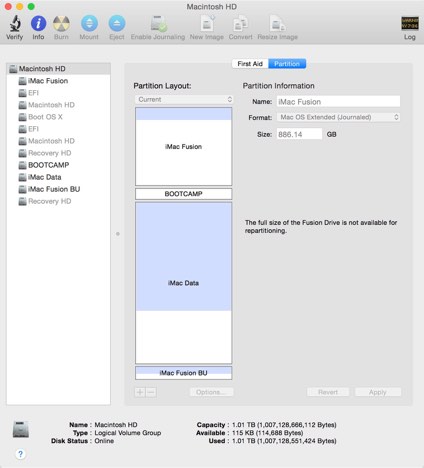
7) Now the BOOTCAMP partition was ready to install Windows. In my case I was going to use Winclone and my Winclone cloned image file from my MBPr to install. Since the newly created BOOTCAMP partition was in MS-DOS format I figured I needed to get it converted to NTFS format before I cloned the Winclone image.
After the fact I found from a TwoCanoes support article that Winclone will convert the partition that is used for the clone from MS-DOS to NTFS format. Step 8 below was not required, and may have eliminated the problem I encountered requiring steps 9 and 10.
8) THIS STEP WAS NOT REQUIRED! I now attached my external Apple USB DVD with the Win 8.1 install disk, and a USB thumb drive with the Apple drivers for Windows which I had previously downloaded. I then started BCA which recognized the new BOOTCAMP partition, and began the Windows installation to it. I eventually reached the point in the installation where things always failed previously — selecting which partition would be used for the install. I selected the BOOTCAMP partition which needed to be NTFS format, and was currently MS-DOS. For some reason after selecting the BOOTCAMP partition it took two clicks of the “Format” button, and a series of dialogs before the partition was finally recognized and the button to proceed became active. HURRAY!!!
But since I was going to use my Winclone clone image instead of a complete new Windows install, I quit the Windows installer, and rebooted.
9) At this point I wanted to reboot using the iMac’s system, but I got the dreaded X on a black screen. The partition was shown as bootable, but wouldn’t boot. What to do?
10) I decided to use the OS X 10.2.2 Combo installer I had, and rerun it on the un-bootable partition. That solved that problem and I could again boot form the iMac’s Fusion partition.
11) Using the Winclone app I installed the clone from the MBPr into the BOOTCAMP partition on the iMac. (Whether or not it was important the BOOTCAMP partitions on both the MBPr and the iMac were set to 80 GB.)
12) Then I used System Preferences -> Startup Disk to select the BOOTCAMP partition and rebooted the iMac. Windows started up without problems, except the Windows logo wasn’t displayed in the startup screen for some reason. I still needed to install Apple’s Windows drivers for the iMac. I found the USB thumb drive with the drivers, and had to find the exe file to start the install. It was buried in one of the folders. Double-clicking it started the installation. After a few minutes the Apple drivers were installed.
13) Of course since I moved Windows to a different computer it required “reactivation.” A phone call to Microsoft’s automated system eventually provided me with the necessary code to reactivate Windows.
14) Finally I used Carbon Copy Cloner to move all the data files over to the iMac’s new Data partition. (A simple Finder copy probably would have accomplished the same!)
Everything seems to be working as expected, so I went back to the MBPr and used BCA to delete the BOOTCAMP partition there.
HURRAY!!! Finally I can boot into Windows 8.1 on my 5K iMac! Sure wish Apple would take the time to make this whole process a lot easier!
CAUTION: USE EXTREME CARE AND USE THIS INFORMATION AT YOUR OWN RISK!
==================================================================
Post-partitioning look at my iMac disk structure:
iMac-Retina:~ victor$ diskutil coreStorage list
CoreStorage logical volume groups (1 found)
|
+-- Logical Volume Group 26BFCEFD-67DB-4AAE-BA18-4CC5EC205697
=========================================================
Name: Macintosh HD
Status: Online
Size: 1007128666112 B (1.0 TB)
Free Space: 114688 B (114.7 KB)
|
+-< Physical Volume 88BDD48F-B9A0-42F9-A05A-26B828B211C9
| ----------------------------------------------------
| Index: 0
| Disk: disk0s2
| Status: Online
| Size: 120988852224 B (121.0 GB)
|
+-< Physical Volume BEDB41F3-F2BC-4F31-B08F-A4B3E476A153
| ----------------------------------------------------
| Index: 1
| Disk: disk1s2
| Status: Online
| Size: 886139813888 B (886.1 GB)
|
+-> Logical Volume Family 536F7EC4-2FC3-4878-989E-233DF25AE1E7
----------------------------------------------------------
Encryption Status: Unlocked
Encryption Type: None
Conversion Status: NoConversion
Conversion Direction: -none-
Has Encrypted Extents: No
Fully Secure: No
Passphrase Required: No
|
+-> Logical Volume 5A16E295-8476-4500-A588-7DE44FE207B4
---------------------------------------------------
Disk: disk2
Status: Online
Size (Total): 1001273294848 B (1.0 TB)
Conversion Progress: -none-
Revertible: No
LV Name: iMac Fusion
Volume Name: iMac Fusion
Content Hint: Apple_HFS
iMac-Retina:~ victor$ diskutil list
/dev/disk0
#: TYPE NAME SIZE IDENTIFIER
0: GUID_partition_scheme *121.3 GB disk0
1: EFI EFI 209.7 MB disk0s1
2: Apple_CoreStorage 121.0 GB disk0s2
3: Apple_Boot Boot OS X 134.2 MB disk0s3
/dev/disk1
#: TYPE NAME SIZE IDENTIFIER
0: GUID_partition_scheme *3.0 TB disk1
1: EFI EFI 209.7 MB disk1s1
2: Apple_CoreStorage 886.1 GB disk1s2
3: Apple_Boot Recovery HD 650.0 MB disk1s3
4: Microsoft Basic Data BOOTCAMP 80.0 GB disk1s4
5: Apple_HFS iMac Data 1.8 TB disk1s5
6: Apple_HFS iMac Fusion ** 232.8 GB disk1s6
7: Apple_Boot Recovery HD 784.2 MB disk1s7
/dev/disk2
#: TYPE NAME SIZE IDENTIFIER
0: Apple_HFS iMac Fusion *1.0 TB disk2
Logical Volume on disk0s2, disk1s2
5A16E295-8476-4500-A588-7DE44FE207B4
Unencrypted Fusion Drive
/dev/disk3
#: TYPE NAME SIZE IDENTIFIER
0: iMac Fusion *2.1 TB disk3


