new Photos app sharing library across users

How do I share one Photos (v 1.0) library with multiple users on one Mac? Currently, I have a 115 GB iPhoto (v 9.6.1) library that I share across users on one Mac. It's stored in the shared folder, and all family members have access. After installing the new Photos app and upgrading my library, I moved the new Photos app library into our shared folder, and changed permissions to allow read & write access for a second user, but it still will not open in that user's account. I must avoid duplicating the iPhoto library in each user account because I don't have enough disk space for 3 115GB libraries.

OS X Yosemite (10.10.3), 2.7 GHz Intel Core i7, 8 GB

Posted on Apr 10, 2015 10:09 AM

Reply
139 replies

May 24, 2015 1:43 AM in response to Rufulo

Maybe I'm wrong but as far as I can experience it, the way to share the library between users on the same Mac is the same as the one for iPhoto. The only limitation is introduced by the iCloud Library sync process running for one user.

So here is how I do that:

  • My Library is, as for iPhoto, located in the Users/Shared folder
  • I did in terminal a chmod -R 777 on the Photos bundle (just to make sure every file can be accessed, modified and eventually executed by all users
  • Here comes the difficult point. As I'm using the iCloud Library, once I have started the Photos app with the principal user (mine) the full list of sync processes are started meaning that the library is used by my user. Exiting the app is not solving this as the processes are background ones. So the difficulty is that I can't use the fast switch feature. What I do is closing my session, starting my wife's one and it work like a charm.


I can even play with different iPod Photo Cache directory within the bundle.


Maybe I'm overlooking some difficulties but that's working fine for me.

Jun 29, 2015 12:15 AM in response to Rufulo

What I ended up doing is partitioning my internal drive using disk utility so that I have my main partition and a Photo Library partition. You won't have to partition your internal drive if you have an External Drive available.


Scenario: 1 2008 iMac, 3 users, each want to share a Photo library, but each still want their individual iCloud Photo Sharing capabilities.


If you have an external hard drive that you can dedicate to be your exclusive Photo Library Drive, you can skip Step 1.


Step 1 (skip if you have a large external hard drive available):

I didn't have another external drive to use, so what I did is partition my internal drive.


If you have access to another Mac, pay attention to the underlined segments ahead.

2 Macs:

Restart the Mac and hold the T key before it starts booting. This will enter the Mac into Target Disk mode. Connect another Mac (we'll call it Source) into the Mac in Target Disk Mode (Target) using a Firewire or Lightning cable.

User uploaded file

My photo examples won't be exact, but hopefully they still help.


Launch Disk Utility and select your internal drive or the internal drive of the Target Mac (be sure not to select one of its partitions or you won't see the 'Partition' tab).

Select the Partition tab:

User uploaded file

Create the partition by clicking the '+':

User uploaded file


Make it large enough to support whatever size of a Photo Library you think you may need.


Click Apply.


2 Macs:

Eject the Disks that belong to the Target Mac, disconnect it from the Source Mac, Shut it down by holding the power button, and reboot it.


Step 2:


Find and select your new partition or your external drive in Finder. Either use the keyboard shortcut Command+i or right click the partition and select 'Get Info'.


At the bottom of the Info window click the little lock:

User uploaded file

Enter the administration credentials in the prompt.


Then check the box that says "Ignore Ownership on this volume":

User uploaded file

Step 3 (repeat for each user):

Now Option-Launch Photos (Launch Photos holding the Option key). If you don't see the library that is on the new partition (you can see the full path below the list to the library if you select a library in the list), select'Other Library...':

User uploaded file


Remember to repeat this step for each user.


Step 4:

Now the library should be working fine for each user, they can each import photos, and each user will see them.

Fast Switching should work, but only one user can have Photos running at once. If a user has it running and you can't log them out, then you're locked out of the library (But an admin user can log other users out). So you'll have to agree on some rules with the users about quitting Photos when each user is done.


To get your iCloud photos working Select 'Photos' in the Menu bar and select 'Preferences' ( keyboard shortcut: Command+, ).

Ensure the 'General' tab is selected in the Preferences window and click the button 'Use as System Photo Library' (it will be greyed out if the library is already the System Photo Library):

User uploaded file

This will allow you to enable you iCloud Photo Sharing in the iCloud tab.


I am happy with how this is working. Hopefully it's a decent solution for someone else. Let me know if I missed any steps, because I'm posting this after the fact from another computer.


Goodnight and Good Luck.

Jul 5, 2015 3:17 AM in response to Rufulo

When i was looking to do this in iPhoto , the advice on the web was to create a sparce image on Your Mac to hold the iphotos library. I understand that OSX treats these images as if they were external drives and hence ignores the permissions.


The disadvantage of the sparce image is that it has to be opened before iphoto can see it . So you need to Open this in your account start up in system preferences . IF you flip between users on your mac , you need to remember to close the image before trying to open it in the other users account.

I have my sparce image sitting in my shared folder.


I,m using this method now on the new apple photo app. I did have some initial conversion issues from iphoto to Photo , as it kept stating there was not enough space on the hard drive, this confused me initially as there was loads of space , i then realised it was the size of the sparce image that was short of space, a quick increase and it all worked.


I'd be interested as to why Apple dont advocate this method.


The following is a clip from on Old Macworld article that may help (original article here http://www.macworld.com/article/1050643/junedigitalphoto.html)


One of the easiest ways to give multiple users or multiple Macs access to the same iPhoto library is to put the library on an external hard drive that everyone can reach. This option eliminates any problems with permissions and frees up disk space on your Mac.

If you have an iPod with unused storage space, you can use it as an external hard drive and take your library with you wherever you go (to set this up, select Enable Disk Use in iTunes’ iPod preference pane).

Keep in mind that external hard drives are more vulnerable to damage or theft. If you choose this option, I recommend regular backups to ensure that you don’t lose all of your photos in one stroke of bad luck.

Step 1 In the Finder, select the icon for the external hard drive on which you want to store the shared iPhoto Library folder. Choose File: Get Info to open the drive’s Info window.

Step 2 In the Ownership & Permissions pane (if the pane isn’t visible, click on the triangle next to its name), make sure the Ignore Ownership On This Volume option is turned on, and then close the Info window.

Step 3 In the Finder, locate the iPhoto Library folder you want to share (you’ll find it in the user folder’s Pictures folder). Then drag the folder to the external hard drive.


User uploaded file

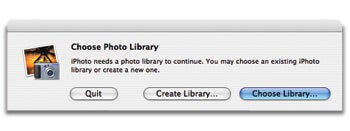
Missing in Action : If you move your iPhoto library to a new location (to make it easier to share with others), you’ll need to tell iPhoto where to look for it. Hold down the option key while launching the program to bring up the Choose Photo Library dialog box.


Step 4 The first time you open iPhoto in each account or on each computer, hold down the option key while launching the program. In the Choose Photo Library dialog box that appears (see the screenshot to the right), click on Choose Library. Navigate to the iPhoto Library folder on the external hard drive and click on Open. You should have to do this only once. The next time you open iPhoto, it will know to look on the specified drive for your library.

Tip If the two Macs in question are your own laptop and desktop systems, consider leaving the iPhoto Library folder on the laptop. When you need to access the library from your desktop, connect the two computers via FireWire and then boot the laptop in FireWire Target Disk Mode (hold down the T key while the laptop starts up). You’ll now be able to use it as an external hard drive.

Jul 13, 2015 7:03 PM in response to Rufulo

Along with many of you, I would like to do the same thing. I'm not caring, at this moment, about using the iCloud Photo Library. I just want to share the new photos app library between multiple users on our iMac.


I thought I almost had it. Based on most of I read it looked like a permissions issue in the Users/ Shared folder. I reset the Use as System Photo Library to the default one created in the Pictures folder. Turned off all the Photo Stream sharing items. I then relaunched Photos, while holding down the option key and chose the library file inside the Shared folder. I quit Photos and switched to my wife's login, held down Option, opened the library on the Shared folder and still no joy. I then went to the Shared folder and showed the package contents of the Photos Library file. I changed the permissions of the Masters and Previews folder to give Everyone Read/Write access. I relaunched Photos and it saw it. I switched to my login and it still worked. After that I reset Photos Library file in the Shared folder as the System Photo Library on both logins and everything was still good. I was even able to select the iCloud Photo Sharing preference and everything worked for both logins.


I then went a step further and imported a new photo from my iPhone into the Photo Library. Import went fine on my login. Quit Photos. Switched to my wife's login... got the dreaded permissions error!! So I went back to my login, reopened the Photo Library file found the picture I imported, checked it's permissions and sure enough... the new file was locked down permissions wise. I reset the permissions to give read/write to newly created Photo and Thumbnail. Switched over and everything launched without an issue and I saw the new photo.


I then went through every folder inside the Photo Library Package contents and reset the the folders to be wide open permissions wise. Again everything worked out until I imported a new photo into the library. For some reason, when the library is in the Shared folder it's not keeping the Read/Write to everyone inside the Photo package.


So, my next option is to do what others have suggested and create a new partition on my boot drive and see if setting the preference of ignoring permissions will affect the Photo Library package file. I don't know if I will use the sparse bundle or just create a straight up partition. I'm leaning towards latter right now.


I hope this makes sense and is somewhat helpful.


tim

Sep 10, 2015 2:15 AM in response to tgale96

That's how I share Photos library with my wife on the same computer:


  1. Moved Photos Library.photoslibrary file to my Public folder.
  2. In System Preferences->Sharing->File Sharing added read-write permissions for my wife's account to access my Public folder.
  3. On my public folder clicked Command+I and added my wife's account with read-write permissions.
  4. A bit lower in the same window clicked on preferences icon and selected Apply to enclosed items...


Now my wife and me can use the same Photos library. Worked fine for me.


May be the same can be applied using Shared folder.

Sep 22, 2015 1:41 AM in response to JDW1

I share your frustration JDW1. It is ridiculous that I can't share all the same photos easily with my wife, when we use separate user accounts on the same mac. They are stored on the same hard drive. How hard can it be?! I don't to have to mess around sticking them on an external hard drive. It beggars belief that is the official apple solution to this problem.

I also hate the way iPhoto, and now presumably Photos, copies all your photos into an obese 'Album' file. I like my photos stored in appropriately names folders. It has worked for me for years. Why can't Photos accommodate this? And if they are stored in folders I can easily copy them over to a windows PC etc (I am seriously considering moving back to windows as hate my mac - it is the opposite of intuitive. I have had it for 3 years and still can't remember when to click + ctrl/alt or cmd to do basic things).

I switched to Picasa as it allows both of the above easily. However it isn't the nicest programme to use, and doesn't work well on mac e.g to upload pics to facebook or a stick you can't do it directly from Picasa.

Oct 1, 2015 11:42 AM in response to Rufulo

After days of trying this I have come to the conclusion that currently Home Sharing from iTunes is limited to being able to share from a Photos Library to an Apple TV only. In iPhoto the same feature included another Macs on the LAN, but Photos does not. Using the Home Sharing option to choose photos to share with your Apple TV works well and fast unlike iCloud, which is very slow even with 75 Mb/s FiOS.


The bottom line is with Aperture and iPhoto family members could share images over the LAN, not they cannot with Photos. I have to assume Apple will add this back at some point.


The only work around with Photos is to use the share option and share an album via iCloud and enter the email of your family member. This is ludicrous if they are on the same LAN as it is tediously slow via iCloud. Worse, it hits the 1,000 images per hour limit when you try to share and again when they try to receive them. Worse still during sharing Photos really uploads images instead of using symbolic links to share what is already on the cloud as iTunes Match does. In short Photos iCloud is a currently way below Apple's usual standards.

Oct 14, 2015 10:22 AM in response to Rufulo

It works like a charm for me on El Capitan following these steps:

1. I put the fotos library inside the shared folder

2. I went in sharing preferences and add the shared folder (nothing more)

3. I apply the permissions of the shared folder to my elements using the "apply to all enclosed items" (nothing more)


Results:

I can add and delete from user 1 in the foto library X

I can add and delete from user 2 in the foto library X

I can add and delete from user 3 in the foto library X


Hope it helps. If you don't see my point, ask for more details. And excuse my poor english.

Oct 14, 2015 10:52 AM in response to cat burlow

Nice but my problem is I have a massive Library and only want to share on the Lan with my wife certain Albums (not the entire Library which includes a lot of my professional material) as you could with Aperture or iPhoto by selecting them for Home Sharing in iTunes. So far, in Photos, the only such sharing is for Apple TV, I have to assume Apple will add other Macs on the Lan back in there soon.

Oct 21, 2015 7:14 AM in response to JDW1

Hi JDW1,


I fully agree that Apple should fix their photos to allow sharing amongst users.


Even when I have to put them on iCloud and have to pay for it, is ok for me. But not the crappy stuff they have right now. And I mean a real shared iCloud library where the designated users out of my family account can share the same library. From what I noticed so far, with iCloud library you have the possibility to fill your library from multiple macs, but with the same apple-id.This should be allowed from multiple apple-ids.

Oct 22, 2015 1:56 PM in response to Rufulo

Has anyone come up with a sane way for a family to share their pictures across accounts on a mac's normal filesystem yet? My wife wants to email some photos to a friend that we put into photos under my account and the best way I can figure out is to upload them to google photos, then access them from the google photo app on an ipad logged in under my name but the email set up to use her account. Surely this isn't what Apple developers intended, but it is the only thing I could find that lets her pick the ones she wants.

This thread has been closed by the system or the community team. You may vote for any posts you find helpful, or search the Community for additional answers.

new Photos app sharing library across users

Welcome to Apple Support Community
A forum where Apple customers help each other with their products. Get started with your Apple Account.