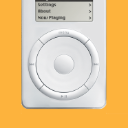
Basic queries on use of iPod Mini G2 Converted to "8GB CF"

7 Years ago I asked for help converting this iPod found in a draw-full of bits destined for the tip!

Kenichi gave me good advice but it went back into the drawer only to be discovered again 7 years later!

This time, I've finally gotten round to doing the conversion!! 😊

All has gone uncharacteristically well and I now have an 8GB player that functions perfectly as far as I can tell at present.

Since this was my daughter's machine, I have no idea how to take control of it!

Just to give you an idea of my skill level; it took me several minutes to find out how to increase the volume!

First problem I have is that iTunes didn't allow me to "manually manage" my music prior to the "restore" since those options were greyed out!

Once it had "restored", and I re-connected, those options are now available to me.

Since the entirety of my "Music" collection has now been copied to the device, which includes a couple of "e-Books" and also various sound effects, ring tones, mail announcements etc. I would like to "weed out" that which does not constitute soothing musical sounds but I'm afraid of the consequences!

Having elected to "Manually Manage" my music, I was scared off by a message that effectively said "Do you really want to do that?

Not understanding the consequences which might follow if I said "yes", I thought I would be wise to consult the oracle first!

If it is indeed possible to "take control" without too much pain, I would like to know how to remove the offending bells, whistles, horns etc.

I could then move on to the next possible stumbling block, "e-books". which are currently listed in both Albums and Songs, just as they are on my phone, hopefully there is some way of recognising them on the iPod as "books".

Once it's fully charged, I'm hoping that it will play nicely with my Merc's "Audio 50" system.

Any words of wisdom would be much appreciated! 🙂
Posted on Mar 9, 2016 9:06 AM

Reply
29 replies

Mar 16, 2016 7:15 AM in response to Dirty_Lil_Monkey

Another thing which I didn't expect, though not a problem, is that the two playlists I created had also been loaded on the iPod!

Since you have now set up automatic syncing (Sync Music) with your Entire music library, all playlists in your iTunes library sync to the iPod. You don't really need those playlists anymore; you created them for the purpose of selecting songs to sync to the iPod. But because you set up syncing using the Entire music library (minus unchecked songs), there is no need to select songs by putting them on a playlist. So, you can delete those playlists in your iTunes library. Deleting a playlist does not affect songs in your iTunes library; a playlist is just a list of songs, not the actual songs.


However, you can (and should) create other new playlists that serve a purpose. For example, create a "Favorites" playlist, and put only the songs you really like on that playlist. That playlist gets synced to the iPod, and when you play the iPod, you can use that playlist to hear only your most liked songs (not your entire library). Or, if you want to use your iPod at the gym, create an "Exercise" playlist with songs that are appropriate for your workout.

The books do however appear under all the other listings, so they are "in the library" I just need to somehow "tag" them so that they are "seen" as books and not music!

I actually answered that question in the previous reply, quoted below...

The only setting that matters (for how iTunes categorizes an item in iTunes) is the Media Kind setting on the Info window's Options tab. If you set Media Kind to Audiobook, they now appear in your iTunes Audiobooks library. To see this library, click the button for Audiobooks, which is shown on the horizontal bar (near left end) along with the buttons for Music, TV Shows, Movies, etc. If you don't see the one for Audiobooks, click the three dots, and set Audiobooks to be visible on the horizontal bar. All items in your iTunes library with Media Kind set to Audiobook appear in the Audiobooks library.

If your audiobooks currently appear on the iPod as songs, you probably did not set the Media Kind setting for them to Audiobook. After doing a Get Info on your audiobooks (in your iTunes library) and changing Media Kind to Audiobook, sync the iPod. The audiobooks should now appear as audiobooks on the iPod.

Mar 16, 2016 7:40 AM in response to Kenichi Watanabe

Hi Kenichi, I feel very indebted to you for your constant and almost instant help!

I hope I'm not becoming a nuisance!

Point taken about the play lists, but would it be a good idea just to keep one as a "back-up", ...in case my whole iTunes library somehow becomes "unchecked", or "totally checked"?

It has happened before if someone clicks on the check-mark in the headings line, and I really don't think my eyesight would cope with going through the "selection process" again! 😁

The first thought I had was to check that I had selected the "Audiobook" Media Kind on the Options Tab, and also the "Genre" is set to "Audiobook" on the Details Tab.

Both books in my iTunes library are only shown under the "My Audiobooks" section and don't appear elsewhere, so I'm at a loss as to what to do next!

Mar 16, 2016 8:20 AM in response to Dirty_Lil_Monkey

The Genre entry does not matter, for how iTunes categorizes a media item; it can be anything. Media Kind needs to be set to Audiobook. Are the audiobooks checked, as you see them in your iTunes Audiobooks library?


On the iPod's Audiobooks settings screen in iTunes, you checked Sync Audiobooks? Below that, did you choose the option to sync All audiobooks or Selected audiobooks?


Select the iPod in iTunes to show its setting screen in iTunes window. In the sidebar, under On My Device, click Audiobooks. To the right, any audiobooks that are currently loaded on the iPod are listed. Do you see your audiobooks there?

Mar 16, 2016 3:28 PM in response to Kenichi Watanabe

Hi there Kenichi, looking at the iTunes library under "Books > Audiobooks" I seejust the artwork for each of the books, similar to an album cover, when clicked, each reveals its "Chapters list", there is no accomodation for a check mark.


Ahh!

On the far right top of the screen, it says "Audiobooks" with a downward arrow, clicking on that shows three options:-

Audiobooks (checked) Authors, and then Audiobooks list.

Now I've viewed that option, there is a checkmark against each "track"!

When syncing, I did choose "Sync All audiobooks".


Yes, the iPod screen when viewed in iTunes does show all the books listed as Audiobooks, however, the ipod its self shows nothing under the "Audiobooks" menu, but shows both books,listed chapter by chapter in all of the other menu headings, Songs, Albums, Artists, etc.!

Mar 16, 2016 6:04 PM in response to Dirty_Lil_Monkey

I don't usually sync audiobooks, but I just did tried with my iPod mini. Some audiobooks appear under Audiobooks on the iPod, but some do not. My guess for why... The iPod mini was designed and released back when audiobooks (as a separate media category) was something fairly new for iTunes. Perhaps some audiobook formats are not seen as "audiobooks" by the iPod mini's onboard software, even though iTunes sees them as audiobooks. For example, I noticed that audiobooks that are multi-part (separate items) do not appear under Audiobooks on the iPod. However, they ARE on the iPod and I can find them by going through Albums (the book title is the Album name).


As a workaround, you can create a playlist (in your iTunes library) and call it Audiobooks. Add all of your audiobooks to the playlist, and sync the iPod. You can then access all of your audiobooks on the iPod from one list (that Audiobooks playlist).


You can make it a smart playlist or a regular playlist. For a smart playlist, the settings are


(Checkmark) Match the following rule:

Media Kind - is - Audiobook

(Checkmark) Live Updating


This smart playlist automatically contains all items with Media Kind of Audiobook (even on the iPod).

Mar 17, 2016 6:08 AM in response to Kenichi Watanabe

My guess for why... The iPod mini was designed and released back when audiobooks (as a separate media category) was something fairly new for iTunes.

Ahh! I didn't think of that, sounds feasible, and to be honest, I am just blown away by the fact that this little machine is still so versatile despite the fact it is about 11 years old and was so cruelly discarded my my daughter! 😉


With your help it now exceeds all my expectations.

The work-around of using a playlist just for my Audiobooks which don't appear in their own section makes them immediately accessible, brilliant!


Somewhere in the recesses of my mind I recall having read some article which advocates changing the "file type", sounds risky!

Just Googling around for it, I think this was the article:- .http://www.cnet.com/uk/news/how-to-convert-audiobooks-for-use-in-itunes/

I'm loathe to try it without your opinion first, since I don't want to invoke Armageddon and undo all your good work!

Mar 17, 2016 7:03 AM in response to Dirty_Lil_Monkey

Why do you need to change the "file type"? That article is a bit dated. You already have iTunes seeing your audiobooks as audiobooks, by changing the Media Kind. Not sure what you'd gain by converting the audio files from one format to another... It's not necessarily "risky," just unnecessary.


I like my older iPods too. They sound better than some newer devices, because back then, all they did was play audio (no videos, photos, ebooks, apps, games, etc.) so iPods performed that ONE task really well. Who needs a color screen to listen to songs? 🙂 Not that I don't like the more recent "i-Devices"; I own a fairly recent iPod touch, and think it's great. But for "pure" music, I like listening to my older iPods. I think my 3rd gen and 4th gen iPods have the best sound. iPod mini was introduced (as a separate iPod line) between those "classic" iPods.

Mar 17, 2016 8:08 AM in response to Kenichi Watanabe

I was just trying to find a way to stop the books from being "seen" by the iPod when using the "stock" playlists.

Since manually created playlists would (presumably) exclude these, I suppose it is a pointless task!


I absolutely agree with you about the audio quality.

On flights or Holidays particularly, I have previously used my Samsung S3 phone's player, but the output from this Mini is many times more enjoyable!

Pity about the ear buds, I cant imagine they were designed to fit in the human auditory canal!

They quite literally make my ears ache!

The annoying thing is that both my Samsung ones and a rather expensive Sony pair seem to need more power to drive them, which would invoke a battery replacement sooner rather than later!

Mar 21, 2016 10:46 AM in response to Kenichi Watanabe

Hi Kenichi, don't know if you are still visiting this thread, but I have some how upset both iTunes and the Apple communities!

I have no idea what has happened but since my last post here concerning "books", I found that there was an additional "Genre" setting which I thought might more correctly describe these files, and might, just might stop them being treated as music tracks.

...at the same time I checkmarked the two items under "playback" on the options tab which I had for some reason omitted to do previously.


In order to impart these new instructions to my iPod, I connected it to my PC and started iTunes as this doesn't happen automatically on my machine.

Windows is first to acknowledge the iPod with the "Autoplay" menu, followed by iTunes and as soon as iTunes establishes a connection, Windows now closes the Autoplay menu and throws a hissy fit and goes home taking its bat and ball with it!

It shows the message "Windows is uninstalling this device. (Code 21)" which then means that though iTunes can "see" the content of my iPod, it is totally unable to sync with it!


I couldn't believe that I had caused this, so attempted to contact you via this thread, however for some reason I repeatedly got the message that "Support Communities are being updated"!

This message only seemed to appear when I tried to visit that particular thread, so I posted for help via a tortuous route in the end realising that since i was now "logged in", I was able to eventually find my way back here!


Any idea how It has all come tumbling down on my head? 😮

Mar 21, 2016 11:53 AM in response to Dirty_Lil_Monkey

I found that there was an additional "Genre" setting

There are an infinite number of possible Genre "settings"... 🙂 Genre is an entry field, not a setting. (Media Kind is a setting.)

As I mentioned previously, the entry for Genre is not use by iTunes to categorize media items. In fact, Genre entries are not strictly defined by iTunes. You can put whatever you want in a song's Genre field. You can even enter Audiobook as the Genre for a song, and iTunes continues to see it as a song. The ONLY setting for an item that matters in how iTunes categorizes it in iTunes is Media Kind. Media Kind IS strictly defined; you must select one of the choices iTunes provides (such as Music, Audiobook, Podcast...). You cannot enter whatever you want (like with Genre), because iTunes uses Media Kind to categorize items into strictly defined media types.

...at the same time I checkmarked the two items under "playback" on the options tab which I had for some reason omitted to do previously.

For audiobooks, it should remember playback position by default. That setting to Remember playback position is relevant for songs, which do not remember playback position by default. Probably does not hurt if checked. The Skip when shuffling setting is again relevant for songs that you want to skip when playing songs in shuffle mode, but audiobooks (and podcasts) are already not included when using shuffle mode. Also, these playback settings may only apply to playing the item in iTunes (on the computer); I don't think they translate to playing the item on the iPod.

I connected it to my PC and started iTunes as this doesn't happen automatically on my machine.

NOTE: There is a setting on the iPod's Summary settings screen in iTunes for Open iTunes when this iPod is connected. If that setting is not checked, and you want iTunes to open automatically when connecting iPod, checkmark it and click Apply.

Windows is first to acknowledge the iPod with the "Autoplay" menu...

I don't usually use Windows, so I don't know how to fix that. This did not happen before? What changed between when it did not happen and now, to cause this "Autoplay" issue in Windows? If you have not already, restart your computer, run iTunes, and try it again.

Mar 22, 2016 6:18 AM in response to Kenichi Watanabe

Thanks Kenichi, I remembered what you said regarding "Genre", but since there were both "Books" and "Books & Spoken", I thought it would do no harm to try "Books & Spoken" as it is a more accurate description!

Regarding checkmarking the two items under "Playback", despite knowing that the books did actually "remember" the last position, my interpretation of those options was that these should be checked if you want the noted action.

Was that not logical I ask myself, evidently not! Thanks for explaining that.

If I ever make contact with the iPod again, I will be able to see if those instructions were actually transmitted to the iPod before Windows withdrew its cooperation!

Regarding the "Autostarting" of iTunes, my thanks for that information too, I had not seen that checkbox on my machine since it is greyed out, probably due to the fact that iTunes cannot properly communicate with the iPod at the moment.

If and when contact is once more permitted, I will attempt to check that box!

Meanwhile I am combing the PC Forums for any solution.

Hope to report back with a success, ...soon!

Thanks again for helping me and being so patient and generous with your time.

Mar 22, 2016 4:17 PM in response to Dirty_Lil_Monkey

Did you try simply reinstalling iTunes, by downloading the latest available version installer and running it? For Windows Vista, it looks like these are the installers, depending on whether your version of Windows is 32-bit or 64-bit.


Download iTunes 12.1.3 for Windows (32 bit)


Download iTunes 12.1.3 for Windows (64-bit)


Also, this


http://windows.microsoft.com/en-us/windows/change-autoplay-settings#1TC=windows- vista


says "AutoPlay" is something you can configure in Control Panels. Did you try that?

Mar 22, 2016 5:22 PM in response to Kenichi Watanabe

Thanks for the links to the installer for Vista, mine is the 32 bit, so that will be handy.

As far as Windows "Autoplay" is concerned, it is not a very "intelligent" tool, it only offers to open the inserted media in folder view, or to assign the content to a specific programme.

Sounds good, 'til you realise that anything shoved into a USB socket or Disk drive will be routed to that one chosen programme! 😟

Better to just ignore it.


All the advice I'm getting regarding this problem is pointing at re-installing iTunes despite the fact that it seems to be "Windows" which is at fault!

They fall into two camps:-

1) Simply remove and re-install

2) Remove "all things Apple", reboot and check all is gone, then re-install.

I'm just scared what I might lose in the process, particularly with option 2.

Mar 23, 2016 2:14 AM in response to Dirty_Lil_Monkey

Windows is complex. With a Mac, iTunes, and iPod, Apple has a lot more control over the system and its interactions. Apple has much less control when the computer is a Windows PC. It is often easier to just uninstall everything, and then reinstall everything again (to start "from scratch"), rather than try to figure out exactly what is wrong.


You should try just reinstalling iTunes first. It may reset things in Windows to make things work again. If it does not work, you can then try completely uninstalling "iTunes and related software components" first, then reinstall iTunes. This is Apple's document; it is for Windows 7 and later


Remove and reinstall iTunes and related software components for Windows 7 and later - Apple Support


but the overall procedure is the same. That is, uninstall "iTunes and related software components" in the described order.

I'm just scared what I might lose in the process

You should be backing up your iTunes data (as a regular practice) because your computer or its drive can fail at any time. However, uninstalling application components does not affect your user data, so your iTunes data is not affected. When you run the reinstalled iTunes, it should find and use your existing iTunes library and its data.

This thread has been closed by the system or the community team. You may vote for any posts you find helpful, or search the Community for additional answers.

Basic queries on use of iPod Mini G2 Converted to "8GB CF"

Welcome to Apple Support Community
A forum where Apple customers help each other with their products. Get started with your Apple Account.