iTunes Photos Sync Problem

I opened iTunes sync one folder that has photos. But i cannot see those folders and photos in my iPhone. I am using iPhone 7.

I am new user I tried many times but i am not successful.

Is there anything I am missing or is there any issues with the hardware?

iPhone 7, iOS 10.3.3

Posted on Aug 18, 2017 11:40 AM

Reply
Question marked as Top-ranking reply

Posted on Aug 19, 2017 8:54 AM

Hello GirijaSankar,


Thanks for that info and choosing the Apple Support Communities. Based on what you stated, it seems you are having issues with getting photos from your computer to your iPhone. To help resolve this issue, please follow these steps:

Sync your photos manually with iTunes

You can set up iTunes to sync photos to your iPhone, iPad, or iPod touch from the Photos app, or from a folder on your computer. Each time that you sync your iOS device with iTunes, the photos and videos on your iOS device update to match the albums on your computer. If you have photos on your iPhone, iPad, or iPod touch that aren't on your computer, follow these steps to import them.

  1. Make sure that you have the latest version of iTunes.
  2. Open iTunes on your computer.
  3. Use the included USB cable to connect your iPhone, iPad, or iPod touch to your computer.
  4. Click on the device icon in iTunes.
    User uploaded file
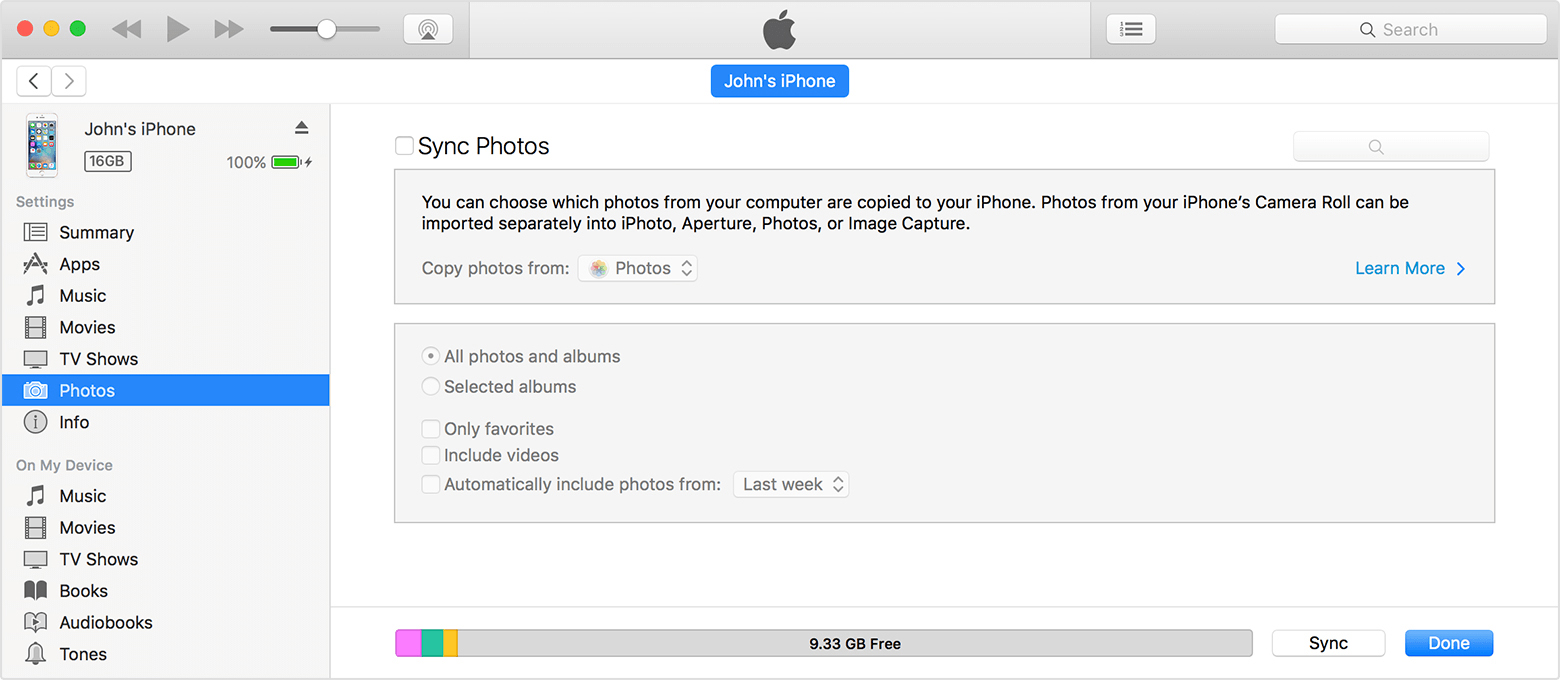
  5. In the sidebar on the left side of the iTunes window, click Photos.
    User uploaded file
  6. Click the box next to "Sync Photos." If instead you see "iCloud Photos is On," all of your photos and videos are already on all of your devices that use iCloud Photo Library. You don't need to sync them through iTunes.
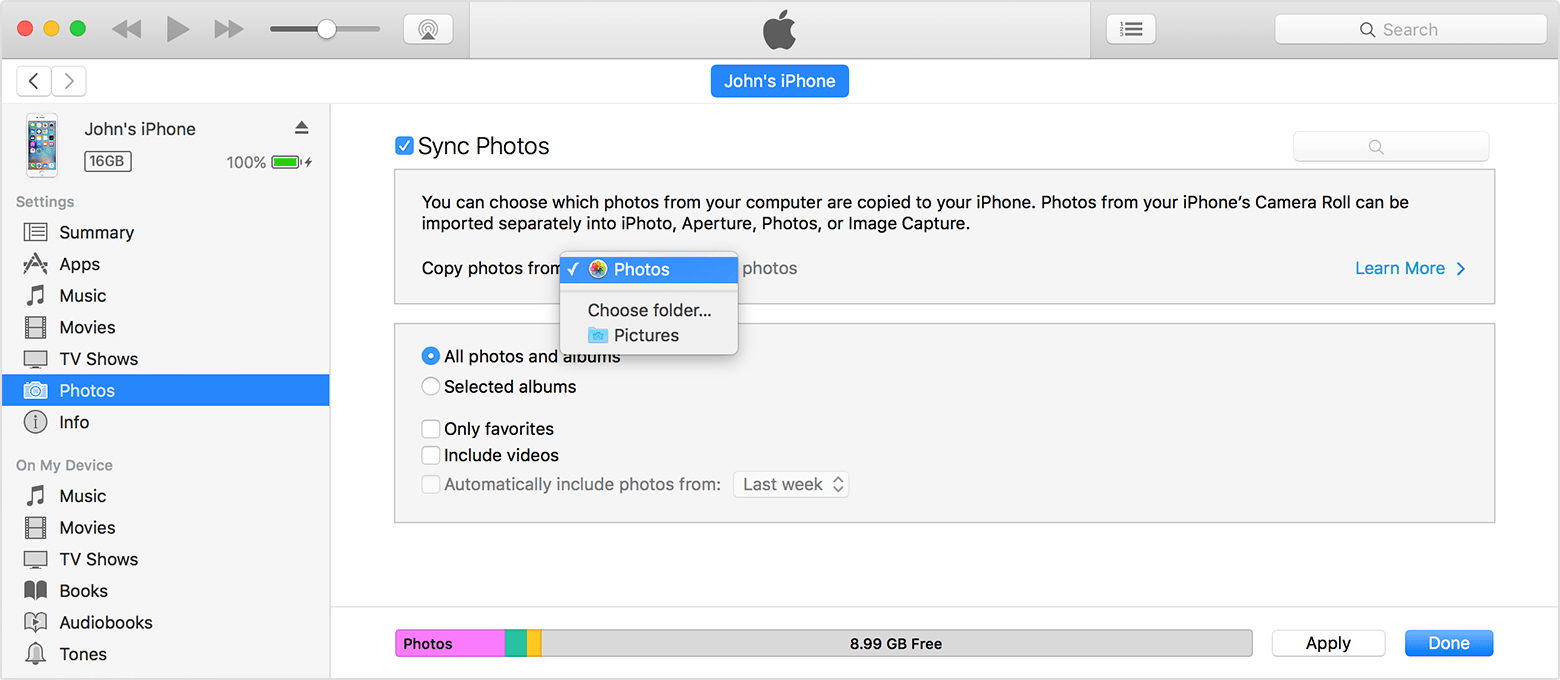
  7. Choose the app or folder that you want to sync from.
    If you choose to sync a folder with sub-folders, the first level of sub-folders will appear as albums on your device.
    User uploaded file
  8. Choose to sync all photos or selected albums.
  9. Select "Include videos" to sync the videos from your app or folder too.
  10. Click Apply.

You must import Slo-Mo and Time-Lapse videos through the Photos app or Image Capture in OS X Yosemite or later for their effect to be synced via iTunes. When you use iCloud Photo Library, Slo-Mo and Time-Lapse videos keep their effects.

Live Photos keep their effect when you import them to Photos in OS X El Capitan and later, but they lose their effect if you sync them back to your device via iTunes. Use iCloud Photo Library so that Live Photos keep their effect, no matter what device you use


Keep your photos safely stored and up to date on all of your devices


Cheers!
45 replies
Question marked as Top-ranking reply

Aug 19, 2017 8:54 AM in response to GirijaSankar

Hello GirijaSankar,


Thanks for that info and choosing the Apple Support Communities. Based on what you stated, it seems you are having issues with getting photos from your computer to your iPhone. To help resolve this issue, please follow these steps:

Sync your photos manually with iTunes

You can set up iTunes to sync photos to your iPhone, iPad, or iPod touch from the Photos app, or from a folder on your computer. Each time that you sync your iOS device with iTunes, the photos and videos on your iOS device update to match the albums on your computer. If you have photos on your iPhone, iPad, or iPod touch that aren't on your computer, follow these steps to import them.

  1. Make sure that you have the latest version of iTunes.
  2. Open iTunes on your computer.
  3. Use the included USB cable to connect your iPhone, iPad, or iPod touch to your computer.
  4. Click on the device icon in iTunes.
    User uploaded file
  5. In the sidebar on the left side of the iTunes window, click Photos.
    User uploaded file
  6. Click the box next to "Sync Photos." If instead you see "iCloud Photos is On," all of your photos and videos are already on all of your devices that use iCloud Photo Library. You don't need to sync them through iTunes.
  7. Choose the app or folder that you want to sync from.
    If you choose to sync a folder with sub-folders, the first level of sub-folders will appear as albums on your device.
    User uploaded file
  8. Choose to sync all photos or selected albums.
  9. Select "Include videos" to sync the videos from your app or folder too.
  10. Click Apply.

You must import Slo-Mo and Time-Lapse videos through the Photos app or Image Capture in OS X Yosemite or later for their effect to be synced via iTunes. When you use iCloud Photo Library, Slo-Mo and Time-Lapse videos keep their effects.

Live Photos keep their effect when you import them to Photos in OS X El Capitan and later, but they lose their effect if you sync them back to your device via iTunes. Use iCloud Photo Library so that Live Photos keep their effect, no matter what device you use


Keep your photos safely stored and up to date on all of your devices


Cheers!

Mar 7, 2018 3:12 AM in response to JPEWBDEN

Hi together, please see my previous post for the description of the problem I had.

After numerous calls with the Apple Support hotline I have come to resolve the issue myself.

Here is what I did:

1. I uninstalled iTunes and all of it's components from my PC. The support hotline told me to do this in a certain sequence: 1. iTunes itself; 2. Bonjour; 3. Apple Software Update; 4. Apple Mobile Device Support; 5. Apple Application Support 64 Bit 6. Apple Application Support 32 Bit (I hope I remember the sequence right)

2. Restart PC

3. Download latest version of the iTunes installer and installed iTunes again


and here is the "special" part. As I had de-activated the Photo Sync in iTunes and applied it, all my Albums on the iPad were gone (which is what I wanted). However, by chance I saw that the iPad still thought that 15.000 pics were installed on it, which I gathered might be part of the problem as to why no pictures we synced anymore.


So here is what I did to resolve that:

4. I used Windows File Explorer to copy all pictures from the camera roll (DCIM Folders on the iPad) to my PC (assuming they would get lost in the next steps)

5. I activated the iCloud Photo Library on the iPad to upload what was on my iPad onto the cloud (assuming this would delete them from my iPad, which was the case for some but not all pictures)

6. I manually deleted all remaining pictures from the iPad (ATTENTION; this also deletes them from the cloud, hence step 4)

7. I restarted my iPad (Home+Start button on the side)

8. Checked the number of pictures (General --> About), now showing 0

9. Search and deleted ALL "iPod Photo Cache" folders on my PC

10. Connected my iPad to my PC (as advised by the support line directly to the USB Card and not thru a Hub, although I do not think this would cause the problem), do not forget the "Trust" the PC when asked

11. Started iTunes

12. Went into Edit --> Preferences --> Devices and clicked "Reset Sync History"

13. Selected my iPad and told it to sync a folder


and....... yeah it worked !!!


I have no clue what created the original problem, but at least this worked for me.

At the time of writing, iTunes has 4600 pictures out of the 15000

Jul 7, 2018 8:38 AM in response to JPEWBDEN

JPEWBDEN is knocking on the solution. My iPhone 6+ had similar symptoms. All photos on PC in Albums, would NOT sync to iPhone (using iTunes). It would sync all the Albums (by name), but each album had 0 photos in it? When I went to General -> About, the iPhone said I had 17,109 photos on my phone, even though I had unchecked Sync Photos box in iTunes, which deleted pics & albums from the phone (should’ve said 59 photos, the current count in my camera roll). Another curious symptom, was that I could see the previous successfully sync’d pics in Collections (the timeline view of photos?). So, certainly, some version of photos *is copied to the iPhone, but, not the Album version?


I tied *many things, to successfully sync my 8,793 photos to my phone. Removed & reinstalled iTunes, nope. Deleted all the ‘iTunes Photo Cache’ files, nope. It was when I found 17,109 photos under About, that I came upon my solution.


Settings -> Apple ID -> iCloud, Turn Photos tab ON.

This warned me that ‘All photos on device would be erased’. Yes! That’s what I wanted! Left iCloud Photos tab ON for a few minutes until General -> About said phone contained 59 photos (the current total of my Camera Roll). Went back to iCloud to turn Photos tab back to OFF. Backed-out of Settings to the begin menu.


Never powered down, nor reset *anything. Connected phone to PC, checked box to Sync Photos, chose location where all my albums are, clicked Sync (bottom, right) and my iTunes is now currently on Step 7 of 7, and is currently copying photo 412 of 8793 (and counting).


Thx for your help, JPEWBDEN. iCloud toggle, fixed me. :-)

May 2, 2018 12:36 AM in response to terrafon

You could be right I guess....I mean the thought has crossed my mind too - however just because it's been going on for months now, doesn't mean it's not an iTunes proble though - does it? I still feel it's some sort glitch with the photo cache file that was applied via either an iOS update, Window/Mac update, or iTunes update itself (which has my vote) & who's to say that it didn't happen back then in Dec/2017? That's when things went south for me too.


Prior to syncing - if you delete the photo cache file, reboot your computer then attempt to sync photos to your device - you'll find the photos, or at least some photos, taken/added since beginning of 2018 WILL sync to your device. It's the slightly older photos - dated 2017 or before - that sparatically if at all - get uploaded during the sync. This doesn't seem to fit the theory that Apple is trying to corral users into using that iCloud photo bit. I think it would be just opposite with old photos being applied with the new ones being excluded, but who know? Just my opinion.


No, I think something went very wrong with an update that affects the photo cache file, as well as utilizing dates of these photos as some sort of marker that limits accessibility to them. You'll notice that if you follow what I said about deleting the photo cache file, etc. - iTunes TRIES to sync the photos - i.e. you'll see the actual number of photos it should be adding to your device, (copying 100 photos of 2,000 for example) but then iTunes just doesn't actually add them, or doesn't finish the sync.


I just hope we either get a fix to this problem soon, or at least some sort of explanation. For this problem to be going on for so long is ridiculous.

Apr 17, 2018 7:41 PM in response to GirijaSankar

I have same problem on my Win10 PC. It was fine couple of months back, but now it just hangs on the photos sync, just says Reading photos and gets stuck there forever like hours. Has nothing to do with IOS11. Doesn't work IOS10 either and that hasn't been updated in a long time. If I disable photo sync, then the sync completes fine. So it's definitely a problem with iTunes during photo sync. Basically disk I/O stops and CPU on itunes is still running at 40-50% CPU. This is bad, they need to fix this quickly.

Feb 11, 2018 11:13 PM in response to GirijaSankar

I have this exact same problem. iPhone 7, manually syncing folders from my macbook pro. Started happening after upgrading to iOS 11.x. Issue continues to persist intermittently across various versions of iOS 11 and up to the latest version of iTunes running on Sierra and High Sierra. It's completely stopped syncing any new photos as of yesterday after I moved to a 2017 Macbook Pro and used migration assistant.


Is there any fix in the works for iOS 11 and iTunes local photo sync in progress? Has this issue been escalated to product management and engineering?

Mar 6, 2018 12:05 AM in response to razfromvancouver

Same issue here on iPad Pro with latest version of iTunes and IOS 11.2.6

My Photo Albums on iPad were totally messed up (some Albums from PC appeared 2x on iPad, pictures were showing in the wrong Album etc..). So I decided to first tell iTunes not to Sync Pictures, which deleted all Albums on the iPad and then tell iTunes to sync again. I restarted my PC (W10) and iPad several times. I even tried with one subfolder only. An empty Album gets created in my iPad, but no pictures are synced. Sometime I get an error message “unknown error (-50)”, sometimes iTunes just hangs saying it is preparing the pictures.


IS THERE ANYONE FROM APPLE WHO MIGHT BE INTERESTED IN RESOLVING THIS????

Apr 1, 2018 11:03 AM in response to MacBookPro0987

I just installed latest IOS and itunes and now my ipad will not sync with my computer, on Windows 10. It will sync a few and then I get 'an internal error device occurred'. To start with, all the photo folders were duplicated and photos were in the wrong folders. It all worked perfectly before I 'upgraded'. I have spent HOURS trying to get this to work. Any suggestions?

This thread has been closed by the system or the community team. You may vote for any posts you find helpful, or search the Community for additional answers.

iTunes Photos Sync Problem

Welcome to Apple Support Community
A forum where Apple customers help each other with their products. Get started with your Apple Account.