I just want my photos to save on my computer. i have plenty of space how do I do this?

saving my photos from phone to iMac, but not using the cloud using space on my computer. so that i can delete them from my iPhone. i have over 9000 pics on my phone

iMac, OS X Mavericks (10.9)

Posted on Jan 31, 2018 4:11 PM

Reply
Question marked as Top-ranking reply

Posted on Mar 10, 2018 12:23 PM

Here's one of several resources from Apple to help perform the un-impossible task..

from: •Transfer photos and videos from your iPhone, iPad, or iPod touch - Apple Support


Import to your Mac

You can use the Photos app to import photos from your iPhone, iPad, or iPod touch to your Mac without using iCloud Photo Library. These steps also work for importing images from digital cameras and SD cards.

  1. Make sure that you have the latest version of iTunes on your Mac. Importing photos to your Mac requires iTunes 12.5.1 or later.
  2. Connect your iPhone, iPad, iPod touch, or digital camera to your Mac with a USB cable. If you're using an SD card, insert it into the SD slot on your Mac, or connect it using a card reader.
  3. You might need to unlock your iOS device using your passcode. You might also see a prompt on the iOS device asking you to Trust This Computer. Tap Trust to continue.
  4. On your Mac, the Photos app automatically opens. If it doesn't, open the Photos app.
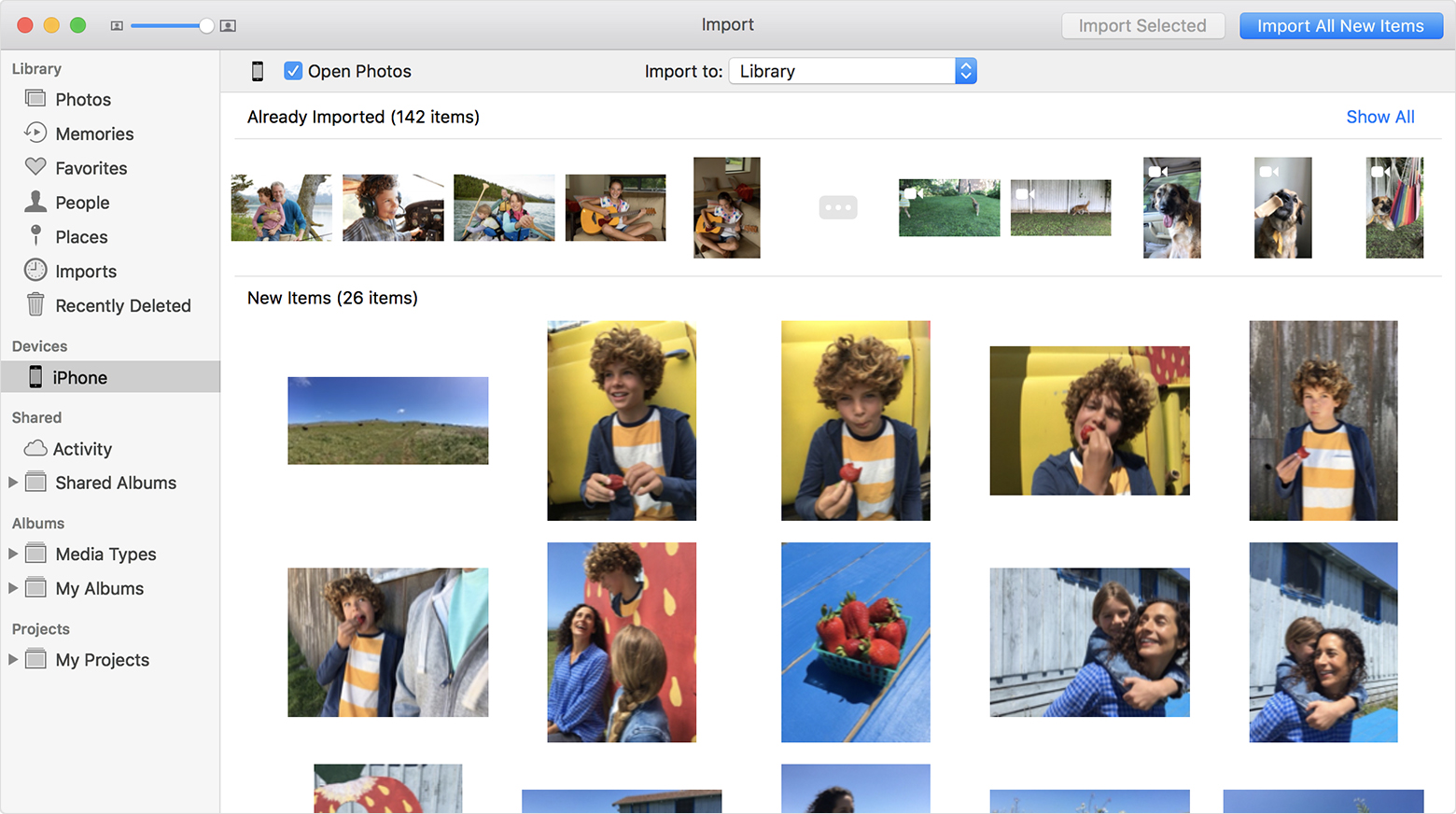
  5. The Photos app shows an Import screen with all the photos and videos that are on your connected device. If the Import screen doesn't automatically appear, click the Import tab at the top of the Photos app, or click the device's name in the Photos sidebar.
  6. To import a selection of photos, click the ones you want, then click Import Selected. To import all new photos, click Import All New Photos.User uploaded file
  7. You can now disconnect your device from your Mac. If you imported photos from an SD card or other USB device, safely eject the device first.

In macOS High Sierra or later, imported photos appear in the Photos app's Import album. If you're using an earlier version of macOS, you'll find them in your Last Import album.

Photos and videos that you sync from your computer to your iPhone, iPad, or iPod touch using iTunes can't be imported back to your computer.

Learn what to do if you can't import photos from your iPhone, iPad, or iPod touch to your computer.


And then a generic reference for other things to try:

• Five easy ways to get your iPhone photos onto your Mac | Macworld

Five easy ways to get your iPhone photos onto your Mac ... which lets you transfer

files between iOS and OS X devices over your local network. To use AirDrop ...

User uploaded filehttps://www.macworld.com/article/2999141/ios/five-easy-ways-to-get...


User uploaded file

11 replies
Question marked as Top-ranking reply

Mar 10, 2018 12:23 PM in response to the Kreykes

Here's one of several resources from Apple to help perform the un-impossible task..

from: •Transfer photos and videos from your iPhone, iPad, or iPod touch - Apple Support


Import to your Mac

You can use the Photos app to import photos from your iPhone, iPad, or iPod touch to your Mac without using iCloud Photo Library. These steps also work for importing images from digital cameras and SD cards.

  1. Make sure that you have the latest version of iTunes on your Mac. Importing photos to your Mac requires iTunes 12.5.1 or later.
  2. Connect your iPhone, iPad, iPod touch, or digital camera to your Mac with a USB cable. If you're using an SD card, insert it into the SD slot on your Mac, or connect it using a card reader.
  3. You might need to unlock your iOS device using your passcode. You might also see a prompt on the iOS device asking you to Trust This Computer. Tap Trust to continue.
  4. On your Mac, the Photos app automatically opens. If it doesn't, open the Photos app.
  5. The Photos app shows an Import screen with all the photos and videos that are on your connected device. If the Import screen doesn't automatically appear, click the Import tab at the top of the Photos app, or click the device's name in the Photos sidebar.
  6. To import a selection of photos, click the ones you want, then click Import Selected. To import all new photos, click Import All New Photos.User uploaded file
  7. You can now disconnect your device from your Mac. If you imported photos from an SD card or other USB device, safely eject the device first.

In macOS High Sierra or later, imported photos appear in the Photos app's Import album. If you're using an earlier version of macOS, you'll find them in your Last Import album.

Photos and videos that you sync from your computer to your iPhone, iPad, or iPod touch using iTunes can't be imported back to your computer.

Learn what to do if you can't import photos from your iPhone, iPad, or iPod touch to your computer.


And then a generic reference for other things to try:

• Five easy ways to get your iPhone photos onto your Mac | Macworld

Five easy ways to get your iPhone photos onto your Mac ... which lets you transfer

files between iOS and OS X devices over your local network. To use AirDrop ...

User uploaded filehttps://www.macworld.com/article/2999141/ios/five-easy-ways-to-get...


User uploaded file

Mar 11, 2018 3:30 AM in response to ckuan

I can top that 🙂 On a Mac with High Sierra you have three Mac applications, plus third party apps, like GraphicConverter 10.0.

  1. Photos, (or iPhoto 9.6.1 or Aperture 3.6, if you own these applications)
  2. Image Capture
  3. Preview


I particularly like Preview to browse the photos on my iPhone in a nice list view.

Preview on High Sierra has the "File > Import from <name of your iPhone>" command.

When you use this command, you can see the photos on the device as thumbnails or as a list with metadata, for example:

The "File > Import from..." in Preview:

User uploaded file

And the list of photos to be imported: It is great way to see the metadata of the photos on the iPhone before importing them, file size, format, the dates, etc. very convenient.

User uploaded file


But all theses methods will not help the original poster Cindy, if the Mac's system is really still Mavericks, and the iPhone should have been upgraded to iOS 11. Then Cindy will first have to upgrade iTunes to at least Version 12.5, so the Mac can prompt the iPhone to trust the Mac.

Jan 31, 2018 7:19 PM in response to Cindy 4

This is controversial around these parts, but I recommend you get your photos out of the Apple ecosystem and store them as one photo per file on multiple external storage devices. One device should be off site. Using a cloud service is fine. Remember a lot of cloud services are sync services. That is should the file be deleted on the local device, the photo will be deleted in the cloud. For this reason, I never install the cloud service software on my computer. I use only file upload. For those who complain, my assessment is that the apple Eco-system doesn't match Library of Congress's requirements for digital archiving.

informative video:
http://www.digitalpreservation.gov/multimedia/videos/personalarchiving-photos.ht ml

printed version
http://www.digitalpreservation.gov/personalarchiving/photos.html

General information on digital preservation:
http://www.digitalpreservation.gov/personalarchiving/

R

Mar 10, 2018 12:35 PM in response to the Kreykes

The problem with your suggestion ckuan is that the OS does not offer the phone as one of the sources from which to import.

There may be several reasons for the iPhone not appearing in the Photos sidebar. It will depend on the version of iOS on the iPhone and the version of MacOS X on your Mac.

  • You will not see the iPhone in the sidebar, if the iPhone is still locked, or the Trust cannot be confirmed
  • You will not see the iPhone in the sidebar, if there are no new photos on the iPhone - for example, if all photos are in iCloud Photo Library and optimized or have already been transferred by My Photo Stream.
  • Or if an incompatible antivirus software is interfering
  • Or if Dropbox is intercepting the photos.


If all systems are current and the photos and videos on the iPhone are in a compatible format, and nothing is blocking the communication, the transfer of the photos and videos by USB should work.

Mar 10, 2018 11:35 AM in response to rccharles

Also alternative services (with their own limitations and rules) are available

that do not affect the Apple ecosystem, so could be seen as partial backup.


..And a good backup by wire to your computer with dedicated separate or

external hard drive storage, is a start of a fairly good offline library..


{I'd looked into 'google photos' but their combined services tend to try & over

control the Apple device environment; whereby they tried to make me update

to their 'chrome' browser; each time I needed my default browser, it made

me choose between Safari (recent version in iOS11.2.x) or chrome. And each

time I selected to keep Safari and not Get Chrome, I was ignored. ~ Found one

way to get control was in gmail app settings: force iPhone to use Defaults.}


..Did find by chance, images saved from iMessages (SMS + iMessage)

are also available in Mac and can be found in applications there, too..


However, it may be possible to use the free capacity of google photos for certain

archives or temporary image files. Some users suggest that images they'd trashed

or lost, were found by google photos. Not sure that's good, & I seldom use photos.

And I have other choices for digital & film photography.


User uploaded file

This thread has been closed by the system or the community team. You may vote for any posts you find helpful, or search the Community for additional answers.

I just want my photos to save on my computer. i have plenty of space how do I do this?

Welcome to Apple Support Community
A forum where Apple customers help each other with their products. Get started with your Apple Account.