Virtual keypad
When I try to enter a phone number in the virtual keypad (123....7890) the iPhone got beeping and freezes!
iPhone 6, iOS 11.2.5, Virtual keypad starts a continubeep
When I try to enter a phone number in the virtual keypad (123....7890) the iPhone got beeping and freezes!
iPhone 6, iOS 11.2.5, Virtual keypad starts a continubeep
- Connect your device to a computer and open iTunes. If you don't have a computer, try to borrow one, or go to an Apple Store or Apple Authorized Service Provider for help.
- While your device is connected, force it to restart.
- On an iPhone X, iPhone 8, or iPhone 8 Plus: Press and quickly release the Volume Up button. Press and quickly release the Volume Down button. Then, press and hold the Side button until you see the recovery-mode screen.
- On an iPhone 7 or iPhone 7 Plus: Press and hold the Side and Volume Down buttons at the same time. Keep holding them until you see the recovery-mode screen.
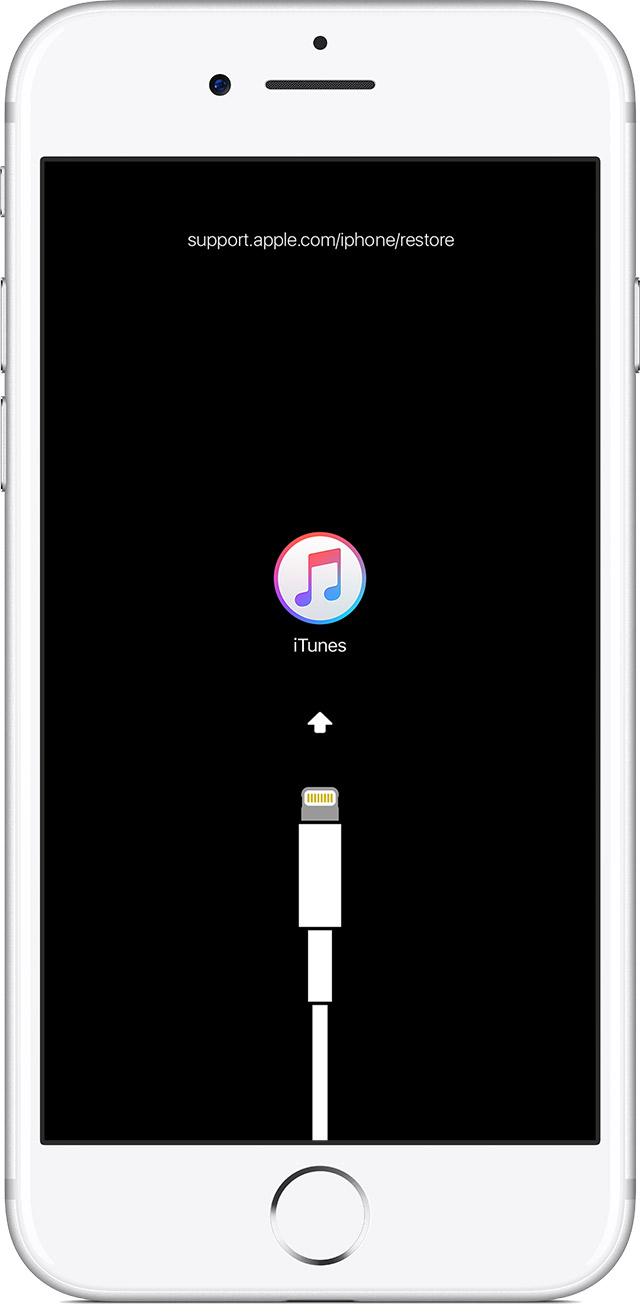
- On an iPhone 6s and earlier, iPad, or iPod touch: Press and hold both the Home and the Top (or Side) buttons at the same time. Keep holding them until you see the recovery-mode screen.
- Don't release the buttons when you see the Apple logo. Keep holding until you see the recovery mode screen.
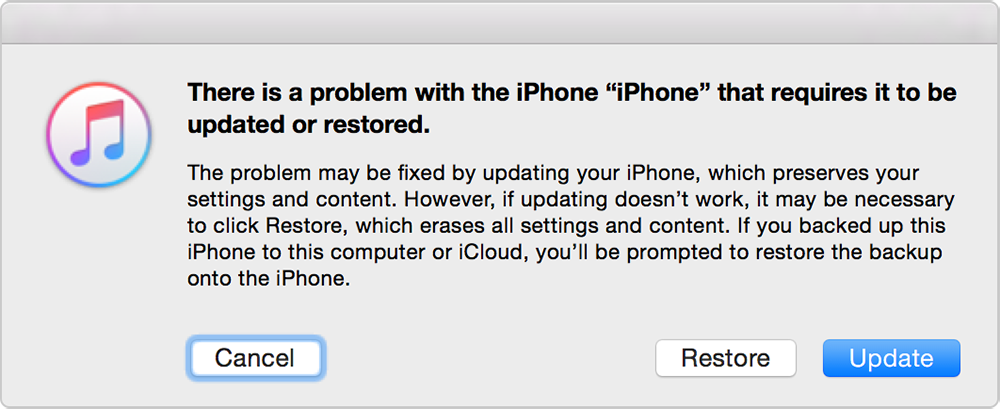
- When you get the option to restore or update, choose Update. iTunes will try to reinstall iOS without erasing your data.
iTunes will download the software for your device. If it takes more than 15 minutes, your device will exit recovery mode and you'll need to repeat steps 2 and 3.
If your iPhone, iPad, or iPod touch won't turn on or is frozen - Apple Support
Take care.
- Connect your device to a computer and open iTunes. If you don't have a computer, try to borrow one, or go to an Apple Store or Apple Authorized Service Provider for help.
- While your device is connected, force it to restart.
- On an iPhone X, iPhone 8, or iPhone 8 Plus: Press and quickly release the Volume Up button. Press and quickly release the Volume Down button. Then, press and hold the Side button until you see the recovery-mode screen.
- On an iPhone 7 or iPhone 7 Plus: Press and hold the Side and Volume Down buttons at the same time. Keep holding them until you see the recovery-mode screen.
- On an iPhone 6s and earlier, iPad, or iPod touch: Press and hold both the Home and the Top (or Side) buttons at the same time. Keep holding them until you see the recovery-mode screen.
- Don't release the buttons when you see the Apple logo. Keep holding until you see the recovery mode screen.
- When you get the option to restore or update, choose Update. iTunes will try to reinstall iOS without erasing your data.
iTunes will download the software for your device. If it takes more than 15 minutes, your device will exit recovery mode and you'll need to repeat steps 2 and 3.
If your iPhone, iPad, or iPod touch won't turn on or is frozen - Apple Support
Take care.
Virtual keypad