How do I record voice audio over a track in Garage Band on my iPhone?
I’m making song on my iPhone (as a challenge) and I need to know how to record voice audio over a track in garage band. Thanks!
Record sounds with Audio Recorder - GarageBand for iPhoneRecord sounds with the Audio Recorder
Using the Audio Recorder, you can record your voice, an instrument, or any other sound using the microphone on your device, and play it back in GarageBand. You can also record sounds using an external microphone connected to your device.
The Audio Recorder has two sets of controls you can use to change the sound. Fun view lets you quickly change the sound of your recording, while Studio view gives you more options to enhance your recording.
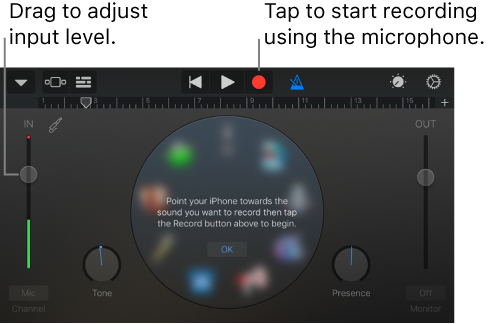
Switch between Fun and Studio view
Tap the Controls button
.
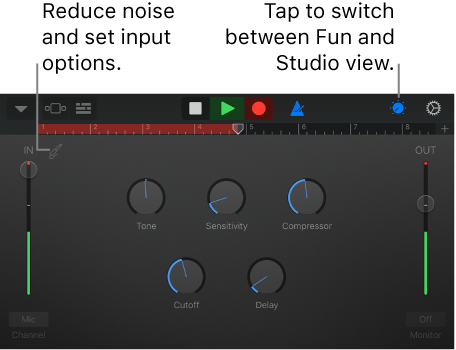
Record a sound
Tap the Record button
in the control bar.
Play, sing, or make sound into the microphone.
When you are finish, tap the Play button
in the control bar to stop recording. Tap the Play button again to hear your recording.
Record sounds with Audio Recorder - GarageBand for iPhoneRecord sounds with the Audio Recorder
Using the Audio Recorder, you can record your voice, an instrument, or any other sound using the microphone on your device, and play it back in GarageBand. You can also record sounds using an external microphone connected to your device.
The Audio Recorder has two sets of controls you can use to change the sound. Fun view lets you quickly change the sound of your recording, while Studio view gives you more options to enhance your recording.
Switch between Fun and Studio view
Tap the Controls button
Record a sound
Tap the Record button
Play, sing, or make sound into the microphone.
When you are finish, tap the Play button
How do I record voice audio over a track in Garage Band on my iPhone?