Hey BLOKBUSTR ,
Thanks for following up with this additional information about where your GarageBand files are currently stored. Before when you had the issue with the GarageBand file in iCloud Drive disappearing, did you have Google Drive saved as a third-party app or did you have the files saved locally to the device via iCloud Drive? Try a different way than you did before, and let us know if the issue continues.
The Files app lets you add your third-party cloud services—like Box, Dropbox, OneDrive, Adobe Creative Cloud, Google Drive, and more—so that you can access all of your files on all of your devices. The files you keep in iCloud Drive automatically appear in the Files app, but you need to set up your other cloud services to access them in the Files app too.
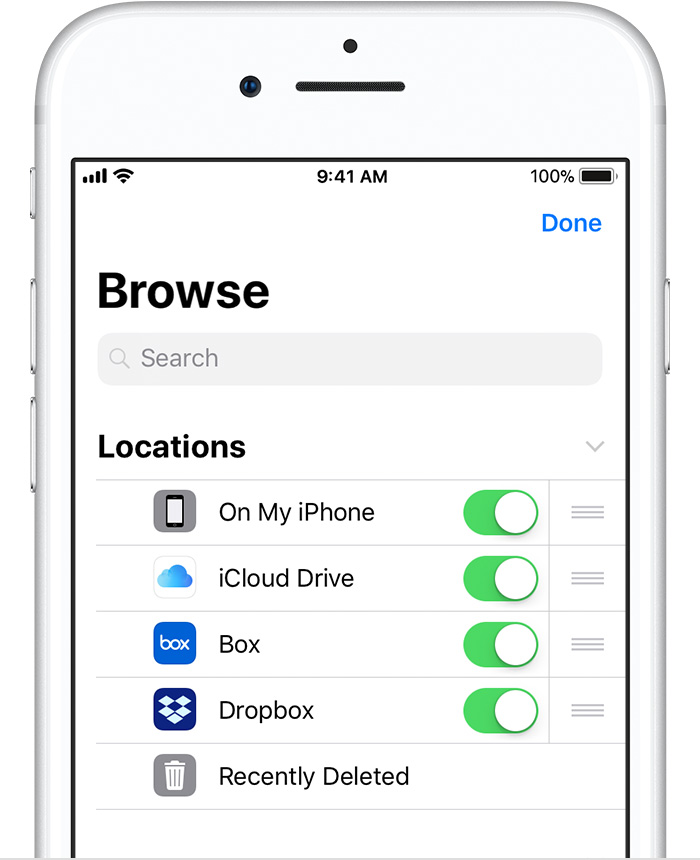
Follow these steps on your iPhone, iPad, or iPod touch with iOS 11 or later:
- Download and set up the third-party cloud app.
- Open the Files app.
- Tap Locations > Edit.
- Slide to turn on the third-party apps that you want to use in the Files app.
- Tap Done.
If you don't see one of your third-party cloud services in the Files app, check with your cloud provider.
Here's how to save the file locally to your device:
To access your files, just open the Files app and choose the location of the file you're looking for.
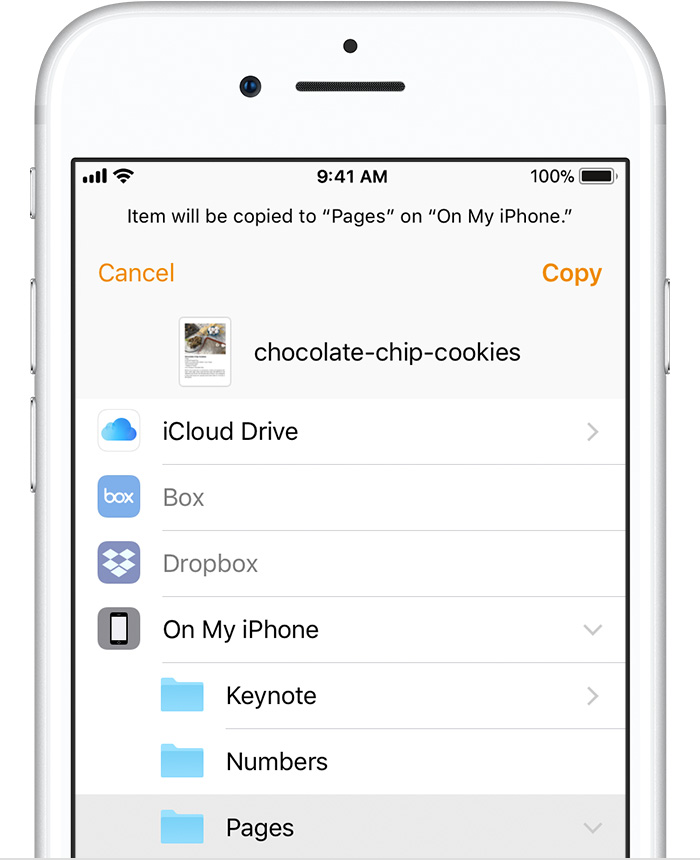
If you don't see On My [device] in your choices, that means you don't have files saved locally in your Keynote, Numbers, or Pages apps. Use these steps to make a copy of your file and save it directly to your iPhone, iPad, or iPod touch:
- Go to the file that you want to store on your device.
- Tap the file and choose Move.
- Under On My [device], choose Numbers, Keynote, or Pages.
- Tap Copy.
These steps are from Use the Files app on your iPhone, iPad, and iPod touch - Apple Support
Let us know how this goes for you. Take care.