How do I approve my Mac from my iPhone?

I’m updating my Mac and it wants approval from another device signed in to iCloud, but I can’t find where on my phone to approve my Mac.

MacBook Pro (13-inch Mid 2012)

Posted on Jul 22, 2018 9:56 AM

Reply
Question marked as Top-ranking reply

Posted on Jul 23, 2018 9:52 AM

Hello and welcome to Apple Support Communities, Janna!

I understand you're being asked to approve your Mac from another device, but are unable to find where to do this. I'd be happy to provide information that may help you out.

Have a look at this article: Set up iCloud Keychain

Get started

To use iCloud Keychain, you need iOS 7.0.3 or later on your iPhone, iPad, or iPod touch, and OS X Mavericks 10.9 or later on your Mac. Learn about availability by country or region.

When you update your iPhone, iPad, or iPod touch to the latest iOS, the setup assistant asks you to set up iCloud Keychain. Instructions vary based on whether you're using two-factor authentication or another type of security, like your email, password, or security questions.

If you're using two-factor authentication

With two-factor authentication, your device is trusted when you sign in with your Apple ID, so in most cases you don't need to re-approve it.
On your iPhone, iPad, or iPod touch:

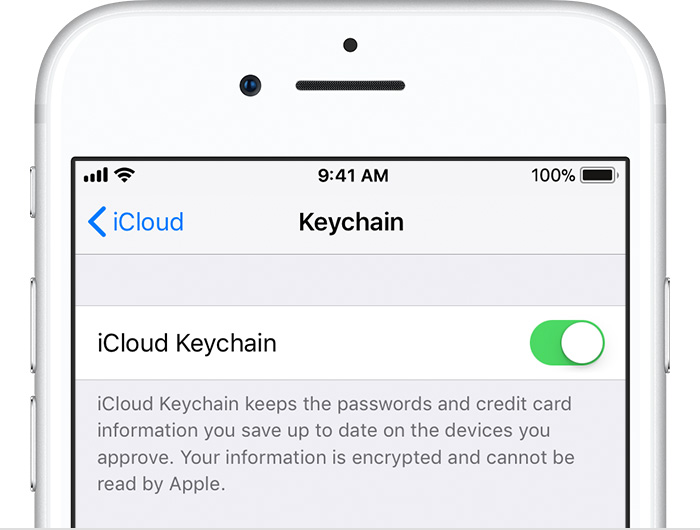
  1. Tap Settings > [your name] > iCloud. For 10.2 or earlier, tap Settings > iCloud.
  2. Tap Keychain.
  3. Slide to turn on iCloud Keychain.

User uploaded file


On your Mac:

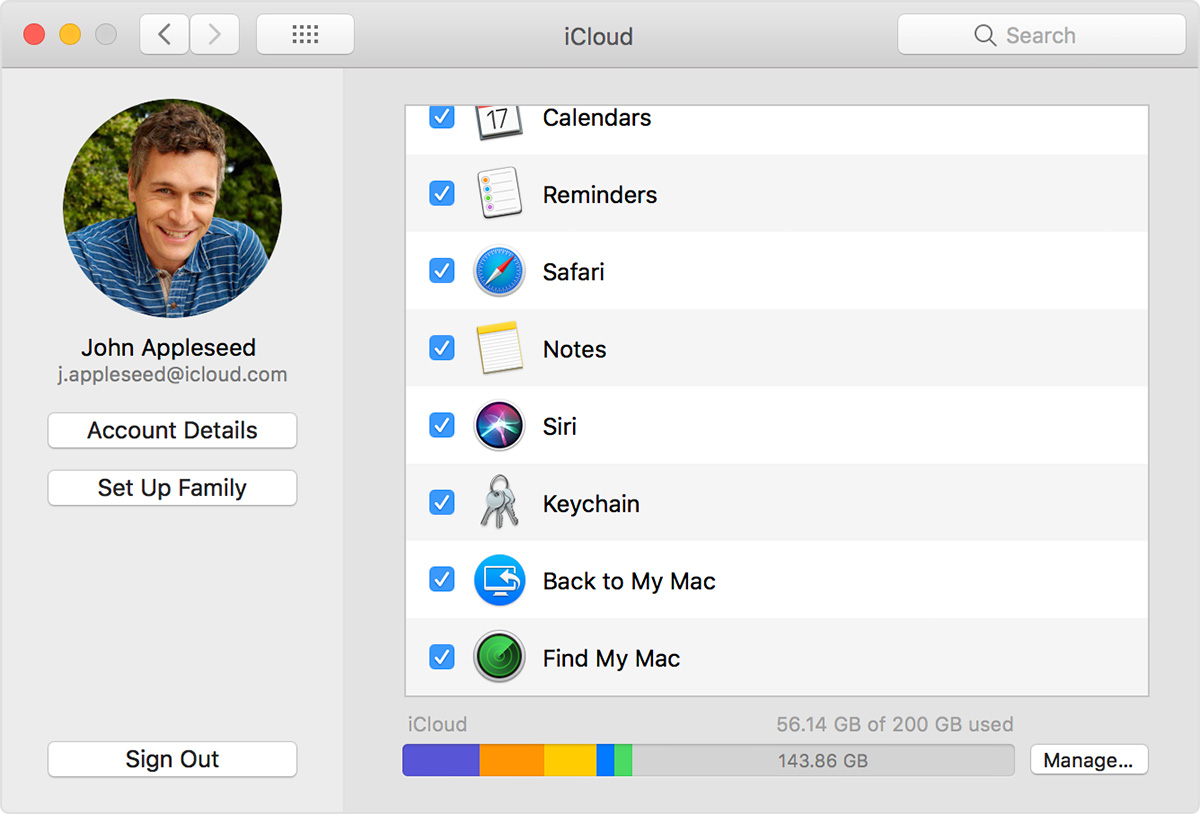
  1. Choose Apple () menu > System Preferences > iCloud.
  2. Select Keychain.

User uploaded file


If you're using two-step verification, or email, password, or security questions

On your iPhone, iPad, or iPod touch:

  1. Choose Settings > [your name] > iCloud. For 10.2 or earlier, tap Settings > iCloud.
  2. Tap Keychain and slide to turn it on.
  3. Enter your Apple ID, and follow the instructions.

On your Mac:

  1. Choose Apple () menu > System Preferences > iCloud.
  2. Enter your Apple ID and password, and follow the instructions.

You can create an iCloud Security Code—six digits, complex alphanumerics, or randomly generated—to authorize additional devices and verify your identity. If you have the SMS-enabled device that you used to set up keychain, you can use that, or you can get help if you forgot your code or can't get the SMS. You can also change your trusted phone number in Settings or System Preferences.


If these steps do not resolve this issue, please reply with any new information you may have.

Thank you for using Apple Support Communities.
Have a great week ahead!
1 reply
Question marked as Top-ranking reply

Jul 23, 2018 9:52 AM in response to jannafrommilwaukie

Hello and welcome to Apple Support Communities, Janna!

I understand you're being asked to approve your Mac from another device, but are unable to find where to do this. I'd be happy to provide information that may help you out.

Have a look at this article: Set up iCloud Keychain

Get started

To use iCloud Keychain, you need iOS 7.0.3 or later on your iPhone, iPad, or iPod touch, and OS X Mavericks 10.9 or later on your Mac. Learn about availability by country or region.

When you update your iPhone, iPad, or iPod touch to the latest iOS, the setup assistant asks you to set up iCloud Keychain. Instructions vary based on whether you're using two-factor authentication or another type of security, like your email, password, or security questions.

If you're using two-factor authentication

With two-factor authentication, your device is trusted when you sign in with your Apple ID, so in most cases you don't need to re-approve it.
On your iPhone, iPad, or iPod touch:

  1. Tap Settings > [your name] > iCloud. For 10.2 or earlier, tap Settings > iCloud.
  2. Tap Keychain.
  3. Slide to turn on iCloud Keychain.

User uploaded file


On your Mac:

  1. Choose Apple () menu > System Preferences > iCloud.
  2. Select Keychain.

User uploaded file


If you're using two-step verification, or email, password, or security questions

On your iPhone, iPad, or iPod touch:

  1. Choose Settings > [your name] > iCloud. For 10.2 or earlier, tap Settings > iCloud.
  2. Tap Keychain and slide to turn it on.
  3. Enter your Apple ID, and follow the instructions.

On your Mac:

  1. Choose Apple () menu > System Preferences > iCloud.
  2. Enter your Apple ID and password, and follow the instructions.

You can create an iCloud Security Code—six digits, complex alphanumerics, or randomly generated—to authorize additional devices and verify your identity. If you have the SMS-enabled device that you used to set up keychain, you can use that, or you can get help if you forgot your code or can't get the SMS. You can also change your trusted phone number in Settings or System Preferences.


If these steps do not resolve this issue, please reply with any new information you may have.

Thank you for using Apple Support Communities.
Have a great week ahead!

This thread has been closed by the system or the community team. You may vote for any posts you find helpful, or search the Community for additional answers.

How do I approve my Mac from my iPhone?

Welcome to Apple Support Community
A forum where Apple customers help each other with their products. Get started with your Apple Account.