Unhiding many purchases

I am trying to unhide multiple purchases (music) on Itunes on my PC. I started doing it manually, and while there is an "unhide all" option, it only seems to work for a few albums at a time. Am I missing something? Is there a way to simply press a button to unhide all of my hidden purchases?


Thanks.

Windows 10, Itunes

Posted on Jul 25, 2018 5:14 AM

Reply
5 replies

Jul 26, 2018 9:02 AM in response to spot135

Good morning spot135,

Welcome to the Apple Support Communities!

I understand you are trying to unhide music that you have purchased on iTunes on your PC. If the "Unhide All" button is not working for you, try quitting the iTunes application and restarting your computer. Also, check to see if the music was purchased under a different Apple ID.
Hide and unhide music, movies, TV shows, audiobooks, and books
iTunes for Windows is now available from the Microsoft Store for Windows 10 Users. If the issue persists, you could try to delete the iTunes application and download it from the Microsoft Store. Deleting the application would not affect your iTunes Library, but you should have a backup of your iTunes library in place before making significant changes to your computer.
Manage and back up your iTunes media library
Remove and reinstall iTunes and related software components for Windows 7 and later​
If you can't install or update iTunes for Windows

If you have Windows 10, you can also get iTunes from the Microsoft Store.

Take care.

Jul 27, 2018 6:36 AM in response to chris_g1

Hi -


I followed the steps - deleting Itunes, reinstalling from new download, restarting the computer, etc - I still can't access my hidden purchases. What can I do next? Two related questions: how can I tell if I used another apple id for the purchases from many years ago? How can I recover the ids? I have no record of what my id was fifteen or so years ago! Also - the menu item to consolidate my library is grayed out. Why would this be?


Thanks!

Jul 27, 2018 7:08 AM in response to spot135

Hi spot135,

How do you know your purchases are hidden? That is not a very common thing. The first thing I would suggest is to view your purchase history using your current Apple ID.

See your purchase history in the App Store or iTunes Store

In your iTunes library, if you right-click or Control-click on a song you will see "Get Info" or "Song Info" option in the contextual menu that appears. Click this command to find more information about the song, including which Apple ID was used to purchase it.

Redownload apps, music, movies, TV shows, and books from the iTunes Store, iBooks Store, and App Store​

Most people use their primary email address as their Apple ID. To find other Apple ID's you might have used, you can search here:

If you forgot your Apple ID

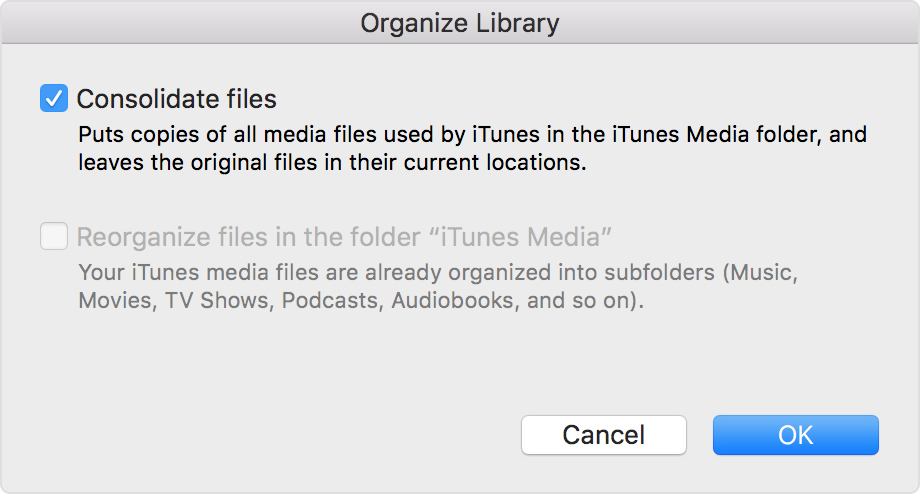
If you don't see the option to consolidate your iTunes library, it most likely already is consolidated.

Manage and back up your iTunes media library​

Consolidate your iTunes library

Before you make a backup of your iTunes files, consolidate all of your media into the iTunes Media folder. To consolidate your media:

  1. Open iTunes.
  2. From the menu bar at the top of your computer screen or at the top of the iTunes window, choose File > Library > Organize Library.
  3. Select "Consolidate files."

    User uploaded file
  4. Click OK.

Consolidating copies any files that were outside of your iTunes Media folder into your iTunes Media folder. To save space on your hard drive, you might want to delete the original files after you make sure that the copies are in your iTunes Media Folder.

Take care.

Jul 27, 2018 10:50 AM in response to sterling r

Thanks for your reply. In response to some of your follow-up questions, here are some answers:


Q from you: How do you know your purchases are hidden? That is not a very common thing. The first thing I would suggest is to view your purchase history using your current Apple ID.


My answer: I can see the hidden purchases under My Account in ITunes. Here's a screen shot:


User uploaded file


Here is a screen shot of the original purchase: Please note that my Apple userid is not there


User uploaded file

When I click on unhide in the hidden purchases window, the item does in fact disappear, but it doesn't appear anywhere else. I would expect it to appear in my ITunes library, but it doesn't. Do I have to refresh my library? Is the fact that I use "ITunes in the Cloud" help in troubleshooting?


So - what can I do? Clearly, I paid Apple for these products. Now I can't access them. What is my next step, Apple?


Thanks again.

This thread has been closed by the system or the community team. You may vote for any posts you find helpful, or search the Community for additional answers.

Unhiding many purchases

Welcome to Apple Support Community
A forum where Apple customers help each other with their products. Get started with your Apple Account.