Hello and welcome to Apple Support Communities, Simon!
I understand you're unable to get your Apple Watch to track open water swim workouts. I can understand how this may be concerning, especially since activity tracking is a great feature available on Apple Watch. I'd be happy to provide information that may help you resolve this issue.
Have a look at this article: Get the most accurate measurements using your Apple Watch
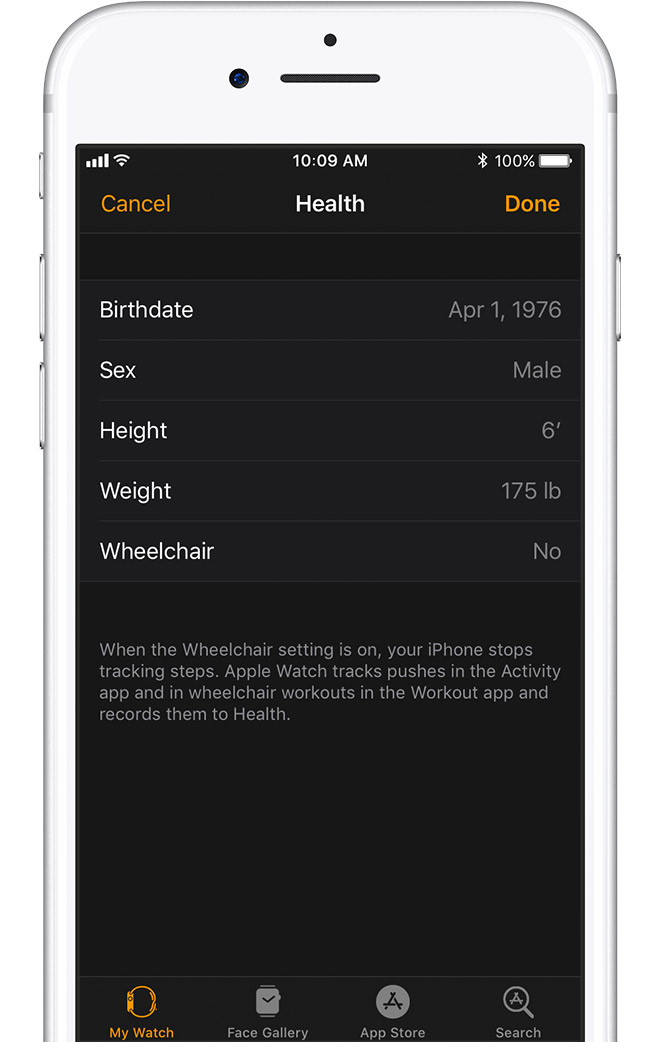
Your Apple Watch uses your personal information — such as your height, weight, gender, and age — to calculate how many calories you burn and more.
To update your personal information, open the Apple Watch app on your iPhone. Tap the My Watch tab, then tap Health. Tap Edit, then tap the item that you want to change.
Every full minute of movement that equals or exceeds the intensity of a brisk walk counts toward your daily Exercise and Move goals. For wheelchair users, this is measured in brisk pushes. Any activity below this level counts only toward your daily Move goal.
To make sure that you earn Exercise credit during walks, allow the arm with your Apple Watch to swing naturally. For example, while walking your pet, let the arm with your watch swing freely while the other holds the leash.
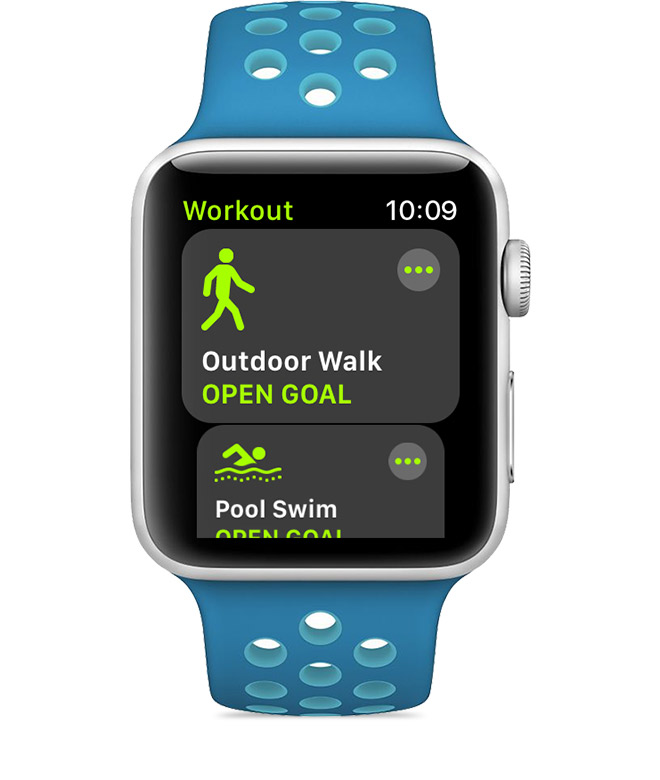
If you need both hands while walking, for example to push a stroller, you can still earn Exercise credit with the Workout app. Open the app on your Apple Watch and tap Outdoor Walk. The Activity app relies on arm motion and an accelerometer to track movement, but the Workout app can use the accelerometer, the heart rate sensor, and GPS.
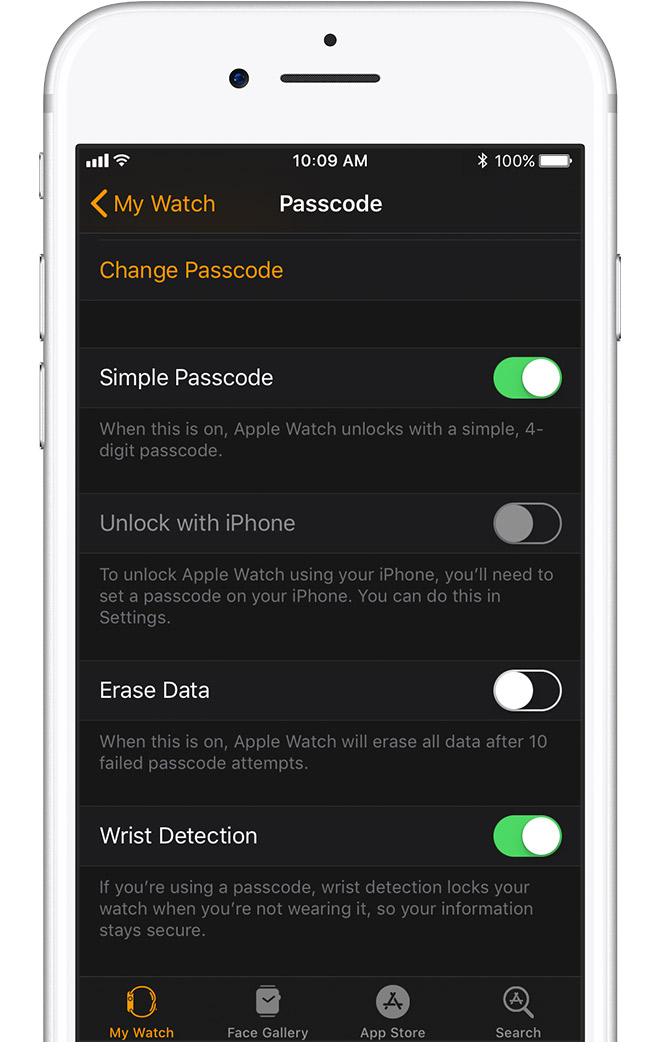
If Wrist Detection is off, you won't get Stand notifications, and your Apple Watch can't track your Stand progress. Background heart rate readings (like resting and walking rates*) won't be taken if Wrist Detection is off.
To check the setting, open the Apple Watch app on your iPhone. Tap the My Watch tab, then tap Passcode. Make sure that Wrist Detection is on.
Wearing Apple Watch with the right fit — not too tight, not too loose, and with room for your skin to breathe — keeps you comfortable and lets the sensors do their job.
You might want to tighten your Apple Watch band for workouts, then loosen it when you’re done. In addition, the sensors will work only if you wear your Apple Watch on the top of your wrist.
Learn more about wearing your Apple Watch.
To get the most accurate heart rate measurement when you use Workout, make sure your Apple Watch fits snugly on top of your wrist. The heart rate sensor should stay close to your skin.
Learn about the accuracy and limitations of the heart rate sensor.
When you use the Workout app, choose the option that best matches what you’re doing. For example, if you're running on a treadmill, choose Indoor Run. If you're doing workouts like yoga or strength training, choose Other.
Learn about each workout.
Calibrate your Apple Watch to improve the accuracy of your distance, pace, and calorie measurements. Calibrating your watch can also help it learn your fitness level and stride.
Learn how to calibrate your Apple Watch.
Once you're sure you have your Apple Watch fully calibrated, look over this article: About workout types
With Apple Watch Series 2 or later,1 you can choose Pool Swim or Open Water Swim. When the workout starts, the screen automatically locks to prevent accidental taps from water droplets.
Here's how to end your workout and unlock the screen:
- Press the Digital Crown and the side button at the same time to pause your workout.
- Dry your screen. If the screen's wet, the water might cause accidental taps.
- Turn the Digital Crown to unlock the screen and clear any water from your Apple Watch. Your watch makes a sound, and you might feel water on your wrist.
- Swipe right and tap End.
Here's how your Apple Watch measures each workout:
- Pool Swim: When you start a workout, be sure to accurately set the pool length to help your Apple Watch measure laps and distance. GPS isn't used during a Pool Swim, and water might prevent a heart-rate measurement, but calories, laps, and distance will still be tracked using the built-in accelerometer.
- Open Water Swim: GPS will only provide distance when you do a freestyle stroke. Water might prevent a heart-rate measurement, but calories will still be tracked using the built-in accelerometer.
If after checking this out, you still find issues, unpair and re-pair your Apple Watch: Unpair your Apple Watch and iPhone
- Keep your Apple Watch and iPhone close together as you unpair them.
- Open the Apple Watch app on your iPhone.
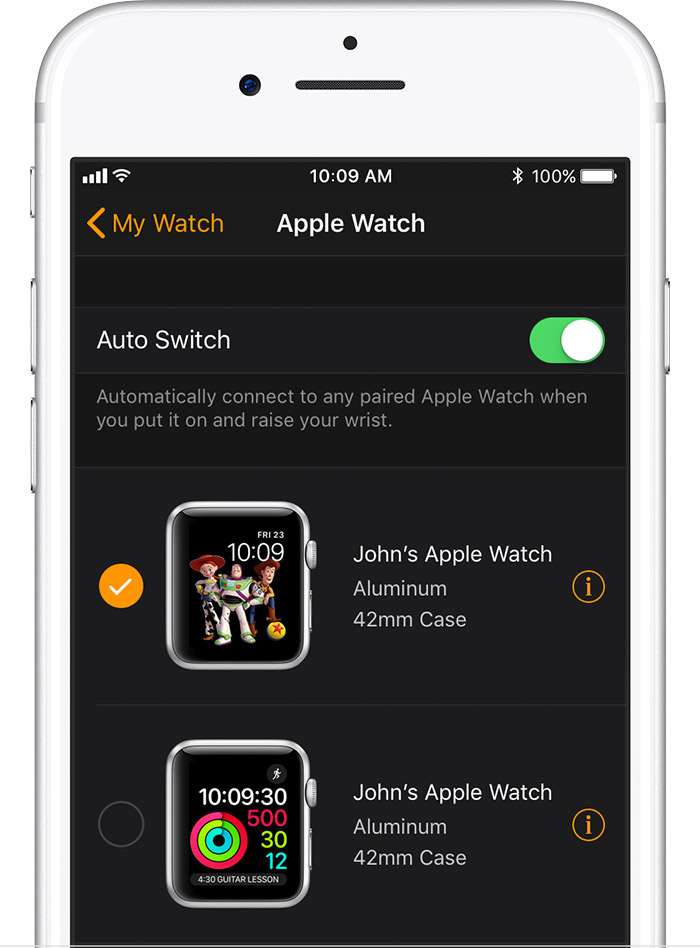
- Go to the My Watch tab and tap your watch at the top of the screen.
- Tap
 next to the watch that you want to unpair.
- Tap Unpair Apple Watch.
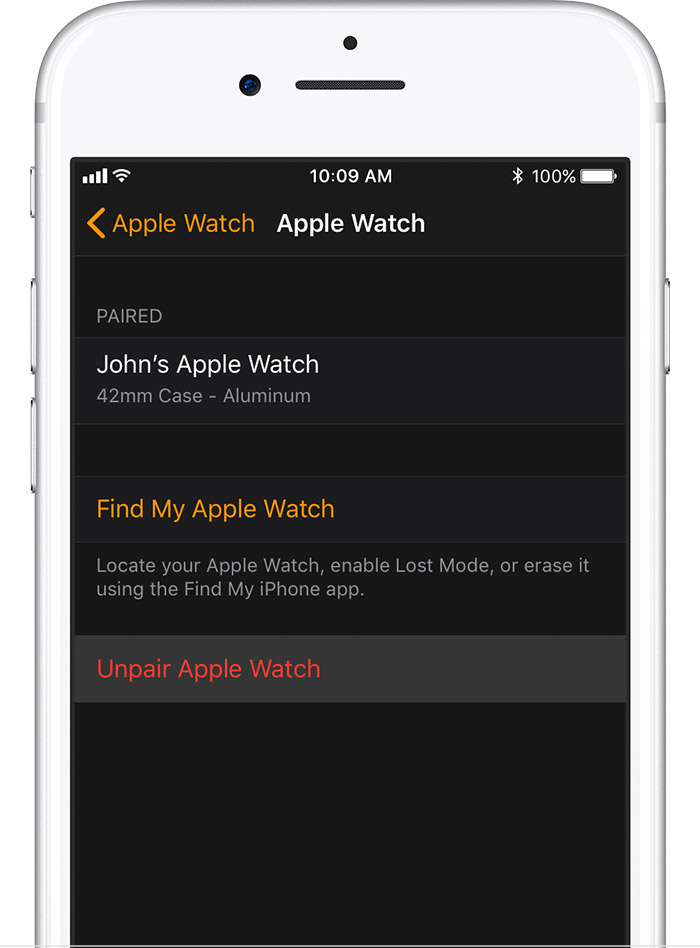
- For Apple Watch Series 3 (GPS + Cellular), choose to keep or remove your cellular plan.
- If you want to pair your Apple Watch and iPhone again, keep your plan.
- If you don't want to pair your Apple Watch and iPhone again, remove your plan. If you aren't going to pair with a different watch or iPhone, you might need to contact your carrier to cancel your cellular subscription.
- Tap again to confirm. You might need to enter your Apple ID password to disable Activation Lock. Before erasing all content and settings on your Apple Watch, your iPhone creates a new backup of your Apple Watch. You can use the backup to restore a new Apple Watch. After your Apple Watch unpairs, you'll see the Start Pairing message.
- Use these steps to set up your Apple Watch again.
Thank you for using Apple Support Communities.
Have a great weekend!


