Hi minyan275,
Thanks for using Apple Support Communities. From your post, I see you're looking to locate some photos that have disappeared.
You mentioned that you selected iCloud photos. Did you turn iCloud Photo Library on after the update, or did you turn it off? Depending, that may explain what's happening. Using this great resource, you can
Get help with missing photos
:
You might have accidentally deleted your photo or video, and now it's in the Recently Deleted folder.
Go to Photos > Albums > Recently Deleted. If you see the missing photo, you can move it back into your All Photos album.
On your iPhone, iPad, or iPod touch:
- Tap Select.
- Tap the photo or video > Recover.
- Confirm that you want to recover the photo.
On your Mac:
- Click the photo or video.
- Click Recover.
Anything in your Recently Deleted folder stays there for 30 days. After that, it's gone forever.

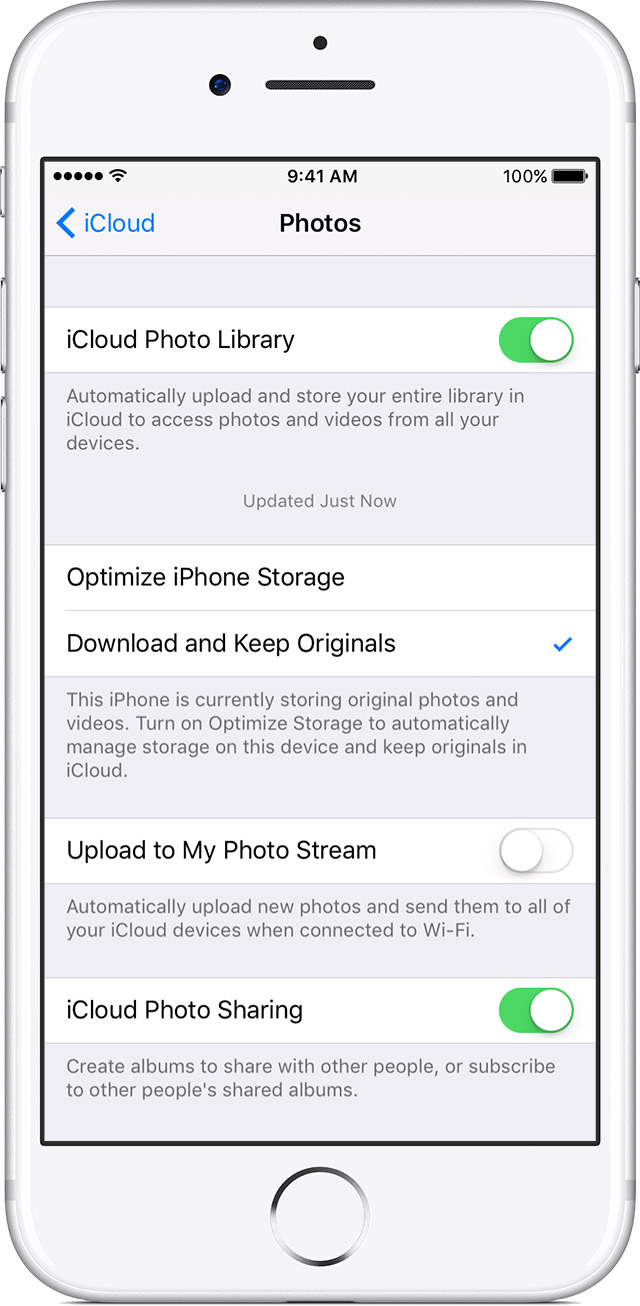
iCloud Photo Library securely stores all your photos and videos in iCloud, so that you can access them on all your devices. If you took a photo on your iPhone but don't see it on your other devices, check your settings.
On your iPhone, iPad, or iPod touch:
- Go to Settings > [your name] > iCloud. If you're using iOS 10.2 or earlier, go to Settings > iCloud.
- Tap Photos.
- Turn on iCloud Photo Library.
On your Mac:
- Go to System Preferences > iCloud.
- Next to Options, click Photos.
- Select iCloud Photo Library.
After you turn on iCloud Photo Library, connect to Wi-Fi and wait a few minutes. Then look for your photos again.
Photos that you add to your device with iTunes won't stay up to date with iCloud. Get help if you have photos from iTunes.

For your photos and videos to stay up to date on all of your devices, make sure that you sign in to iCloud with the same Apple ID on every device.
You can check which Apple ID your device is using in Settings or System Preferences. You'll see your name and email address. Your email address is your Apple ID.
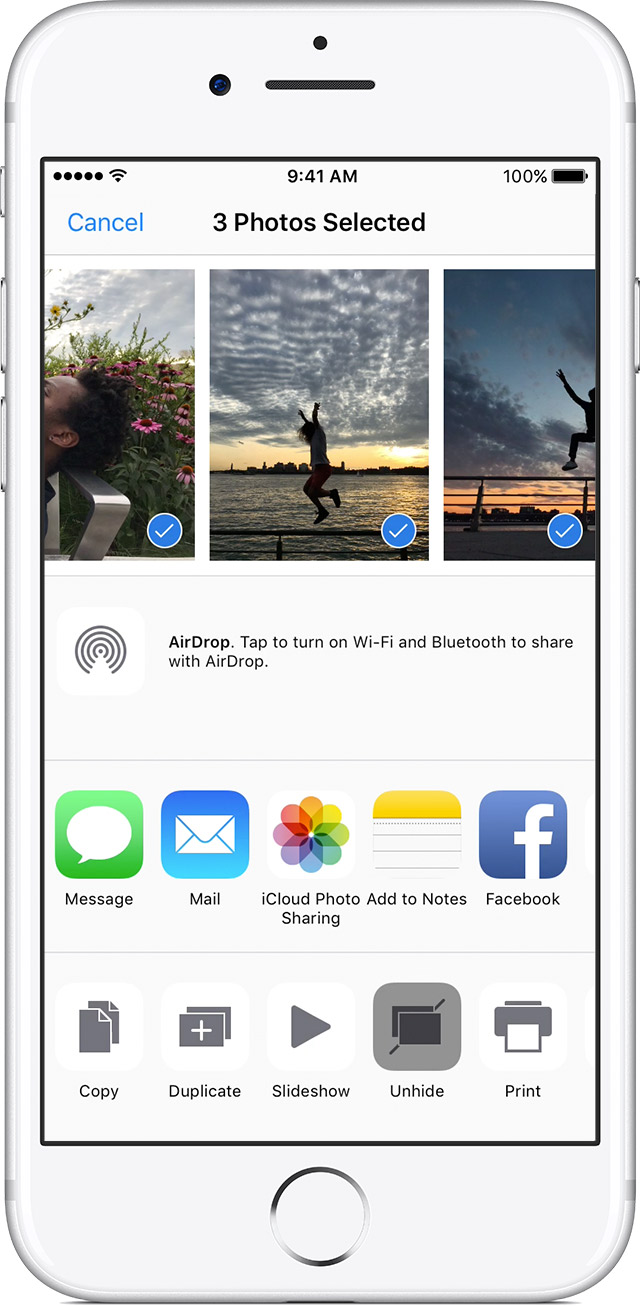
If you hide your photos and videos in your Moments, Years, and Collections view, then you'll only see them in your Hidden album. You can unhide your photos and videos from the Hidden album.
On your iPhone, iPad, or iPod touch:
- Open the Photos app and go to the Albums tab.
- Tap the Hidden album.
- Select the photo or video that you want to unhide.
- Tap
 > Unhide.
On your Mac:
- Open Photos and in the menu bar, click View > Show Hidden Photo Album.
- Open Albums view, then open the Hidden Photos Album.
- Select the photo or video that you want to unhide.
- Control-click the photo.
- Click Unhide Photo.
If you use iCloud Photo Library, the photos that you hide on one device are hidden on your other devices too.
If you just turned on iCloud Photo Library for the first time after the update, there's an important step you can try here, found in the resource titled
Get help with iCloud Photos
:
You can see if a photo or video has uploaded to iCloud when you open the Photos app and view your library in Moments. Your upload status is at the bottom of the menu. You can also find photos and videos from your Photos Library that haven't been uploaded to iCloud in a smart album on your Mac.
I hope the information I've provided helps to locate your photos.
Take care.


